Looking to download QuickBooks Desktop for your computer? Before you start, it’s important to choose the correct QuickBooks Desktop version and make sure your computer meets the necessary requirements.
The download process is straightforward, but the steps can vary depending on whether you’re installing QuickBooks Desktop for the first time, reinstalling it on an existing computer, or moving it to a new one.
In this guide, you’ll learn where to download QuickBooks Desktop, what you need before starting, how to install it, and what to do if the Download or installation doesn’t work as expected.
Downloading QuickBooks Desktop is the first step before installing and setting up the software on your computer. Whether you’re installing it for the first time or moving your existing QuickBooks setup to another computer, it’s important to download the correct product and version.
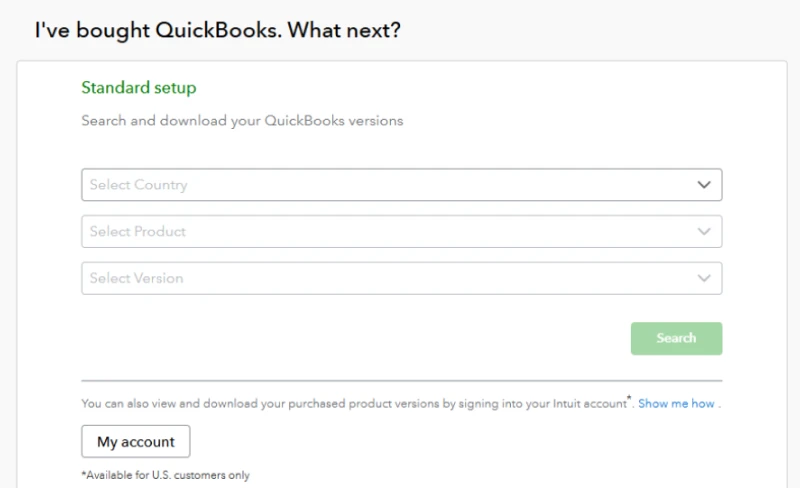
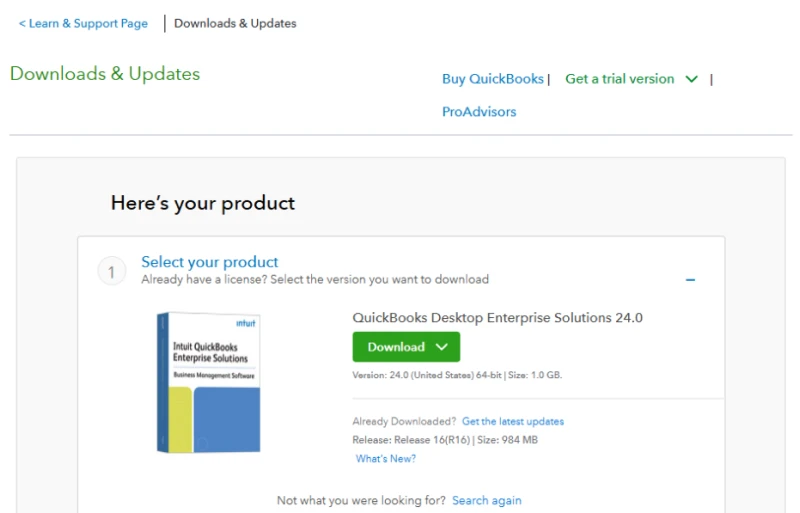
Before you begin, make sure you know which QuickBooks Desktop version you need and have your license and product numbers available. Intuit provides the Download through its Downloads & Updates page, where you can select your country, product, and version.
Follow these steps to download QuickBooks Desktop:
Tip: Before Install QuickBooks Desktop, keep your license and product numbers handy. You may need them during the setup process.
| QuickBooks United States (US) Latest Version | QuickBooks Canada (CA) | Latest Version | QuickBooks United Kingdom (UK) | Latest Version |
| QuickBooks Desktop Pro | QuickBooks Desktop Pro | QuickBooks Desktop Pro |
| QuickBooks Desktop Premier | QuickBooks Desktop Premier | QuickBooks Desktop Premier |
| QuickBooks Desktop Accountant | QuickBooks Desktop Accountant | QuickBooks Desktop Accountant |
| QuickBooks Desktop Enterprise | QuickBooks Desktop Enterprise | – |
| QuickBooks Mac Desktop | – | – |
Before you start the Download QuickBooks Desktop , keep a few details ready. This can make the process easier and help you choose the correct version for your business.
Once these details are ready, you can proceed with the Download and Install QuickBooks Desktop.
Before you download and install the QBDT, make sure your computer meets the requirements for your specific version. For QuickBooks Desktop 2024, the main requirements include:
After download QuickBooks Desktop installation file, you can install the software on your computer. Follow the steps below:
If you’re installing QuickBooks on a new computer, make sure you have a backup of your company file so you can restore your business data after installation.
A multi-user setup needs more planning than a standalone installation. Before you download QuickBooks Desktop, decide how your company files will be shared and which computers will need access to the software.
Depending on the setup, you may use a client-server arrangement, a peer-to-peer configuration, or a hosted environment. Intuit recommends contacting an IT professional if you need Help configuring the network. Before installing, you need to decide:
These decisions make the installation process much easier to manage.
If you already use Download QuickBooks Desktop and need to reinstall, update, upgrade, or move the software to another computer, the process is a little different from a first-time installation. Before downloading anything, confirm the QuickBooks product and version you currently use and create a backup of your company file.
For existing users, Intuit provides options to download QuickBooks Desktop version, reinstall the software, update the current version, or move QuickBooks to another computer. Your license and product information may also be required during installation or activation. Choose the option that matches what you need:
Before starting the Download QuickBooks Desktop, keep your license and product numbers available and verify that the new or existing computer meets the requirements for your QuickBooks version.
If QuickBooks Desktop is already installed but isn’t working correctly, reinstalling it can help repair installation-related problems without affecting your company data. Before you Install QuickBooks Desktop again, download the installer for your QuickBooks version and keep your license number available.
If reinstalling doesn’t resolve the problem, you may need to perform a clean installation using the QuickBooks Clean Install Tool.
Before reinstalling, create a backup of your company file, especially if you’re troubleshooting a serious problem or preparing to move QuickBooks to another computer.
Follow these steps:
Moving QuickBooks Desktop to a new computer requires transferring the software and your company data. Before starting, create a backup of your company file and keep your QuickBooks license and product numbers ready.
Look at the steps below to move QuickBooks Desktop:
If you’re not using the Migrator Tool, you can also transfer a backup of your company file and restore it on the new computer. For multi-user setups, you may need to configure the network and shared company-file location separately.
After Download QuickBooks Desktop, you can update it to the latest release for your current version. Before updating, create a recent backup of your company file.
Here are the steps to update QuickBooks Desktop:
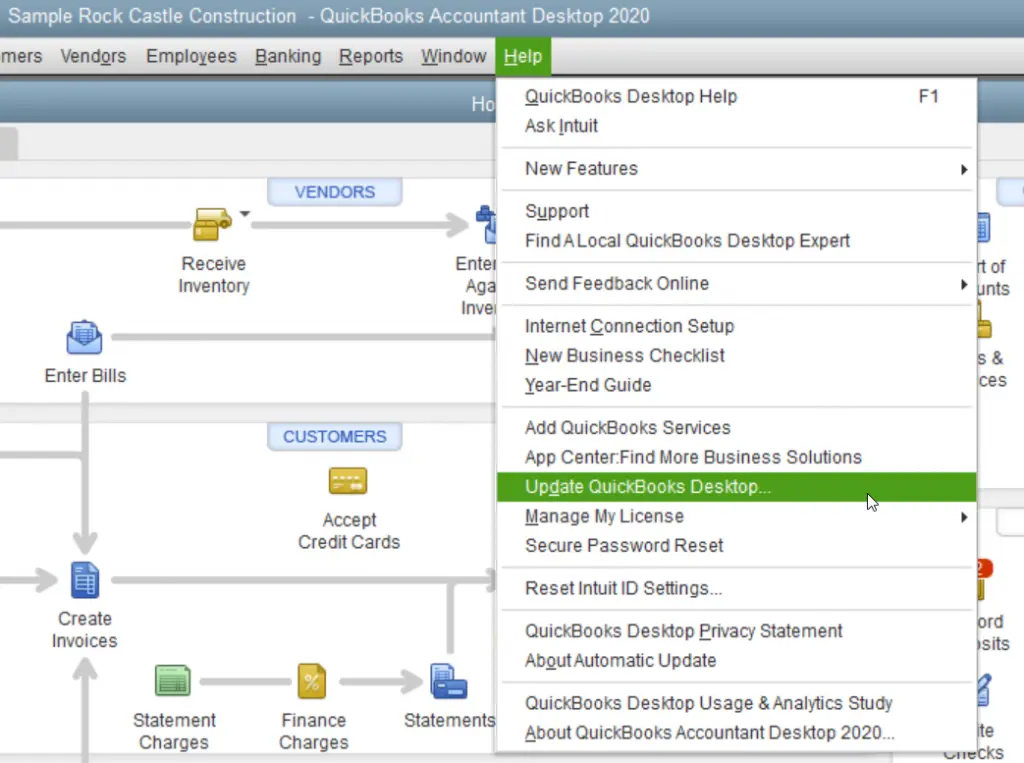
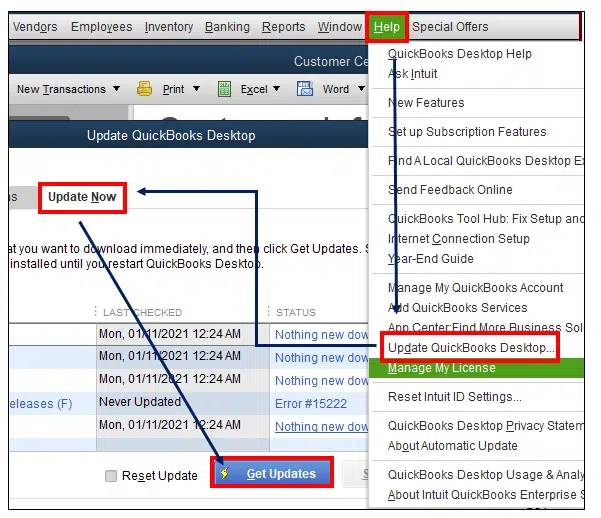
Tip: An update keeps you on the same QuickBooks version. To move to a newer version, you need to upgrade.
Upgrading means moving from your current QuickBooks Desktop version to a newer one. Before upgrading, create a backup of your company file.
Steps to Upgrade QuickBooks Desktop:
Important: Keep your original company file backup after upgrading in case you need to access the previous version.
QuickBooks Desktop may sometimes fail to download or install because of an unstable internet connection, Windows permissions, damaged installation files, or an existing QuickBooks installation.
Here are a few common problems you may face during Install QuickBooks Desktop and quick things you can try:
If you continue to experience download, installation, or program-related problems, the QuickBooks Tool Hub can help you access several troubleshooting tools in one place. Depending on the issue, you may also need the QuickBooks File Doctor to troubleshoot company file and network-related problems.
Once you have Download and Install QuickBooks Desktop, take a few minutes to complete the basic setup before you start working on your accounts.
Once everything looks right, you can start using QuickBooks Desktop for your regular accounting tasks.
Download QuickBooks Desktop doesn’t have to be complicated when you choose the right version and follow the proper installation steps. Whether you’re installing it for the first time, reinstalling it, moving it to another computer, or updating your current version, always back up your company file first.
If you’re searching for Download QuickBooks Desktop, make sure you have your license and product details ready and choose the installation option that matches your setup. With the right preparation, you can install QuickBooks Desktop smoothly and get back to managing your business finances. If you are still looking for further assistance, you can reach out to the Data Service Team live specialists at +1(888)-718-7888.
Go to the QuickBooks Desktop Downloads & Updates page, select your country, product, and version, then select Search and Download. Save the installation file and run it when the Download is complete.
You should know your QuickBooks product, version/year, and country. If you’re reinstalling or activating the software, keep your license and product numbers available.
You may find these details in your Intuit account, purchase confirmation email, original product packaging, or other product records. If you have already registered QuickBooks, you may also be able to use Intuit’s license lookup option.
The available versions depend on what Intuit currently provides for Download and your product or subscription. Select your product and year on the Downloads & Updates page to see the available installer.
Availability for older or discontinued versions can vary. Before downloading one, check whether the version is still available and supported, and make sure it is compatible with your computer.
The availability of QuickBooks Desktop editions depends on Intuit’s current product offerings and your existing subscription or license. Select the appropriate product when checking the available downloads.
Downloading an installation file and having a license or subscription are separate things. Depending on the QuickBooks Desktop product you’re using, you may need an active subscription or valid license to use and activate the software.
Download the correct QuickBooks Desktop version, install it on the new computer, and then transfer or restore your company file. If you’re moving from an old computer, create a backup first and use the appropriate migration method.
Check your internet connection, restart the computer, and make sure you have the required Windows permissions. If the problem continues, note the exact error message and use the appropriate QuickBooks troubleshooting tool rather than repeatedly reinstalling the software.




