QuickBooks-Error-6155

QuickBooks Error 6155 can come when you try to open your company file, and QuickBooks is unable to access it. You may also see a message saying, “We’re sorry. QuickBooks encountered a problem when opening the company file.”
There are a few possible reasons behind the error. The company file could be damaged, QuickBooks may not be installed correctly, or the file might be saved in a location that QuickBooks is having trouble accessing. An outdated QuickBooks version can also cause this problem.
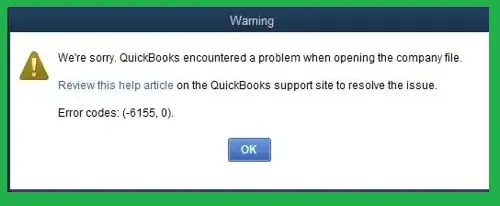
QuickBooks Error 6155

The good news is that you can check a few things on your own before looking for further assistance. The methods below cover the most common ways to troubleshoot the QuickBooks Error 6155, 0.

Why Does QuickBooks Error 6155, 0 Occur?

QuickBooks Error 6155 appears when the software can’t open your company file as expected. This can happen because of an issue with the file, the QuickBooks program, or the location where the file is saved. Have a look at the situations below that may lead to this error:

  • Damaged Company File: Having a problem with the .QBW file can stop QuickBooks from opening it normally.
  • Outdated QuickBooks Program: Using an older version of QuickBooks can also create compatibility or program-related issues that affect company file access.
  • Incomplete Installation: If QuickBooks wasn’t installed correctly, some program components may not work as expected.
  • File Moved or Missing: QuickBooks may be looking for the company file in a location where it no longer exists.
  • Network or Shared Storage: Opening a company file from a network location can cause access problems if the setup isn’t configured properly.
  • Cloud File-Sharing Services: Storing or accessing the active company file through services such as Dropbox or Google Drive can interfere with how QuickBooks handles the file.
  • Encryption or Compression: A company file that has been encrypted or compressed may not open correctly in QuickBooks.

Easy Solutions to Fix QuickBooks Error 6155, 0

Below are some of the most effective solutions you can try each solution in order, and check the file after completing a step.

Solution 1: Update Your QuickBooks Desktop

Before trying anything complicated, check whether your QuickBooks Desktop is up to date. The latest Update can fix the QuickBooks Error 6155, 0 that are stopping the company file from opening.
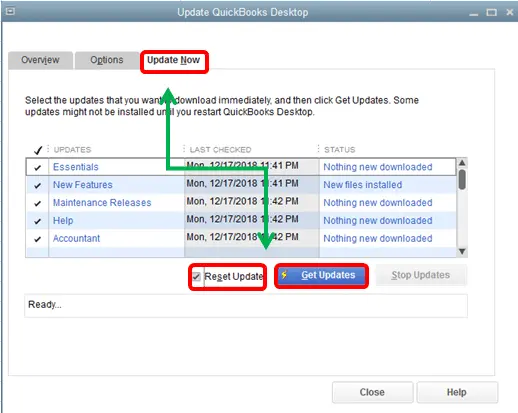
  • Open QuickBooks Desktop. If your company file doesn’t open, stay on the No Company Open screen.
  • Click Help at the top and select Update QuickBooks Desktop.
  • Open the Update Now tab and select Reset Update if you want QuickBooks to start with a fresh update.
  • Click Get Updates and wait for QuickBooks to finish downloading the available updates.
Update-QuickBooks-desktop
  • Close QuickBooks once the Update is complete, then open it again.
  • If you’re asked to install the downloaded Update, select Yes and let the installation finish.
  • Now try opening your company file again and check whether QuickBooks Error 6155, 0 still appears.

Solution 2: Run QuickBooks File Doctor

If updating QuickBooks doesn’t help, the next thing to check is the company file itself. QuickBooks File Doctor can look for common problems with the file and its network connection.
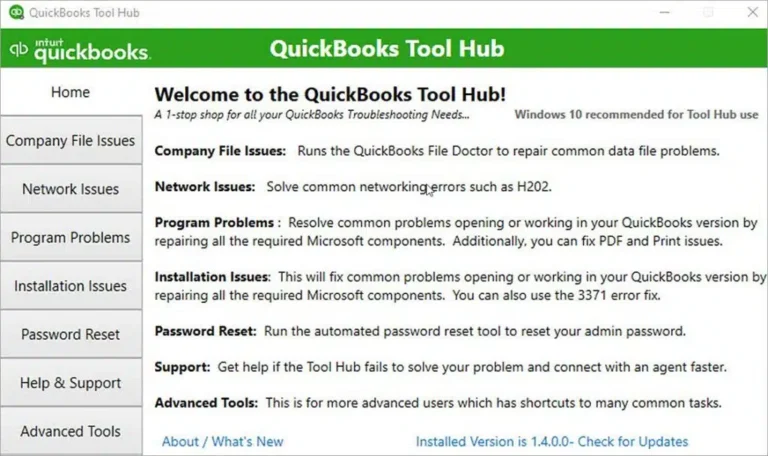
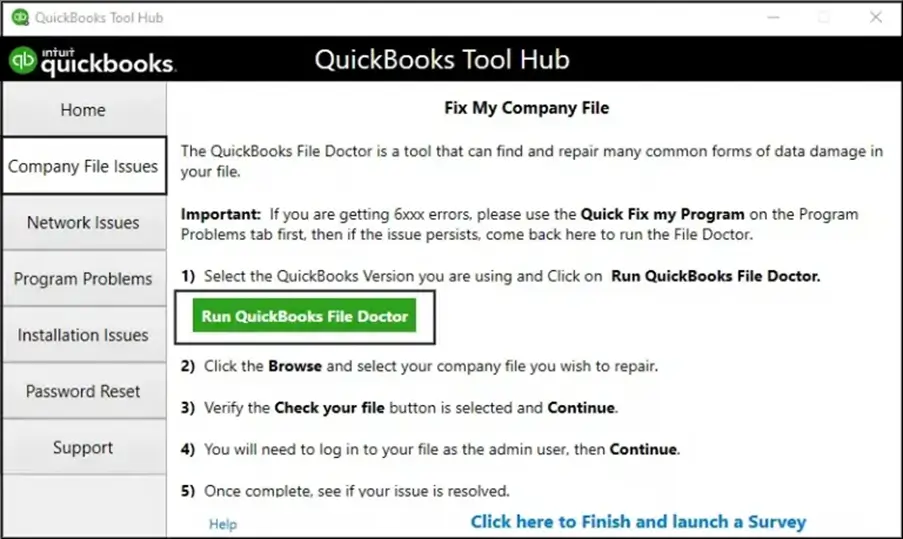
QuickBooks-Tool-Hub-Home
run-quickbooks-file-doctor
  • Select the company file that’s giving you the error. Can’t find it? Click Browse and Search and locate the .QBW file yourself.
  • Choose Check your File and select Continue.
  • Enter your QuickBooks admin password when prompted, then click Next.
  • Let File Doctor finish checking the file. Depending on the size of your company file, this may take some time.
  • Once it’s done, open QuickBooks and try the company file again.

Solution 3 – Copy the Company File to the Desktop

Still getting the QuickBooks error 6155? Try opening a copy of the company file from your desktop. This helps determine whether the problem is with the File itself or the folder where it is currently saved.
  • Go to the folder where your company file is stored and find the file ending in .QBW.
  • Right-click the File and choose Copy.
  • Go to your desktop, right-click an empty area, and select Paste.
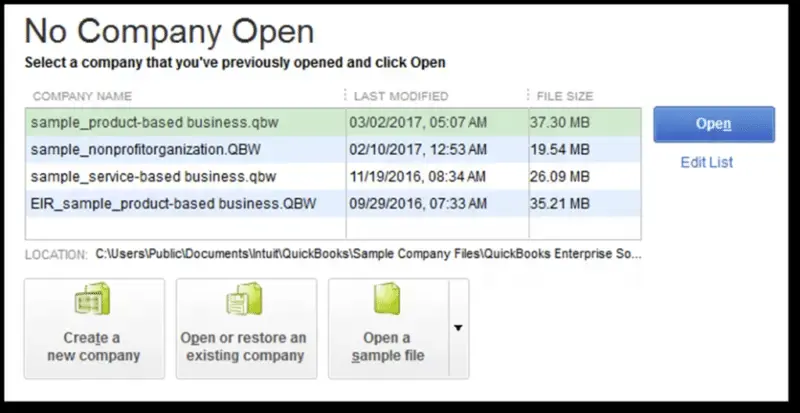
  • Hold the Ctrl key while opening QuickBooks Desktop. Keep holding it until the No Company Open window appears.
no-company-open
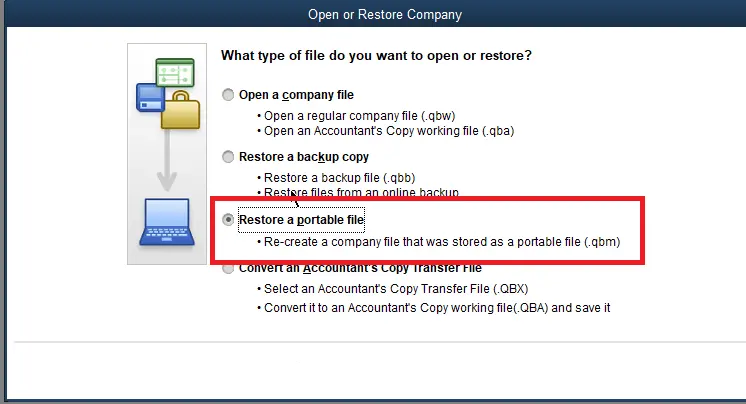
  • Select Open or Restore an Existing Company.
Open or Restore an Existing Company
  • Browse to the Copy you placed on the desktop and open it.
  • If the file opens normally, the original folder or file location may be causing the problem. If QuickBooks cannot locate the company file, see QuickBooks Company File Not Found for additional troubleshooting.

Solution 4: Repair QuickBooks Installation

If the company file opens on another computer but not on yours, the QuickBooks installation may be the problem. You can use the QuickBooks Tool Hub to check and repair common program issues.

  • Close QuickBooks Desktop if it is running.
  • Open QuickBooks Tool Hub.
  • Select Installation Issues from the left menu.
  • Click QuickBooks Program Diagnostic Tool.
  • Let the tool run its checks. It can take a while, so don’t close it while the process is running.
  • When the tool finishes, restart your computer.
  • Open QuickBooks Desktop and try opening the company file again.

If Error 6155 in QuickBooks Desktop is still showing, move on to the next solution to fix this.

Solution 5: Check the Company File Location

If the company file is saved on a network drive, shared folder, or another location where QuickBooks is not connecting to the server properly, you may see Error 6155, 0. Try opening a copy from a simple local folder first.

  • Find the folder where your .QBW company file is saved.
  • Right-click the company file and select Copy.
  • Create a new folder on your computer, preferably somewhere easy to find, such as the desktop.
  • Paste the company file into that folder.
  • Open QuickBooks Desktop and select Open or Restore an Existing Company.
  • Browse to the new folder and open the copied company file.
  • If it opens without the error, the original location may be causing the problem.

If you’re using QuickBooks in a multi-user Mode, don’t move the original company file permanently without checking the setup first.

Solution 6: Reinstall QuickBooks Desktop

If the previous fixes haven’t worked, the QuickBooks installation itself may need to be repaired. Reinstalling the program gives you a fresh installation without affecting your company file, as long as you don’t delete the company file during the process.
  • Close QuickBooks Desktop and any other QuickBooks-related programs.
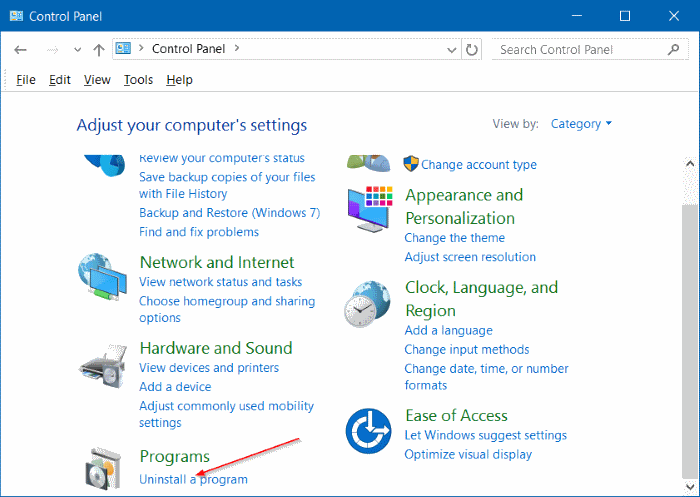
  • Open the Windows Start menu and search for Control Panel.
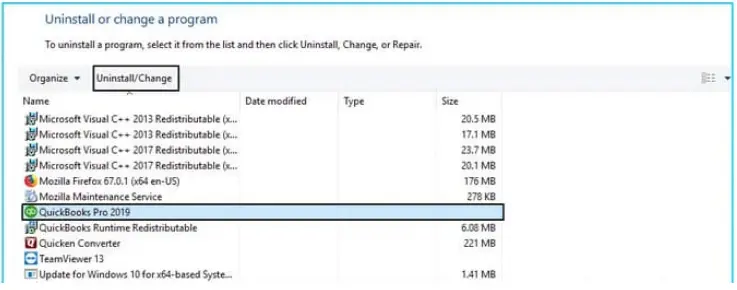
  • Select Programs and Features or Uninstall a Program.
control-panel-uninstall-program
  • Find your QuickBooks Desktop version in the list.
  • Select it and click Uninstall/Change.
uninstall-or-change-a-program
  • Follow the instructions on the screen to remove QuickBooks.
  • Once QuickBooks is uninstalled, install QuickBooks Desktop using the correct installation file for your QuickBooks Desktop version.
  • Run the installer and follow the on-screen instructions.
  • Enter your QuickBooks license and product numbers when asked.
  • After the installation finishes, open QuickBooks and try opening your company file again.

Important: Don’t delete your .QBW, .QBB, .ND, or .TLG files while uninstalling QuickBooks. These files contain or support your company data.

Solution 7: Check the Company File for Data Damage

If QuickBooks itself is opening normally but one particular company file won’t open, the file may have some data damage. You can also review QuickBooks Error 6123, 0, another company-file access error, for related troubleshooting steps. In that case, use the Verify Data and Rebuild Data utilities in QuickBooks.
  • Open QuickBooks Desktop and sign in to the company file if you can.
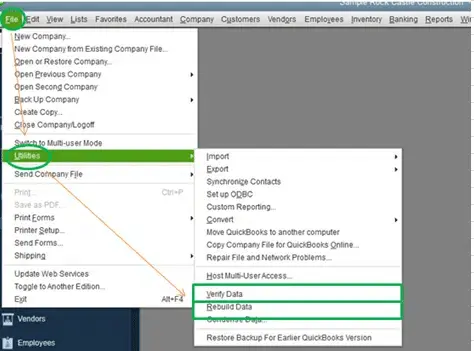
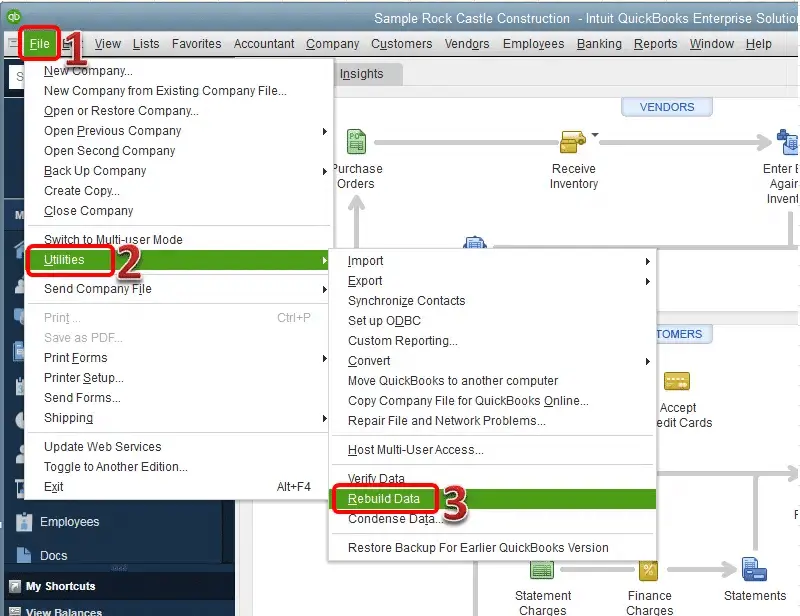
  • From the File menu, select Utilities.
  • Choose Verify Data and let QuickBooks check the File.
Verifying-the-Data-or-Rebuild-Data
  • If QuickBooks says there is no problem with the data, try opening the File again.
  • If QuickBooks reports that the data has lost its integrity, go back to File, select Utilities, and select Rebuild Data.
Rebuild-data-utilities
  • QuickBooks may ask you to create a backup before rebuilding. Create the backup and continue.
  • Follow the instructions on the screen and wait until the rebuild is finished.
  • Run Verify Data again to make sure the problem has been cleared.
  • Close and reopen QuickBooks, then check the company file again.

Solution 8: Check the Company File Name and Path

If the company file is saved in a complicated folder path or has a long file name, QuickBooks may have trouble opening it. Try moving a copy of the File to a simple folder and rename it with a short name.

  • Open the folder where the .QBW company file is saved.
  • Right-click on the company file and select Copy.
  • Create a new folder in an easy-to-access location on your computer.
  • Open the new folder, right-click an empty area, and select Paste.
  • Right-click the copied company file and select Rename.
  • Give the File a short name and avoid using unnecessary special characters.
  • Open the QuickBooks program and select Open or Restore an Existing Company.
  • Browse to the new folder and select the copied .QBW file.
  • Try opening the company file and check whether QuickBooks error 6155 still appears.

Which QuickBooks Error 6155, 0 Solution Should You Try First?

The right troubleshooting method depends on what happens when you try to open the company file. Use the situations below to choose where to start:

What you’re experiencingWhat to try first
QuickBooks program is outdatedUpdate QuickBooks Desktop
Only one company file won’t openCopy the .QBW file to a local folder and test it
QuickBooks detects a company-file problemRun QuickBooks File Doctor
The company file opens but reports data damageRun Verify Data and Rebuild Data
The file works from another locationCheck the original file path and folder access
The problem occurs in a multi-user setupCheck the network location and sharing configuration
QuickBooks itself is having program issuesRepair the QuickBooks installation
The company file still won’t open after troubleshootingConsider restoring a recent backup or contacting QuickBooks Support

How to Prevent QuickBooks Error 6155, 0?

Although QuickBooks Error 6155, 0 can occur for different reasons, a few regular maintenance practices can help you reduce the chances of company file access problems.

  • Install available updates to keep the program compatible with supported Windows components and QuickBooks services.
  • Regularly take a backup of your company file, so you have a recovery option if the company file becomes damaged or inaccessible.
  • Store the active .QBW file in a location appropriate for your QuickBooks setup rather than an unsupported cloud-sync folder.
  • Don’t rename, move, delete, compress, or encrypt QuickBooks company files unless you’re following a specific troubleshooting or setup procedure.
  • If you use QuickBooks in multi-user mode, make sure the hosting computer, shared folder, and network connection remain properly configured.
  • Ensure your computer has sufficient storage for QuickBooks updates, temporary files, and company-file backups.
  • Don’t just create backups; periodically check that important backup files are available and can be restored when needed.

Conclusion!

The QuickBooks error 6155 can stop you from opening the company file when you need it most. The good news is that you can often identify the cause by checking the File, its location, and the QuickBooks program.

Start with the basic troubleshooting steps and move to advanced options only if the error continues. Always keep a backup of your company file before making any changes.

If the problem still is not resolved, restoring a recent backup or getting Help from the Data Service Team experts at +1(888)-718-7888 can help you regain access to your company file safely.

Frequently Asked Questions (FAQ’s)

You can start by updating QuickBooks, checking the company file location, and testing a copy of the .QBW file from a local folder. If the issue continues, try QuickBooks File Doctor, repair the QuickBooks installation, or check the company file for data damage.

Yes. If QuickBooks cannot properly access or read the company file, it may show Error 6155, 0. Testing a copy of the File and using File Doctor can help determine whether the company file is causing the problem.

Copy the .QBW file to a simple local folder and try opening it from there. If the Copy opens normally, the original folder, network location, or file path may be contributing to the issue.

They can sometimes prevent QuickBooks from accessing the company file correctly. Check that you have the required access to the File and its folder, especially if the File is stored on a shared or network location.

Error 6155, 0 mainly affects QuickBooks’ ability to open or access the company file. It does not automatically mean that your financial data has been lost or permanently damaged.

First, check whether the File was moved to a supported location and whether QuickBooks can access that folder. You can also test a copy of the File from a simple local folder. If the restored File still won’t open, try another reliable backup if one is available.

Keep the QuickBooks program updated and maintain regular company file backups. Also, use an appropriate file location, avoid unnecessary changes to QuickBooks files, and keep your network setup properly configured if you use multi-user mode.

Avoid making changes when you don’t have a recent backup or when you’re unsure what a particular file or setting does. Keep the original .QBW File safe and work with a copy whenever possible while testing troubleshooting steps.

About The Author

Steven Moody

Steven Moody is a bookkeeping and payroll specialist dedicated to helping businesses maintain accurate financial records and efficient payroll operations. His expertise includes payroll management, tax compliance, bookkeeping solutions, and financial reporting. Steven regularly shares insights on accounting best practices and business finance strategies. Outside of work, he enjoys traveling, exploring new places, and keeping up with the latest developments in business technology.

Steven Moody

QuickBooks

QuickBooks Messy Books Cleanup: Fix and Organize Your Books

Read More
QuickBooks

QuickBooks Tax Season Cleanup: Get Your Books Ready

Read More
QuickBooks

QuickBooks Online Payroll Not Working: How to Fix It

Read More
QuickBooks Error

QuickBooks Error PS060: Why It Happens and How to Fix It

Read More
QuickBooks Error

QuickBooks Error 6073, 99001: Why It Happens and How to Fix It

Read More
