QuickBooks-Error-6123

Intuit QuickBooks is one of the most reliable accounting software solutions for businesses worldwide. It is useful in tracking daily expenses, ,managing payroll and providing multi-user access. Technically, it serves as the backbone for financial data management. Like other database-driven applications, QuickBooks also happens to trigger technical glitches and company file errors. Among the various technical errors, users face QuickBooks Error 6123, 0 most frequently.
QuickBooks-Error-6123

In this detailed blog guide, we have stated everything one needs to know to keep the workflow on track. From root causes to strategic solutions, have a look at it.

What is QuickBooks Error 6123, 0?

QuickBooks Company File Error 6123, 0 is an operational error that generally occurs when a user tries to open, restore, or upgrade a company file (.QBW) or restore a backup file (.QBB) across a network or on a local machine.

This error code shows that QuickBooks Desktop is unable to establish or maintain a stable connection with the company file or its hosting server. This can also be caused by network security blockages, corrupted network configuration files, damaged data files or misconfigured hosting parameters on server machines.

What are the Symptoms of QuickBooks Error 6123?

Identifying QuickBooks Error -6123, 0 early helps prevent accidental data corruption. Key symptoms include:

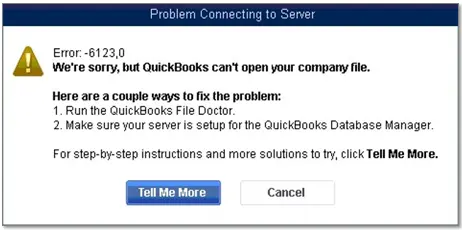
  • Inability to Open File: You attempt to open your primary company file, but displays the QuickBooks Error 6123, 0 dialog box instead.
  • Failed Backup Restores: Attempting to restore a backup (.QBB) or portable file (.QBM) results in an immediate freeze or crash followed by the error message.
  • Network Disconnection: Workstation computers suddenly lose connection to the host server during multi-user operations.
  • Unresponsive System/ Lags: The QuickBooks application runs significantly slower than usual, becomes unresponsive, or crashes when switching between windows.
  • Windows Error Messages: Windows displays warning dialogs indicating that background services such as QBDBMgrN have stopped unexpectedly.

What are the Causes of QuickBooks Error 6123?

Knowing why this error is triggered is important for choosing the right troubleshooting method. Common causes include:

  • Damaged Network Configuration Files: Network configuration (.ND) and Transaction Log (.TLG) files help QuickBooks locate and synchronize company data. If these become corrupt, connection errors arise.
  • Restoring Backups Across Networks: Attempting to restore a backup file directly over a network share, mapped drive or cloud storage path rather than local storage.
  • Firewall or Security Software Blocks: Overly aggressive Windows Defender or third-party firewall/antivirus settings blocking QuickBooks background processes.
  • Incorrect Hosting Multi-User Access Settings: Multiple workstation computers configured to host the company file simultaneously, causing IP conflict and host confusion.
  • Corrupted Windows User Account: A damaged or restricted Windows Admin user account preventing proper permissions from being granted to QuickBooks files.
  • Damaged QuickBooks Company Data: Logical data damage inside the .QBW file preventing normal file structure.
  • Broken Database Server Manager: The QuickBooks Database Server Manager service on the host computer is either outdated or has stopped running.

How to Fix QuickBooks Desktop Error -6123, 0?

Here are some comprehensive solutions to resolve QuickBooks Error 6123, 0. Follow them in order until your company file opens smoothly.

Solution 1: Run QuickBooks Fix My Program from QB Tool Hub

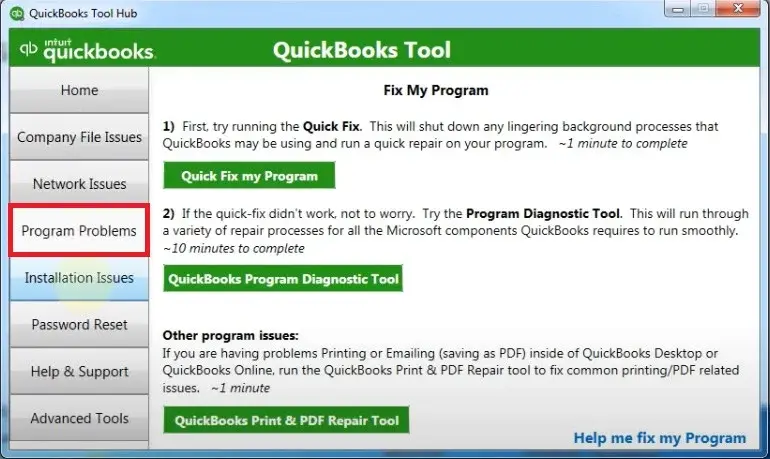
The QuickFix My Program tool closes background QuickBooks tasks and repairs internal program files that might be blocking access.
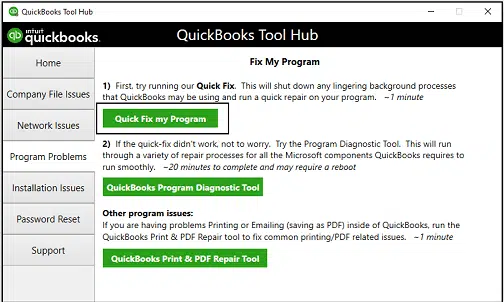
quickbooks-program-problems
  • Click on Quick Fix My Program.
Run-Quick-Fix-My-Program
  • Wait for the repair process to run.
  • Reopen QuickBooks Desktop and attempt to open your company file.

Solution 2: Run QuickBooks File Doctor to Fix Data Issues

If your company file has minor structural corruption, the built-in QuickBooks File Doctor utility can diagnose and repair it automatically.
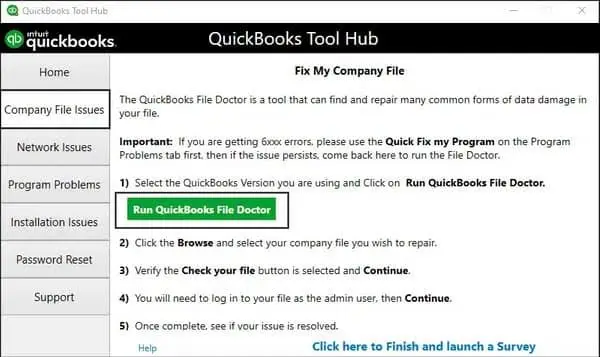
  • Open the QuickBooks Tool Hub.
  • Select the Company File Issues tab on the left menu.
Company-File-Issues-run-Quickbooks-file-docotor
  • Click on Run QuickBooks File Doctor.
  • In the File Doctor utility, select your company file from the drop-down list. If you don’t see it, click Browse to locate it manually.
  • Select the Check your file and network option.
  • Click Continue.
  • Type your QuickBooks Admin password when prompted and click Next.
  • Allow the repair scan to complete. Once finished, launch QuickBooks and open the company file.

Solution 3: Restore the Backup Using the Portable Company File

This avoids network path restrictions and disrupted temporary links causing QuickBooks Error 6123,0 .
  • Access QuickBooks Desktop where the company file is located.
  • Log in as the QuickBooks Admin.
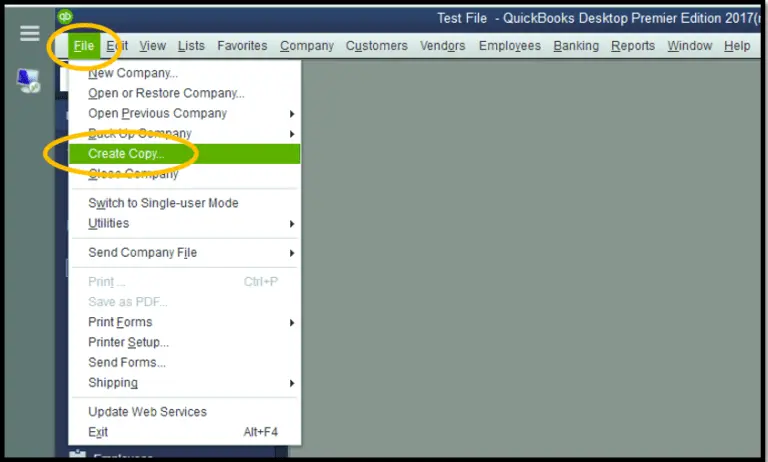
  • Go to the File menu at the top left and select Create Copy.
Create-Portable-Company-File
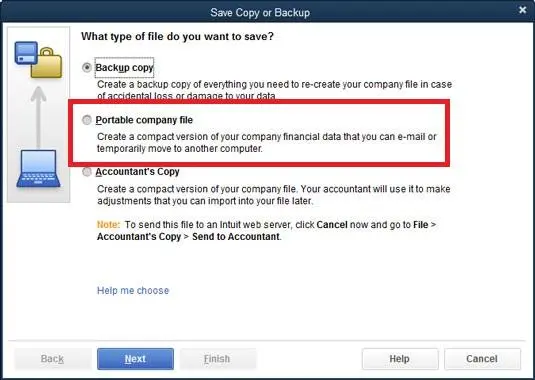
  • Choose Portable company file (.QBM) and click Next.
Portable Company File
  • Now, choose a local directory to save the file.
  • Click Save and then click OK when the confirmation pop-up appears.
  • Transfer the .QBM file to the target computer using a local drive.
  • Open QuickBooks Desktop.
  • On the No Company Open screen, select Open or Restore an Existing File.
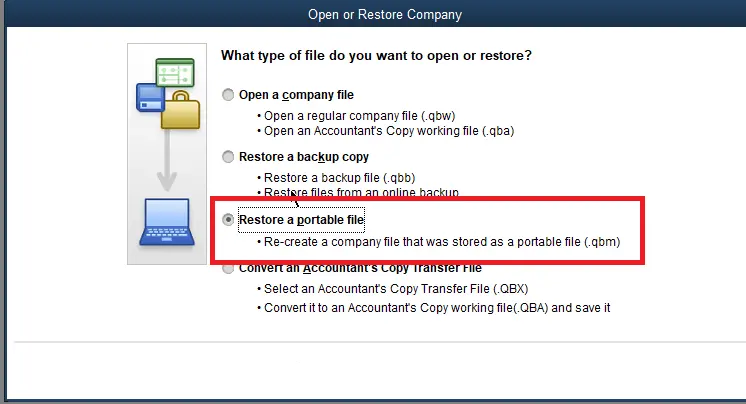
  • Select Restore a portable file (.QBM) and click Next.
Restore-a-Company-File
  • Browse to locate the .QBM file you created and click Open.
  • Select the local folder where you want to save the restored company file (.QBW).
  • Click Save. QuickBooks will restore the file and open it.

Case 1: If QuickBooks Error 6123,0 occurs while restoring your company file (.QBW).

  • Launch QuickBooks Desktop on the host device.
  • Select Open or Restore an Existing File from the No Company Open screen.
  • Select Open a company file (.QBW) and click Next.
  • Browse to your company file location. Make sure it is stored locally on the C:\ drive.
  • Select the file and click Open.

Case 2: If QuickBooks Error 6123,0 occurs while restoring a backup (.QBB) on a new computer.

  • Open QuickBooks and log into your company file.
  • Go to the File menu and choose Create Copy.
  • Choose Portable company file (.QBM) and click Next.
  • Save the portable file to an accessible flash drive or local directory.
  • Move the portable file to the new computer’s local hard drive.
  • Launch QuickBooks on the new computer. Go to File > Open or Restore Company, select Restore a portable file (.QBM) and follow the prompts to restore it.

Solution 4: Transfer the Company File to Local Storage

  • Shut down QuickBooks.
  • Now, go to the network path where your .QBW or .QBB file is stored.
  • Right-click the file and select Copy.
  • Go to your computer’s local folder.
  • Right-click inside the local folder and select Paste.
  • Launch QuickBooks, browse to the local folder and open or restore the file from there.

Solution 5: Check Hosting Settings

In a multi-user environment, only the host computer/server needs to be turned on for hosting purposes. Workstations need to be turned off for hosting.

On Workstation Computers:

  • Open QuickBooks Desktop on a workstation.
  • Do not open your company file. Stay on the No Company Open screen.
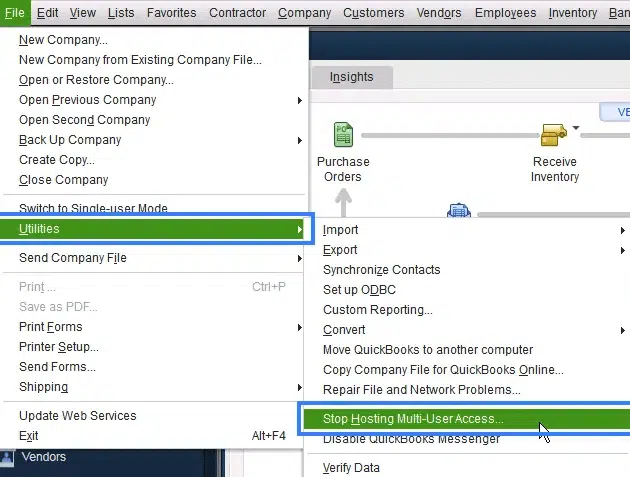
  • Go to the File menu at the top left and select Utilities.
  • If you see Host Multi-User Access, do not click it. This workstation is correctly configured. If you see Stop Hosting Multi-User Access, click it to turn hosting OFF on this workstation.
  • Repeat this process for every workstation experiencing the issue.

Note: If QuickBooks Multi-User Mode Not Working, users may face connection issues when accessing company files. Learn effective troubleshooting steps to restore multi-user access.
On the Host/Server Computer:

  • Open QuickBooks on the host server.
  • Go to File > Utilities.
  • Ensure it shows Stop Hosting Multi-User Access (meaning hosting is currently ON). If it says Host Multi-User Access, click it to turn hosting ON on the server.
Stop-Hosting-Multi-User-Access.png

Solution 6: Run the QB Connection Diagnostic Tool

In case the network setup issues continue on multi-user configurations, use the built-in diagnostic tool to locate broken server paths.

  • Access the QuickBooks Tool Hub.
  • Go to the Network Issues tab.
  • Click on QuickBooks Connection Diagnostic Tool.
  • Click Browse and select your company file (.QBW).
  • Click Test Connectivity.
  • If any network status checks display FAIL (Red), the tool will offer automated fixes. Apply the suggested network repairs and retry accessing the file.

Solution 7: Find and Rename Damaged .ND and .TLG Files

Error Code 6123 in QuickBooks Desktop occurs if these files are damaged. Rename them to generate new copies.

  • Close QuickBooks on all computers.
  • Go to File Explorer and open the directory holding your company file.
  • Locate files sharing your company file’s name with .ND and .TLG extensions.
  • Right-click the .ND file and select Rename. Add .OLD to the end of the file name.
  • Right-click the .TLG file and rename it while adding .OLD at the end.
  • Now reopen QuickBooks Desktop and open the company file. QuickBooks will automatically generate fresh .ND and .TLG files.

How to Prevent QuickBooks Error 6123?

It is better to prevent the error so that next time you won’t have to waste your time fixing recurring issues. Implement these best practices to keep QuickBooks healthy:

  • Update the Software: Always update QuickBooks Desktop to the latest release.
  • Configure Hosting Carefully: Ensure that only the designated server machine runs Database Server Manager with hosting enabled.
  • Maintain Local File Transfers: Never restore, convert or rebuild company files across active network folders, mapped drives or cloud-synced folders. Always copy files locally first.
  • Regular File Maintenance: Use the Verify Data and Rebuild Data utilities periodically to fix structural data issues early.
  • Maintain Dedicated Antivirus Exclusions: Regularly update security software rules so that QuickBooks executable files and ports stay allowed after major Windows updates.
  • Use Reliable Storage: Avoid running company files on removable USB drives or unreliable wireless connections. Use wired Ethernet connections for workstation-to-server networks.

Conclusion!

QuickBooks Error 6123, 0 can be frustrating because it directly blocks access to the important data. Make sure to identify the actual cause, whatever it is. Follow the suitable solutions outlined in this handbook, starting with the QuickBooks Tool Hub and moving through network adjustments. Now that you know what you should be aware of, go and restore safe access to your accounting system.

Need any assistance regarding QuickBooks Company File Error 6123, 0? Reach out to our Data Service Team experts at +1(888)-718-7888 for easy restoration to get your accounting back on track now.

Frequently Asked Questions (FAQ’s)

Yes. In fact, multi-user setup issues are one of the direct triggers for this error. Error 6123 mostly occurs when network communication breaks between workstation computers and the host server, or if a workstation accidentally has hosting enabled along with the host server.

Yes. Security software and Windows Defender Firewall detect QuickBooks processes as unknown network traffic. If your firewall or antivirus stops such processes or blocks the ports for database connection, QuickBooks cannot open the file and gives an error 6123.

Updating the software will update the path and the database. If this process faces network interruptions, permission restrictions or damaged .ND/.TLG configuration files, it will throw Error 6123.

Before moving your file, ensure you check the Storage Location, Portable File Creation, Software Version and Hosting Permissions.

Error 6123 indicates a broken network connection, server-client sync failure, or issue while restoring/upgrading a company backup file across a network. While Error 6000 Series points directly to company file structural corruption, folder permission restrictions or an attempt to open a file stored in an invalid file path format.

No. Because Error 6123 actively prevents QuickBooks from opening or connecting to your company file, you cannot perform daily tasks like invoicing, entering expenses, or running payroll. Also, performing troubleshooting steps like running File Doctor or renaming network files requires QuickBooks to be completely closed.

Intuit officially recommends downloading and using the QuickBooks Tool Hub as the primary diagnostic utility for Error 6123. Built-in tools within the hub, such as Quick Fix My Program, QuickBooks File Doctor, and the Connection Diagnostic Tool, are designed to repair background program glitches, fix damaged network files, and fix company data issues automatically.

About The Author

Steven Moody

Steven Moody is a bookkeeping and payroll specialist dedicated to helping businesses maintain accurate financial records and efficient payroll operations. His expertise includes payroll management, tax compliance, bookkeeping solutions, and financial reporting. Steven regularly shares insights on accounting best practices and business finance strategies. Outside of work, he enjoys traveling, exploring new places, and keeping up with the latest developments in business technology.

Steven Moody

QuickBooks Tool

QuickBooks Administrator Permission Needed Error: Here’s How to Fix It

Read More
QuickBooks

QuickBooks Desktop 2024: Complete Download, Install & Upgrade Guide

Read More
QuickBooks Error

How to Fix QuickBooks Error 15215 While Verifying Digital Signature

Read More
QuickBooks Error

How to Fix QuickBooks Error 1712 When Installing or Updating

Read More
QuickBooks Desktop

WDDM Service Not Running in QuickBooks? How to Fix It Now

Read More