
Unexpected errors can make even simple accounting tasks difficult. If your QuickBooks Desktop suddenly crashes, freezes, or displays an unusual message in Windows Event Viewer, the QuickBooks Event ID 4 error could be the reason. This issue may be related to damaged program files, Microsoft .NET Framework, or other Windows components. Its actual cause can vary depending on the error details.
Here, we’ll explain the common causes of QuickBooks Event ID 4 Error and share simple, step-by-step solutions to help you resolve it.
QuickBooks Event ID 4 Error is an unexpected application issue recorded in Windows Event Viewer when QuickBooks Desktop encounters a problem. Users may experience QuickBooks Event ID 4 when opening QuickBooks, accessing a company file, or using certain features of the software.
You may see messages such as “Returning NULL QBWinInstance Handle” or other unexpected error descriptions. The exact message depends on the issue affecting the application.
There is not one confirmed cause for every Event ID 4 error. Damaged QuickBooks program files, Windows component issues, or installation problems may contribute to similar application errors.
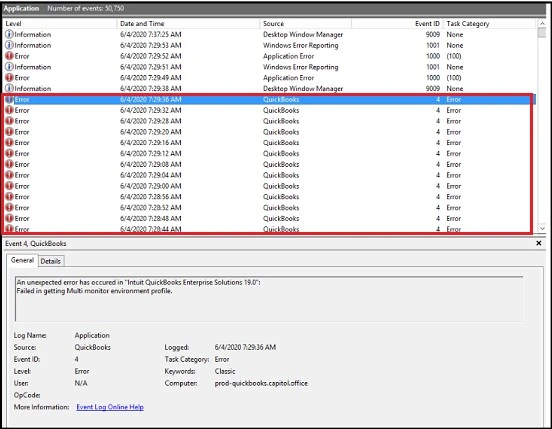
To understand the problem better, you need to check the error details in Windows Event Viewer, including the source, event ID, and description. These details can help you identify which component needs attention.
QuickBooks Desktop depends on Windows components and program files to run properly. If any of these components encounter a problem, the software may crash, freeze, or display an unexpected error.
Here are some possible reasons behind this error:
Before fixing the problem, it is important to understand its common signs. The QuickBooks Event ID 4 error may affect the software in different ways, depending on its underlying cause.
Here are some symptoms you may notice:
Before trying any troubleshooting method, take a few minutes to check the following things:
Before trying the following methods, completely close QuickBooks and take a full backup of your company data if you can access it.
Here are some troubleshooting methods you can try to resolve the issue:
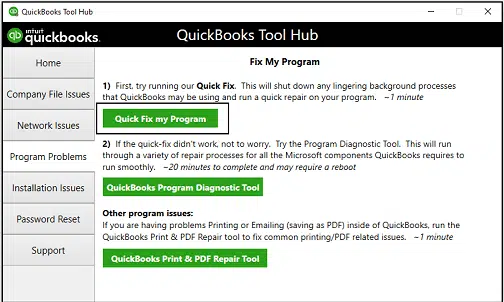
Quick Fix My Program feature closes background QuickBooks processes and repairs common program issues. You can try this method if your QuickBooks freezes, crashes, or fails to open. Here are the steps to follow:
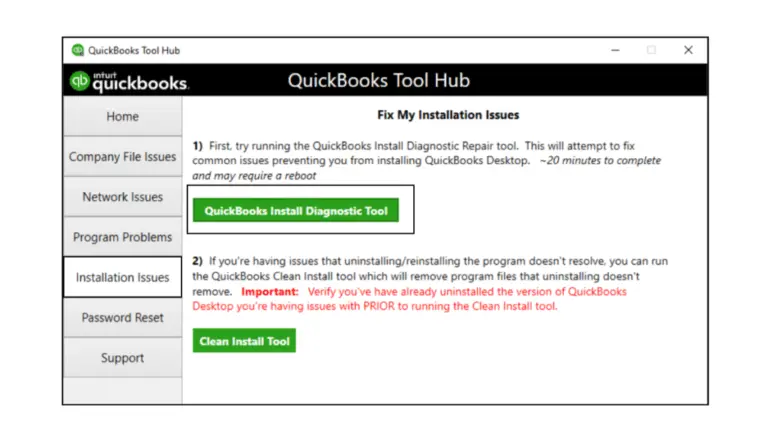
Damaged installation components can prevent QuickBooks Desktop from working correctly. Intuit provides the Install Diagnostic Tool through QuickBooks Tool Hub to identify and repair common installation-related problems. Here’s how to use it:
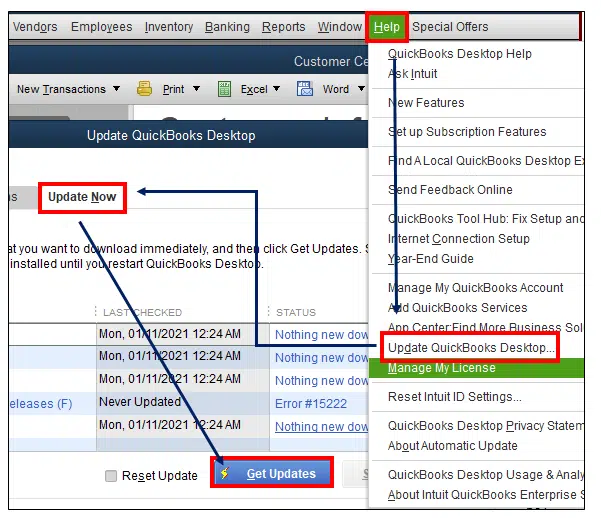
Using an outdated QuickBooks version may leave you without important maintenance updates and product improvements. Updating QuickBooks Desktop can help resolve problems related to older program files. Follow these steps:
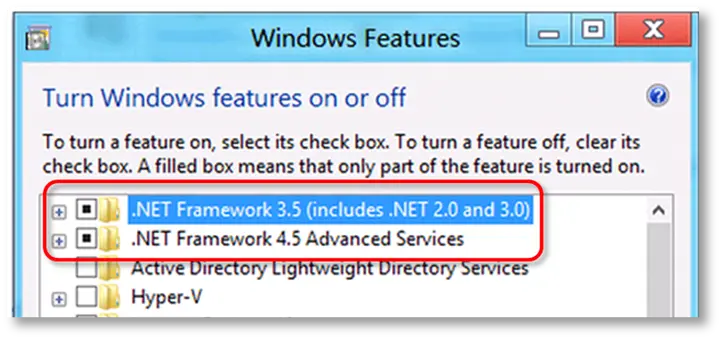
Problems with QuickBooks Event ID 4 .NET Framework components may cause unexpected errors when using QuickBooks Desktop. To check and repair .NET Framework, follow these steps:
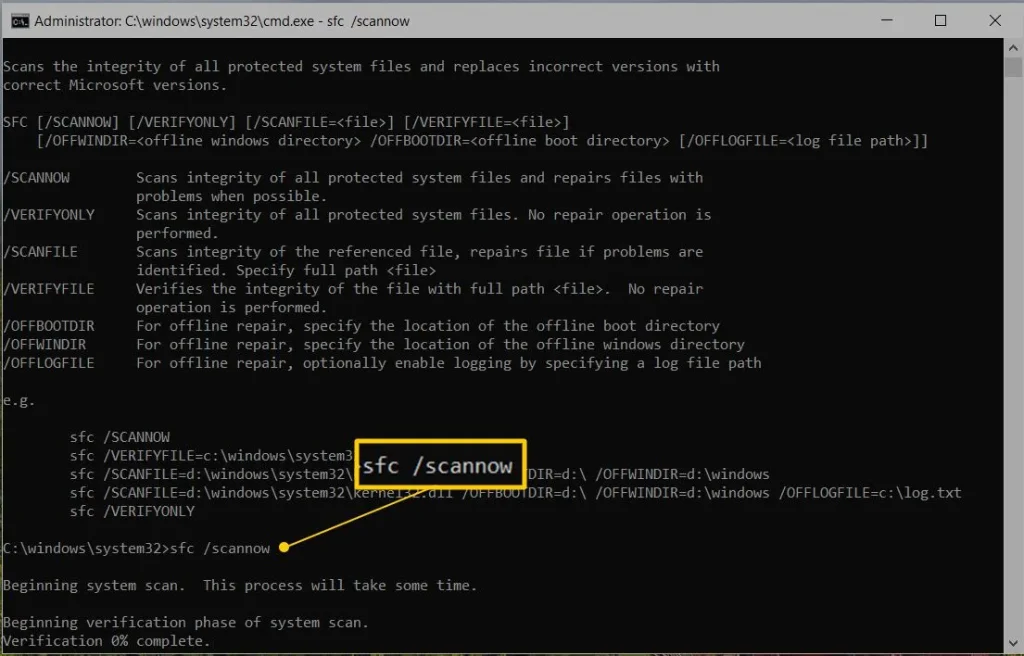
If the problem continues, you can also repair Windows system files.
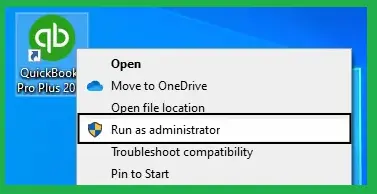
Note: Don’t uninstall or disable .NET Framework without confirming that it is causing the problem. These components are also used by other Windows applications.
Sometimes, a damaged QuickBooks configuration file can create problems when starting the software. Renaming the QBWUSER.INI file allows QuickBooks to create a fresh one. Here’s what you need to do:
If you experience the QuickBooks Event ID 4 error whileUpdate QuickBooks opening a particular company file, the file may be damaged, or there may be a network connection problem.
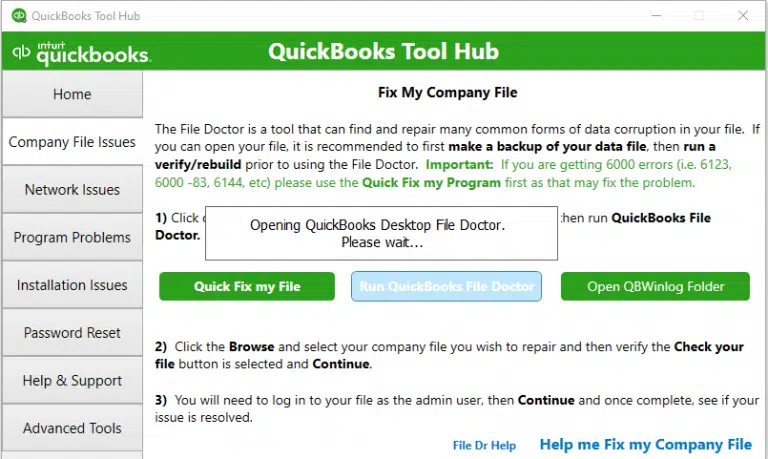
In this situation, you can use QuickBooks File Doctor to check and repair certain company file and network issues. Follow these steps:
If the above methods don’t work, some QuickBooks installation files may be damaged. Repairing the application can help fix these files without completely reinstalling the software. Here’s how:
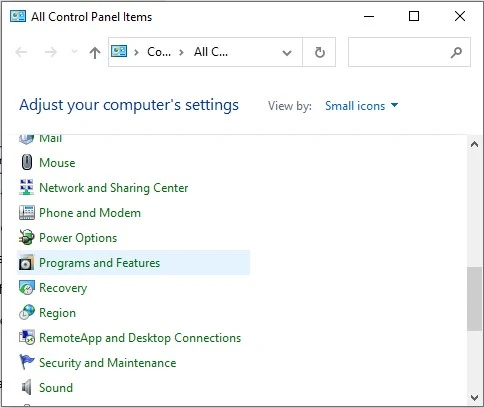
If the repair option is unavailable or doesn’t solve the problem, you can consider reinstalling QuickBooks using the Clean Install Tool. Before doing so, create a backup of your company file and keep your product and license information ready.
Still facing the QuickBooks Event ID 4 error? Don’t worry. Windows Event Viewer can help you find more information about the problem.
It records application errors and shows which program or component may be responsible. Follow these steps:
These details can help you understand why QuickBooks is crashing or displaying an unexpected error.
Fixing the QuickBooks Event ID 4 error is important, but taking a few precautions can help you avoid facing the same problem again.
Here are some simple tips to keep QuickBooks Desktop running smoothly:
Following these simple tips can help reduce the chances of encountering QuickBooks Event ID 4 errors again.
The QuickBooks Event ID 4 Error may occur due to several issues, such as damaged program files, outdated software, or problems with Windows components. The good news is that you can troubleshoot it by following the methods discussed in this guide. Try each solution carefully and check whether QuickBooks starts working properly.
Also, keep your software updated and take regular backups of your company files to avoid future problems. If nothing works, don’t hesitate to seek professional Help from Data Service Team experts at +1(888)-718-7888.
This is an unexpected application error recorded in Windows Event Viewer when QuickBooks Desktop encounters a problem.
It may occur due to damaged program files, incomplete installation, outdated software, or Windows component issues.
Yes, damaged or improperly configured .NET Framework components may cause QuickBooks to display unexpected errors.
Run Quick Fix My Program, update QuickBooks, repair installation components, and check Windows Event Viewer for error details.
Open QuickBooks Tool Hub, select Program Problems, and click Quick Fix My Program. You can also use the Install Diagnostic Tool under Installation Issues.
Open Windows Features using optionalfeatures.exe and check the required .NET Framework components. You can also run DISM and SFC to repair Windows system files.
Press Windows + R, type eventvwr.msc, and open Windows Logs > Application. Check the error description and source.
It may be related to damaged installation files, company file problems, or network issues. The exact cause depends on the error details.
You can try the troubleshooting methods yourself. If the error continues, contact the Data Service Team for professional Help.
Yes, QuickBooks Event ID 4 Windows 10/11 users may experience this issue due to damaged program files, Windows components, or installation problems. The troubleshooting steps in this guide can help identify the cause.

Get Free Consultation for QuickBooks Upgrade
(2021, 2022, 2023)