
Users often experience different issues while opening or running the QuickBooks application. QuickBooks has stopped working is one such issue that may occur while opening a company file or performing different accounting tasks. The following alert message appears when this error occurs;
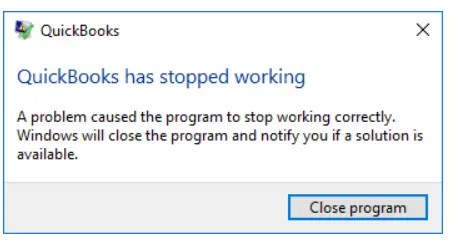
“QuickBooks has stopped working. A problem has caused QuickBooks to stop working correctly. Windows will close the program & notify you if a solution is available.”
Unfortunately, when this issue appears, QuickBooks starts freezing, crashing, closing unexpectedly or running very slowly. As a result, users fail to access the company file, affecting the ongoing business tasks.
QuickBooks has stopped working error states that Windows has detected a problem with the QuickBooks application and has forced it to close. This issue may occur due to a damaged Windows or QBWUSER.INI file, insufficient permissions, or problems with Microsoft services required by QuickBooks.
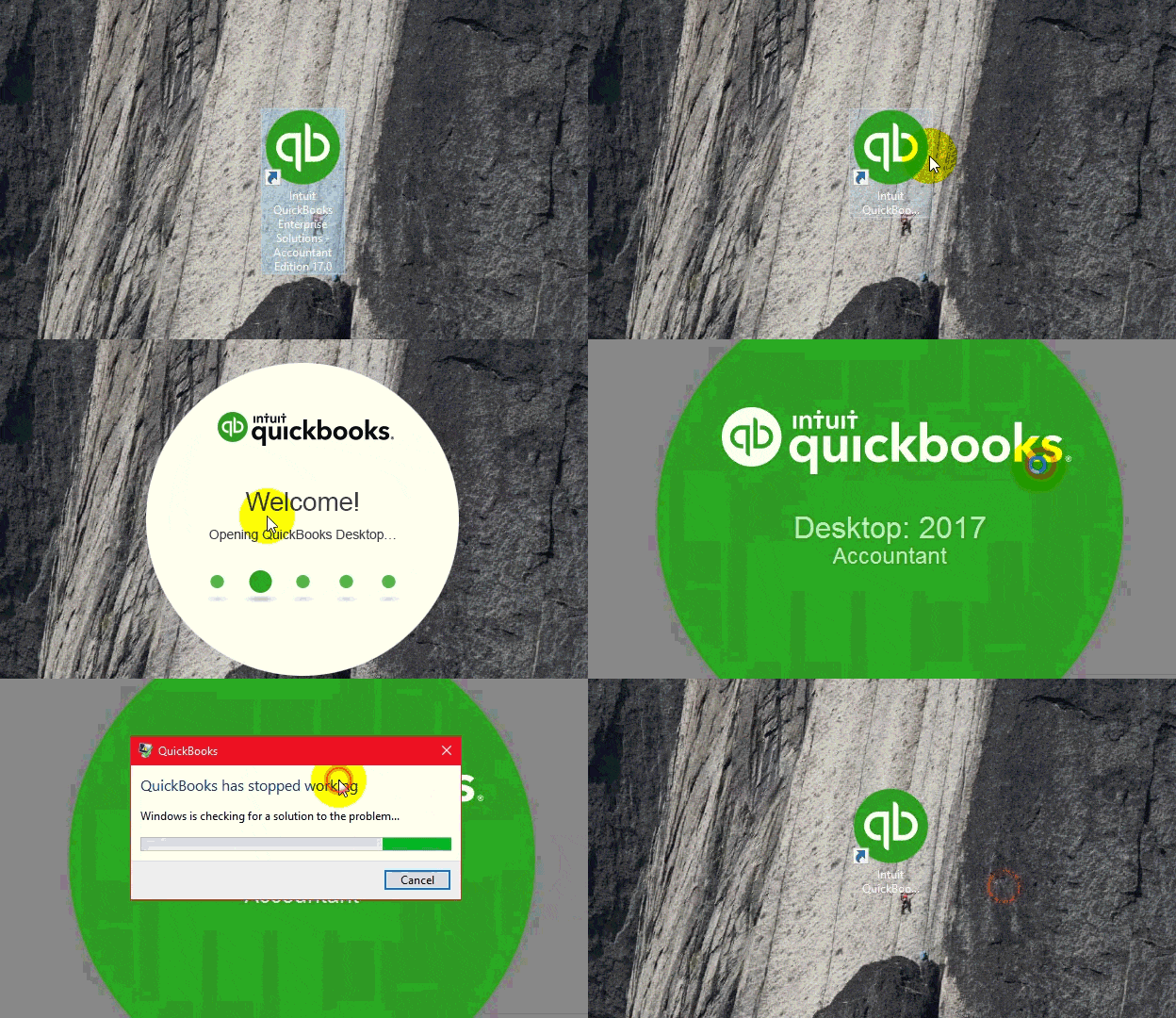
The following reasons can restrict you from opening or accessing QuickBooks Desktop and can cause the QuickBooks has stopped working issue.
Some users also report that after adding RAM to their computer, QuickBooks has stopped working. This issue may appear when the Windows drivers, system files, or QuickBooks components become unstable after a hardware change.
Are you getting an error message QuickBooks has stopped working while opening or running the application? If yes, follow the following troubleshooting methods to fix the issue and continue working with the QuickBooks application.
Most of the time, background running processes that QuickBooks uses may block you from opening the application.

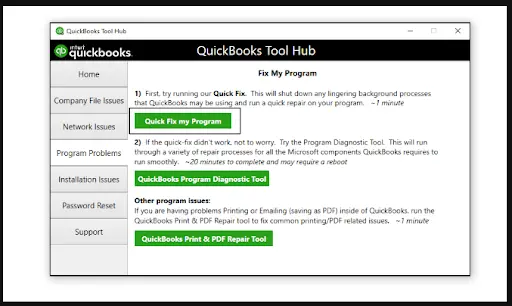
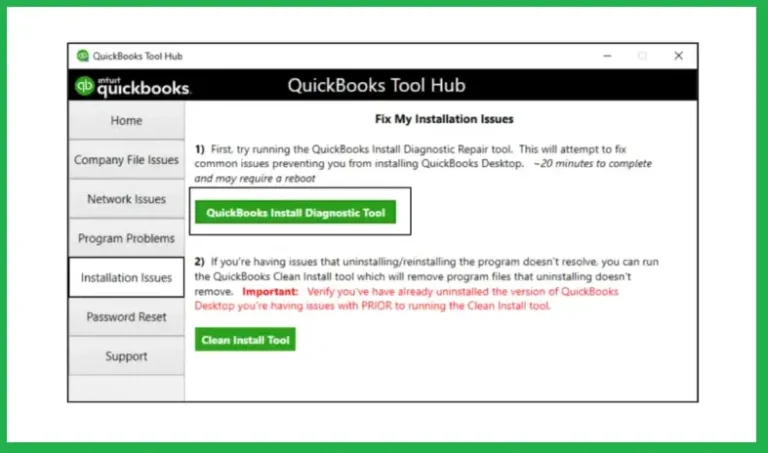
A damaged or corrupt QuickBooks installation may also lead to the Windows 10 QuickBooks has stopped working issue or trigger QuickBooks Error 80029C4A because of missing or damaged program files. So, to repair those damages, you can run the QuickBooks Install Diagnostic tool that diagnoses and fixes issues with Microsoft components that the QuickBooks program uses.
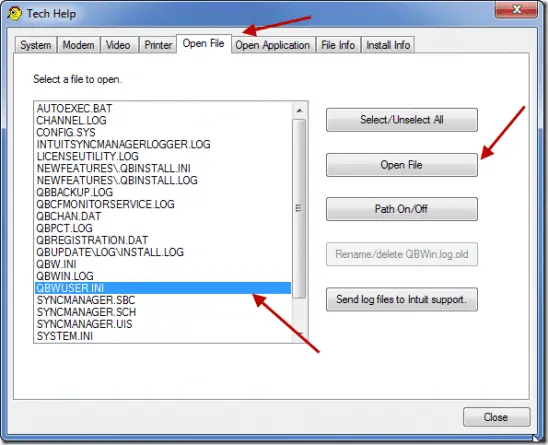
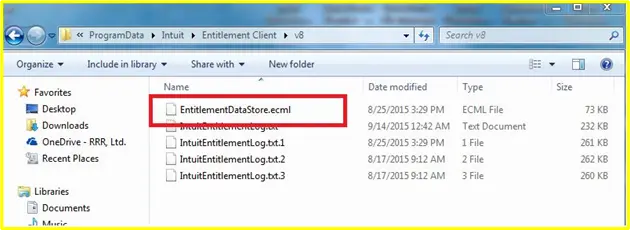
Assigning a new name to the QBWUSER.INI file forces QuickBooks to create a fresh configuration file.
| Important Tip: Once you rename the QBWUSER.INI file, it will remove the list of previously opened company files. So, you need to re-open the company file once manually. |
Follow these steps to rename the file:
Check the Results
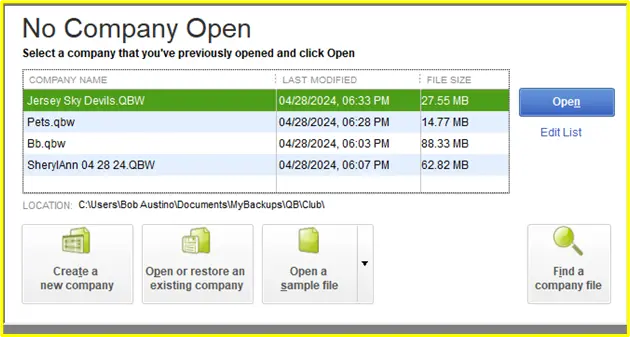
After opening QuickBooks, try to open a sample company file.
This usually indicates that the original folder is damaged or has incorrect permissions.
Note: If QuickBooks continues to crash, freeze, or display installation errors, performing a QuickBooks Clean Install can remove corrupted program files and reinstall the software for a fresh, stable setup.
If you are running the older version of QuickBooks Desktop, you won’t be able to use the upgraded and latest security features, which increases the risk of bugs and compatibility issues. So, to avoid all such issues, install the updated version of QuickBooks Desktop.
Follow these steps to install the updated QuickBooks version.
Proper administrative rights are required to run the QuickBooks application smoothly. Use the following steps to run QB as an administrator.
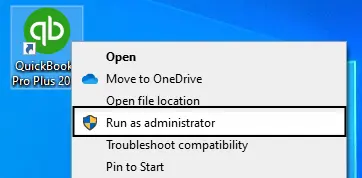
Now, check if you are able to run the QuickBooks application.
A problem has caused QuickBooks to stop working due to issues with the company file location or folder permissions. However, moving the company file to a new folder can help detect whether the problem is related to the file path or the folder itself.
Perform these steps to copy your file to another location.
Note: If your company file becomes damaged or QuickBooks starts showing file-related errors, you can use the QuickBooks File Doctor to diagnose and repair common issues, helping restore smooth performance and improve file stability.
Sometimes, the ” QuickBooks has stopped working error may occur due to incorrect folder permissions that may interrupt QuickBooks operations on the system.

Finally, provide a new username and password. Also, provide a password hint. Herein, you can also choose a security question and click Next.
Once the permissions have been updated, restart your computer and launch QuickBooks to check whether the issue has been resolved.
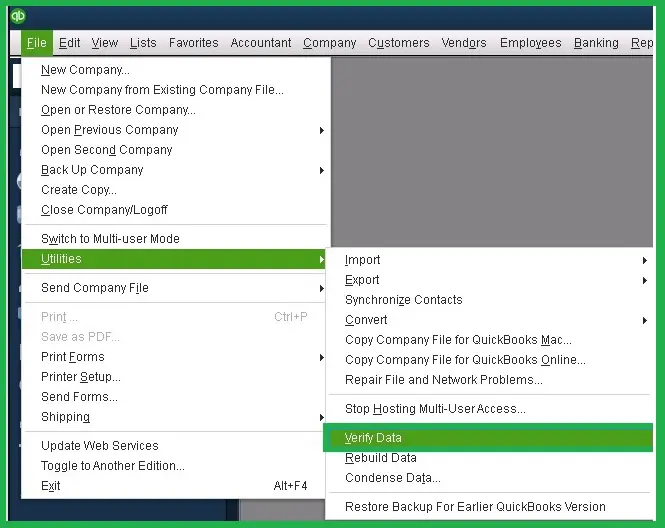
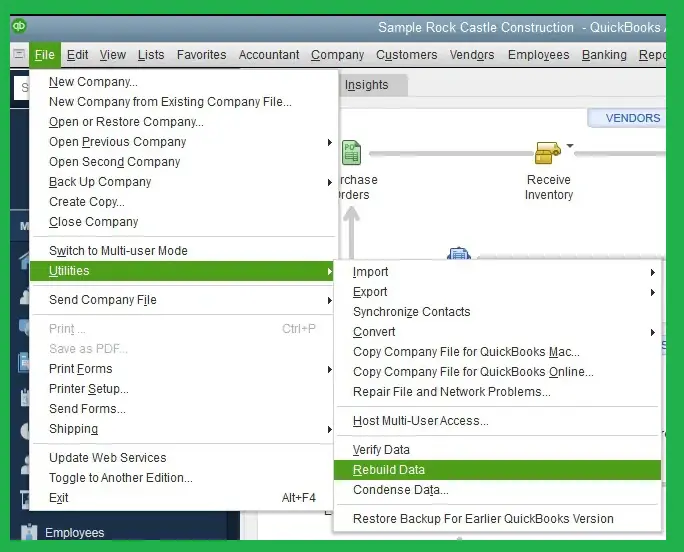
Verify and rebuild the data utility, which is used to diagnose and repair damage to the QuickBooks company file data.
Perform these steps to run the Verify and rebuild data tool.
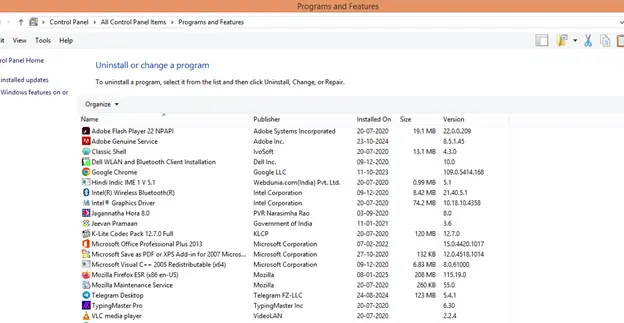
If you fail to fix the QuickBooks has stopped working or running issue, then try to reinstall QuickBooks Desktop. Follow these steps for reinstalling QuickBooks.
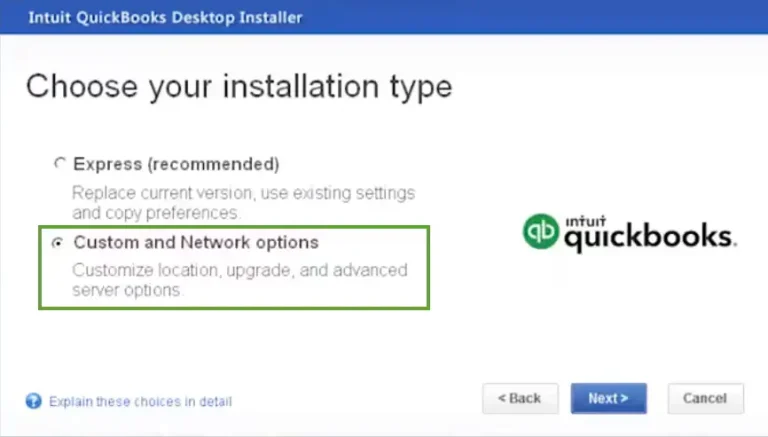
Once you are done, download and install QuickBooks Desktop. When you install once again, QuickBooks will automatically install new folders and rename the older ones.
Data Service Team Tip: If QuickBooks services fail to start during installation or reinstallation, you may also encounter QuickBooks Error 1920, which requires repairing Windows services before continuing.
QuickBooks has stopped working issue can interrupt important accounting tasks and prevent access to company files. This issue is caused by damaged program files, Windows component failures, company file corruption, or configuration issues. By performing the troubleshooting methods given above, you can restore QuickBooks functionality and reduce file corruption. If the issue continues even after following the solutions above, don’t worry. The experts at Data Service Team +1(888)-718-7888 are here to help you resolve your QuickBooks problems quickly and efficiently.
To prevent QuickBooks Has stopping working, keep your QuickBooks and Windows updated, regularly back up your company file, and use QB Tool Hub to fix minor issues.
Yes, you can experience this error in both Windows 10 and Windows 11 due to compatibility or system-related issues.
QuickBooks Has Stopped Working after a Windows update due to the interruption of the background process, corrupted installation files, or discontinuation of Microsoft’s support for older operating systems.
To prevent QuickBooks from crashing, keep your QB and Windows OS updated, maintain your company file, and avoid sudden system shutdowns.
To repair QuickBooks Desktop, run QuickBooks Tool Hub, repair the QuickBooks installation, and verify your company file for errors.
Yes, you can use the QuickBooks Tool Hub to fix common program and company file issues causing this error.
QuickBooks stops working when opening a company file due to various reasons, such as a damaged company file, network issues, corrupted company data, or outdated QuickBooks software.
This issue usually happens due to damaged program files, corrupted company data, or outdated QuickBooks software.
You must restart your computer, install the latest QuickBooks updates, run QuickBooks Tool Hub, and repair the program if required.