
Knowing how to Restore QuickBooks Backup file is important to protect business data from unexpected issues. If your company file becomes inaccessible, restoring a recent backup allows you to recover vital financial information and resume your accounting tasks without any disruptions.
Whether you’re using QuickBooks Desktop or looking for QuickBooks Online backup restore options, understanding the correct restoration process can save time and help prevent permanent data loss.
In this guide, you’ll learn how to restore QuickBooks backup file from a local backup step by step. By the end, you’ll know exactly how to restore your QuickBooks company file safely and efficiently without errors.
You don’t need to restore QuickBooks backup file every day, but there are certain situations where it becomes necessary to recover your company data. In many cases, users may need to restore backup QuickBooks backup when unexpected issues affect their accounting files.
Important Note: Planning to upgrade your system? Learn how to use the QuickBooks Migration Tool to move QuickBooks to a new computer without losing your company file, license information, or settings.
Before you begin the restore process, it is important to ensure everything is properly set up to avoid errors and data loss during QuickBooks backup and restore.
Restoring a QuickBooks company file from a local backup is a simple process if you follow the correct steps carefully. This method helps you recover your data using a saved .qbb backup file and is commonly used in QuickBooks online backup and restore scenarios when moving or recovering company data.
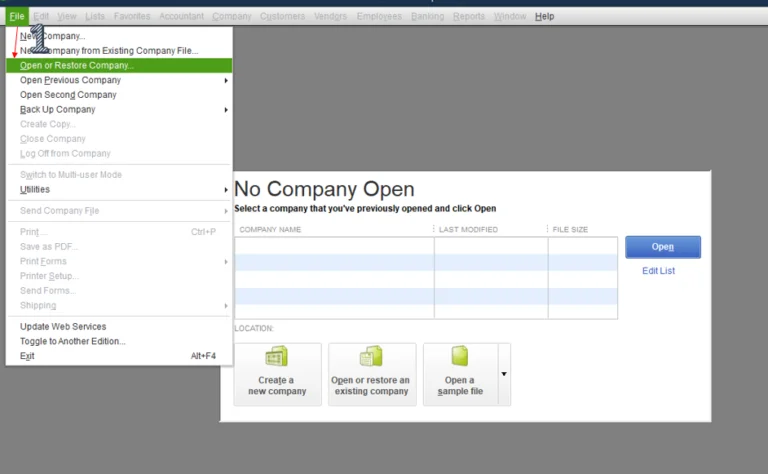
First, open QuickBooks Desktop on your computer. From the top menu bar, click on File, then select Open or Restore Company.
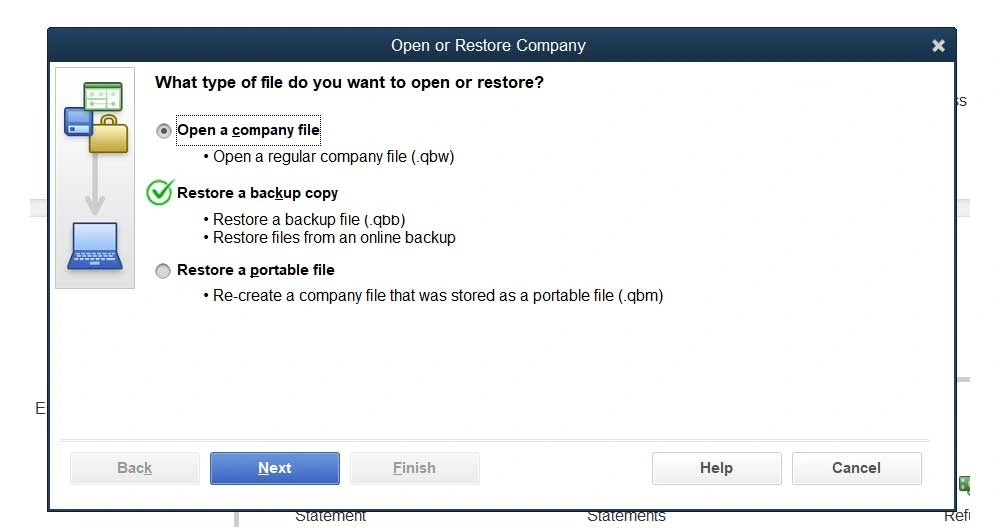
In the next window, choose Restore a backup copy and click Next. This allows you to restore data from a backup file instead of opening an existing company file.
Select Local Backup and click Next again. This option is used when your backup file is stored on your computer or an external device.
Now locate your backup file with the .qbb extension. Select the File and click Open. Make sure you are not selecting a .qbw file, as that is your active company file.
Select the folder where you want to save the restored company file. For easy access, it is recommended to choose a location like Desktop or Documents.
Click Save to start the restoration process. If QuickBooks prompts you about overwriting an existing file, carefully review the message before proceeding to avoid data loss or QuickBooks restore backup failed issues.
Once the process is complete, QuickBooks will automatically open the restored company file. Log in using your Administrator credentials if required.
If you are using QuickBooks Desktop for Mac, the process is slightly different but still simple and effective for restoring your company data using a backup file. You can use this method in the QuickBooks online backup restore process.
Open Finder and locate your QuickBooks backup file. It is usually stored in a backup folder created by QuickBooks.
Double-click the backup file to mount it. This will display a copy of your company file along with any attached documents.
Drag the company file into your QuickBooks company file folder or another preferred location on your Mac.
Launch QuickBooks and click on Browse, then locate and open the restored File.
Enter your company File name if prompted and click Save to complete the restoration.
Once opened, check your financial data to ensure everything has been restored correctly and no issues occurred during the process. This helps you avoid situations like QuickBooks restore backup failed.
You may face issues when performing a QuickBooks restore backup for earlier version, where the backup file was created in a newer QuickBooks release and cannot be opened in an older version. Understanding these problems can help you quickly fix them and complete the QuickBooks restore backup process without data loss.
This is one of the most common errors that occurs when the backup file is damaged, incomplete, or not compatible with your QuickBooks version. Look at the steps below to fix it:
Users also try to restore a .qbw file instead of a .qbb file, which leads to failure and disrupts your daily accounting. Here’s how to fix it:
If the backup was created in a newer version of QuickBooks, older versions may not support it. Easy steps to resolve the error:
Restoring from USB, external drives, or cloud storage may cause interruptions. Here are the simple ways to fix it efficiently:
Without proper access, QuickBooks may block the restore process. To fix this problem, follow the steps below:
If the backup itself is corrupted, then the restore process will not complete successfully. To resolve this error, perform the steps below:
Following the right steps during QuickBooks backup and restore can help you avoid common issues like file corruption, missing transactions, or situations where you may face QuickBooks restore backup failed errors.
Restoring a backup is one of the most reliable ways to recover your company data after accidental deletion, file corruption, or a system failure. By following the correct steps for Windows or Mac, you can Restore QuickBooks Backup safely and continue managing your business without losing important financial records.
Before starting the restoration process, always verify that you’re using a valid .qbb backup file, and keep multiple backup copies stored in secure locations. If you still need further assistance, you can connect with the Data Service Team at +1(888)-718-7888.
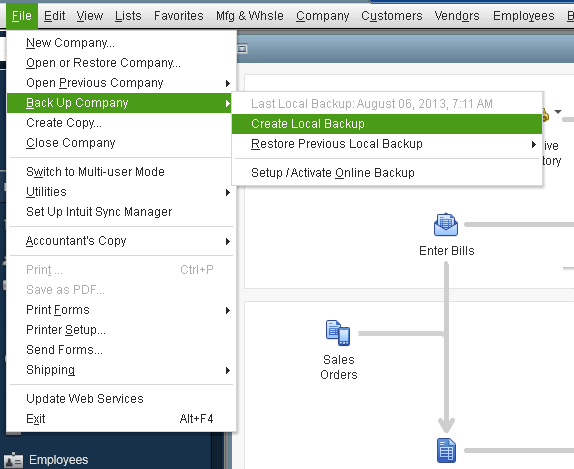
Open File, select Back Up Company, and create a local backup. To restore it, open Open or Restore Company, choose Restore a Backup Copy, and select your .qbb file.
Convert the QuickBooks for Mac company file into a Windows-compatible format, then import it into QuickBooks Desktop for Windows.
Open the backup file, move the company file to your preferred location, launch QuickBooks for Mac, and open the restored File.
Open QuickBooks Desktop, click File, select Open or Restore Company, choose Restore a Backup Copy, browse to your .qbb backup file, and complete the restoration by following the prompts.
Open QuickBooks Desktop, select File, click Open or Restore Company, choose Restore a Backup Copy, select your .QBB file, and follow the on-screen instructions to restore it.
If you have QuickBooks Online Advanced, open the Backup and Restore feature, select the backup file or restore point you want, and follow the on-screen prompts to complete the restoration.
If you’re using QuickBooks Online Advanced, open the Backup and Restore feature, select the backup version you want to recover, and follow the on-screen instructions to restore your company data.
Install the same or a compatible version of QuickBooks on the new computer. Copy your .qbb backup file to the local drive, then open QuickBooks, select File, choose Open or Restore Company, and restore the backup by following the on-screen instructions.




