Management of financial data across multiple team members is a great advantage of QuickBooks Desktop. However, facing network connectivity issues can bring daily operations to a halt. One of the most common errors accounting teams face is QuickBooks Error H505. It is triggered when a workstation attempts to open a company file located on another computer, but the network path is blocked.
In this detailed guide, we have stated everything you need to know about QuickBooks Error H505, including its root causes and symptoms and executing step-by-step troubleshooting solutions that get your team back on track.
What is QuickBooks Error H505?
QuickBooks Error H505 is an H-series or Hosting multi-user connectivity code. It is triggered when a workstation computer fails to communicate with the host or server computer holding the main QuickBooks company file.
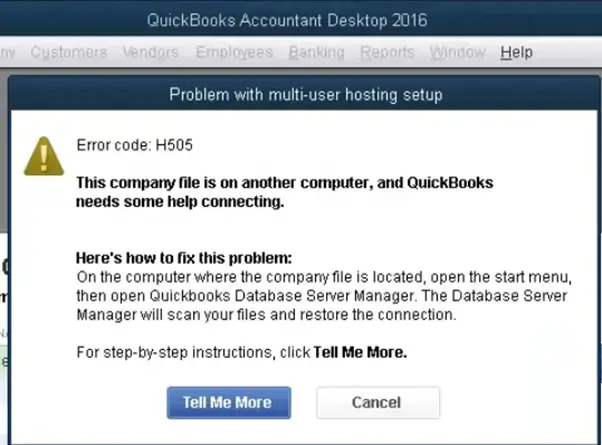
When QuickBooks is set up for multi-user access, the server acts as the central hub that manages all the incoming data traffic. QuickBooks Error H505 hosting mode issue is caused when security settings, corrupted configuration files or disabled Windows background services block communication between workstations and the host.
Important Note: If your issue involves a workstation failing to access a shared company file, you may also encounter QuickBooks Error H202, another common multi-user hosting error caused by incorrect network or hosting configurations.
What are the Common Causes of QuickBooks Error H505?
Knowing what triggers QuickBooks multi-user mode error helps you target the right solutions without trial and error guesswork. The most frequent causes include:
Blocked Communication Ports: Windows Defender Firewall or third-party antivirus software is blocking the inbound/outbound ports used by QuickBooks.
Disabled QuickBooks Background Services: Important services like QuickBooksDBXX or QBCFMonitorService are stopped on the server.
Incorrect Hosting Configuration: One or more non-server workstations have multi-user hosting accidentally turned on.
Damaged Network Configuration Files: The .ND (Network Descriptor) or .TLG (Transaction Log) files assigned to the company file are corrupted.
Domain Name System Resolution Failures: This is when workstations are unable to resolve the host server’s IP address or computer name across the local area network.
Admin Permissions: The QuickBooks Database Server user account (QBDataServiceUserXX) lacks administrative permissions on the host server.
How to Identify QuickBooks Error H505?
Identifying QuickBooks Error H505 early helps prevent unintended system downtime. Go through these common warning signs:
Error Screen Pop-Up: An error prompt displaying QuickBooks Error H505 appears as soon as you attempt to switch to multi-user mode or open a hosted company file.
Unresponsive Application: The QuickBooks Desktop application freezes or becomes completely unresponsive when trying to access network files.
System Slowdown: Workstations experience severe input lag or delayed responses before crashing out of the network session.
Inability to Connect Workstations: Multiple team members are unable to log into the company file simultaneously, restricting access to a single local user.
Prerequisites to Fix QuickBooks Desktop H505 Error
Before implementing any solution method for technical troubleshooting, complete these steps to ensure you do not lose data or make reversible system changes:
Create a Company File Backup: Secure a recent manual backup of your main company file (.QBW) to an external drive or cloud storage.
Ensure Full Administrative Rights: Sign in to both the server and workstation computers with a Windows user account that has Administrator access.
Download the Latest QuickBooks Tool Hub: Install the official tool hub on your server and affected workstations for quick access to diagnostic repairs.
Verify Network Connectivity: Ensure all system cables, Wi-Fi connections, and local area network configurations are online and functioning.
Top 8 Solutions to Fix QuickBooks Error H505 When Multi-User Connection Is Blocked
Have a look at the proven methods to troubleshoot QuickBooks Error H505:
Solution 1: Cross check the Services on Your Server
QuickBooks depends on two background services, namely QuickBooksDBXX and QBCFMonitorService. Here XX represents your software version. If these services stop running, workstations will give QuickBooks Error H505.
Go to your Server Computer.
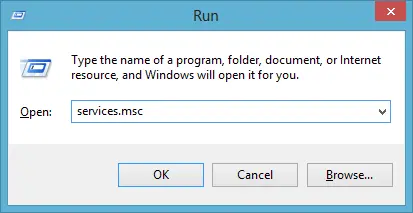
Open the Run dialog box.
Type services.msc and press Enter.
Scroll down and locate QuickBooksDBXX.
Double-click QuickBooksDBXX to open its properties:
Set Startup type to Automatic.
Check Service status: If it says Stopped, click Start.
Switch to the Recovery tab and select Restart the Service for First failure, Second failure and Subsequent failures.
Click Apply and then OK.
Repeat the exact same steps for QBCFMonitorService.
Solution 2: Addition of Services to Your Windows Admin Group on Your Server
QuickBooks creates a Windows service user during installation. If this particular account lacks administrative rights, it cannot process multi-user network requests properly.
Close QuickBooks Desktop on the server.
Access Control Panel via the Windows Start menu.
Go to User Accounts > User Accounts.
Open Manage another account.
Locate the service user corresponding to your version: QBDataServiceUserXX.
Select Change the account type.
Choose Administrator and click Change Account Type.
Click Apply and OK to save the changes.
Restart your server computer.
Solution 3: Configure Your Firewall Settings on Your Server
mostly blocks the dynamic communication ports that QuickBooks uses to transfer data between the server and workstations. Forming manual port rules resolves this issue.
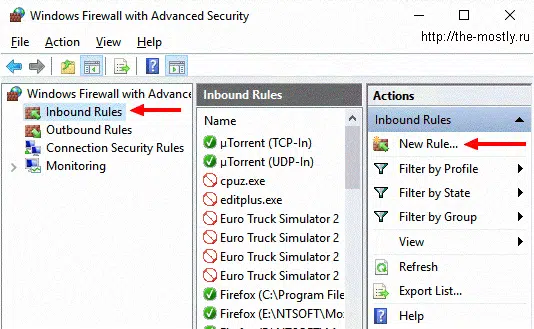
Select Advanced Settings from the left-hand panel.
Right-click Inbound Rules and select New Rule.
Choose Port and click Next.
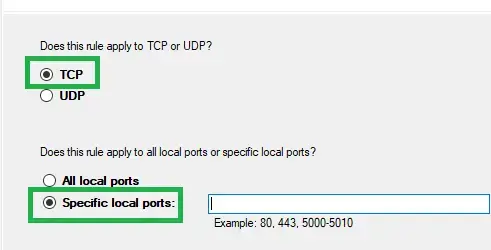
Select TCP and enter the specific port numbers for your QuickBooks Desktop version in the Specific local ports field.
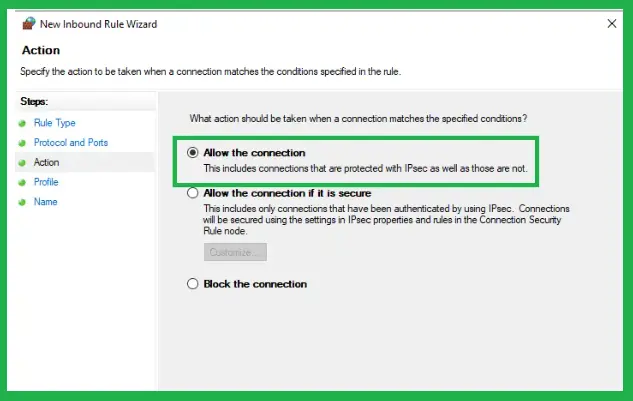
Select Allow the connection and click Next.
Ensure all profile checkboxes (Domain, Private, Public) are marked, then click Next.
Name the rule and click Finish.
Repeat steps 3–8 under Outbound Rules as well.
Solution 4: Ping Your Server from a Workstation
Pinging tests whether your workstation can actually communicate with the server across your physical network and DNS setup.
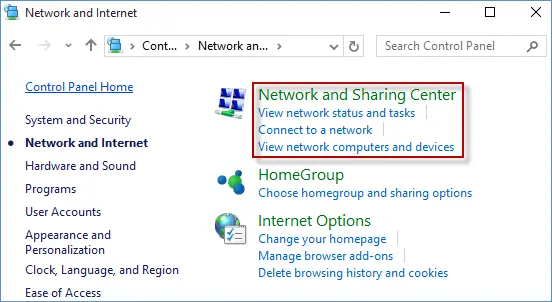
Step 1: Turn On Network Discovery (Server & Workstations)
Search for Control Panel on the Start menu and open it.
Select Network and Sharing Center > Changeadvanced sharing settings.
Expand the active network profile and choose Turn on network discovery and Turn on file and printer sharing.
Save changes.
Step 2: Get Your Server Name and IP Address
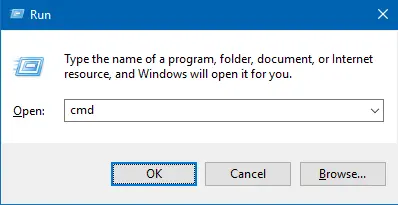
On the Server, press Windows + R, type cmd and hit Enter.
Type ipconfig /all in the Command Prompt and press Enter.
Note down the Host Name (Server Computer Name) and the IPv4 Address.
Step 3: Ping the Server from the Workstation
Go to the Workstation showing QuickBooks Error H505.
Open the Run Dialog Box, type cmd and hit Enter.
Type ping [Your Server Name] without brackets and press Enter.
If you receive messages with no packet loss, your connection is fine. If you see Request Timed Out or Destination Host Unreachable, your network is blocking the connection between the PCs. You will need to inspect network cables, router connections or third-party antivirus software.
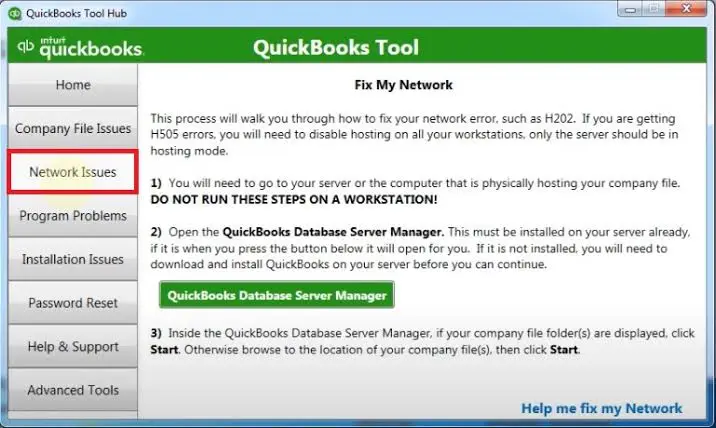
Solution 5: Run QuickBooks Database Server Manager via QB Tool Hub
You can use this tool to scan the folder housing your company file and repair multi-user firewall ports automatically.
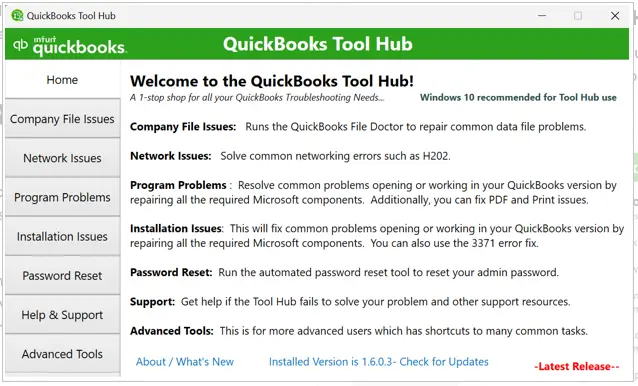
Under the Scan Folders tab, click Browse and select the folder where your QuickBooks company file is saved.
Click Start Scan.
Solution 6: Verify and Turn Off Hosting on Workstations
Open QuickBooks on each workstation throwing the error.
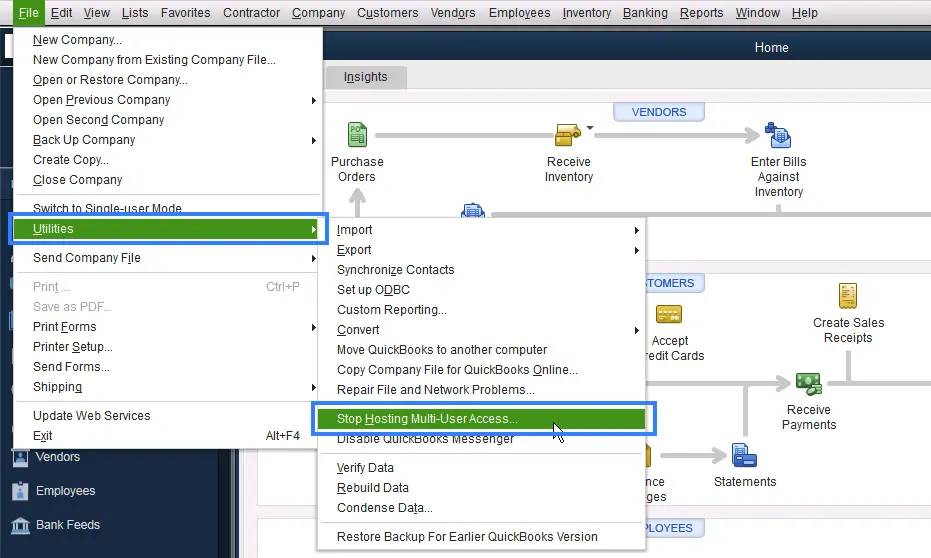
Click File > Utilities.
Look at the option listed.
If you see Host Multi-User Access, do not click it. But if you see Stop Hosting Multi-User Access, click it and select Yes to confirm.
Repeat this process for all workstation PCs.
Solution 7: Rename Network Descriptor (.ND) and Configuration (.TLG) Files
Corrupted network files prevent QuickBooks from connecting to the server correctly. Rename them to generate new files.
Open the folder on the server computer where your company file is located.
Look for files with the same name as your company file but ending in .ND and .TLG.
Right-click each file and select Rename.
Add .OLD to the end of the extensions.
Reopen QuickBooks on the server, then switch to multi-user mode on workstations.
Solution 8: Edit the Windows Hosts File (DNS & IP Resolution Fix)
If workstations are not able to resolve the server’s computer name over the local network, editing the Windows Hosts file maps the IP address directly to the server name.
Open Command Prompt as an administrator on the server, type ipconfig /all, and press Enter to find the server’s IPv4 Address and hostname.
On the workstation throwing QuickBooks Error H505, press Windows + R, type C:\Windows\System32\drivers\etc, and click OK.
Open the hosts file using Notepad.
Scroll to the bottom and add the server’s IP address followed by a space and the server’s computer name.
Save the file, close Notepad and restart QuickBooks
Benefits of Resolving QuickBooks Error H505 Immediately
Troubleshooting QuickBooks network connection error right away offers operational advantages:
Restored Team Collaboration: Enables accountants, sales reps and payroll processors to access shared company data simultaneously without interruption.
Data Loss Prevention: Eliminates the risk of file corruption caused by mid-session network drops or improper background file handling.
Optimized Workstation Speed: Eliminates system lags, freezing and application crashes caused by timed-out network requests.
Reduced Operational Costs: Avoids cumulative staff downtime, missed accounting deadlines and expensive last-minute emergency IT visits.
How to Prevent QuickBooks Error H505?
Once you have cleared the error, follow these best practices to prevent QuickBooks multi-user mode error from recurring:
Keep Only the Server Hosting: Ensure multi-user hosting is turned ON on the server computer only, while keeping hosting turned OFF on all individual workstations.
Configure Permanent Firewall Exceptions: Update your security software to automatically grant rules and port allowances for new QuickBooks updates.
Schedule Regular Database Server Manager Scans: Run periodic scans using the QuickBooks Database Server Manager to keep network descriptor (.ND) files synchronized.
Maintain Static IP Addresses: Set up static IP addresses for your server computer so workstations do not lose track of the network host after router restarts.
Regular QuickBooks & OS Updates: Maintain frequent updates for both Windows operating systems and QuickBooks Desktop.
Conclusion!
QuickBooks Error H505 can temporarily interrupt your multi-user workflow, so be prepared to solve it with the right approach. Check server services, adjust network ports, disable hosting on workstations and use the QuickBooks Tool Hub to swiftly restore secure network access. Taking these steps keeps your team working smoothly.
Still stuck on QuickBooks network connection error configurations? Contact our certified Data Service Team today at +1(888)-718-7888 for expert assistance.
Frequently Asked Questions (FAQ’s)
An error window pops up with the code Error H505 or H505 as soon as you try to switch to Multi-User mode or open a company file stored on a server. Your QuickBooks application may freeze, lag severely or completely lock you out of accessing shared company data from your workstation.
Yes, the H505 hosting mode issue is clearly described as being related to network connectivity. The problem can happen when there is no connection between the workstation and the server containing the company file due to misconfigured firewall settings, incorrect IP addresses, turned-off background services or faulty network descriptor .ND files.
You can usually still open QuickBooks in Single-User mode directly on the server computer where the company file resides. However, workstations will remain blocked from multi-user access until the error is resolved. It is strongly advised not to force workarounds, as attempting to work over an unstable network connection can lead to company file data corruption.
It may be able to fix any small problems in your network, or even restart your services that are no longer running. However, if the reason behind your problem is firewall ports that have been blocked or your network’s .ND files, your error will show up again.
Yes. If Windows Firewall or a third-party antivirus doesn’t have open inbound and outbound port rules configured for your specific version of QuickBooks Desktop, it will automatically block network requests sent from workstations to the host server.
About The Author
Steven Moody is a bookkeeping and payroll specialist dedicated to helping businesses maintain accurate financial records and efficient payroll operations. His expertise includes payroll management, tax compliance, bookkeeping solutions, and financial reporting. Steven regularly shares insights on accounting best practices and business finance strategies. Outside of work, he enjoys traveling, exploring new places, and keeping up with the latest developments in business technology.