QuickBooks-Error-1603

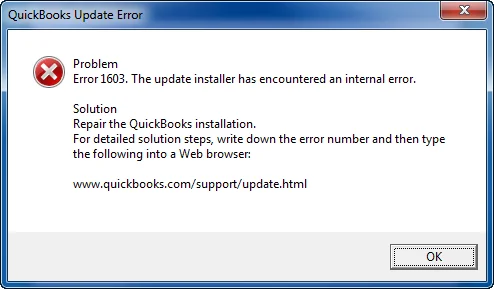
Getting QuickBooks Error 1603 while installing or updating QuickBooks Desktop can stop the setup before it finishes. You may see messages such as “The update installer has encountered an internal error,” or There was a problem installing Microsoft .NET Framework.”

The error generally occurs when Windows can not complete the QuickBooks installation or update. Damaged installation files, pending Windows updates, problems with Windows components, insufficient permissions, or software conflicts can all be involved.

This guide explains what QuickBooks error 1603 means, what can cause it, and what you can do to troubleshoot the problem step by step.

What Does QuickBooks Error 1603 Mean?

The QuickBooks Desktop Error 1603 is an installation-related error that can prevent QuickBooks from completing an installation or update. You may encounter it when:
QuickBooks Error 1603
  • When you install the QuickBooks Desktop for the first time.
  • Updating an existing QuickBooks installation.
  • Repairing QuickBooks.
  • Reinstalling the program after an unsuccessful installation.

Here are some messages associated with error 1603 include:

  • “Error 1603: The update installer has encountered an internal error.”
  • “There was a problem installing Microsoft .NET Framework.”
  • “MSI returned 1603: Fatal error during installation.”

If the message identifies a particular Windows component, make a note of it. That information can help you choose the right troubleshooting step.

Why Does QuickBooks Error 1603 Occur?

The QuickBooks Error 1603 in QuickBooks Desktop does not always have a single cause. It can occur when Windows can not access, install, update, or configure something required by QuickBooks. Some common causes include:

  • Damaged or incomplete installation files: If the QuickBooks installer did not download correctly or the files are damaged, setup may fail.
  • Problems with Windows components: QuickBooks installation may be affected by issues involving components such as .NET Framework or MSXML.
  • Pending Windows updates: Windows may need to complete an update before another application can install or update properly.
  • Insufficient permissions: The Windows account may not have the permissions required for some installation tasks. If QuickBooks requires elevated access, see QuickBooks Administrator Permission Needed Error for more information.
  • Software conflicts: Another application or security program running in the background may interfere with the installer.
  • An incomplete previous installation: Files or settings left behind after a failed installation can sometimes interfere with another installation attempt.
  • Windows Installer problems: A problem with the Windows Installer service can prevent applications from completing setup.

Checking the exact error message before troubleshooting can help you determine where to start.

How to Fix QuickBooks Error 1603?

Try the following Solutions in order. Start with the less invasive options and test QuickBooks after each one. If the error disappears, you can stop without completing the remaining steps.

Method 1 – Run the QuickBooks Install Diagnostic Tool

QuickBooks Tool Hub includes the QuickBooks Install Diagnostic Tool, which can help you identify and repair certain problems that interfere with QuickBooks installation.

Step 1: Install or Open QuickBooks Tool Hub

If QuickBooks Tool Hub is not already installed:
  • Close your QuickBooks Desktop completely.
  • Download the latest supported version of QuickBooks Tool Hub from Intuit.
  • Save the downloaded file somewhere that’s easy to find.
  • Open the QuickBooks Tool Hub installation file.
  • Follow the on-screen instructions to complete the installation.
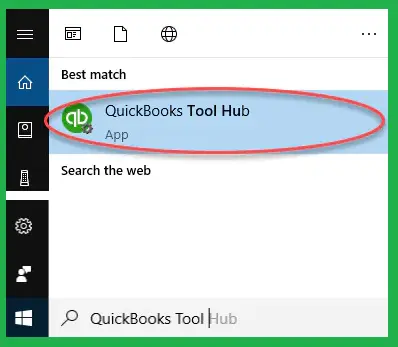
  • Open QuickBooks Tool Hub.
QuickBooks-Tool-Hub-Download

If Tool Hub is already installed, make sure you’re using the current version before continuing.

Step 2: Run the Install Diagnostic Tool

In QuickBooks Tool Hub:

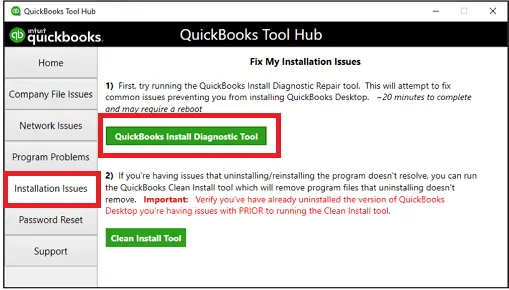
  • Select Installation Issues.
  • Select QuickBooks Install Diagnostic Tool.
QuickBooks install diagnostic tool
  • Allow the tool to scan and repair the installation components.
  • Wait for the process to finish.
  • Restart your computer.
  • Try installing or updating QuickBooks Desktop again.

The diagnostic process can take some time, so don’t close the tool while it is running. If QuickBooks installs or updates successfully, there is no need to continue with the remaining methods.

Method 2 – Update Windows and Restart Your Computer

QuickBooks relies on Windows components during installation and updates. If Windows has pending updates or needs to restart to finish an earlier update, completing those updates may help. To check for Windows updates:
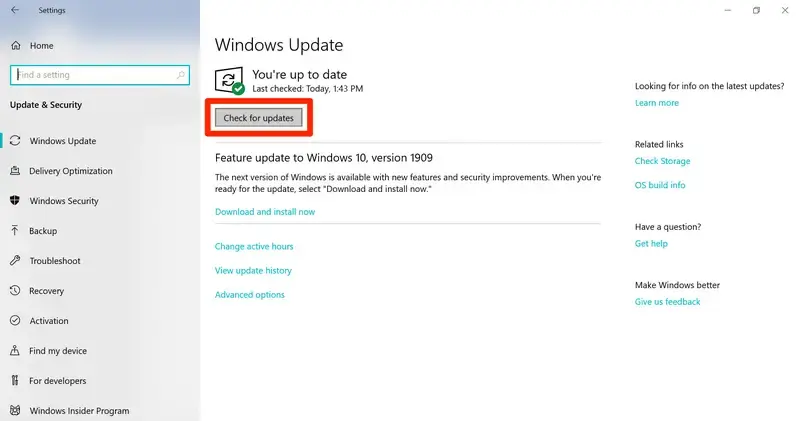
  • Press Windows + I to open Settings.
  • Select Windows Update.
  • Select Check for updates.
Windows-update
  • Install any available updates.
  • Restart your computer if Windows asks you to.
  • Try installing or updating QuickBooks again.

If Windows reports that everything is up to date but QuickBooks Error 1603 continues, make sure you have also updated QuickBooks Desktop before moving to the next method.

Method 3 – Repair .NET Framework and MSXML

If Error 1603 mentions Microsoft .NET Framework, or the installation continues to fail after using the Install Diagnostic Tool, check the Windows components involved in the installation.

Repair Microsoft .NET Framework

If the error specifically mentions .NET Framework:
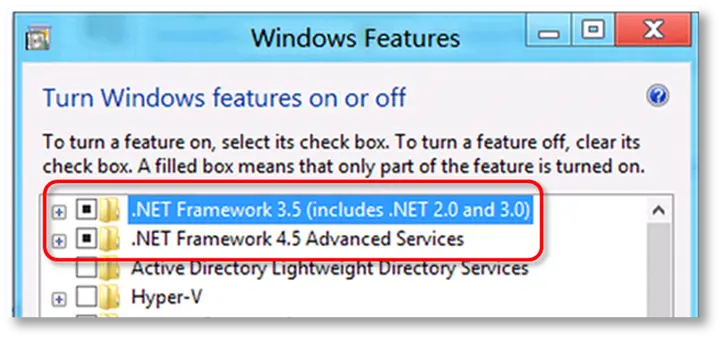
Turn-Windows-Feature-On-or-Off
  • Check the .NET Framework version installed on your computer.
  • Use Microsoft’s current repair or troubleshooting instructions for that version.
  • Complete the recommended repair.
  • Restart Windows.
  • Try the QuickBooks installation again.

Avoid using outdated commands or registry changes from unofficial troubleshooting websites. The appropriate repair process can vary depending on the Windows version and .NET Framework version installed.

Check Microsoft MSXML

MSXML is another Windows component that may be involved in QuickBooks installation problems.

If QuickBooks still fails to install and the error points toward MSXML:

  • Identify the relevant MSXML component on your computer.
  • Follow the current Microsoft or Intuit instructions for repairing or reinstalling it.
  • Restart the computer after completing the repair.
  • Try installing or updating QuickBooks again.

Use current official instructions rather than older procedures designed for previous versions of Windows.

Note: If you encounter another Windows-component-related installation problem, you can also review our guide on QuickBooks Error 1904.

Method 4 – Install QuickBooks in Selective Startup

If the previous methods haven’t resolved error 1603 in QuickBooks, a program or service running in the background may be interfering with the QuickBooks installer.

Windows Selective Startup allows you to start the system with a limited set of services so you can test the installation without unnecessary background programs.

Before changing startup settings, make sure you have your QuickBooks product and license information available. If you work with company files, keep a current backup as well.
Step 1: Switch Windows to Selective Startup

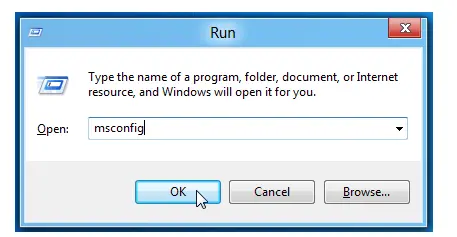
  • Press Windows + R to open the Run dialog.
  • Type msconfig and select OK.
Msconfig
  • On the General tab, select Selective startup.
  • Make sure Load system services is selected.
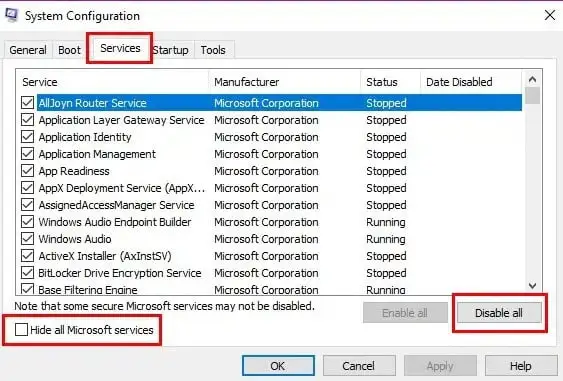
  • Open the Services tab.
  • Select Hide all Microsoft services.
Hide-all-Microsoft-services
  • Disable the remaining non-Microsoft services as appropriate for your troubleshooting process.
  • Apply the changes and restart your computer.

Use the current Intuit instructions for the exact selective startup procedure for your QuickBooks version and Windows configuration.

Step 2: Try Installing QuickBooks

After Windows restarts, run the QuickBooks installer again.

If QuickBooks installs successfully in Selective Startup, a background application or service may have been interfering with the normal installation.

Step 3: Return Windows to Normal Startup

After completing the troubleshooting:

  • Press Windows + R.
  • Type msconfig and select OK.
  • On the General tab, select Normal startup.
  • Select OK.
  • Restart the computer.

Make sure Windows is returned to its normal startup configuration after testing.

Method 5 – Reinstall the QuickBooks Desktop

If the QuickBooks Desktop Error 1603 continues after the earlier troubleshooting steps, the existing QuickBooks installation may be damaged or incomplete. Reinstalling QuickBooks with a fresh installation file may resolve the problem. If you need help with the installation process, see our guide on Install QuickBooks Desktop.

Before uninstalling QuickBooks, make sure your company files are backed up and that you have the information needed to activate the product again.
Step 1: Uninstall QuickBooks Desktop

  • Close QuickBooks Desktop.
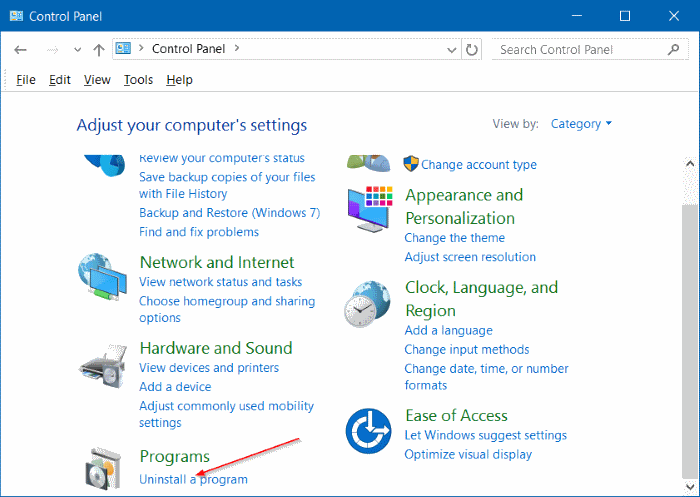
  • Open the Windows Start menu and search for Control Panel.
  • Open Programs and Features or Uninstall a Program.
control-panel-uninstall-program
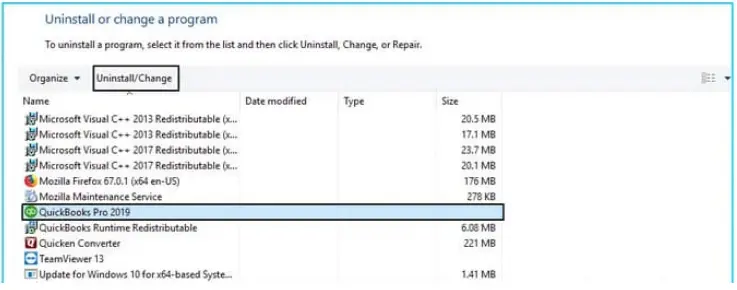
  • Select your QuickBooks Desktop version.
  • Select Uninstall/Change.
uninstall-or-change-a-program
  • Choose Remove.
  • Follow the on-screen instructions to complete the removal.

If the previous installation left behind files or settings that interfere with the new installation, you can use the QuickBooks Clean Install Tool before reinstalling QuickBooks.

Step 2: Download a Fresh QuickBooks Installer

Download QuickBooks Desktop using the appropriate installation files for your product and version. Choose the appropriate:

  • Country
  • QuickBooks product
  • QuickBooks version

Avoid relying on an old installer if you suspect that the existing installation files are damaged or incomplete.

Step 3: Install QuickBooks Again

Open the downloaded installation file and follow the on-screen instructions.
After the installation:

  • Restart the computer if prompted.
  • Open QuickBooks Desktop.
  • Check whether the program starts normally.
  • If QuickBooks error 1603 originally appeared during an update, try the update again.

Is Error 1603 a QuickBooks or Windows Problem?

QuickBooks error 1603 can be caused by the QuickBooks installation, but the problem may also involve Windows. These checks can help narrow down the cause:

  • Only QuickBooks fails to install: Focus on QuickBooks installation files, Tool Hub, and the Windows components QuickBooks uses.
  • Other applications also fail to install: The problem may be related to Windows Installer or another Windows component.
  • The error specifically mentions .NET Framework: Check the .NET Framework installation and follow the appropriate repair procedure.
  • The error started after a failed installation: An incomplete previous installation may be interfering with the new setup.
  • QuickBooks installs in Selective Startup: A background application or service may be causing the conflict.

Identifying which of these situations applies can help you avoid repeatedly reinstalling QuickBooks when the underlying problem is actually related to Windows.

What If QuickBooks Error 1603 Still Won’t Go Away?

If QuickBooks Desktop error 1603 continues after tried the troubleshooting methods above, avoid repeatedly reinstalling QuickBooks or making random changes to Windows.

  • Check the exact error message: Look for references to .NET Framework, MSXML, Windows Installer, or another component.
  • Test another application: If other programs also fail to install, the issue may be complex.
  • Confirm administrator access: Some installation tasks require elevated Windows permissions.
  • Review the installer you’re using: Make sure it matches your QuickBooks Desktop product and version. If you’re still unable to install QuickBooks, review Can’t Install QuickBooks Desktop for additional installation troubleshooting.
  • Follow official documentation: You can use the latest Intuit or Microsoft instructions for troubleshooting the Windows components.

How to Prevent QuickBooks Installation Errors?

Once you have resolved Install Error 1603 in QuickBooks, these practices can help you reduce the chance of similar installation problems:

  • Keep Windows updated: Install available Windows updates and restart the computer when required.
  • Keep QuickBooks Desktop updated: Use a supported version and install available updates.
  • Download QuickBooks from Intuit: Use official installation files instead of old or unofficial copies.
  • Maintain enough free storage: Check that the Windows drive has enough available space before starting an installation.
  • Avoid interrupting setup: Don’t shut down the computer or force-close the installer while an installation or update is running.
  • Close unnecessary applications: Closing programs you don’t need can reduce potential software conflicts during setup.
  • Back up your QuickBooks company files: A backup won’t prevent Error 1603, but it protects your business data if you need to reinstall or troubleshoot QuickBooks.

Conclusion!

QuickBooks Error 1603 can prevent QuickBooks Desktop from completing an installation or update. The right solution depends on what is causing the failure, so start by checking the error message and work through the troubleshooting steps one at a time.

If the problem continues, QuickBooks Desktop Error 1603 may be related to Windows or another application rather than QuickBooks itself. In that case, identifying the underlying issue can help you avoid repeated installation attempts and unnecessary changes to your computer.

Frequently Asked Questions (FAQ’s)

QuickBooks Error 1603 is an installation or update error that comes when Windows can not complete the QuickBooks setup. It can be caused by damaged installation files, Windows component issues, permissions, or software conflicts.

Common causes include damaged QuickBooks files, outdated Windows, problems with .NET Framework or MSXML, insufficient permissions, and interference from other programs. An incomplete previous installation can also cause the error.

Run the QuickBooks Install Diagnostic Tool, update Windows, check the required Microsoft components, and try installing QuickBooks in Selective Startup. If the error continues, the issue may require a deeper Windows check.

Consider getting professional help if the error continues after you’ve tried the recommended solutions. You should also ask for help if you’re uncomfortable changing Windows settings or repairing system components.

Yes, problems with Microsoft .NET Framework can interfere with the QuickBooks installation process. Repairing the affected component may help QuickBooks complete the installation or update successfully.

Yes, damaged or improperly functioning MSXML components can prevent QuickBooks from installing correctly. Repairing the relevant component may resolve the error if MSXML is the underlying cause.

About The Author

Steven Moody

Steven Moody is a bookkeeping and payroll specialist dedicated to helping businesses maintain accurate financial records and efficient payroll operations. His expertise includes payroll management, tax compliance, bookkeeping solutions, and financial reporting. Steven regularly shares insights on accounting best practices and business finance strategies. Outside of work, he enjoys traveling, exploring new places, and keeping up with the latest developments in business technology.

Steven Moody

QuickBooks Error

QuickBooks Error 15311: Why It Happens and How to Fix It

Read More
QuickBooks Error

QuickBooks Error 40003: Why It Occurs and How to Resolve It

Read More
QuickBooks Error

QuickBooks Utility Application Keeps Popping Up: Here’s How to Fix

Read More
QuickBooks Tool

QuickBooks Tool Hub 1.6.0.8: Easy Download, Install & Use

Read More
QuickBooks Error

QuickBooks Migration Failed Unexpectedly? Fix It Quickly

Read More