
Are you unable to open the company file because of QuickBooks error 6144 82? This error can interrupt the financial workflow and make it difficult to access important financial data. This issue is associated with problems involving the company file, network configuration, folder permissions, or QuickBooks installation. Similar access problems are discussed in our guide on QuickBooks Cannot Communicate with the Company File. It is important to understand the reason behind the error to choose the right troubleshooting approach. You must identify the symptoms and possible causes, whether you encounter the error when you need to open a company file/access it over a network, to address the problem.
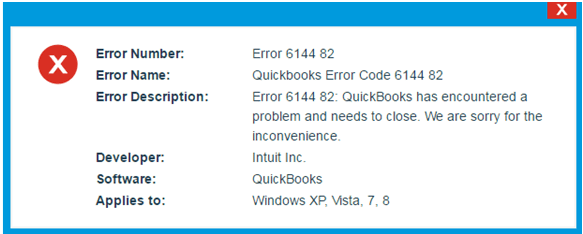
We will explore what QuickBooks error 6144 82 is, its common causes, and practical solutions to help you troubleshoot the issue and restore access to the company file.
It is a connection and file-access issue that occurs when the software cannot open/communicate with the company file due to network misconfigurations/damaged configuration files. Users are blocked from opening their financial data or running the program in multi-user mode when this happens. Use the QuickBooks Tool Hub to run the File Doctor tool, adjust folder permissions, or fix hosting settings on the server to resolve this problem.
Error 6144 is an error code that usually occurs when users try to open or access a company file in QuickBooks. Several file, network, and application-related issues may trigger this issue:
QuickBooks Error 6144 82 occurs due to network issues, corrupted data files and system files, registry issues and incompatible software. It is necessary to recognize the symptoms to examine the issue.
It is helpful to prepare the system and QuickBooks environment to fix this error. These prerequisites can make the repair process smoother and help protect the important company data.
There are various troubleshooting methods available to fix QuickBooks Error 6144 82. Here we have outlined simple step-by-step guidance for the same:
Update QuickBooks Desktop to the latest available release, as installing current updates can resolve compatibility issues and help fix QuickBooks Error 6144 82.
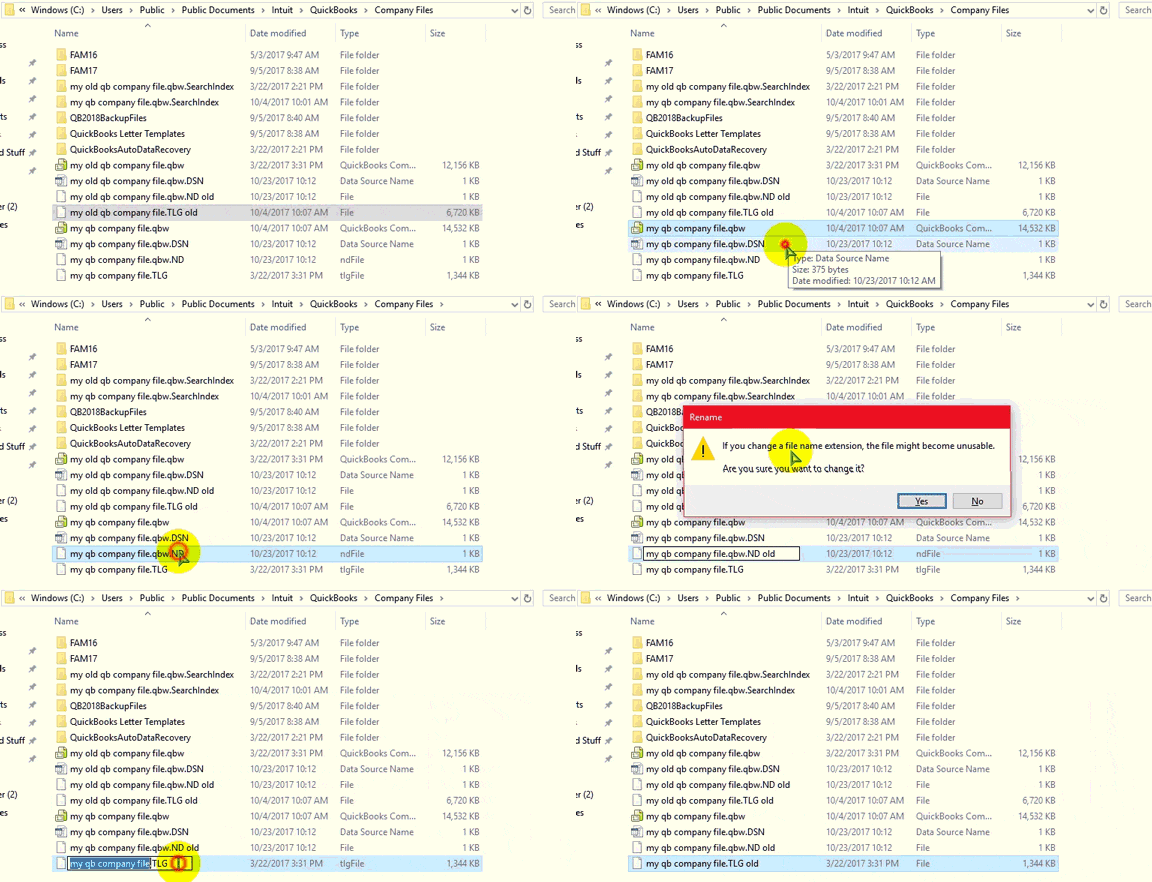
.ND and .TLG are configuration files that enable QuickBooks Desktop to access company files over a network. If these .ND or .TLG files become damaged, it can lead to QuickBooks Error 6144 82. Renaming these files does not result in data loss, as they are automatically recreated when you open the company file with QuickBooks Database Server Manager.
Moving the company file to a brand-new folder can help resolve QuickBooks error 6144 82 which stems from damaged folder paths.
If you are moving the company file to another computer, follow our guide on Move QuickBooks to New Computer for additional instructions.
This method can help resolve error 6144 82 when the issue is caused by minor data damage/basic network connectivity problems.
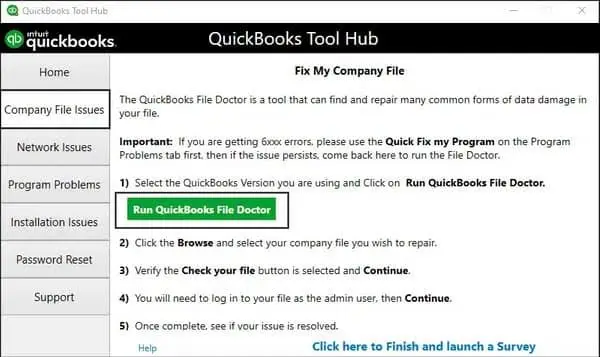
Note: If the QuickBooks File Doctor fails to open, look for QuickBooks Desktop File Doc and manually launch it.
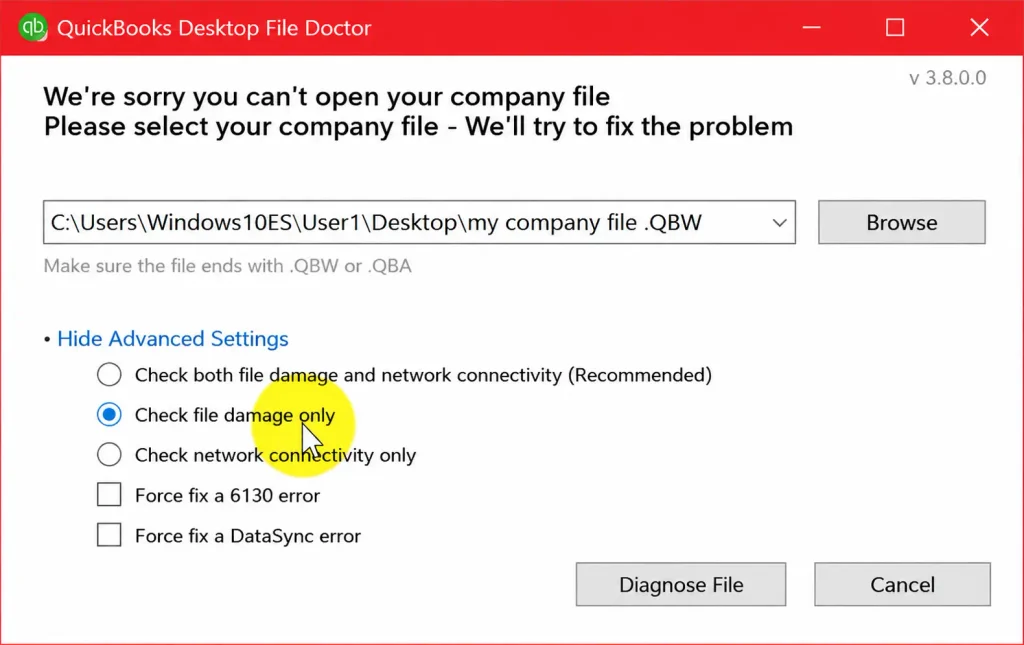
The duration of the scan varies based on the file size and may take up to 10 to 15 minutes. The scan may indicate it was unsuccessful even if it resolves the issue. Once the scan is complete, start QuickBooks and open the company file.
If you are willing to correct QuickBooks Error 6144 82 manually, you can identify the issues to address from the Verify Results window. Ensure that you back up the company file before you begin. To correct data errors manually:
For detailed steps, refer to our guide on Verify and Rebuild Data in QuickBooks Desktop. If the company file remains damaged, you can also learn more about QuickBooks Data Repair Services.
It scans the company file folder and resets damaged network files. Follow the step-by-step guidance:
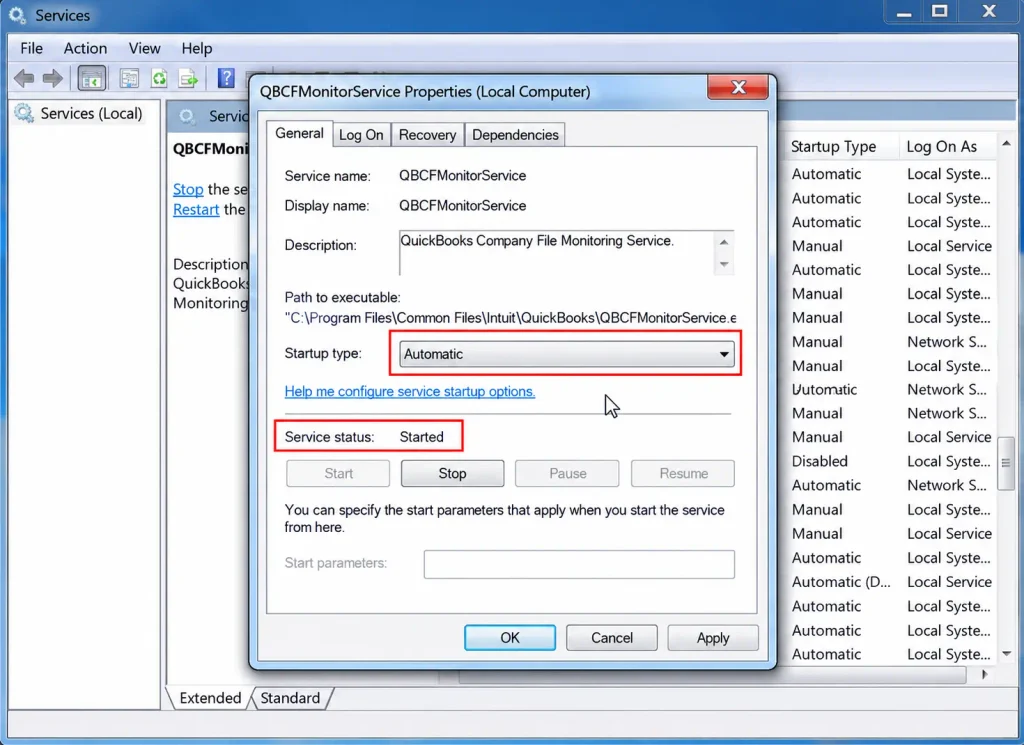
QuickBooks employs executable files (.exe) to carry out different functions. This helps when QuickBooks Error Code 6144 82 stems from network communication blocks between workstations and the server hosting the company file. Complete the following steps to set up exceptions for each executable listed in the table:
Follow the same steps outlined before, but this time create outbound rules. Adhere to all the same procedures; ensure you choose Outbound Rules in step 4.
| Executable files | Location |
| AutoBackupExe.exe | C:\Program Files\Intuit\QUICKBOOKS YEAR |
| Dbmlsync.exe | C:\Program Files\Intuit\QUICKBOOKS YEAR |
| DBManagerExe.exe | C:\Program Files\Intuit\QUICKBOOKS YEAR |
| FileManagement.exe | C:\Program Files\Intuit\QUICKBOOKS YEAR |
| FileMovementExe.exe | C:\Program Files\Intuit\QUICKBOOKS YEAR |
| QuickBooksMessaging.exe | C:\Program Files\Intuit\QUICKBOOKS YEAR |
| QBW32.exe | C:\Program Files\Intuit\QUICKBOOKS YEAR |
| QBDBMgrN.exe | C:\Program Files\Intuit\QUICKBOOKS YEAR |
| QBServerUtilityMgr.exe | C:\Program Files\Common Files\Intuit\QuickBooks |
| QBCFMonitorService.exe | C:\Program Files\Common Files\Intuit\QuickBooks |
| QBLaunch.exe | C:\Program Files\Common Files\Intuit\QuickBooks |
| QBUpdate.exe | C:\Program Files\Common Files\Intuit\QuickBooks\QBUpdate |
| IntuitSyncManager.exe | C:\Program Files\Common Files\Intuit\Sync |
| OnlineBackup.exe | C:\Program Files\QuickBooks Online Backup |
Important Note: If you notice Program Files (x86), it indicates that you are using a 64-bit operating system.
Taking a few preventive measures can help maintain QuickBooks performance and reduce the chances of encountering error 6144 82 in the future.
QuickBooks Error 6144 82 can disrupt the workflow of financial tasks because it prevents access to the company file and interrupts essential bookkeeping tasks. The error may occur due to damaged company files, incorrect network settings, insufficient permissions, or issues with QuickBooks installation. You must be able to examine the causes to apply the right solution. Users can try effective methods such as checking network connectivity and verifying folder permissions.
If you need expert help to resolve Error 6144 82, contact the Data Service Team today at +1(888)-718-7888 for reliable QuickBooks support and data recovery assistance.
Download and run the QuickBooks Tool Hub to use the built-in QuickBooks File Doctor to fix error 6144 82 in QuickBooks Desktop. It scans and repairs network and company file issues. If the error continues, rename .ND and .TLG configuration files by adding “.old” to their names. You can also verify that hosting is enabled on the main server computer and ensure Windows folder permissions grant full control over the company file.
You should check multi-user hosting settings to ensure the server computer is hosting the company file while workstations have hosting turned off to fix error 6144 82. You also need to verify that your folder permissions grant full control to the data service user, check that your firewall or antivirus is not blocking QuickBooks ports or services, and confirm the health of your network and configuration files like .ND and .TLG.
Yes! Network / multi-user mode can trigger QB Error 6144, 82 because this code indicates an incorrect network configuration between the workstation and the server hosting the company file. QuickBooks relies on background configuration files like .ND (Network Data) and .TLG (Transaction Log) to establish a pathway across the network when you switch to multi-user mode. The system fails to authenticate the network path and generates the error when these network configuration files become damaged.
It is advisable to seek professional help for error 6144 82 when standard troubleshooting methods fail to restore access to your company file. Professional intervention is also necessary if you encounter recurring data corruption or persistent multi-user network permission failures.
You should regularly update your software, maintain stable network and hosting configurations (ensuring only the server hosts the file), verify proper folder permissions for user services, and configure your antivirus to prevent error 6144 82 from happening again. These prevention measures allow QuickBooks network processes to run without interference.




