QuickBooks-Online-Payroll-Not-Working

Running payroll is critical for small businesses, so it becomes a major problem when you encounter a QuickBooks Online Payroll Not Working Error. When a payroll processing failure happens, it prevents you from paying your employees on time and completely disrupts your financial schedule.

If you are experiencing the QuickBooks Online Payroll Not Working Error, the issue can result from browser conflicts, corrupted network DNS files, or sudden account verification holds by Intuit. If you are currently wondering why your payroll is not processing, you are not alone, and the underlying cause is highly fixable.
QuickBooks-payroll-not-processing

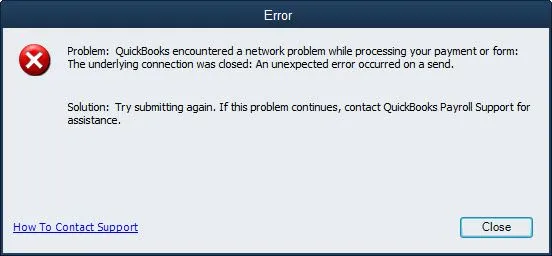
This guide outlines the primary reasons behind these system blocks and provides straightforward, step-by-step troubleshooting methods to help you clear the error and process your payroll data safely. If you are unable to access your account before reaching the payroll screen, see our guide on QuickBooks Online Login problem for help with sign-in issues.

Why is My Payroll Not Processing Error?

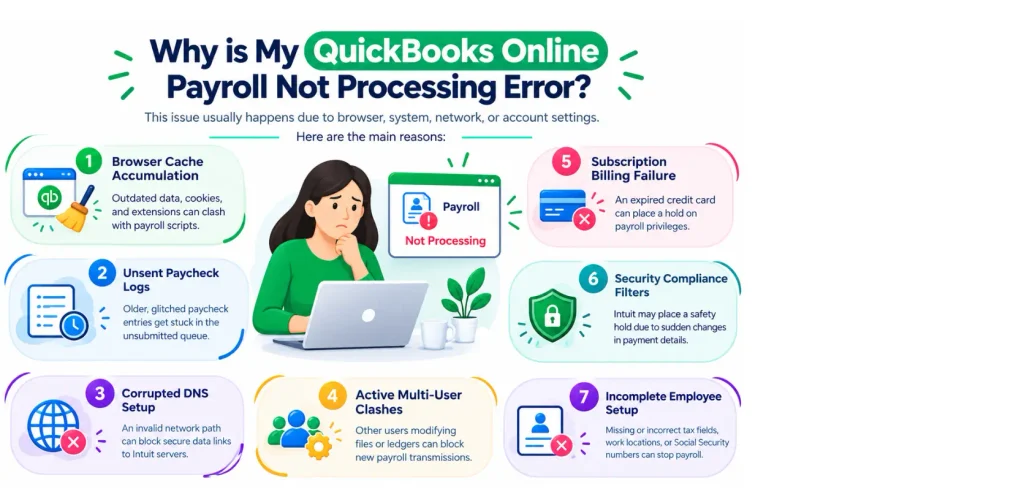
This QuickBooks Online Payroll not working error usually happens because of specific browser, system network, or backend account settings on your computer. The main reasons include:
quickbooks-online-payroll-not-working
  • Browser Cache Accumulation: Outdated temporary internet data, cookies, and extensions clash with live payroll scripts, breaking the submission button.
  • Unsent Paycheck Logs: Older, glitched paycheck entries are stuck in an unsubmitted queue status, which blocks all fresh payroll transmissions.
  • Corrupted DNS Setup: Your computer’s local network Domain Name System has saved an invalid path, blocking secure data links to Intuit servers.
  • Active Multi-User Clashes: Other user accounts are actively modifying employee setup files or company ledgers at the exact same moment.
  • Subscription Billing Failure: The credit card on file for your QuickBooks subscription has expired, causing an instant hold on payroll privileges.
  • Security Compliance Filters: Intuit places an administrative safety hold on your profile due to a sudden shift in payment amounts or routing details.
  • Incomplete Employee Setup: Essential tax fields, work locations, or Social Security numbers are missing or formatted incorrectly in the system.

Pre-Troubleshooting Checklist: Basic Steps to Follow

Before you dive into the technical solutions to resolve the QuickBooks Online Payroll not working error, run through these essential checks to ensure a simple system setting isn’t causing the issue. Taking a moment to verify these basics can save you time:

  • Check System Date and Time: Verify that your computer shows the correct date and time. Mismatched time settings will cause secure servers to reject your connection.
  • Refresh Your Tax Tables: Ensure you are running the most recent tax tables. Learn how to perform a QuickBooks Payroll Tax Table Update before processing payroll.
  • Change to Single-User Status: Avoid data sync conflicts by asking other users to log out. Go to the File menu and choose Switch to Single-User Mode.
  • Confirm Account Status: Check whether your QuickBooks Subscription Has Lapsed and confirm that your payroll plan is active. An expired payment card will instantly pause your access to payroll tools.
  • Install Software Updates: Run the latest patch for your version of QuickBooks to prevent compatibility bugs from blocking your operations.
  • Verify Network Access: Try opening a regular website to test your internet stability. If the connection drops, reboot your office router.
  • Review Security Blocks: Make sure your antivirus software or firewall settings are not blocking the program from reaching online network ports. If firewall restrictions are preventing QuickBooks from connecting, see Windows Firewall is Blocking QuickBooks.

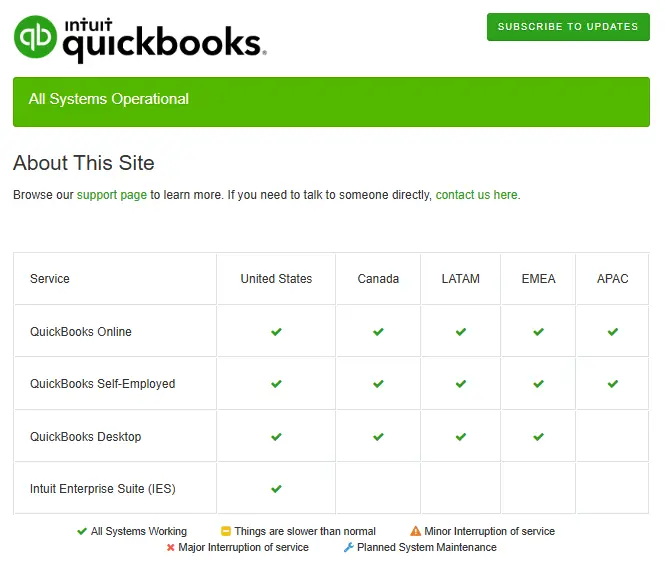
Check QuickBooks Service Status: Before troubleshooting your browser, network, or account settings, check the official QuickBooks Status page to see whether QuickBooks Online Payroll is experiencing an outage or scheduled maintenance.
status-quickbooks

How to Fix QuickBooks Online Payroll Not Working Error?

Resolving QuickBooks Online payroll not working error involves isolating browser glitches, resetting network configurations, and confirming account permissions. Follow the structured troubleshooting steps to fix the QuickBooks payroll processing failed error:

Solution 1: Clear the Browser’s Browsing History and Cache

Web browsers save temporary files that can conflict with QuickBooks Online. When this happens, the payroll submit button often stops working.

Follow these steps for Google Chrome:

  • Click on the three dots in the top right corner of Chrome.
  • Click on More tools and select Clear browsing data.
  • Set the time range to All time.
  • Check the boxes for Cookies and other site data and Cached images and files.
  • Click the Clear data button, then restart Chrome and try to run payroll.

Follow these steps for Microsoft Edge:

  • Click the three dots in the top-right corner of Edge and open Settings.
  • Click on Privacy, search, and services on the left side of the screen.
  • Go to the Clear browsing data section and click Choose what to clear.
  • Set the time range to All time.
  • Check the boxes for your cookies and cached files, then click Clear now.

Solution 2: Flush the DNS Cache on Your Computer

Corrupted internet connection records on your computer can stop QuickBooks from talking to the Intuit servers. Flushing your DNS wipes out these old connection records so your system can find the correct, secure payroll pathway again. Perform the steps below to fix the QuickBooks Online payroll not working error:

  • Press the Windows key + R at the same time to open the Run box.
  • Type cmd in the open text box and click OK.
  • Type ipconfig /flushdns into the black command window.
  • Press the Enter key on your keyboard.
  • Wait for the message that says the cache was successfully cleared, then close the window and try your payroll again.

Once the DNS cache has been cleared, try running payroll again. If payroll updates are also failing, follow our guide on QuickBooks Payroll Update Not Working.

Solution 3: Check for Stuck or Unsubmitted Paycheck Drafts

If a previous payroll run was interrupted by a lost internet connection, the pending data can get stuck on the processing screen. This creates a data block that can trigger the QuickBooks Online Payroll Not Working Error and stop you from starting or completing new payroll runs. Follow these steps to clear a stuck draft:

  • Navigate to the Payroll menu on your left-hand panel and click on Overview.
  • Look at the dashboard to see if there is an active banner or prompt for a payroll that is currently in progress.
  • Click on Run payroll to check the status of your employee list.
  • If you see any unsubmitted calculations or paychecks sitting on this screen, select the Pencil icon next to the employee’s name to edit or clear out the incomplete data.
  • Refresh the page, then try to create a brand-new payroll draft from scratch.

Once done, if you are still facing the same QuickBooks Online payroll Not Working or processing failed issue, move to the next troubleshooting step.

Solution 4: Verify your Subscription Billing Details

An expired payment card or an unpaid balance on your account will cause an immediate pause on your payroll privileges. You must make sure your account is active to send data to Intuit. Follow these steps to check your subscription:

  • Click the Gear icon in the top-right corner of your dashboard.
  • Under the Your Company column, select Account and Settings.
  • Click on the Billing & Subscription tab from the left-side menu.
  • Check the status line next to your Payroll plan to ensure it shows a green Active label.
  • If your card has changed, click Edit to update your payment details and resolve any past-due balance blocks.

If your payment failed or your billing information needs to be updated, see Intuit’s guide on fixing QuickBooks Online subscription payment issues.

Solution 5: Look for Missing Information in Employee Profiles

QuickBooks will block the entire payroll transmission if even one employee profile has an empty tax field or a formatting error. Follow these steps to audit your list:

  • Go to the Payroll menu on the left navigation strip and click Employees.
  • Scan your active employee directory for any red warning icons.
  • Click into individual profiles to confirm that the home address, work location, and Social Security number are fully entered.
  • Verify that the pay method dropdown is set correctly to either Direct Deposit or Paper Check.

Best Practices to Stop QuickBooks Online Payroll Not Working Error

Avoiding the QuickBooks Online Payroll Not Working Error is much easier. Follow these simple, proactive steps to keep your accounting system running smoothly:
  • Download the latest payroll tax tables before every single pay run to ensure accurate calculations.
  • Keep QuickBooks Online updated: Use the latest supported version of your browser and check for recent QuickBooks Online New Features & Updates to help maintain compatibility with payroll features.
  • Enable auto-filing and auto-paying features in your QuickBooks Payroll Settings to significantly reduce manual entry errors.
  • Sync your local computer and server clocks with internet time to prevent server security rejections.
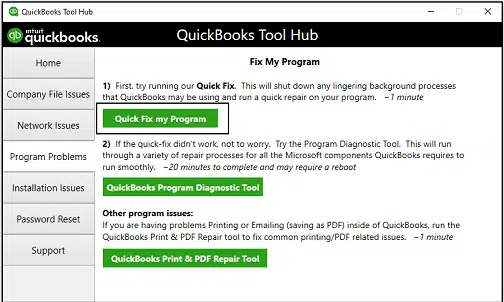
  • Run the Quick Fix my Program utility from the Program Problems tab whenever software crashes occur.
Quick-Fix-My-Program
  • Scan your directory and check for orange notification flags next to employee names indicating missing SSN, address, or tax details.
  • Verify your wage expense and liability accounts match your general ledger under the Payroll Settings window.
  • Clear out your pending online transmission queue via Edit > Find > Online Status > Online to Send to stop system blocks.

Conclusion!

QuickBooks Online Payroll not working error is generally caused by browser cache conflicts, blocked network data, or stuck paycheck files. By clearing the browser data, running an ipconfig/flushdns command, and ensuring you are operating in single-user mode, you will resolve the issue for most users.

Always check your subscription status and run through the pre-troubleshooting checklist before modifying deep network settings. If the payroll processing failure continues after completing these steps, contact Data Service Team experts at +1(888)-718-7888 for further help.

Frequently Asked Questions (FAQ’s)

QuickBooks Online Payroll may not process because of incorrect payroll settings, an issue with the employee or bank information, an account hold, or a temporary QuickBooks service problem. Check for any error message first, then review your payroll and direct deposit settings.

QuickBooks Online Payroll may stop working because of an outdated browser, internet or connection problems, incorrect account information, or a problem with your payroll subscription. Try signing out and back in, clearing your browser cache, and checking your QuickBooks account for alerts or errors.

Start by checking the error message and confirming that your employee, tax, and bank details are correct. Also make sure your payroll subscription is active, and there are no account alerts or holds. If everything looks correct, try processing payroll again.

QuickBooks may prevent payroll from being processed if required employee information is missing, a payroll setup issue needs attention, your account has a restriction, or there is a problem with your payroll subscription. Review any message QuickBooks displays and complete the required steps before trying again.

Payroll can remain stuck because QuickBooks is still processing the request, there is a connection issue, or the payroll submission needs additional attention. Avoid submitting the same payroll repeatedly. Check the payroll status first to see whether it has already been submitted.

Direct deposit may not work because of incorrect bank information, an inactive or restricted payroll account, an issue with employee direct deposit details, or a processing delay. Check the direct deposit status and verify the bank details before attempting to submit payroll again.

This can happen due to incorrect bank details, incomplete direct deposit setup, or a processing delay. To fix this, check the employees payment information and payroll status in QuickBooks Online.

Yes. Incorrect, inactive, or restricted bank account details can prevent payroll from processing. Check that the bank information is correct and up to date.

Sign in to QuickBooks Online and check for payroll alerts, notifications, or account messages. If your payroll account is on hold, QuickBooks may show the reason and provide steps to resolve it.

Check for error messages, payroll alerts, and incorrect employee or bank details. If everything looks correct and payroll still won’t process, contact the Data Service Team for further help.

About The Author

Steven Moody

Steven Moody is a bookkeeping and payroll specialist dedicated to helping businesses maintain accurate financial records and efficient payroll operations. His expertise includes payroll management, tax compliance, bookkeeping solutions, and financial reporting. Steven regularly shares insights on accounting best practices and business finance strategies. Outside of work, he enjoys traveling, exploring new places, and keeping up with the latest developments in business technology.

Steven Moody

QuickBooks Error

QuickBooks Error PS060: Why It Happens and How to Fix It

Read More
QuickBooks Error

QuickBooks Error 6073, 99001: Why It Happens and How to Fix It

Read More
QuickBooks Error

Fix QuickBooks Error 6190, 816 When Opening a Company File

Read More
QuickBooks Error

QuickBooks Error 15203: How to Fix Digital Signature Issues

Read More
QuickBooks Error

QuickBooks Error 6130: How to Fix Company File Issues

Read More
