QuickBooks payroll tax table update is crucial to ensure accurate payroll processing, tax calculations, and compliance. Intuit regularly releases payroll tax table updates to reflect changes in tax rates, tax forms, and payroll rules. Installing these updates ensures your employees are paid correctly and your payroll taxes are calculated accurately.
With updated payroll tax table services, you can avoid paying penalties and ensure timely tax filings. In this guide, you’ll learn what payroll tax table updates are, why they’re important, how to update them, common update issues, and tips for troubleshooting.
The QuickBooks payroll tax table update is a periodic update released by Intuit that includes the latest tax rates, payroll calculations, and compliance changes for federal, state, and local taxes. It ensures that payroll in QuickBooks is calculated accurately based on the most recent tax rules.
Keeping your system updated is essential, as outdated tax tables in QuickBooks Desktop payroll tax table updates can lead to incorrect payroll calculations or processing errors.
The current payroll tax table version is 123343003 in QuickBooks Desktop 2024. This update was released on June 18, 2026, and is effective from July 1, 2026, to December 31, 2026.
To get the latest QuickBooks payroll tax table updates, make sure your payroll subscription is active and follow the steps below to download and install the most recent tax table:
You can verify your current version by following these steps:
Reminder: To download and apply the latest tax table update, you must be using QuickBooks Desktop 2024 or QuickBooks Desktop Enterprise Solutions 24.0.
The January 2026 tax table update includes several updates to TD1 amounts compared to the July 2025 payroll tax table release.
If your QuickBooks Payroll subscription is active, you can turn on automatic updates to receive the latest payroll tax table releases as soon as Intuit makes them available.
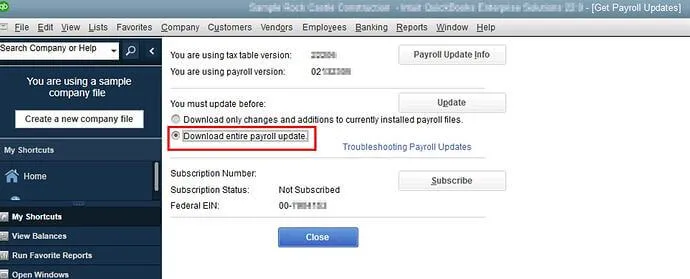
If you prefer to install the update yourself, follow these steps to manually update the QuickBooks payroll tax tables:
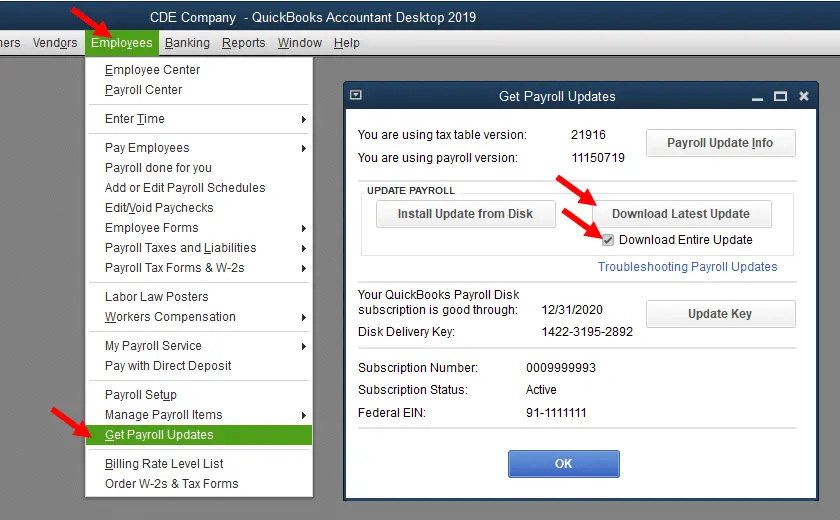
Note: The 2026 tax table updates will not be available as a web patch and must be installed directly within the software.
| Note: Payroll updates suddenly stopped working? This common QuickBooks Error PS038, error PS032 and Error 15276 can be annoying, but it’s easy to fix. Follow a few quick steps and resume your work stress-free. |
You may encounter a QuickBooks payroll tax table update error due to connectivity issues, an inactive payroll subscription, or other reasons. Follow the solutions below to identify the issues and resolve them to get your payroll updates:
If your payroll service is inactive, you may receive a QuickBooks Subscription Has Lapsed message that prevents payroll tax table updates from downloading. You can confirm whether your QuickBooks Desktop is registered by following these steps:
Note: If the status does not show as Activated, you will need to register your copy of QuickBooks Desktop.
Incorrect system date and time settings on your system can interfere with payroll updates and trigger update errors. Verify that your computer’s date and time are accurate before attempting the payroll update again.
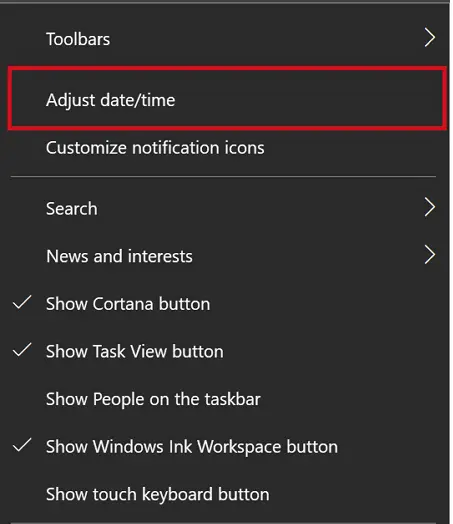
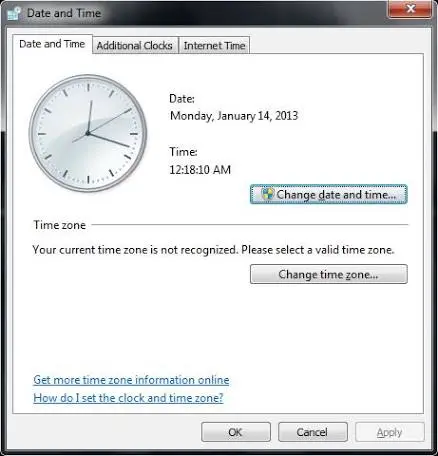
Having the correct system date and time helps avoid common update errors and issues.
If your payroll tax table not updating in QuickBooks, it could be due to QuickBooks being unable to verify the digital signature certificate. Follow the steps below to help resolve payroll update errors:
A repair installation can resolve issues caused by damaged QuickBooks components. Follow the steps below to repair QuickBooks Desktop, then try to get the QuickBooks payroll update tax table:
| Important Note: Before proceeding, download and install the latest version of QuickBooks Tool Hub to access the repair tools required for the troubleshooting steps below. |
The Quick Fix tool automatically closes any QuickBooks processes running in the background. It performs a quick repair to fix common program-related issues.
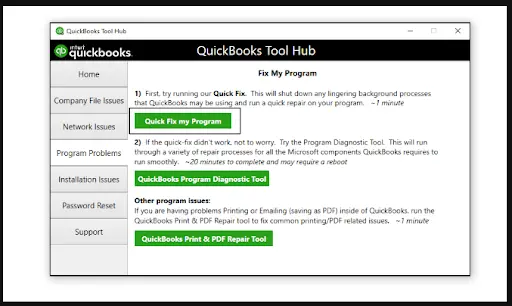
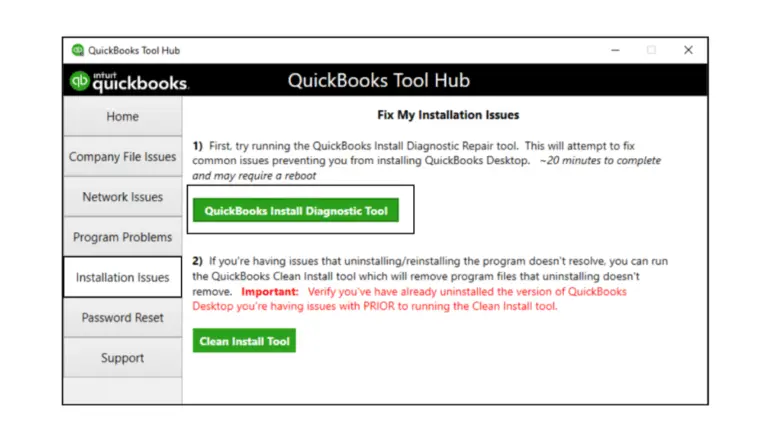
If there was an issue during installation, it can lead to problems while using QuickBooks Desktop.
Keeping your QuickBooks payroll tax table update current is essential for ensuring accurate payroll calculations and staying compliant with the latest tax regulations. With the information provided above, you can easily understand how payroll tax table updates work, troubleshoot common update issues, and ensure your QuickBooks Desktop remains up to date.
For further assistance, we recommend consulting QuickBooks professionals or letting a certified expert handle the process for you. Dial the +1(888)-718-7888 to connect with a certified support specialist right away!
You can manually update QuickBooks Desktop to the latest release by either downloading the installer directly from Intuit or using the built-in “Update Now” tool in the software.
Failing to update QuickBooks Desktop results in the loss of vital security patches, live technical support, and connected services like Payroll and online bank feeds. Additionally, older unsupported versions will eventually be blocked from opening company files, leading to forced upgrades.
Yes, you need Windows administrator privileges to update QuickBooks Desktop. These rights allow the program to modify system files and registry keys necessary for the new updates.
To quickly troubleshoot QuickBooks update problems, run the program as an administrator and reset the update settings. If issues persist, utilize the QuickBooks Tool Hub to run automated repair utilities, and ensure your Windows firewall or antivirus is not blocking the connection.
The safest way to update QuickBooks Desktop and payroll tax tables is to create a secure local backup of your company file, update the software release first, and then apply the latest tax tables. Always run the program as an Administrator to prevent permission errors during installation.
Updating your QuickBooks Desktop payroll tax tables ensures accurate paycheck calculations. To automatically download the latest tables from within the software, simply navigate to the Employees menu, select Get Payroll Updates, and click Update.
To reinstall a damaged payroll tax table update in QuickBooks Desktop, you need to force a full re-download and repair the corrupted core files.
To upgrade QuickBooks Desktop from 2023 to 2024, make sure to create a company file backup. Now, download and install the 2024 software using your new license and product keys. When done, open the company in the 2024 version and set it up to complete the conversion.