QuickBooks-Payroll-Update-Not-Working

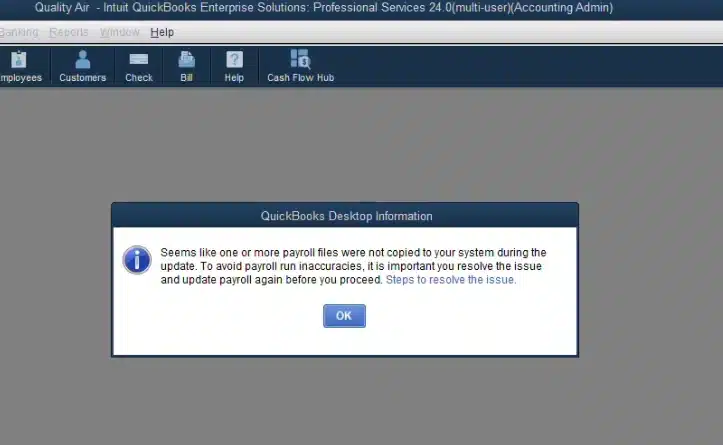
Running payroll smoothly is important for any business. When payday arrives and QuickBooks triggers an update error, operations can quickly come to a stop. If you are facing a QuickBooks Payroll Update Not Working issue, you are not alone. QuickBooks Desktop makes millions of employee payments daily, depending on frequent software updates and tax tables to stay compliant with federal and state tax laws. When an update fails, QuickBooks displays warning prompts, error codes or gets stuck on screens like Update Incomplete or Downloading Payroll Update.
QuickBooks-Payroll-Update-Not-Working

This handbook explains everything one needs to know about why payroll updates fail, how to identify common error codes, pre-troubleshooting steps and detailed solutions to restore your system.

Why Is Your QuickBooks Payroll Update Not Working?

To choose the right solution, it is always better to understand why QuickBooks Payroll Update Not Working:
  • Corrupted Payroll Update Files (CPS Folder): QuickBooks downloads tax table files into a folder called CPS. If files inside this folder become corrupted or damaged, the next updates fail.
  • Expired/ Verified Payroll Subscription: If the credit card info changed or the service key in QuickBooks is misconfigured, payroll tax table updates cannot validate entitlement.
  • Stuck Paychecks: If paychecks processed during a previous session remain stuck in an Online to Send status, QuickBooks blocks downloading updated tax tables until those transactions are cleared or updated.
  • Firewall & Antivirus Interference: Extra restrictive Windows Firewall rules or third-party security applications block QuickBooks program executables from reaching Intuit’s update servers over ports 80 and 443.
  • Outdated QuickBooks Desktop Application: Running tax updates on an outdated version of QuickBooks Desktop creates software issues.

  • Incorrect System Date and Time: An inaccurate system clock invalidates security certificates when connecting to Intuit servers.
how-to-get-current-system-date and Time

Error Codes Associated with QuickBooks Desktop Payroll Update Not Working

When a payroll update fails, QuickBooks presents an error code. Here is a list of errors related to Payroll Update Issues:

Error CodePrimary Cause
Error PS038Paychecks stuck in Online to Send status preventing tax table downloads.
Error PS077 / PS032Invalid billing information, damaged payroll setup files, or unregistered software.
Error 15240Internet Explorer/Edge connection settings, wrong publisher check, or firewall permissions.
Error 15270An incomplete file download caused by background network interruptions or closed applications.
Error 15102The download location path specified in QuickBooks is unavailable or invalid.

What to Do Before Troubleshooting QuickBooks Payroll Update Not Working Errors?

Before making any technical solution, make sure you complete the following tasks:
  • Create a Secure Local Company File Backup: Repair tools and clean reinstalls change system dependencies and database structures. Having a manual backup ensures your financial data stays safe. To create a secure local company file backup, go to File > Backup Company > Create Local Backup and save the file to a secure directory. Creating a backup also helps if you later face the QuickBooks Company File Not Found error.
  • Switch QuickBooks to Single-User Mode: In multi-user mode, background actions by other users using the software can lock files. This prevents payroll tax tables from writing correctly into the database. Ask all active users on the network to save their work and sign out.
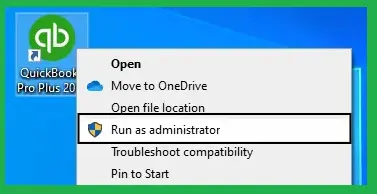
  • Log In as the Primary Windows Administrator: Modifying core folders, firewall rules and registry/DLL files requires permissions. Fully close QuickBooks, right-click the QuickBooks desktop icon and select Run as Administrator.
run-as-administrator
  • Verify Active Payroll Subscription & EIN Matches: Intuit prevents the downloads of the block tax table if your payroll service shows Inactive. This happens when your billing credit card has expired or the Employer Identification Number does not match as per Intuit’s database. To verify you have an Active status, click on Employees > My Payroll Service > Account/Billing Information. Go to Company > My Company and check that your EIN matches your payroll account.
  • Sync System Date, Time and Internet Explorer/Edge Settings: Intuit’s update servers depend on valid SSL/TLS certificates. If your computer’s clock is off by even a few minutes, the security handshake will fail, leading to 15xxx series update errors. Also, clear your default browser’s temporary internet cache and cookies.
  • Document Pending Paychecks: If paychecks need to be sent out, there are certain repairs that can cause paystub reference numbers to misalign or throw Error PS038. Go to Employees > Send Payroll Data. If there are unsent paychecks, take note of the pay period and employees’ names or process them first.
  • Temporarily Pause Active Antivirus/Security Scans: Third party security software identifies automatic background updates as false alarms and isolates downloaded files while installation is underway. Always temporarily disable the real time protection feature of the antivirus.

Top Solutions to Fix QuickBooks Desktop Payroll Update Not Working

Follow these detailed stepwise repair methods to get back on track with payroll.
Solution 1: Update QuickBooks Desktop

  • Close all company files and exit QuickBooks.
  • Right-click the QuickBooks Desktop shortcut icon and click Run as Administrator.
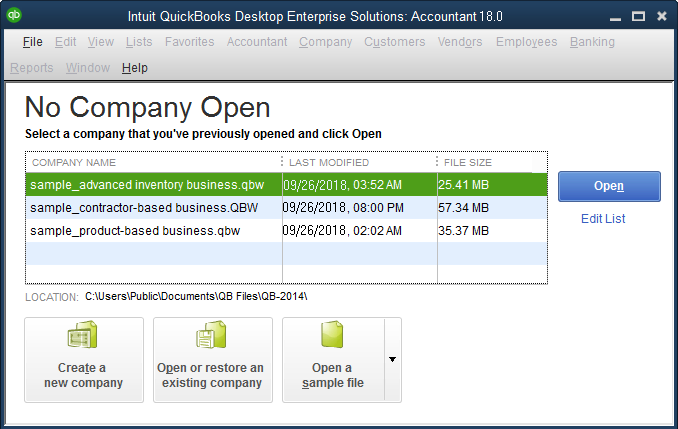
  • On the No Company Open screen, go to the top menu bar and select Help > Update QuickBooks Desktop.
quickbooks-no-company-open
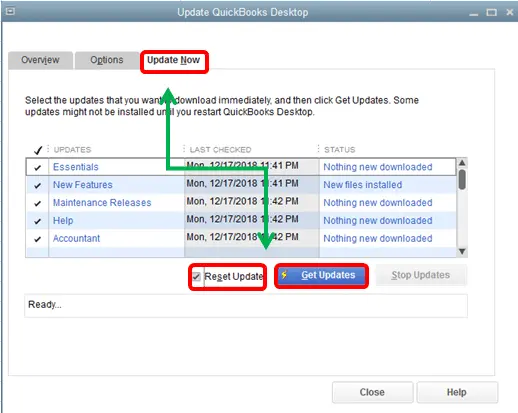
  • Switch to the Update Now tab.
  • Check the box labeled Reset Update to clear past partial downloads.
  • Click the Get Updates button.
Update-QuickBooks-desktop
  • Wait for the status bar to show Update Complete. Restart QuickBooks Desktop.
  • If prompted to install updates upon reopening, click Yes.

Solution 2: Clear Stuck Paychecks (Fixing Error PS038)

In case your error is related to stuck paychecks, QuickBooks is unable to download updates while pending paychecks remain unsent.

Step A: Locate Unsent Paychecks

  • Open QuickBooks Desktop and open the Find tool.
  • Select the Advanced tab.
  • In the Filter list, select Detail Level and set it to Summary Only.
  • Scroll down the Filter list, select Online Status and pick Online to Send.
  • Click Find. Note down the list of paychecks that appear in the search results.

Step B: Send Data or Toggle Stuck Paychecks

  • Go to Employees > My Payroll Service > Send Usage Data/ Send Payroll Data.
  • Click Send All and enter your Payroll Service PIN.
  • If sending fails, open the oldest stuck paycheck from your Find list:
    • Click Paycheck Detail.
    • In the Earnings table, add an extra row with the exact same rate/item as the last entry.
    • When prompted with the Net Pay Locked notification, click No.
    • Ensure net pay amounts remain unchanged, then click OK.
    • Click Save & Close.
    • Reopen the same paycheck, click Paycheck Detail, delete the extra earnings item line you just added and click Save & Close.
  • Update your payroll tax table again via Employees > Get Payroll Updates.

Solution 3: Change the Name of the Damaged CPS Folder

This helps QuickBooks build a clean directory since corrupted update components in the CPS folder block new tax table files.

  • Close QuickBooks Desktop and access Windows File Explorer.
  • Navigate to the C:\Program Files\Common Files\Intuit\QuickBooks\CPS path depending on your application version.
  • Right-click the CPS folder and select Rename.
  • Type CPS_OLD and press Enter.
  • Reopen QuickBooks as Administrator, navigate to Employees > Get Payroll Updates and select Download Entire Update.

Solution 4: Use QuickBooks Tool Hub

Intuit’s Tool Hub utility repairs background components like .NET Framework and installation files.
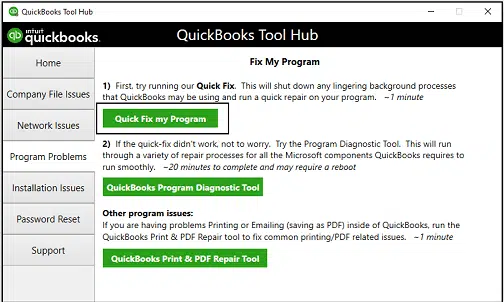
Run Quick Fix My Program.

  • Inside Tool Hub, go to the Program Problems tab.
  • Click Quick Fix My Program.
Run-Quick-Fix-My-Program
  • Allow the repair tool 3 to 5 minutes to complete background process fixes.
  • Reopen QuickBooks and run the payroll update.

Run QuickBooks Install Diagnostic Tool.

  • In Tool Hub, click the Installation Issues tab.
  • Select QuickBooks Install Diagnostic Tool.
  • Let the diagnostic scanner run.
  • Once completed, restart the computer, open QuickBooks and download the payroll update.

Solution 5: Re-verify Digital Signatures and Configure Firewall Settings

Whenever there are problems accessing QuickBooks due to security programs, re-verify the digital certificate and configure firewall settings to enable access.
Re-verify Digital Certificate

  • Access Windows File Explorer and navigate to C:\Program Files (x86)\Intuit\QuickBooks [Year].
  • Locate QBW32.exe, right-click it and select Properties.
  • Go to the Digital Signatures tab.
  • Select Intuit, Inc. from the signature list and click Details.
  • Click View Certificate.
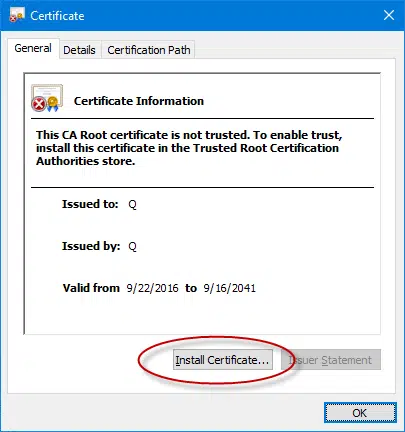
  • Select Install Certificate, set the store location to Local Machine and complete the wizard.
Install-certificate
  • Restart QuickBooks and attempt the update again.

Add Firewall Ports Exemption

  • Access the Windows Start menu, search for Windows Defender Firewall and press Enter.
  • Click Advanced settings on the left menu.
  • Right-click Inbound Rules and select New Rule.
  • Choose Port and click Next.
  • Select TCP and enter ports 80, 443 in the Specific local ports field.
  • Click Allow the connection, name the rule QuickBooks Payroll Ports and click Finish.
  • Repeat the same steps under Outbound Rules.

Note: If the problem continues, try Verify and Rebuild Data in QuickBooks Desktop to repair damaged company file data.

How to Prevent QuickBooks Payroll Update Errors in the Future?

Prevent payroll update errors with these ongoing routine maintenance practices:

  • Update Tax Tables Regularly: Download updates at least once every 45 days, even if you do not run immediate payroll.
  • Run Updates in Single-User Mode: Always ensure other workstation users are logged out of the company file before starting payroll updates.
  • Send Usage Data After Each Payroll: Navigate to Employees > My Payroll Service > Send Usage Data right after completing payroll runs to ensure no stuck paychecks remain in the system queue.
  • Maintain Security Exceptions: Make sure that QBW32.exe and QBUpdate.exe are part of your antivirus program’s exceptions list.
  • Keep Billing Info Current: Ensure your Intuit Account payment details are updated in case you have any changes in billing addresses and expired credit cards.

Conclusion!

A QuickBooks Payroll Update Not Working error can interrupt your workflow, but it is easy to solve. This error mainly occurs due to outdated programs, damaged CPS folders, unmailed paychecks and network security exceptions. Follow the above solutions, from basic software upgrades to fixing the problems of the stuck paycheck and refreshing the CPS folders, to get your payroll system back to working order. Keep your software updates and verify your subscription status regularly to ensure smooth, uninterrupted payroll processing in future pay periods.

Need any help regarding payroll update errors delaying your payday? Contact the Data Services Team today +1(888)-718-7888 for instant troubleshooting to get your tax tables and software running smoothly.

Frequently Asked Questions (FAQ’s)

QuickBooks Payroll Won’t Update due to a possible temporary network interruption, service disruption on the side of Intuit’s servers, or expiry of the credit card for your payroll service. This problem could also be related to incorrect date and time settings in your system or interference from background antivirus software.

The fastest way to fix update problems is to restart the computer, open QuickBooks as an Administrator and run a quick update reset. Go to Help > Update QuickBooks Desktop, select the Update Now tab, check Reset Update and click Get Updates. This clears out corrupted temporary files causing the hang-up.

QuickBooks mostly shows the Payroll Update Failed message when it faces an interruption while downloading or extracting the new tax tables. Some of the common triggers include damaged files inside the CPS folder, paychecks stuck in an Online to Send status, misconfigured Windows Firewall settings blocking ports 80 or 443 and inactive or unverified payroll subscription status.

Updating QuickBooks Payroll will not delete or change the financial records, employee information or past paychecks. However, to ensure maximum safety, always create a manual local backup before running any major updates. Also, make sure no other users are logged into the company file by switching to Single-User Mode.

Major Windows updates reset network security permissions or disable core components like the .NET Framework and Digital Certificates. To fix this, open the QuickBooks Tool Hub. Run the Quick Fix my Program tool from the Program Problems tab. If that does not work, reinstall your digital certificates by right-clicking QBW32.exe in your installation folder. Select Properties > Digital Signatures and install the Intuit certificate.

Yes. In order for Intuit to be able to run the latest payroll tax tables for you, you must have an updated version of QuickBooks Desktop software. Otherwise, if your version of QuickBooks is outdated or obsolete, the tax tables cannot be updated automatically.

Yes, there is a distinct difference. In QuickBooks Updates, modifications are made to the core accounting program, fixing software bugs, performance issues and security vulnerabilities. In Payroll Updates, current federal, state and local tax rates, tax bracket calculations and e-file forms are downloaded into your payroll module.

About The Author

Steven Moody

Steven Moody is a bookkeeping and payroll specialist dedicated to helping businesses maintain accurate financial records and efficient payroll operations. His expertise includes payroll management, tax compliance, bookkeeping solutions, and financial reporting. Steven regularly shares insights on accounting best practices and business finance strategies. Outside of work, he enjoys traveling, exploring new places, and keeping up with the latest developments in business technology.

Steven Moody

Payroll

QuickBooks Assisted Payroll: Setup, How It Works & Benefits

Read More
QuickBooks Error

QuickBooks Error H303: How to Fix Multi-User Mode Connection Issue?

Read More
QuickBooks Error

How to Fix QuickBooks Error 6000 77 While Accessing Company File

Read More
QuickBooks Error

Can’t Install QuickBooks Desktop? Here’s How to Fix It

Read More
QuickBooks Error

QuickBooks Error H505: Why It Happens & How to Fix It

Read More