If you encounter the “QuickBooks Outlook is not responding” error when sending emails, invoices, or reports, it usually indicates that QuickBooks Desktop cannot communicate with Microsoft Outlook. This issue can interrupt your workflow and prevent you from sending important business emails. This issue may appear due to incorrect email configuration, mismatched administrator privileges, or a damaged MAPI32.dll file.
In this guide, we will walk you through all the possible reasons and easy troubleshooting methods to fix QuickBooks Outlook is not responding issue.
The QuickBooks Outlook is not responding error mainly occurs due to the incompatibility between Outlook and QuickBooks, which prevents users from sending emails. When this error occurs, it shows the following warning message:
“QuickBooks is unable to send your emails to Outlook. Close any open Outlook windows and try again.”
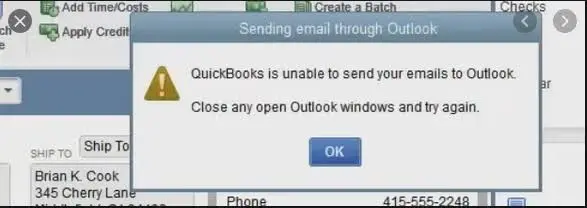
This issue is caused by multiple reasons, including misconfigured email settings, incorrect internet settings, or an outdated Microsoft 365 product. It is essential to fix this issue to regain access to email functionality and continue sending emails.
The Intuit QuickBooks Outlook is not responding error may occur due to incorrect email settings, preventing users from sending emails. Several other factors contribute to this error, including;
Once you know the reasons why QuickBooks Outlook is not responding when trying to send from QB, let’s quickly perform these troubleshooting methods to fix it.
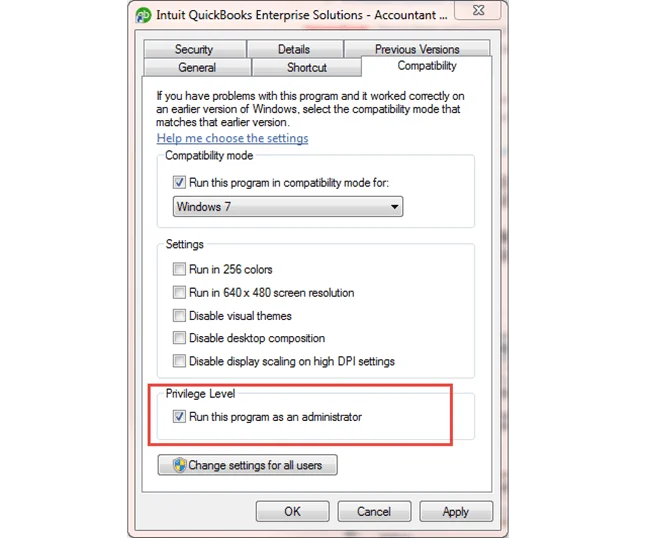
You must verify that QuickBooks isn’t set to run as administrator automatically.
The incorrect email preferences are the most common reason behind the QuickBooks Outlook is not responding error. Make sure you set up email preferences accurately in QuickBooks. Use these steps;
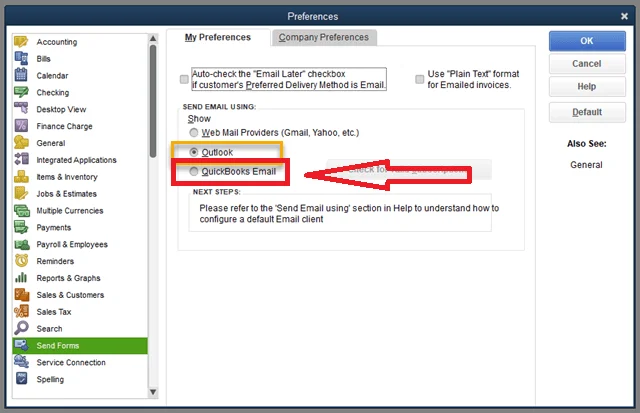
QuickBooks prefers Internet Explorer to run the web services in the background. But if those email preferences aren’t configured correctly, it may stop responding to Outlook. So, to fix the issue, you need to reset your email preferences.
Data Service Team Tip: Corrupted Internet Explorer settings may also trigger a QuickBooks Script Error, which can interfere with Outlook integration and other web-based QuickBooks features.
While emailing invoices, reports, or receipts through Outlook, QuickBooks depends on the MAPI32.dll file to transfer the data. If this file gets corrupt or damaged, QuickBooks can’t connect to Outlook, which may result in Outlook not responding in the QuickBooks error. To repair the damage, run this test to narrow down the issue.
Now that you can send an email from Microsoft Word but not in QuickBooks, repair the MAPI2.dll file using these steps.
A damaged or corrupt Microsoft Outlook could also result in Outlook not responding in QuickBooks. So, to fix the issues, let’s uninstall and reinstall Microsoft Office.
If you sign in with a Microsoft Account
If you sign in with a work or school account
Reinstalling the QuickBooks Desktop will delete all the files and folders present in the application and then perform a fresh installation of the software. This may fix the issue with the program, including the QuickBooks Outlook is not responding error.
The QuickBooks Outlook is not responding is usually caused by Outlook communication failures, incorrect email preferences, or administrator permission conflicts. By following the troubleshooting methods above, updating QuickBooks Desktop and Microsoft Outlook, and correcting your email settings, you can restore Outlook integration and continue sending invoices, reports, and other business documents without interruption. Thus, it will help you restore email functionality and continue sending emails, invoices, etc., without any interruption. For more help, you can contact our QuickBooks Data Service team at +1(888)-718-7888 and talk to live assistants for expert guidance.
repair Microsoft Outlook,
QuickBooks freezes when emailing invoices through Outlook due to a damaged MAPI32.dll file, a corrupt or outdated Microsoft Office, and mismatched admin permissions.
Yes, you can use QuickBooks Tool Hub to fix email issues. You can run this tool to repair damaged program files, fix installation problems, and resolve communication errors that prevent Outlook from working with QuickBooks.
Yes, interference with antivirus or firewall settings may block QuickBooks, as it considers it a threat and prevents you from emailing through Outlook.
If QuickBooks continues showing errors,
Yes, a corrupted Outlook profile may interrupt MAPI communication, preventing QuickBooks from failing when sending invoices, reports, estimates, and purchase orders. So, to fix the issue, create a new Outlook profile and try sending emails.
To fix the QuickBooks Outlook is not responding error,
Following are the common causes that trigger the QuickBooks email not working with Outlook issue.