QuickBooks-Freezing

It can be hard to manage business finances requiring precision, timing and reliable tools. Millions of small business owners and bookkeepers use QuickBooks Desktop and QuickBooks Online as the non-negotiable base of daily financial management. Imagine a scenario where you rushed to close out payroll or send invoices to clients, but the screen locked up completely. A spinning blue circle appeared and the interface grayed out, displaying a message: QuickBooks Not Responding.

If you have been in a similar situation, you are in the right place. QuickBooks freezing is one of the most common issues reported by users worldwide. Have a look at this handbook to uncover why QuickBooks freezes, explore the root causes and provide practical strategies to keep your software running at its usual performance.
QuickBooks Freezing

What does QuickBooks freezing mean?

QuickBooks Freezing means that the application has suddenly stopped responding to your mouse clicks, keyboard inputs or touch commands. QuickBooks freezing during update is a very common error where the software becomes unresponsive while downloading or installing updates. This causes the user interface to lock up completely. The screen may gray out and the mouse cursor may turn into a spinning loading wheel.

This situation clearly means that the software has reached a point in its process that it can no longer complete or it is stuck waiting for a reaction from a system component like the computer’s RAM, hard disk, network server or an unresponsive Windows service.

Unlike the case of a crash, whereby the application simply exits without warning, the freeze situation will leave the application suspended between tasks and you can forcefully close it via the Windows Task Manager.

Note: If you’re experiencing network-related problems, learn how to fix QuickBooks Not Connecting to Server and restore access to your company file.

Common Causes of QuickBooks Freezing and Crashing

When you know the exact trigger behind your software unresponsiveness, you can save hours of trial and error. QuickBooks freezing are mostly random, they are usually the result of one or more causes:

  • Corrupted Company Files: Your QuickBooks company file holds all your financial data, lists and transactions. Over time, due to sudden power outages, improper computer shutdowns or network disconnections while saving data, internal structural damage can occur within the file. When QuickBooks attempts to read this damaged data structure, the application freezes.
  • Mismatched Configuration Files: In order for QuickBooks to start correctly, certain configuration files must be in place, for example QBWUSER.ini or EntitlementDataStore.ecml. In case these configuration files get corrupted, QuickBooks is likely to freeze up or crash when you try to start the application.
  • Outdated QuickBooks Software or Windows OS: Running an old version causes QuickBooks Desktop freezing up issues when paired with an upgraded Windows OS. Similarly, using an obsolete version of QuickBooks that contains bugs will cause QuickBooks freezing unexpectedly.
  • Damaged Windows Components (.NET Framework & MSXML): QuickBooks runs on the Microsoft platform. In the case that the Windows .NET Framework, C++ redistributable files or MSXML are corrupted, missing or outdated, QuickBooks cannot perform its important back-end functions, leading to program crashes.
  • Multi-Network and Hosting Discrepancies: In a multi-user environment, if multiple computers are attempting to host the company file simultaneously or if the QuickBooks Database Server Manager is improperly configured on the host computer, network congestion will cause workstation clients to freeze constantly.
  • Background Process Conflicts: At times, third-party antivirus software, Windows Defender or orphaned background tasks block QuickBooks from writing temporary files to your hard drive.

What are the methods to fix QuickBooks Freezing?

Applying the correct solution to your error can save you time, especially when you know the reason behind this glitch. Go through the below-mentioned methods to troubleshoot the QuickBooks freezing issue.

Method 1. Run Quick Fix My Program via QuickBooks Tool Hub

This terminates any background processes that may be causing the application to hang or freeze upon launch.

Method 2. Suppress QuickBooks Desktop on Startup

Opening QuickBooks in a suppressed state prevents it from automatically loading the last opened company file, which is helpful if data corruption on a specific window causes the freeze.

  • Press and hold the Ctrl key, then double-click the QuickBooks Desktop icon. Keep holding down the Ctrl key until the No Company Open window appears.
  • Choose the company file and click Open while holding the Alt key.

Method 3. Rename the QBWUSER.ini File and EntitlementDataStore.ecml

  • Open the folder where the configuration file is saved: C:\Users[Your User Name]\AppData\Local\Intuit\QuickBooks [Year].
  • Turn on Hidden items in Windows Explorer if you cannot see the AppData folder.
  • Right-click the QBWUSER.ini file and select Rename.
  • Type .old at the end of the file name, making it QBWUSER.ini.old.
  • Later, navigate to the Entitlement Data Store folder via the ProgramData directory and right-click EntitlementDataStore.ecml and rename it with .old as well.
  • Reopen QuickBooks.

Method 4. Run the QuickBooks Install Diagnostic Tool

QuickBooks depends heavily on Microsoft components like .NET Framework, MSXML and C++. If these core environments are damaged, the app will QuickBooks freezing.

  • Access the QuickBooks Tool Hub.
  • Select the Installation Issues tab.
  • Click on QuickBooks Install Diagnostic Tool.
  • Let the scan run.
  • Restart your computer once the tool finishes, then launch QuickBooks.

Method 5. Execute Verify and Rebuild Data Utilities

Internal structural damage inside the company file can cause the software to stop in between.
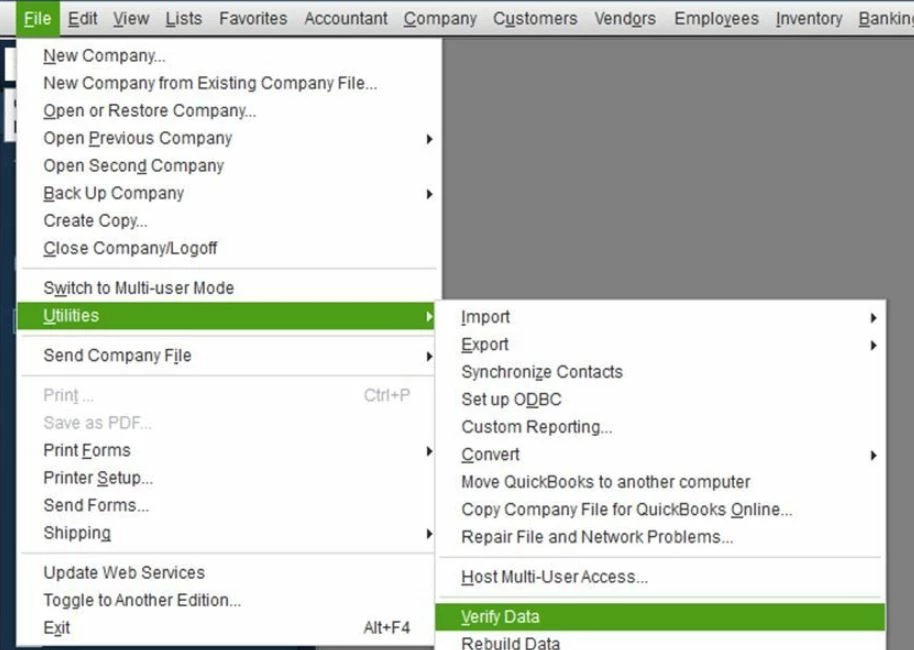
  • Open QuickBooks, go to the File menu, hover over Utilities and select Verify Data. Let it check for integrity issues.
Verify-Data.webp
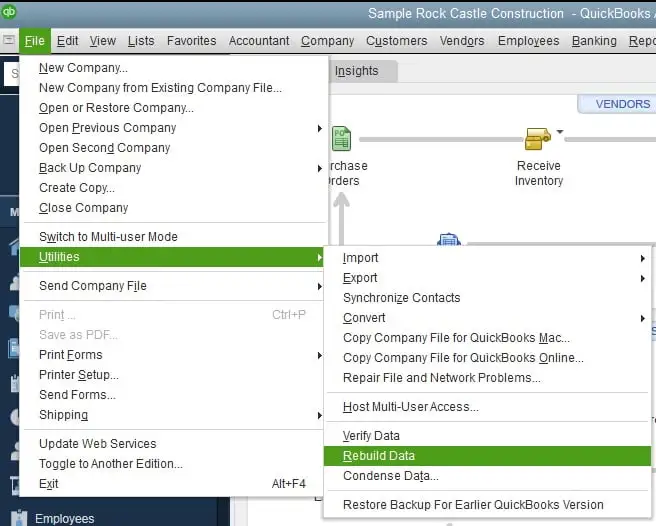
  • If errors are detected, go back to File > Utilities and click Rebuild Data.
Verify-and-Rebuild-Data
  • Click OK to back up your company file when prompted and wait for the tool to finish repairing.

Method 6. Run QuickBooks as an Administrator

Windows permissions can prevent QuickBooks from writing necessary temporary cache files, locking up the program interface.

  • Close QuickBooks completely.
  • Right-click QuickBooks Desktop and run it as Administrator.
  • If it is prompted by User Account Control, click Yes to allow access.

Method 7. Rename the QBprint.qbp File

Open the folder where your print configuration files are stored: C:\ProgramData\Intuit\QuickBooks [Year].

  • Look for the QBprint.qbp file.
  • Right-click the file and select Rename to add .old to the end of the file extension.
  • Open QuickBooks and go to File > Printer Setup to regenerate a fresh file.

Method 8. Perform a Clean Install of QuickBooks

A Clean Install completely sweeps out bad core directories.

  • Uninstall QuickBooks Desktop via Windows Control Panel Programs and Features.
  • Download and run the QuickBooks Clean Install Utility.
  • Manually rename your leftover system component folders for QuickBooks.
  • Reinstall QuickBooks Desktop using your license and product numbers.

How to Read Windows Event Viewer Logs for QuickBooks Freezes?

When common troubleshooting techniques do not work in dealing with recurrent QuickBooks freezing, system administrators and savvy users must look for problems in the core of their operating system. The operating system keeps a detailed record of all crashes and exceptions in the Event Viewer, where you can find out exactly what causes QuickBooks freezing.

Go through these steps to diagnose QuickBooks freezing via Event Viewer:

  • Launch the Utility: Press the Windows key, type Event Viewer and press Enter to open the management console.
  • Go to Application Logs: In the left-hand sidebar, expand Windows Logs and click on Application. These logs are related to software installed on the machine.
  • Filter and Search for Errors: Go through the central pane for important events or errors marked with red icons or exclamation points. Filter events associated with QBW32.EXE, Microsoft. NET Runtime and Exception Code 0xc0000005.
  • Cross-Reference Error Codes: Once you separate the error ID or you can use it to pinpoint whether the issue is a failing RAM stick or a bad Microsoft .NET update. Now double-check these codes on the official Intuit Developer or Microsoft Support forums for targeted solutions.

How to Make Network and Multi-User Environment Adjustments?

When multiple computers are accessing the same company file over a local network, small network issues can cause the entire system to hang. Optimizing the network environment can avoid interruptions mid-operation:

  • Verify QuickBooks Database Server Manager (QBDBMgrN): Ensure that the QBDBMgrN.exe service is actively running on the host computer in a multi-user environment.
  • Use Universal Naming Convention (UNC) Paths Instead of Mapped Drives: Many offices map network drives to access QuickBooks. However, if Windows loses connection to that mapped drive letter even for a second, QuickBooks freezing. So, use UNC paths when opening company files across a network.
  • Use Hardwired Ethernet Connections: Wireless networks tend to be susceptible to micro-disconnections. Using a workstation hosting or accessing a heavy QuickBooks file via WiFi can lead to sudden QuickBooks freezing. Connecting both the server and workstations via Ethernet cables helps to mitigate this problem.

Optimizing Large Company Files to Prevent System Latency

Just like any physical file cabinet will get full after years of filing paper documents, a QuickBooks company file is also capable of getting too big. This file accumulates thousands of transactions, outdated list entries, audit trails and hidden cache fragments. This leads to exponential hard work by the database engine and latency issues. Use these steps to optimize your data.

  • Understand File Size Thresholds: While QuickBooks can handle large files, once a company file crosses gigabyte thresholds, database queries slow down significantly.
  • Utilize the Condense Data Utility: If the file is bloated with historical data you no longer need active on a daily basis, use the Condense Data utility. This tool allows you to archive closed transactions prior to a specific date, reducing file size and speeding up daily navigation.
  • Create and Restore a Portable Company File (.qbm): A trick for cleaning up hidden structural fragmentation is creating a Portable Company File. Go to File > Create Copy > Portable Company File. This packages your company data into a compact format.

Is QuickBooks Running Slow Before It Freezes?

If QuickBooks is running slow before becoming completely unresponsive, the problem may be related to a large company file, insufficient system resources, outdated software, network issues, or background applications. Check your system performance, update QuickBooks and Windows, and verify your company file for data integrity issues. In multi-user environments, also check the network connection and QuickBooks Database Server Manager settings.

How to Prevent QuickBooks from Freezing in the Future?

Knowing the correct way to fix a freeze is important, but prevention should be the top priority to maintain business continuity. Implement a proactive maintenance routine to reduce the likelihood of future software lockups. Consider employing these best practices:

  • Schedule Regular Data Maintenance: Make it a habit to run the Verify Data and Rebuild Data utilities on your company file monthly. Catch minor data discrepancies early to prevent massive structural corruption down the line.
  • Keep Software Updated: Always update QuickBooks using maintenance releases and automatic updates, especially when addressing QuickBooks Online keeps freezing scenarios and bug patches.
  • Maintain Strict Backup Protocols: You should back up your company file at least once a week. This backup should be saved to an external source, such as an external hard drive.
  • Optimize Your Network Environment: Make sure the network switch, router and Ethernet cables are working properly while using QuickBooks in a multi-user mode. Use wired connections rather than Wi-Fi for workstations hosting or accessing heavy company files.
  • Configure Antivirus Exceptions: Include QuickBooks executable files and program folders in your antivirus and firewall exceptions list to prevent security scans from blocking QuickBooks processes.

Conclusion!

QuickBooks freezing interrupts your daily work, causing a lot of inconvenience. But knowing about the actual cause of the problem being one of the mentioned ones will help you fix it. Perform routine maintenance, keep your operating system and software updated to ensure that QuickBooks remains a fast and powerful asset for your business operations.

Need any further assistance regarding the QuickBooks Keeps Freezing error? Contact the Data Services Team today at +1(888)-718-7888 for guided help throughout the process.

Frequently Asked Questions (FAQ’s)

QuickBooks freezes due to reasons such as oversized company file, background process conflicts, inadequate computer RAM or network delays in multi-user modes. The performance of QuickBooks can be improved by verifying and rebuilding data or clearing temporary files.

From a functionality perspective, the two terms appear identical on your screen. Nonetheless, the difference between the two is that ‘Not Responding’ refers to a status in the Windows Operating System that indicates that the application has ceased communicating with the CPU, while ‘Freezing’ encompasses infinite calculation loops, background database hangups or UI rendering stalls.

In case of a complete freeze where QuickBooks stops working completely, do not open QuickBooks right away. Start the Windows Task Manager, find all background processes, if any, of QuickBooks such as QBW32.EXE or QBDBMgrN.exe and select “End Task”. Once done, restart QuickBooks by using the Suppress Startup option or using the QuickBooks Tool Hub.

Yes, since if the core program files of QuickBooks are installed on your computer and get corrupted, then QuickBooks will freeze frequently. Running a Clean Install or QuickBooks Installation Diagnostic Tool will help fix the problem.

You should reach out to official Intuit QuickBooks support if you have exhausted all standard troubleshooting steps such as using the Tool Hub, running file repairs and updating Windows and your company file still consistently crashes, throws unrecoverable database errors or refuses to open.

About The Author

Steven Moody

Steven Moody is a bookkeeping and payroll specialist dedicated to helping businesses maintain accurate financial records and efficient payroll operations. His expertise includes payroll management, tax compliance, bookkeeping solutions, and financial reporting. Steven regularly shares insights on accounting best practices and business finance strategies. Outside of work, he enjoys traveling, exploring new places, and keeping up with the latest developments in business technology.

Steven Moody

QuickBooks Error

QuickBooks Not Connecting to Server? How to Fix It Now

Read More
QuickBooks Tool

QuickBooks Administrator Permission Needed Error: Here’s How to Fix It

Read More
QuickBooks

QuickBooks Desktop 2024: Complete Download, Install & Upgrade Guide

Read More
QuickBooks Error

How to Fix QuickBooks Error 15215 While Verifying Digital Signature

Read More
QuickBooks Error

QuickBooks Error 6123, 0 : Why It Happens and How to Resolve It

Read More