QuickBooks-Web-Connector-Error-QBWC1085

Are you experiencing the QuickBooks Web Connector Error QBWC1085? No worries! It can be resolved using methods discussed below. This common issue can hinder the seamless integration between the QuickBooks software and third-party applications. It affects the ability to manage finances efficiently. QuickBooks error QBWC1085 has various causes, such as a damaged QBWCLOG.TXT file of the web connector program.

Here, you will be able to learn about the error QBWC1085, causes, symptoms, and simple methods with complete instructions. We aim to empower your smooth experience and enhance overall productivity.

Learn About QuickBooks Web Connector QBWC1085

The QBWC1085 error in QuickBooks Web Connector is a frequently seen notification that appears when the background program fails to access its text log file called QWCLOG.TXT. This message appears on Windows during system startup because a third-party web application is having trouble syncing correctly.
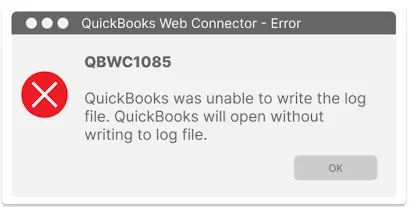
QuickBooks Web Connector QBWC1085

Explaining Error QBWC1085

The QuickBooks Web Connector serves as a tool. It facilitates communication between online web services and third-party applications with QuickBooks Desktop. This tool maintains a text log of its actions in a designated folder on your hard drive. If this log file is damaged, locked due to Windows permissions, or is missing, the system shows the QBWC1085 error code. It does not affect essential accounting data, but it prevents the external applications from syncing.

What Causes QuickBooks Web Connector Error QBWC1085?

This error happens when the application fails to write data. Repair QB Desktop and rename the QBWCLOG.txt file to fix QuickBooks Web Connector error QBWC1085. It appears upon launching Windows when a connected third-party tool tries to sync. Here are the causes of QuickBooks Web Connector Error QBWC1085:

  • The QWCLOG.TXT text file in the program folder is damaged.
  • The user profile lacks the rights needed to write data to the log folder.
  • The Web Connector remains in the Windows Startup folder, but no third-party apps are linked.
  • Running an old version of the Desktop build causes sync failures.
  • An instance of QBWebConnector.exe is stuck frozen in the background.
  • A third-party application was uninstalled and leaves broken hooks in the connector.
  • Windows Firewall blocks the tool from accessing system directories.

Data Service Team Tip: To resolve this issue in QBWC, go ahead and rename the log file, establish connections with third-party applications, and adjust startup settings. Call us now at +1(888)-718-7888 for help.

How Can You Identify QBWC1085 Error in QuickBooks Web Connector?

This issue occurs when a log file is damaged or has incorrect permissions. It shows an error message on startup. It prevents third-party apps from syncing and creates recurring popup alerts. Most QBWC1085 errors are caused by corrupted QWCLOG.TXT files or permission restrictions and not by damaged company data. You must be aware of the symptoms to resolve QuickBooks error QBWC1085:

  • A dialog box appears on the screen every time you open QuickBooks.
  • The message shows QBWC1085: QuickBooks was unable to write to the log file.
  • Third-party web apps and add-ons fail to connect to data.
  • The QWCLOG.TXT file is missing from its proper folder path.
  • The existing log file contains corrupted text that QuickBooks cannot read.
  • QuickBooks lacks the Windows rights needed to update the log file.
  • The same error notification returns even after you click OK or close it.

Things to Remember While Fixing QuickBooks Error QBWC1085

The QBWC1085 error means the Web Connector cannot reach the application URL specified in the.QWC configuration file. These errors typically occur due to company file conflicts, permission issues, or incorrect QuickBooks state. You must be aware of certain requirements to fix QuickBooks Web Connector error QBWC1085 when opening QB Desktop smoothly:

  • Create Backup – Make a secure duplicate of your QuickBooks company file to avoid losing data.
  • Admin Rights – Sign in to your Windows computer using an account with full administrative privileges.
  • Close Programs – Completely exit QuickBooks Desktop and the Web Connector.
  • End Tasks – Access the Windows Task Manager and terminate any active QBWebConnector.exe processes.
  • Unhide Folders – Change Windows File Explorer settings to reveal hidden files and folders to access C:\ProgramData.
  • Single-User Mode – Ensure you launch QuickBooks in single-user mode after restarting the application.
  • Network Stability – Confirm that your local connection is stable before making changes to log files.

How to Troubleshoot QBWC1085 Error in QuickBooks Web Connector?

Running into trouble? Here is how to fix common Web Connector errors in QuickBooks Desktop and avoid the chance of it happening again. The QuickBooks Web Connector Error QBWC1085 typically occurs when QuickBooks can’t write to the web connector log file. Follow the proven steps as outlined below:

Method 1: Repair QuickBooks Desktop

Generally, QuickBooks Web Connector error QBWC1085 occurs when the QWCLOG.TXT file is damaged or is not accessed by the web connector. Use this solution to repair any damage caused to the application and fix the QBWC1085 Error in QuickBooks Web Connector. If the QuickBooks installation is damaged, you can also use the QuickBooks Install Diagnostic Tool to identify and repair common installation problems.
  • First, reboot the system.
  • Choose the Start tab once the rebooting process is completed.
  • Look for the Control Panel option.
  • Click on the Programs and Features option.
  • The Control Panel window is visible on the screen.
  • Click on Uninstall a Program.
  • Select Programs if you are unable to find the Programs and Features option.
  • Choose the option for Programs and Features.
  • Select QB software and then choose Uninstall.
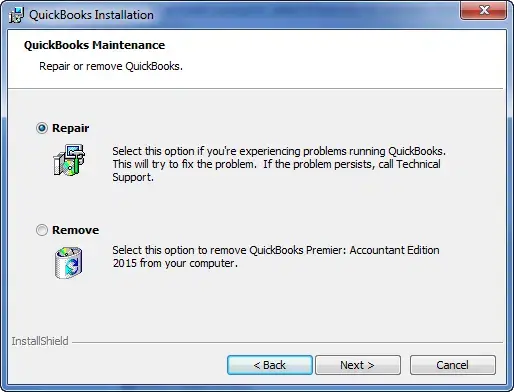
  • Select the Continue option and click Repair.
Repair-the-QuickBooks-Application
  • Let the tool repair the application after you click Next.
  • At last, choose the Finish option.

Method 2: Remove QB Web Connector From the Startup Menu
Suppose you face the QBWC1085 error with the log file when you are not utilizing Web Connector to communicate between QBWC1085 and any of the third-party applications. This solution is suitable for you if you are not using the Web Connector program. You must remove the QB Web Connector under the Startup tab.

  • Run Windows as Administrator.
  • You need to follow the C:\ProgramData\ Microsoft\Windows\Start Menu\Programs\Startup.
  • Delete the QuickBooks Web Connector.
  • Start the system again and open the QuickBooks Application.

Alternative Way to Disconnect QB Web Connector From the Startup Menu

  • Log into the Windows OS as an admin user.
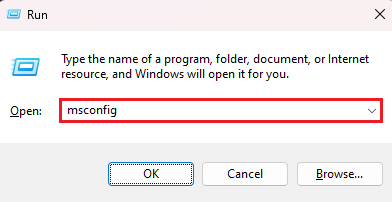
  • Write Msconfig in the search field and press Enter.
msconfig.webp
  • Select the Startup tab when a new window appears.
  • Proceed and look for the QuickBooks Web Connector from the Startup tab.
  • Unmark it from the box beside it when you find the Web Connector application.
  • Proceed and click on the Apply option.
  • In the end, choose OK.

Method 3: Add Web Connector to Startup Menu

If the QuickBooks Web Connector is missing from the startup menu, see the QBWC1085 error message. Add the QuickBooks Web Connector to the startup menu to resolve this error.

  • Press Windows + R and enter msconfig.
  • Click OK and select the Startup tab.
  • Check the box next to the QuickBooks Web Connector program in the list.
  • Click Apply and then OK.
  • Restart your Windows computer.

Data Service Team Tip: This solution is particularly relevant when using a third-party application on your system.

Method 4: Rename the QuickBooks Web Connector Log File

Here are the step-by-step instructions to rename the QB Web Log File:
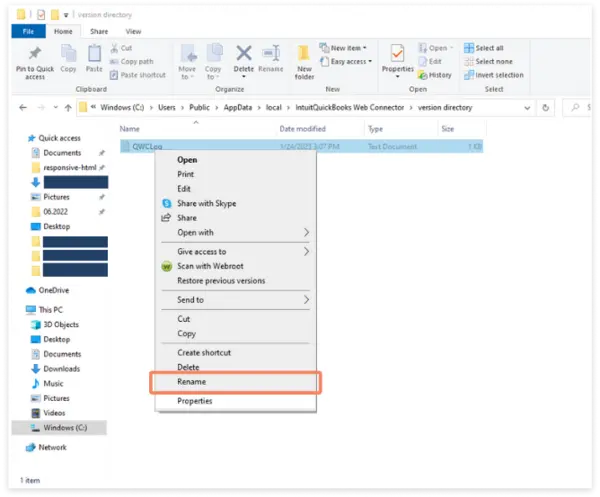
  • Right-click on the taskbar icon to close the QuickBooks Web Connector.
  • Move to the “C:\Program Data\Intuit\QBWebConnector\log” folder through Windows File Manager.
  • Right-click the menu to rename the “QWCLOG.TXT” file to “QWCLOGOLD.TXT“.
Rename-QWCLOG.TXT-File
  • Launch the Web Connector software again.
  • Restart the computer to see if the problem still persists.

Method 5: Utilize Another User with Admin Rights or Create a New One

  • Open the Control Panel and choose Accounts.
  • Move to the Family and Other Users Settings.
  • Select the Add Other User Option.
  • Choose Add Account.
  • Click on Administrator from the Account Type field.
  • Tap on OK.
  • Select the user account and modify the account type to an administrator if you wish to assign admin rights to an existing user.
  • Create a new account with admin rights.
  • Save the Settings and log out.
  • Once again, log in with your updated account.

Method 6: Install QuickBooks Desktop Updates

If you are still using an older version of the QB application, it may cause issues since not updating the software affects the functionality of the QB Web Connector in establishing a connection between the third-party application and QB.

  • To begin, launch the QuickBooks program and select the Help tab located in the toolbar at the top of the window.
  • Next, under the Help tab, click on the option for Update QuickBooks Desktop.
  • Then, select Get Updates and subsequently click on Update Now.
  • Finally, once the process is complete, open the application to see if error QBWC1085 has been resolved.

Method 7: Run the Quick Fix My Program Tool

You must first download the QB Tool Hub to use the Quick Fix My Program feature. Consider these steps carefully to resolve QuickBooks Web Connector error QBWC1085 when opening QB Desktop:
  • Navigate to Intuit’s official website.
  • Click on the link to download the QuickBooks Tool Hub.
  • As you download the QuickBooksToolHub.exe file, either save it in the default folder or manually select a location for saving the file.
  • Double-click it to open it on your screen once the file is saved.
  • Follow the installation wizard to set up the file on your system.
  • Accept all the terms and conditions and click OK.
  • The QuickBooks Tool Hub icon will then appear on your desktop.
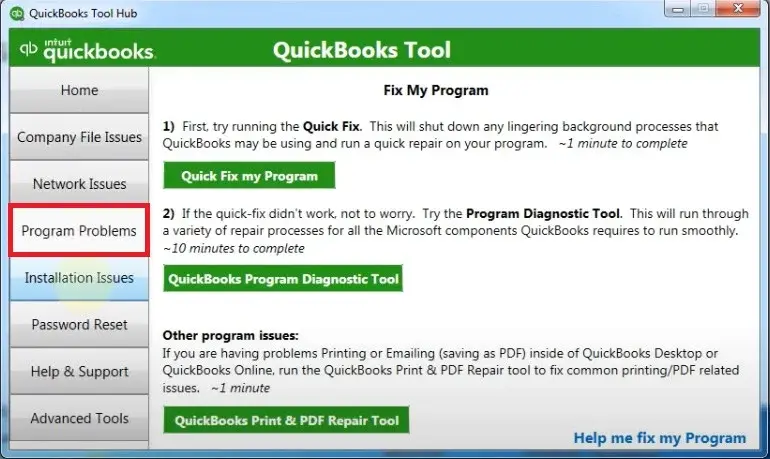
  • Open the Tool Hub and click on the Program Problems option.
  • Select Quick Fix My Program.
quickbooks-program-problems
  • Allow the tool to thoroughly diagnose and resolve the issue.

Method 8: Resolve OwnerID/FileID Conflicts Using the CP3 Tool

Duplicate identifiers in integration profiles frequently throw web connector configuration faults.

  • Download and install the official Intuit CP3 Tool.
  • Close QuickBooks Desktop.
  • Open the CP3 tool, click Open, and select your app’sQWC file.
  • Click Remove Stamp.
  • Follow the on-screen prompts to grant access inside the QuickBooks Application Certificate window.
  • Finally, click Continue and Done.

Method 9: Update QuickBooks Desktop and Web Connector

  • Outdated software components can mismatch file writing parameters.
  • Open QuickBooks Desktop as an administrator.
  • Click the Help menu and choose Update QuickBooks Desktop.
  • Select Get Updates under the Update Now tab.
  • Download the latest independent release version of the QuickBooks Web Connector directly from Intuit’s official catalog if your version is legacy.

Method 10: Clean Reinstall the Web Connector Component

If QuickBooks components are also damaged, the QuickBooks Clean Install Tool can help remove and reinstall problematic program files. Implement the provided instructions to clean reinstall it and remove the QBWC1085 Error in QuickBooks Web Connector:

  • Move to the Control Panel > Programs and Features.
  • Locate QuickBooks Web Connector and right-click it.
  • Select Uninstall and restart your computer.
  • Download the latest compatible Web Connector setup package from Intuit and run the installer.

Method 11: Check Integrated Applications Preferences

It may cause issues with log generation if permissions are disabled within QuickBooks.

  • Start QuickBooks and log in as the Administrator in Single-user mode.
  • Move to the top menu and choose Edit > Preferences.
  • Select Integrated Applications and click on the Company Preferences tab.
  • Choose your third-party application and click on Properties.
  • Make sure that Allow this application to log in automatically is checked, save the changes, and then click OK.

Method 12: Run Windows System File Checker (SFC)

Corrupted Windows system directories can prevent programs from accessing the ProgramData path.

  • Open the Start menu and type cmd.
  • Right-click Command Prompt and choose Run as administrator.
  • Type the command: sfc /scannow and press Enter.
  • Let the scan finish completely (this checks and repairs system file integrity).
  • Restart your computer once finished.

What To Do To Avoid QBWC1085 Error in QuickBooks Web Connector?

To prevent this error, it is essential to manage system permissions, application states, and file integrity. QuickBooks Web Connector Error QBWC1085 is caused by problems with the QWCLOG.TXT file.

  • Always ensure both QuickBooks Desktop and the Web Connector are opened with the same Windows permission level as Administrator.
  • If there are no active third-party web applications syncing with your company file, remove the QuickBooks Web Connector shortcut from your Windows Startup file C:\ProgramData\Microsoft\Windows\Start Menu\Programs\Startup.
  • Consistently check that the usernames and passwords for your third-party application align with those entered in the Web Connector interface.
  • Frequently update both QuickBooks Desktop and your specific Web Connector version to ensure secure protocols as well as code compatibility.
  • Make certain that no background processes, remote desktop sessions (RDP), or other users are attempting to access a different company file at the same time on the same machine.
  • Add QuickBooks and QBWebConnector.exe to the exclusion to prevent any abrupt interruptions in outbound sync actions during write processes.
  • If the error persists, go to C:\ProgramData\Intuit\QBWebConnector\log and rename QWCLOG.TXT to QWCLOGOLD.TXT to initiate a fresh log file generation.
  • Conduct them with QuickBooks in Single-User Mode and free of unexpected modal popups when performing significant third-party sync tasks.

Conclusion!

In conclusion, while the QuickBooks Web Connector Error QBWC1085 can disrupt the workflow, you must understand the causes and solutions that empower you to tackle this issue effectively. As we learned in the blog above, this error occurs when the QWCLOG.TXT file used by the Web Connector program becomes damaged. Consider the troubleshooting steps outlined in this blog to resolve the error and prevent it from recurring in the future. Always keep the software updated and maintain proper configurations for seamless integration.

If the problem persists, do not hesitate to reach out to Data Service Team professionals at +1(888)-718-7888 for further assistance.

Frequently Asked Questions (FAQ’s)

It displays the QBWC1085 error when the internal tracking file, QWCLOG.TXT, becomes damaged or blocked by insufficient user permissions. It prevents the program from reading sync activity data.

Yes! A damaged QWCLOG.TXT file is the major trigger for the QuickBooks Web Connector Error QBWC1085. It throws the “there was a problem with the log file exception when the Web Connector attempts to launch and fails to read this text file due to restrictive permissions.

Ensure both QuickBooks Desktop and QuickBooks Web Connector run with matching administrator permissions to prevent the future occurrence of error QBWC1085. Also, keep your third-party application credentials updated and remove unused Web Connector shortcuts from your Windows Startup folder if you no longer sync external integrations.

Yes! You need Windows Administrator rights to resolve error QBWC1085. Access protected system directories like C:\ProgramData to delete or rename the corrupted QWCLog.txt file to resolve the issue.

The QuickBooks Web Connector log file is damaged if the QBWC1085 error keeps returning. Go to C:\ProgramData\Intuit\QBWebConnector\log, rename QWCLOG.TXT to QWCLOGOLD.TXT, close QuickBooks and the Web Connector. It will generate a fresh log or remove the Web Connector from the Windows Startup folder if you use no third-party.

Launch the application and confirm that the error prompt no longer appears upon startup to verify that QuickBooks Web Connector error QBWC1085 is resolved. Check that a fresh QWCLOG.TXT file is generated in the log directory (C:\ProgramData\Intuit\QBWebConnector\log) and run a manual sync with connected third-party app to ensure data updates without interruption.

Close both programs, rename QWCLOG.TXT to QWCLOGOLD.TXT inside C:\ProgramData\Intuit\QBWebConnector\log to clear damaged logs, remove and re-add your QWC configuration file, and run both applications as an Administrator.

The fastest way to resolve QuickBooks Web Connector error QBWC1095 caused by a damaged log file is to close QuickBooks and the Web Connector. Navigate to C:\ProgramData\Intuit\QBWebConnector\log in File Explorer and rename the QWCLOG.TXT file to QWCLOGOLD.TXT so a fresh log file can be generated upon reopening.


About The Author

Steven Moody

Steven Moody is a bookkeeping and payroll specialist dedicated to helping businesses maintain accurate financial records and efficient payroll operations. His expertise includes payroll management, tax compliance, bookkeeping solutions, and financial reporting. Steven regularly shares insights on accounting best practices and business finance strategies. Outside of work, he enjoys traveling, exploring new places, and keeping up with the latest developments in business technology.

Steven Moody

QuickBooks Error

How to Fix QuickBooks Web Connector Error QBWC1039? Complete Guide

Read More
QuickBooks Desktop

QuickBooks Cannot Communicate with the Company File? Fix It Now

Read More
QuickBooks Error

QuickBooks Error 15243 Stopping Updates? Here’s How to Fix It

Read More
QuickBooks Error

What is QuickBooks Error 15241? Here’s How to Fix It

Read More
QuickBooks Error

QuickBooks Error 12152: Why It Happens and How to Fix It

Read More