QuickBooks-Migration-Failed-Unexpectedly

If QuickBooks migration failed unexpectedly, the problem may be related to an outdated QuickBooks version, an incompatible computer, company file issues, insufficient storage, permission problems, security software, or an unstable internet connection. The right fix depends on whether you are moving QuickBooks Desktop to another computer or transferring a company file to QuickBooks Online.

Before trying the migration again, make a backup of your original company file. Then identify where the process failed and check the requirements for the migration method you are using.

What Does QuickBooks Migration Failed Unexpectedly Mean?

The error means QuickBooks could not complete the migration as expected. You may encounter it while moving QuickBooks Desktop and its company files to a new computer or while transferring a company file to QuickBooks Online.

The problem can show up in different ways:

  • The migration stops before it reaches the end.
  • If QuickBooks Won’t Open correctly on the new computer, the installation or migrated company file may need additional troubleshooting.
  • A company file or related data is missing.
  • QuickBooks freezes during the transfer.
  • An error message appears while the migration is running.
  • The process continues for an unusually long time without finishing.

The first thing to determine is what you are actually migrating. Moving the QuickBooks Desktop application and its files to another computer is different from importing a Desktop company file into QuickBooks Online. Because the two processes have different requirements, troubleshooting should start with the migration method.

Why Does QuickBooks Migration Failed Unexpectedly?

There is not always one obvious reason for a QuickBooks migration failed unexpectedly. The problem can come from QuickBooks itself, the company file, the destination computer, or the connection being used by the QuickBooks Migration Tool during the transfer..

  • Outdated QuickBooks: If QuickBooks Desktop hasn’t been updated for some time, an older release may create problems during migration. Updating QuickBooks before starting the process can eliminate issues caused by an outdated installation.
  • Windows or System Compatibility Problems: The old and new computers may not have the same system configuration and can interfere with the transfer. Intuit notes that 64-bit QuickBooks files can only be migrated from one 64-bit system to another using the Migrator Tool. Check the requirements for your QuickBooks version before beginning the transfer.
  • Damaged Company Files: A company file with data damage can cause issue during migration. If QuickBooks reports data problems or act unusually when opening the file, resolve those issues before attempting another transfer.
  • Low Storage Space: The destination computer needs enough free space for QuickBooks and the data being transferred. A migration can fail if the available storage is too low.
  • Permission Issues: QuickBooks may need access to certain files, folders, or system resources during migration. If your Windows account does not have the required permissions, the process may stop before completion. Make sure you have the appropriate administrator access.
  • Security Software: Your security software can sometimes interfere with QuickBooks processes or file transfers. If migration consistently stops at the same point, you should check your antivirus or firewall is blocking QuickBooks.
  • Unstable Internet: A stable internet connection is important when transferring QuickBooks Desktop data to QuickBooks Online. If the connection drops during the upload, the migration may not complete.
  • USB or File-Transfer Problems: A USB drive, backup file, network location, or other transfer method can introduce another point of failure. A damaged device or inaccessible file location may interrupt the process. If you’re moving a company file to another computer, create a backup and restore it on the new computer.

What Happens When QuickBooks Migration Fails?

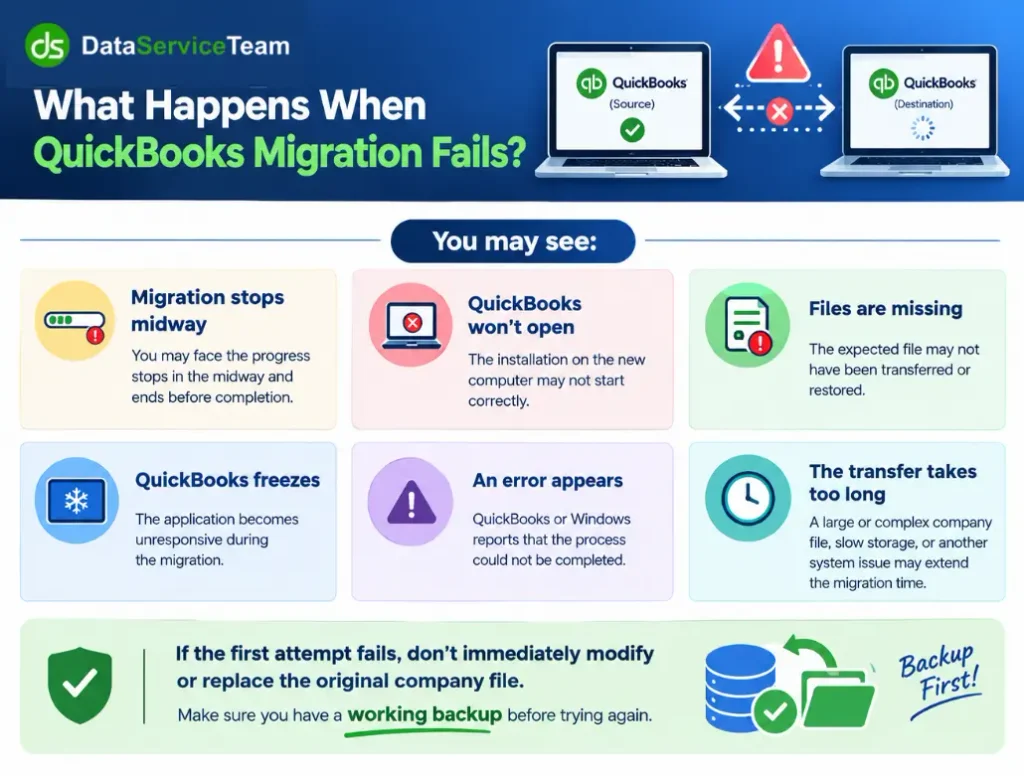
The outcome depends on when the migration stops. When the QuickBooks migration failed unexpectedly, the original company file may remain completely usable while the destination contains incomplete data. In other cases, QuickBooks may not open correctly on the new computer. You may see:
QuickBooks Migration Failed Unexpectedly
  • Migration stops midway: You may face the progress stops in the midway and ends before completion.
  • QuickBooks won’t open: The installation on the new computer may not start correctly.
  • Files are missing: The expected file may not have been transferred or restored.
  • QuickBooks freezes: The application becomes unresponsive during the migration.
  • An error appears: QuickBooks or Windows reports that the process could not be completed.
  • The transfer takes too long: A large or complex company file, slow storage, or another system issue may extend the migration time.

If the first attempt fails, don’t immediately modify or replace the original company file. Make sure you have a working backup before trying again.

What Should You Check Before Trying the Migration Again?

A little preparation can help prevent another failed transfer. If your QuickBooks Migration Failed Unexpectedly After Troubleshooting, work through these checks before starting the process again:

  • Back up the original company file: Keep the backup somewhere safe and separate from the working file.
  • Identify the migration type: Are you moving QuickBooks Desktop to another PC, or are you moving the company data to QuickBooks Online?
  • Update QuickBooks Desktop: Install the latest available release for your version.
  • Check the company file: Run the appropriate data verification tools if you suspect corruption or data damage.
  • Check free storage: Make sure the destination computer has sufficient space.
  • Confirm your permissions: Make sure you have the required access to the company file and destination.
  • Check system compatibility: First, confirm that the new computer meets the requirements for your QuickBooks version and migration method.
  • Test your internet connection: This is particularly important when migrating to QuickBooks Online.
  • Keep the original file untouched: Don’t delete or overwrite it until you’ve confirmed the migration was successful.

For QuickBooks Online migrations, Intuit also recommends checking the company file before importing it and addressing data issues beforehand.

How to Fix the QuickBooks Migration Failed Unexpectedly Error?

If you’re dealing with the QuickBooks Migration Failed Unexpectedly error, avoid making changes to the original company file until you have a current backup. Then work through the following solutions in order. Stop once the migration works; there’s no need to apply every fix if the problem is already resolved.

Solution 1 – Confirm Which Method You’re Using

Before changing any settings, you should identify how you are moving your QuickBooks data. The troubleshooting steps are different for each method.

  • QuickBooks Desktop to a New Computer: You are moving the QuickBooks application and supported files from one Windows computer to another.
  • QuickBooks Desktop to QuickBooks Online: You are converting or importing your desktop company data into an online company.

If you are using the wrong migration instructions for your situation, you may spend time changing settings that have nothing to do with the actual problem.

Solution 2 – Update Your QuickBooks Desktop

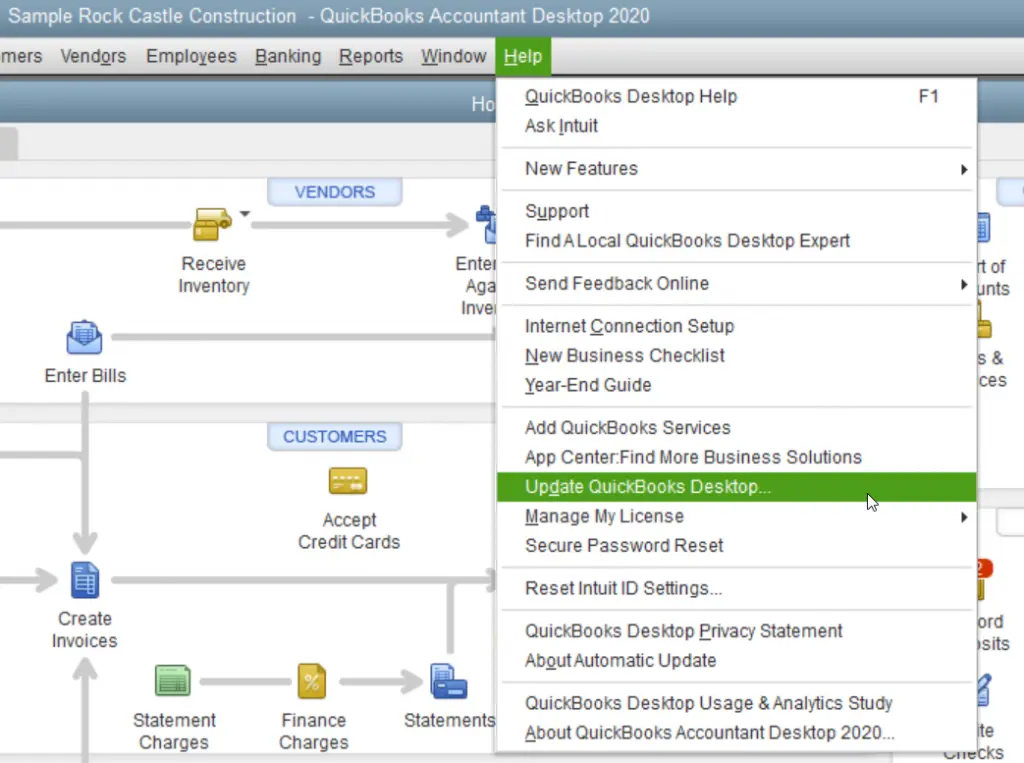
An outdated QuickBooks installation can cause compatibility or performance problems. Before trying again, check whether an update is available for your QuickBooks Desktop version. Follow these steps:
Update-QuickBooks-Desktop
  • Select the Update Now tab.
  • Check for available updates and install them if one is available.
  • Restart QuickBooks after the Update.
  • Try the migration again.

If the migration started failing after a recent system change, updating QuickBooks is a sensible first step before moving on to more advanced troubleshooting.

Solution 3 – Check the Company File for Data Issues

If your QuickBooks behaves unusually when opening the company file, or the QuickBooks migration failed unexpectedly while processing the same file, check the company file for data issues. Before attempting another migration:

  • Open the company file in QuickBooks Desktop.
  • Check whether QuickBooks displays any message about data problems.
  • Use the Verify and Rebuild Data in QuickBooks Desktop utility to check the company file for data issues.
  • If QuickBooks identifies a problem, follow the appropriate repair instructions.
  • Run the verification again after the repair.
  • Create a fresh backup before starting another migration attempt.

Not every migration failure is caused by damaged data. If the company file opens normally and passes the relevant checks, continue with the other troubleshooting steps.

Solution 4 – Check Your Windows Permissions

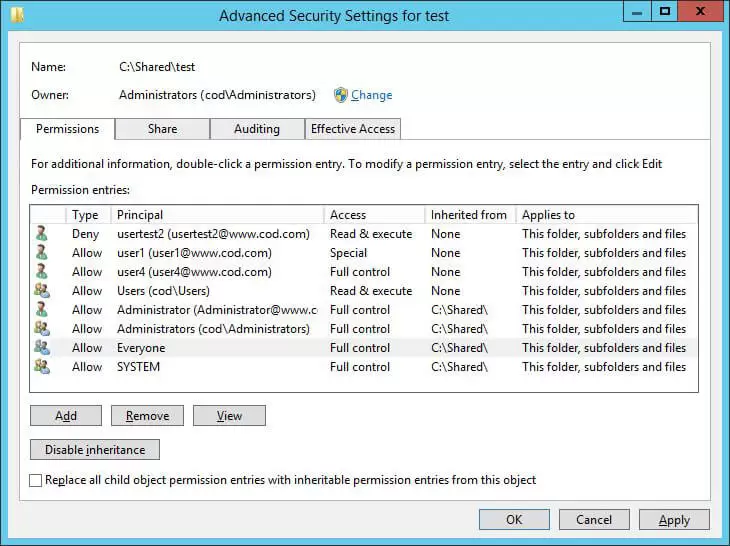
Your QuickBooks need full access to specific files, folders, and system resources during migration. If your Windows account does not have the proper permissions, the transfer may stop or fail to access files. Check the following:
QuickBooks need full access to specific files
  • Sign in with a Windows account that has the appropriate administrator access.
  • Make sure you can access the company file and migration files.
  • Check whether the destination folder allows you to create or modify files.
  • If you see an Access Denied message, resolve the permission issue before trying the migration again.

Avoid repeatedly restarting the migration without addressing the permission problem first.

Solution 5 – Check Your Security Software

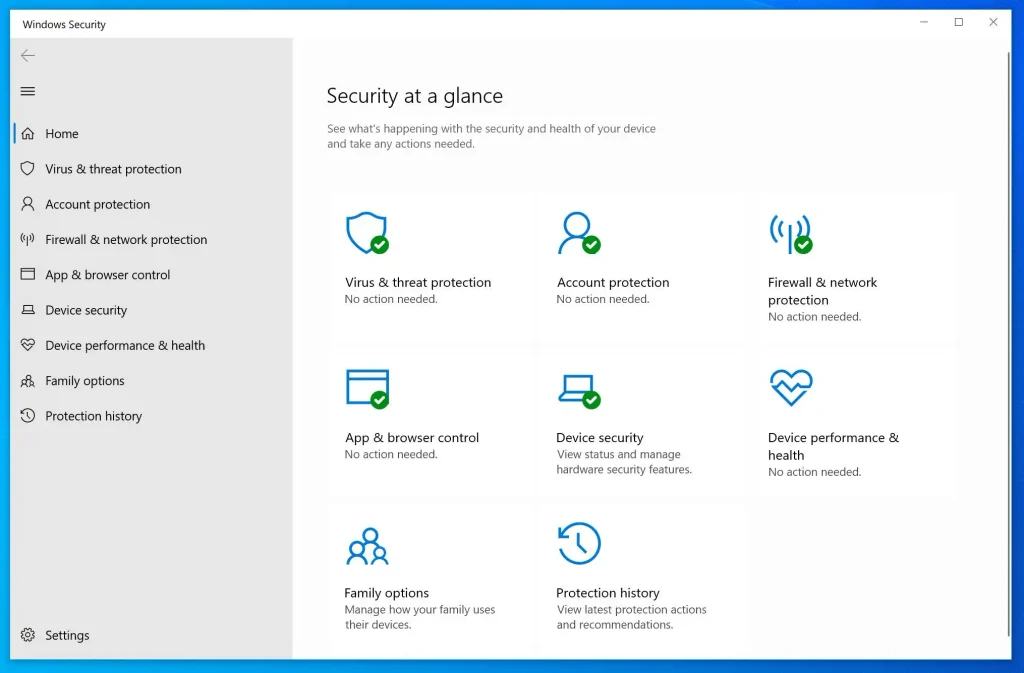
Antivirus and firewall software can sometimes interfere with QuickBooks processes or file transfers. If the QuickBooks migration failed unexpectedly at the same point, check whether your security software has blocked a QuickBooks process. Try these checks:
windows-security-dashboard
  • Open your antivirus or security software.
  • Review its blocked applications, alerts, or quarantine history.
  • Look for a QuickBooks process or migration-related file that was blocked.
  • If a legitimate QuickBooks process was blocked, follow your security software’s instructions for allowing it.
  • Retry the migration after making the appropriate change.
  • Re-enable any protection that was temporarily changed during troubleshooting.

Don’t leave your antivirus or firewall disabled after the migration is complete.

Solution 6 – Check Available Storage on the New Computer

The destination computer needs enough free storage for the QuickBooks installation and the data being transferred. If available space is too low, the migration may stop before completion.
On the destination computer:

  • Check the available storage on the drive where QuickBooks and the company file will be stored.
  • Remove or move unnecessary files if space is limited.
  • Make sure there is enough room for the company file and any required backup files.
  • Restart the migration after freeing up storage.

This check is especially important if the migration runs for some time before stopping or if you’re transferring a large company file.

Solution 7 – Check the USB Drive or File Location

If you’re transferring QuickBooks data through a USB drive, external storage, or another file location, the transfer method itself could be causing the QuickBooks Migration Failed Unexpectedly in Windows 11. Before trying again:

  • Make sure the USB drive is recognized by the destination computer.
  • Confirm that the required migration or backup files can be opened.
  • Check that the USB connection remains stable during file transfers.
  • Make sure the backup or company file isn’t damaged.
  • If possible, use a reliable local file location rather than an unreliable network or cloud-synced folder when the migration method requires local access.
  • Avoid disconnecting the USB drive while QuickBooks is transferring data.

If the storage device or file location is unreliable, repeating the same migration won’t resolve the underlying problem.

Solution 8 – Check Windows & QuickBooks Compatibility

Compatibility problems can occur when the old and new computers have different Windows configurations or when the destination system does not meet the requirements of your QuickBooks version. Before trying again:

  • Check the system requirements for your specific QuickBooks Desktop version.
  • Confirm that the destination computer uses a supported Windows version.
  • Check the required system architecture for your migration method.
  • Make sure the QuickBooks version installed on the destination computer is appropriate for the company file.
  • Review current Intuit documentation rather than relying on requirements listed for a different QuickBooks version.

This step is particularly important if QuickBooks Migration Failed Unexpectedly in Windows 11 after moving from an older computer.

Solution 9 – Use Backup and Restore If the Migration Tool Still Fails

If the Migration Tool continues to fail after the previous checks, consider using a supported backup-and-restore method for your particular QuickBooks version and migration scenario. To do this:
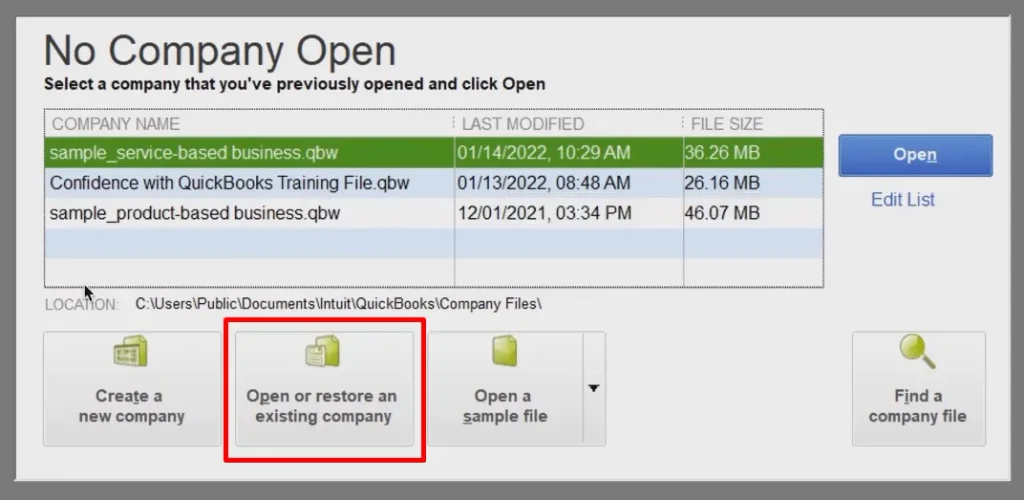
  • Create a fresh local backup of the original company file.
  • Install the appropriate QuickBooks Desktop version on the destination computer.
  • Transfer the backup file securely to the new computer.
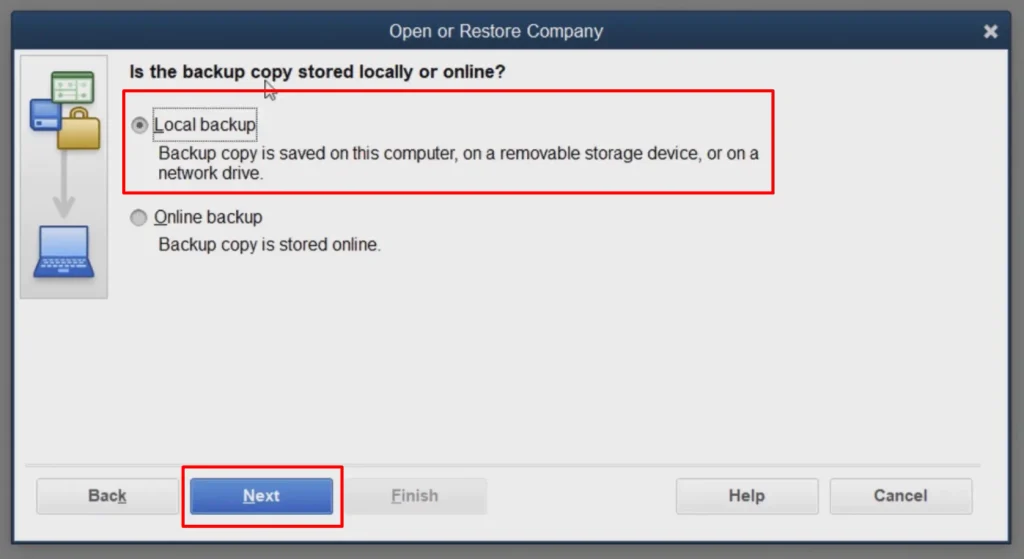
  • Open QuickBooks and use the supported Open or Restore Company process.
  • Select the local backup and restore the company file.

local-backup-restore-quickbooks-desktop
  • Open the restored company file and check your important data.

Keep the original company file and backup until you have confirmed that the restored company file contains the information you need.

How to Verify QuickBooks Migration Was Successful?

A migration is not complete just because QuickBooks opens on the new computer. You should check the company file, financial data, settings, and connected services before relying on the new installation for daily work.

After migration, go through these checks:

  • Open the company file: Launch QuickBooks and open the migrated company file. Make sure it opens without errors, freezes, or unexpected messages.
  • Check company information: Confirm that the company name and other basic company details are correct.
  • Review customers and vendors: Open the customer and vendor lists and check that the expected records are available.
  • Verify accounts and balances: Review the Chart of Accounts and compare important account balances with your original company file or backup.
  • Run important reports: Compare key financial reports, such as the Profit and Loss and Balance Sheet, with the original file. Look for unexpected differences.
  • Check payroll and banking features: If you use payroll or connected banking services, confirm that they are working and that any required sign-ins or reconnections have been completed.
  • Review customized settings: Check important templates, printer settings, user access, and other preferences that your business relies on.
  • Create a new backup: Once everything looks correct, create a fresh backup of the migrated company file.

Tips to Prevent QuickBooks Migration Failures

A failed migration can take time to troubleshoot, so preparing the computers and company file beforehand is worthwhile. The following practices can reduce the risk of another QuickBooks Migration Failed Unexpectedly issue:

  • Create a verified backup: Make a current backup of your QuickBooks company file before starting the migration. Keep the backup in a separate, secure location.
  • Keep QuickBooks updated: Install the latest available updates for your QuickBooks Desktop version before beginning the transfer.
  • Check system compatibility: Confirm that the new computer meets the system requirements for your QuickBooks version and the migration method you plan to use.
  • Make sure enough storage is available: Check the destination computer for sufficient free space for QuickBooks, the company file, and any temporary files required during migration.
  • Use a reliable transfer method: If you’re using a USB drive, make sure it is working properly and stays connected throughout the transfer. When possible, use a reliable local copy of the company file.
  • Check permissions and security settings: Make sure your Windows account can access the required files and folders. Also check whether antivirus or firewall software is blocking legitimate QuickBooks processes.
  • Verify the migration before deleting the original: Open the migrated company file and review important accounts, transactions, reports, and settings. Keep the original file and backup until you are confident that everything transferred correctly.

Conclusion!

If QuickBooks Migration Failed Unexpectedly, you should avoid making repeated changes to your original company file. Keep a reliable backup, follow the appropriate troubleshooting steps, and retry the migration carefully.

After the transfer, review your company data, transactions, accounts, and important reports to make sure everything is available. If the migration still does not complete, keep your original file and backup safe, and If the migration still does not complete after troubleshooting, you can also explore QuickBooks Data Migration Services for additional assistance at +1(888)-718-7888.

Frequently Asked Questions (FAQ’s)

First, make sure you have a current backup of your original company file. Then identify where the migration stopped and work through the relevant troubleshooting steps, such as checking QuickBooks updates, company-file health, permissions, storage, and system compatibility.

The failure may occur when the destination computer does not meet the requirements or the migration process cannot access the required files. Check system compatibility, permissions, storage, and your QuickBooks version before retrying.

Note the exact error message and where the transfer stopped. Update QuickBooks, check the company file, and verify permissions, storage, and compatibility. Then retry the migration after addressing the relevant issue.

Not every QuickBooks setting or connected service is transferred automatically. Some user settings, payroll configurations, templates, and third-party connections may need to be set up again on the new computer.

A large or complex company file can make the migration more difficult or time-consuming. Check the file for data issues and make sure the destination computer has enough available storage before trying again.

Make sure your original company file is backed up before taking further action. Note where the migration stopped and check the error message, storage, permissions, and transfer method before retrying.

Do not delete or overwrite the original company file. Check the destination location first, and if the file is still missing, restore it from your verified backup using a supported QuickBooks process.

Yes, but first identify and address the reason for the failed attempt. Create a fresh backup, correct the relevant issue, and then retry the migration instead of repeating the same process unchanged.

It may be required when opening the company file in a newer QuickBooks Desktop version. Create a backup first and follow QuickBooks’ prompts to upgrade the file when applicable.

About The Author

Steven Moody

Steven Moody is a bookkeeping and payroll specialist dedicated to helping businesses maintain accurate financial records and efficient payroll operations. His expertise includes payroll management, tax compliance, bookkeeping solutions, and financial reporting. Steven regularly shares insights on accounting best practices and business finance strategies. Outside of work, he enjoys traveling, exploring new places, and keeping up with the latest developments in business technology.

Steven Moody

QuickBooks Error

How to Fix QuickBooks Error PS038 When Sending Payroll Data

Read More
QuickBooks Error

QuickBooks Requires That You Reboot: How to Fix the Error

Read More
QuickBooks Error

QuickBooks Error 7149: How to Fix Crashing or Not Opening

Read More
QuickBooks Error

QuickBooks Error 15240: Why It Happens and How to Fix It

Read More
QuickBooks Error

QuickBooks Fatal Error: Why It Happens and How to Fix It

Read More
