While working with QuickBooks Desktop, you may notice that the QuickBooks Utility Application keeps popping up repeatedly. The prompt can be frustrating, especially if it continues to appear after you have entered the administrator password. In some cases, the repeated prompt may prevent you from accessing QuickBooks features or continuing your work normally.
Several factors can contribute to this behavior, including Windows permission settings, an outdated QuickBooks version, company file access problems, damaged installation files, or interference from security software and other applications.
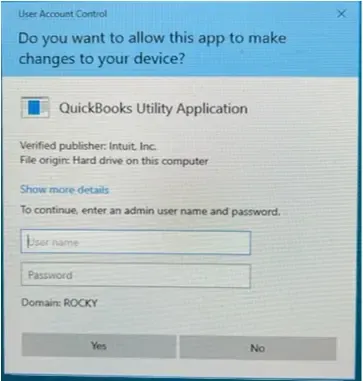
This guide explains the possible causes of the QuickBooks Utility Application issue and the troubleshooting methods you can use to stop the repeated pop-ups.
The QuickBooks Utility Application Keeps Popping Up may appear repeatedly when QuickBooks cannot access a required file, folder, or Windows component correctly. Conflicts with other software can also trigger QuickBooks Utility Application Popping Up issue. Common causes include:
Knowing when the pop-up appears can help identify whether the problem is related to permissions, the company file, QuickBooks installation, or another program.
Before changing system settings or repairing QuickBooks, perform a few basic checks. These can help identify the source of the problem without making unnecessary changes.
If the QuickBooks Utility Application continues to appear, try the following troubleshooting methods.
If the QuickBooks Utility Application keeps popping up on your screen, try the solutions below in order, starting with the simpler checks. After each method, open QuickBooks and see whether the repeated prompt has stopped.
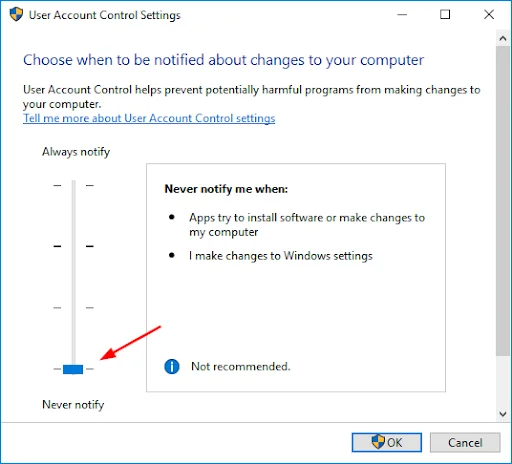
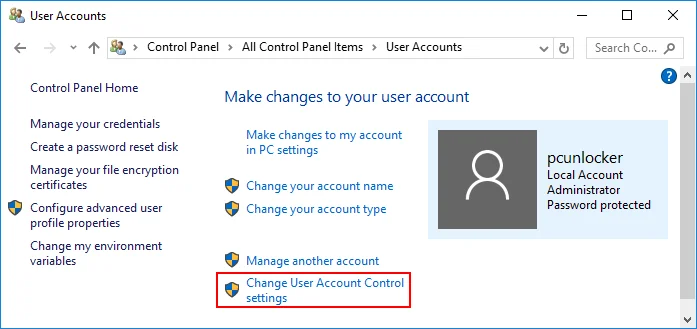
Windows User Account Control can display permission prompts when an application attempts to make certain system changes. Reviewing the UAC settings can help determine whether Windows permissions are contributing to the issue. Here’s how to adjust the settings:
An outdated QuickBooks installation can sometimes lead to compatibility and program-related problems. Installing the available updates can provide fixes and improvements for your QuickBooks version. Here’s how to update the program:
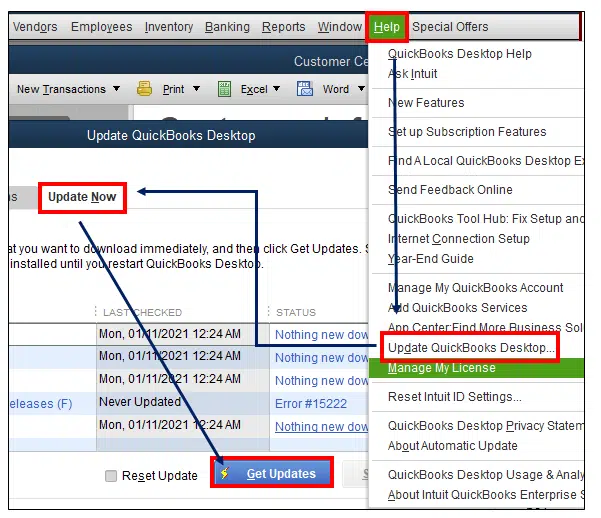
If the QuickBooks Utility Application Keeps Popping Up issues still appears, move on to the next solution.
A damaged or corrupted company file can sometimes cause QuickBooks to behave unexpectedly, including repeated Utility Application pop-ups. In such cases, you can use QuickBooks File Doctor to repair your company file and check whether the issue is related to data damage.
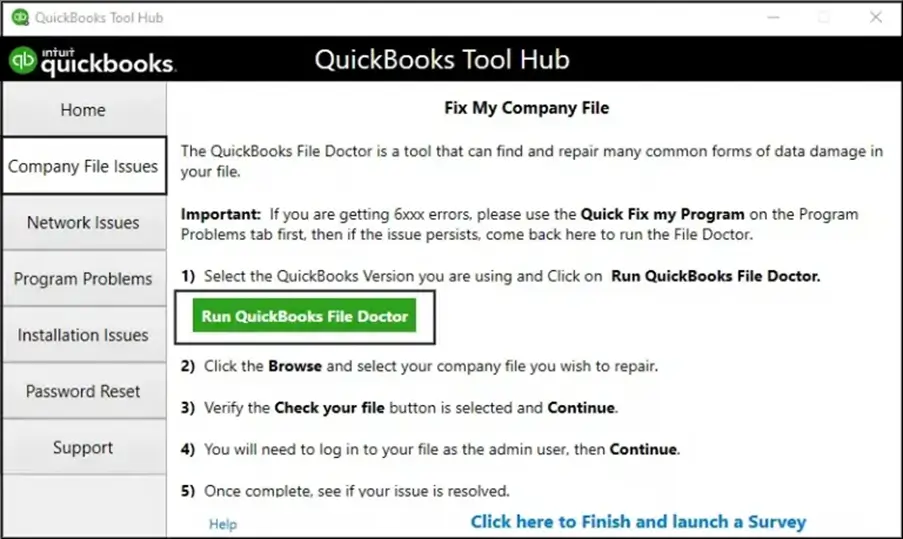
Note: If QuickBooks File Doctor does not resolve the issue, you can also use Verify and Rebuild Data in QuickBooks Desktop to check for certain data-related problems before continuing with other troubleshooting steps.
By running the various third-party programs in the background can cause conflicts with QuickBooks and display problems like QuickBooks Utility Application Popping Up again and again. To prevent this issue, you need to disable or close these programs. Here are the steps to follow:
If the issue occurs with one company file, testing a copy from another local folder can help determine whether the original storage location is contributing to the problem. Here’s how to do it:
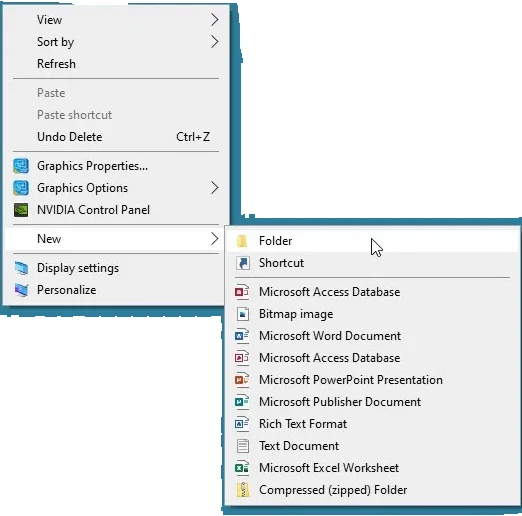
QuickBooks requires appropriate access to the folder where the company file is stored. Restricted permissions can prevent QuickBooks from reading or writing required files correctly.
This check is especially relevant when the company file is stored in a shared location or used in a multi-user environment. Here’s how to check the folder permissions:
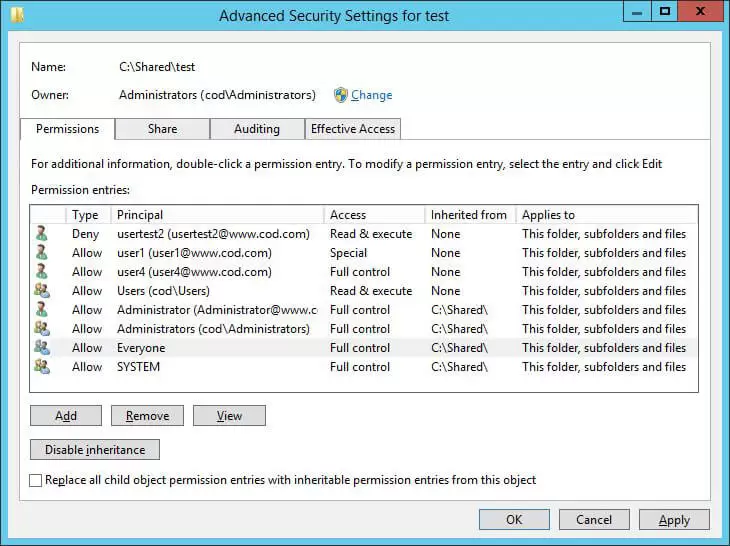
If you are unsure about Windows permissions, avoid making random changes. Incorrect permissions can create additional access problems.
QuickBooks Desktop relies on Windows components and system services. Keeping Windows updated can help reduce compatibility problems caused by outdated system components. To check for available Windows updates:
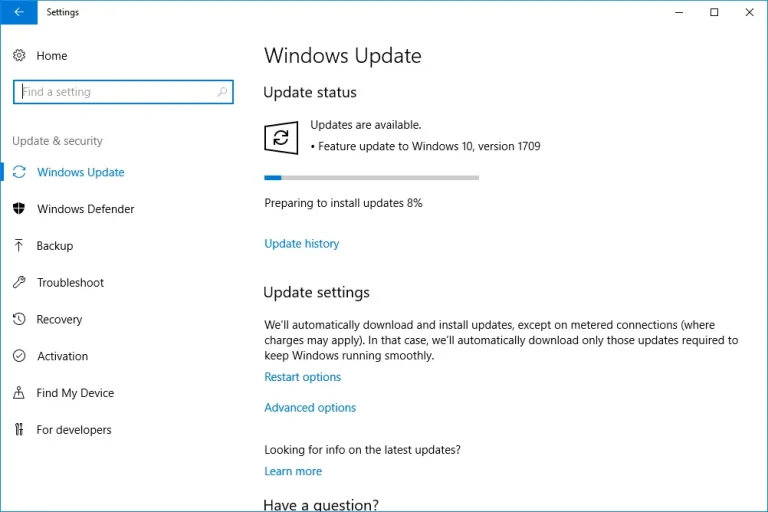
If Windows was already updated and the problem continues, move on to the next troubleshooting method.
Antivirus or firewall software can sometimes interfere with QuickBooks by restricting program files, processes, or network connections. If Windows Firewall is Blocking QuickBooks, reviewing the firewall settings can help determine whether it is preventing QuickBooks from working correctly.
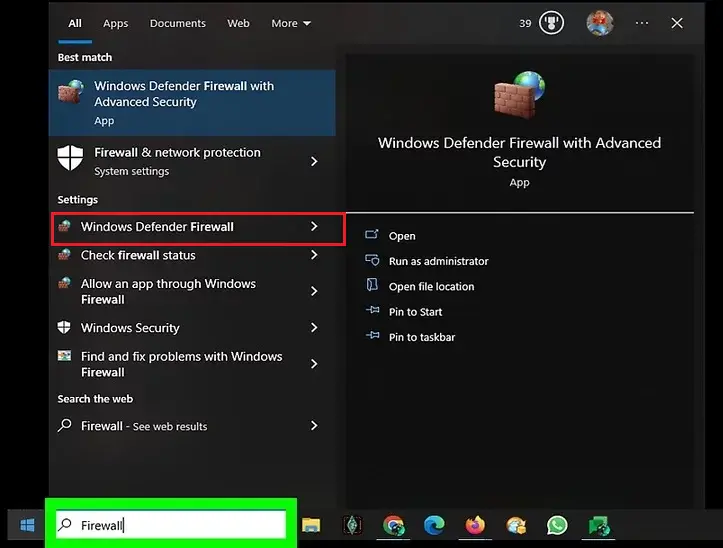
If the problem started after installing or updating security software, review its blocked applications, alerts, and quarantine history for QuickBooks-related entries.
If a legitimate QuickBooks component has been blocked, follow the security software provider’s instructions to allow it.
Avoid permanently disabling your antivirus or firewall. These tools protect your computer from security threats. If temporary testing is necessary, restore protection immediately afterward.
Once you have reviewed the security settings, open QuickBooks and check whether the repeated prompt has stopped.
If the earlier solutions do not resolve the issue, damaged or incomplete QuickBooks installation files may be involved. The QuickBooks Install Diagnostic Tool, available through QuickBooks Tool Hub, can help troubleshoot certain installation-related problems.
Before running the diagnostic tool, close QuickBooks and save any other work.
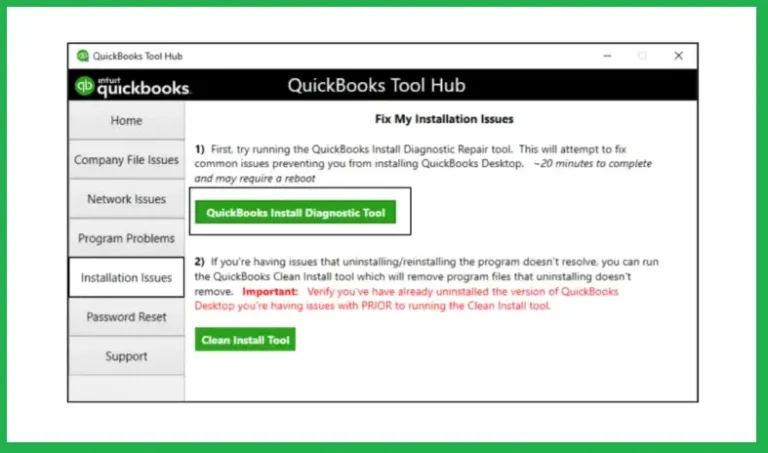
The diagnostic process can take some time, so don’t close the tool while it is running.
If the QuickBooks Utility Application keeps popping up after trying the solutions above, pay attention to when the prompt occurs. This can help identify whether the issue is related to a specific company file, Windows account, permissions, or another application.
Ask yourself:
These observations can help narrow down the cause and prevent you from repeating troubleshooting steps that have already been tried. If QuickBooks does not launch normally during these checks, you can also review the troubleshooting steps for QuickBooks Won’t Open.
After resolving the QuickBooks Utility Application keeps popping up issues, a few routine maintenance practices can help reduce the likelihood of similar problems returning.
By following these precautions, you can reduce the chances of the QuickBooks Utility Application keeps popping up repeatedly and continue working on QuickBooks without frequent interruptions.
The QuickBooks Utility Application keeps popping up when QuickBooks encounters a permission, company file, installation, compatibility, or software-related problem. Start with basic checks such as updating QuickBooks and Windows, testing the company file, and reviewing folder or security settings.
If the issue continues, QuickBooks troubleshooting tools can help identify certain company file and installation problems. Always keep a recent backup of your company file before performing major repairs or making changes to your system. If still looking for additional help you can contact the Data Service Team live experts at +1(888)-718-7888.
The QuickBooks Utility Application may keep appearing because of Windows permission settings, an outdated QuickBooks version, company file problems, folder access issues, or interference from antivirus or other programs.
You can start by updating your QuickBooks and Windows. Then check the company file, folder permissions, and security software. If the problem continues, you can use QuickBooks Tool Hub to check for company file or installation problems.
The issue can have various causes, such as restricted folder permissions, damaged company files, outdated QuickBooks, Windows compatibility issues, or damaged QuickBooks installation files.
First, check the permissions for the Folder where your QuickBooks company file is stored. Make sure the QuickBooks Database Service User account has the required access to the Folder. If you’re unsure about changing these settings, it’s better to get professional help instead of changing permissions randomly.
Yes, damaged or missing QuickBooks program files can cause different errors and unusual behavior, including repeated Utility Application prompts. In this situation, you can use the QuickBooks Install Diagnostic Tool to check and repair installation-related problems.
Yes, security software can sometimes interfere with QuickBooks by blocking its files or processes. Malware can also affect how programs work, although it is not the most common cause of this particular problem. If you suspect a security issue, run a trusted security scan and check your antivirus or firewall settings.
You can start by running QuickBooks Tool Hub and using the available troubleshooting tools. If the problem appears to be related to the installation, run the QuickBooks Install Diagnostic Tool. You can consider repairing or reinstalling QuickBooks if the issue continues.
Use QuickBooks Tool Hub when basic troubleshooting, such as updating QuickBooks and checking permissions, does not resolve the problem. It can be especially useful when you suspect a company file or QuickBooks installation issue.

Get Free Consultation for QuickBooks Upgrade
(2021, 2022, 2023)


