
Having trouble signing in to QuickBooks Online even after entering your login details? A QuickBooks Online login problem can prevent you from accessing financial records, invoices, payroll information, and other important business data.
Login issues may occur because of incorrect credentials, browser cache or cookies, outdated browser settings, unstable internet connections, browser extensions, verification problems, or temporary QuickBooks Online service interruptions.

In this guide, you’ll learn the common causes and symptoms of QuickBooks Online login problems, along with practical troubleshooting methods to help restore access to your account
This QuickBooks error refers to an issue that prevents users from signing in to their QuickBooks Online account. You may experience this problem when the login page fails to load, username or password is not accepted, the account redirects you to the sign-in page, the session expires, etc.
Such issues can be caused by incorrect login credentials, browser cache and cookie problems, an unstable internet connection, outdated browser settings, or security restrictions. You need to identify the reason behind the Login Failed in QuickBooks Online issue to choose the appropriate troubleshooting method.
Typical error messages related to QuickBooks Online login problems include:
Most QuickBooks Online login problems are caused by outdated browser data; the fastest fix is to open a private window and sign in. Common causes include:
The Online login problems can appear in different ways based on the underlying issue. Common symptoms include:
Before troubleshooting QuickBooks Online login problems, prepare the following to make the process smooth and avoid unexpected account issues:
Before proceeding with the troubleshooting methods, check the following:
Here, we will discuss different troubleshooting methods to resolve the login issue with QuickBooks Online. Consider step-by-step guidance carefully:
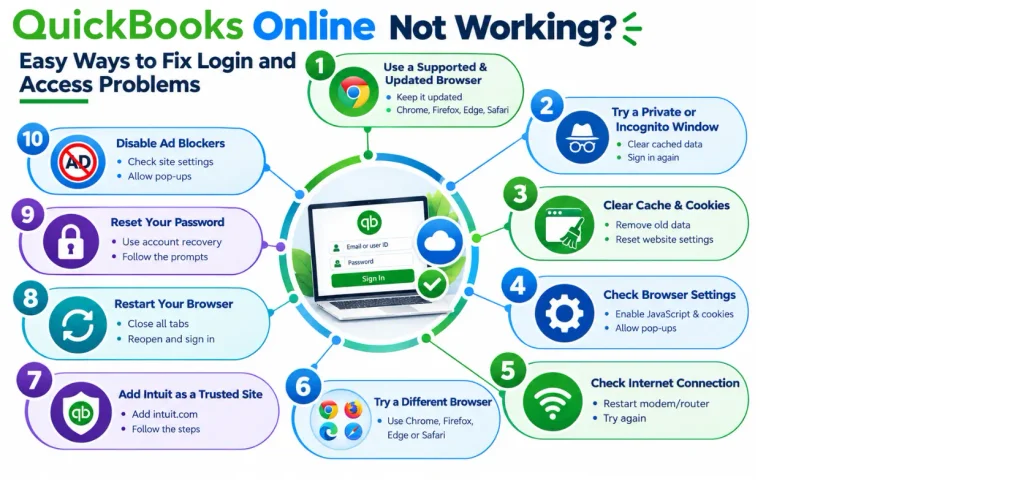
QuickBooks Online works best with a supported, up-to-date browser. Keeping your browser and QuickBooks Online updates current can also help prevent compatibility-related login issues. Update your browser to the latest available version before troubleshooting further. The browsers listed below are supported on both web and mobile platforms.
Important: Internet Explorer is no longer supported as a browser.
Open QuickBooks Online in a Private or Incognito window and try signing in again to determine whether cached data, cookies, or browser settings are causing the QuickBooks Login Failed. Here are the shortcut keys to open a private or incognito browser window:

Google Chrome: Press Ctrl+Shift+N.
Mozilla Firefox: Press Ctrl+Shift+P.
Microsoft Edge: Press Ctrl+Shift+P.
Safari: Press Ctrl+Shift+N.
If the problem persists, clear your browser’s cache and Intuit-specific cookies. This can help reset website preferences that may lead to a QuickBooks Online Login problem. Follow these steps:

QuickBooks Online relies on browser features like cookies, JavaScript, and pop-ups to load the login page. If you encounter a related script issue, see our QuickBooks Script Error guide. The login process can fail when these settings are disabled. Consider the given steps to check the browser settings:
An unreliable connection may disrupt communication with Intuit’s servers. If QuickBooks cannot establish a connection, see our QuickBooks Not Connecting to Server guide for additional troubleshooting steps. Follow these steps to reset your connection and fix QuickBooks Online Login Problem issues:
Try to access QuickBooks Online using a different, updated browser such as Chrome, Firefox, Edge, or Safari. This can help determine whether cached data, cookies, extensions, or browser compatibility is causing QuickBooks Online login problem.
Add Intuit as a trusted site in the browser settings to prevent security restrictions from blocking software online. It will help resolve the QuickBooks Online login problem. Check out the procedure:
To restart the browser within QuickBooks (when using QuickBooks Online in a standard web browser), follow these quick steps:
If you can’t sign in because you forgot your QuickBooks Online password, use the Reset QuickBooks Password guide to reset your password using the official Intuit account recovery process. Here are the steps to follow:
Temporarily disable any ad blockers or browser extensions, as they may interfere with QuickBooks Online’s login page and prevent you from signing in successfully.
Follow these simple practices to reduce the risk of recurring QuickBooks Online login problems:
Make QuickBooks Work Smarter for Your Business
Spend less time managing data and more time growing your business. Whether you need help setting up QuickBooks, cleaning up your books, reconciling accounts, or resolving errors, our team is here to make accounting easier. Get quick solutions that save time, improve accuracy, and keep your business finances on track.
We hope that the above-outlined information clarifies all your doubts and concerns. Remember that QuickBooks Online Login problem can happen because of an Intuit service outage, a temporary app issue, incorrect login details, problems with your web browser, etc. This error may prevent you from accessing financial data and completing important tasks. You must check the credentials, internet connection, browser settings, and account recovery options to resolve QuickBooks Online login problems. For answers to other common QuickBooks questions, you can also visit our QuickBooks FAQ.
Need help with a persistent QuickBooks login issue? Contact Data Service Team experts at +1(888)-718-7888 for professional guidance in resolving your QuickBooks Online login problems.
Incompetence to sign in to QuickBooks Online stems from outdated browser data. Stored cache and active ad blockers causes online login issues. Typo errors in the user ID, password, and multi-factor authentication code can block access.
If your QuickBooks Online password is not working, first select “I forgot my user ID or Password” on the sign-in page and use your registered email address/phone number to reset it. If you do not receive the verification code, check your spam folder and use only the latest code. Once you have reset your password, clear your browser’s cache & cookies and sign in again.
Go to the QuickBooks sign-in page and choose “I forgot my user ID / password” to recover your QuickBooks Online user ID or password. Enter the phone number/email address linked to your Intuit account, then use the verification code sent to you to recover your user ID or create a new password.
If your QuickBooks Online verification code is not working, you may be providing an older code after requesting multiple codes. The most recently sent verification code is valid, so wait for the latest code and enter that one. If you still have trouble, keep the sign-in page open, check your email’s spam or junk folder, make sure Intuit messages are not blocked, and request a new code.
Yes! Users can sign in to QuickBooks Online from devices like a computer, tablet, or smartphone via Intuit account credentials. However, the number of users who can access a QuickBooks Online company at the same time depends on the subscription and user permissions. Each person should use their own user account rather than sharing login credentials, so access and activity can be managed securely.
Indeed! You can access QuickBooks Online from a mobile phone or tablet browser. But the experience may differ based on the device and browser. There is a QuickBooks Online mobile app available for a better mobile experience. This will let you perform common tasks such as reviewing transactions, managing invoices, and checking business information while on the go.
QuickBooks Online may not work in Chrome because of an outdated browser, corrupted cache, conflicting browser extensions, etc. Use a supported, updated browser and try Chrome’s incognito mode first. If QuickBooks works there, cached data may cause issues. You can also restart Chrome, clear the cache and Intuit-specific cookies, and disable extensions before signing in again.
If login failures in QuickBooks Online are caused by outdated browser cache or cookies, clear your browser’s cache and restart the browser. If the issue continues, remove Intuit-specific cookies rather than deleting all saved cookies, then sign in to QuickBooks Online again. Use an updated browser and try an incognito window to determine whether the problem is browser-related.
You should contact QuickBooks Online Support when the login problem continues after you have tried password recovery, cleared your browser cache and cookies, and tested another browser. Get professional assistance if you cannot access your registered email/phone, your account appears locked, or you receive persistent sign-in errors.
Intuit may temporarily restrict account access after repeated unsuccessful sign-in attempts. Wait before trying again, verify your credentials, and follow any security prompts displayed during the login process.
Automatic sign-outs may occur because of expired sessions, security settings, or account authentication issues. Sign in again, keep your browser updated, and check whether the problem persists across supported browsers.

Get Free Consultation for QuickBooks Upgrade
(2021, 2022, 2023)


