
QuickBooks-Error-6176-0

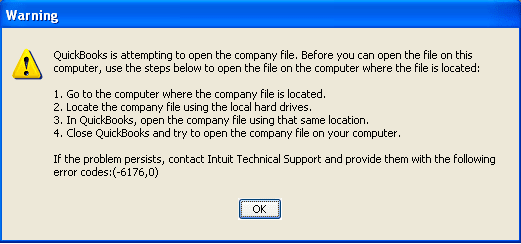
Are you unable to open your QuickBooks company file and seeing QuickBooks Error 6176, 0 on your screen? It may prevent you from accessing important company data, especially when working in a network or multi-user environment. The issue can be related to incorrect folder permissions, firewall restrictions, outdated QuickBooks Desktop, damaged installation files, or problems with the company file location. In some cases, QuickBooks may also have trouble identifying the correct network path to the company file.
QuickBooks-Error-6176

In this guide, we’ll explain the common causes of QuickBooks Error 6176 and provide step-by-step troubleshooting methods to help you resolve the issue.

What is QuickBooks Error 6176?

QuickBooks error 6176 is a company file connection error that can occur when QuickBooks Desktop can not establish a proper connection with the computer or server. You may notice the following issues when QuickBooks Error 6176 occurs:

  • QuickBooks cannot open or access the company file.
  • QuickBooks has trouble identifying the computer or server hosting the company file.
  • The error may appear when working with a company file stored on a network.
  • Your Windows firewall or security settings may interfere with QuickBooks connections.
  • Incorrect folder permissions can prevent QuickBooks from accessing the required files.
  • Using an outdated or damaged QuickBooks installation can also cause this problem.
  • Network or company-file location issues can also affect the connection.

Understanding these symptoms can help you find the possible cause and choose the appropriate troubleshooting method.

Common Reasons Behind QuickBooks Error 6176

QuickBooks Error 6176 can occur when the software cannot establish a proper connection with the company file or the computer hosting it. Several QuickBooks, Windows, and network-related issues may contribute to this error. Here are some causes that may trigger this error code:

  • Incorrect hosting settings: Multiple computers may be configured to host the company file instead of only the designated server.
  • Firewall or security restrictions: Windows Firewall or security software may block QuickBooks from communicating with the server.
  • Incorrect folder permissions: QuickBooks may not have sufficient permissions to access or modify the company file and its folder.
  • Outdated QuickBooks Desktop: An older QuickBooks version may cause compatibility or network-related problems.
  • Damaged QuickBooks installation: Missing or damaged program files can interfere with company-file access.
  • Network connection problems: An unstable or incorrectly configured network can prevent QuickBooks from reaching the company file.
  • Problems with the company file location: An incorrect, inaccessible, or restricted file path may prevent QuickBooks from opening the File.
  • Damaged configuration files: Issues with the .ND or .TLG files may affect communication with the company file in a network environment.

Identifying the likely cause can help you select the appropriate troubleshooting method and avoid unnecessary changes to your QuickBooks or Windows settings.

Important Checks Before Resolving QuickBooks Error 6176

Before proceeding with the troubleshooting methods, complete a few basic checks. These steps can help protect your company data and make it easier to identify the source of the problem.

  • Create a backup: Back up your QuickBooks company file before making any changes.
  • Check the network: If the company file is stored on a server, make sure the network connection is stable.
  • Update QuickBooks: Confirm that QuickBooks Desktop is running the latest available release.
  • Check file access: Make sure the company file is stored in an accessible location and that you can reach the folder.
  • Verify permissions: Ensure you have the necessary Windows permissions to access the company file and its folder.
  • Check hosting: In a multi-user setup, confirm that hosting is configured correctly and that only the appropriate server is hosting the company file.
  • Close QuickBooks: Exit QuickBooks Desktop on other computers when a troubleshooting step requires exclusive access to the company file.

Once these checks are complete, you can move on to the troubleshooting methods below.

9 Effective Ways to Resolve QuickBooks Error 6176, 0

You can resolve QuickBooks Error 6176, 0 by checking your QuickBooks Desktop version, company file access, network settings, and Windows permissions. Start with the basic solutions and continue with the remaining methods if the error persists.

Method 1 – Update QuickBooks Desktop

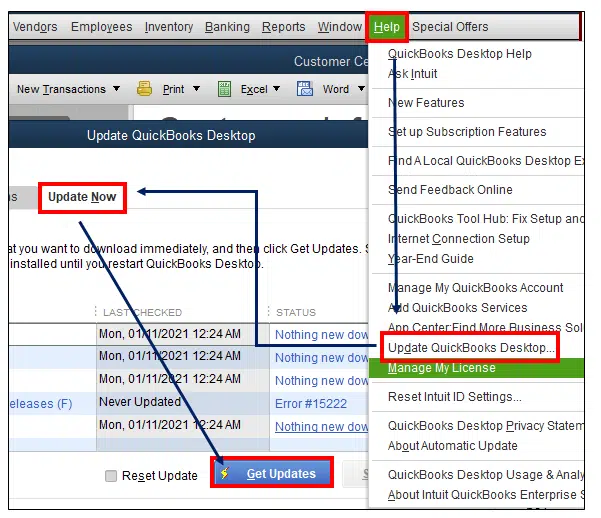
An outdated QuickBooks Desktop version may cause compatibility or connectivity problems when you try to access your company file. Updating the software can install the latest fixes and improvements that may help resolve QuickBooks Error 6176. Follow these steps to update QuickBooks Desktop:
  • Open QuickBooks Desktop.
  • Select Help from the top menu.
  • Click Update QuickBooks Desktop.
  • Select the Update Now tab.
  • Check the Reset Update box if you want to clear the previous update files.
  • Click Get Updates to download the available updates.
Get Updates
  • Once the Update is complete, close QuickBooks Desktop.
  • Reopen QuickBooks and try opening your company file.

If QuickBooks Error 6176 still appears, continue with the next solution.

Method 2 – Run QuickBooks File Doctor

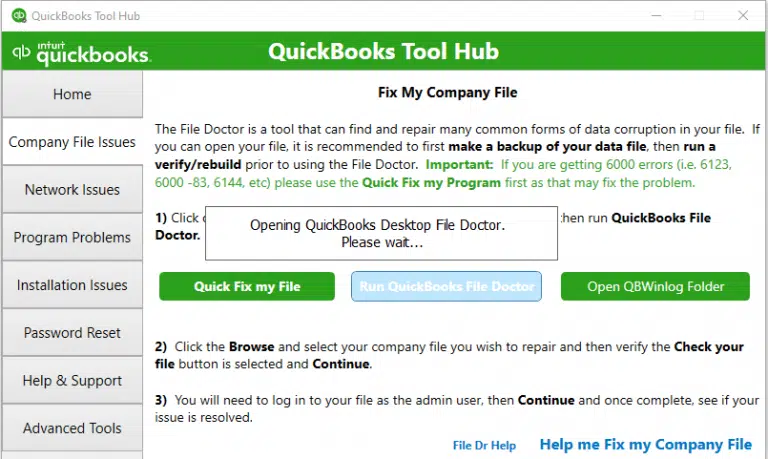
QuickBooks File Doctor can help identify and repair certain company file and network-related issues. It is available through QuickBooks Tool Hub and can be useful when QuickBooks Error 6176 is related to company-file access or connectivity. Follow these steps:
  • Close QuickBooks Desktop on your computer.
  • Open QuickBooks Tool Hub. If it is not installed, download and install it first.
  • Select Company File Issues from the left menu.
  • Click Run QuickBooks File Doctor.
Run-QuickBooks-File-Doctor
  • Select your company file from the list. If you cannot find it, click Browse and locate the .QBW file.
  • Select Check your File and click Continue.
  • Enter your QuickBooks admin password when prompted.
  • Click Next and allow the tool to complete the scan and repair process.
  • Once finished, open QuickBooks Desktop and try accessing your company file again.

If QuickBooks Error 6176 continues, proceed to the next method.

Method 3 – Check QuickBooks Hosting Settings

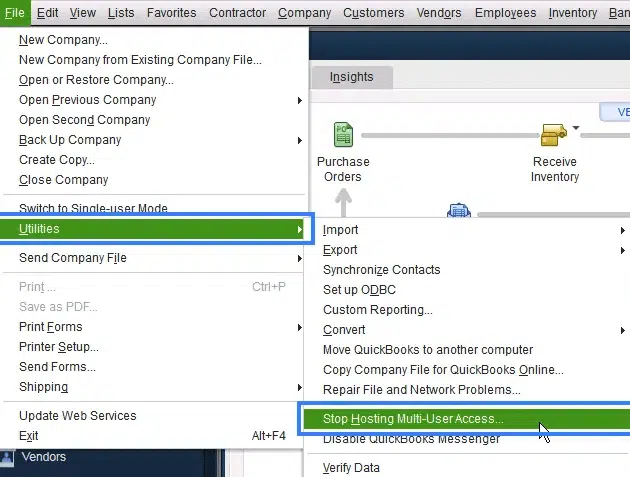
Incorrect hosting settings can prevent QuickBooks Desktop from connecting to the computer or server where the company file is stored. In a multi-user environment, QuickBooks hosting should generally be enabled on the server or computer that stores the company file, while workstations should not be configured to host the same File. Follow these steps to check the hosting settings:
  • Open QuickBooks Desktop on one of the workstations connected to the network.
  • Go to File and select Utilities.
  • If you see Stop Hosting Multi-User Access, select it.
Stop-Hosting-Multi-User-Access.png
  • Repeat these steps on the other workstations connected to the network.
  • Now sign in to the computer or server where the company file is stored.
  • Open QuickBooks Desktop and go to File and select Utilities.
  • Select Host Multi-User Access if it is available.
  • Reopen QuickBooks on a workstation and try to access the company file in multi-user mode.

If QuickBooks Error 6176 still appears, continue with the next method.

Method 4 – Check Windows Firewall and Security Settings

Windows Firewall or other security software may block QuickBooks from communicating with the server or other computers on the network. This can prevent QuickBooks from locating or opening the company file.

Check your firewall configuration and make sure QuickBooks and its required processes are allowed to communicate through the network. You can start by checking the Windows Firewall settings:

  • Close QuickBooks Desktop on all computers.
  • Open the Windows Start menu and search for Windows Defender Firewall.
  • Open the firewall settings and review the allowed apps or firewall rules.
  • Make sure the QuickBooks application and relevant QuickBooks processes are permitted through the firewall.
  • If your network uses third-party security software, review its firewall or network-protection settings as well.
  • Save any required changes and restart QuickBooks.
  • Try opening the company file again.

Avoid permanently disabling your firewall or antivirus protection. If you need to test whether security software is causing the problem, use your organization’s approved temporary troubleshooting procedure and re-enable protection afterward. If QuickBooks Error 6176 continues, move to the next method.

Method 5 – Verify the Company File Location and Folder Permissions

QuickBooks may display Error 6176 if the company file is stored in an inaccessible location or if the Windows user account does not have sufficient permissions to access the folder. This can also cause QuickBooks Cannot Communicate with the Company File issues.

First, verify that the company file is stored on the expected computer or server and that you can access its folder from the workstation. Then check the folder permissions:

  • Locate the folder containing your QuickBooks company file.
  • Right-click the folder and select Properties.
  • Open the Security tab.
  • Select the Windows user account that needs to access the company file.
  • Check that the account has the required permissions to access and modify the folder.
  • Apply any necessary permission changes according to your network’s security policy.
  • Close the Properties window and try opening the company file again.

If the File is stored on a network, also verify that the server is accessible from the workstation and that the network path is correct. You can also check for QuickBooks Not Connecting to Server issues. If QuickBooks Error 6176 remains unresolved, continue below.

Method 6 – Install Available Windows Updates

An outdated Windows installation can sometimes contribute to compatibility and network-related problems. Installing available Windows updates can help ensure that the operating system and QuickBooks Desktop are working with supported system components. To check for Windows updates:
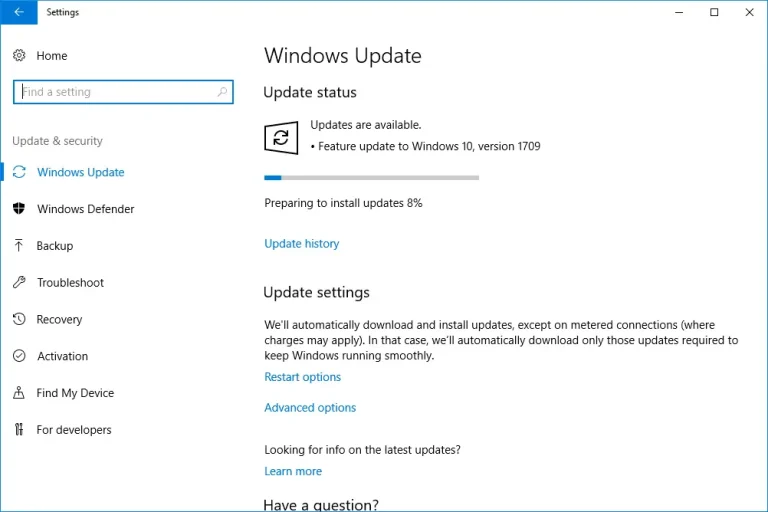
  • Open the Start menu and select Settings.
  • Go to Windows Update.
Windows-updates
  • Select Check for updates.
  • Install any available updates that are appropriate for your system.
  • Restart the computer if Windows requests a restart.
  • Open QuickBooks Desktop and try accessing the company file again.

If the error continues after updating Windows, proceed to the next method.

Method 7 – Repair QuickBooks Desktop Installation

Damaged or incomplete QuickBooks installation files can interfere with QuickBooks processes and company-file access. Repairing the installation can replace or repair certain program components without requiring you to start over with a new company file.

Before repairing QuickBooks, close the program and make sure your company file is backed up. You can then use the available Windows or QuickBooks repair options for your installed QuickBooks Desktop version:

  • First, close your QuickBooks Desktop.
  • Open the Windows Settings or Control Panel, depending on your Windows version.
  • Go to the installed applications or programs section.
  • Locate QuickBooks Desktop.
  • Select the option to Modify or Repair, if available.
  • Follow the on-screen instructions to complete the repair.
  • Restart the computer if prompted.
  • Open QuickBooks Desktop and try to access the company file.

If Error 6176 still occurs, continue with the next solution.

Method 8 – Rename the QuickBooks .ND and .TLG Files

QuickBooks uses configuration files such as the Network Data and Transaction Log files when working with company files. If these files are damaged or contain outdated configuration information, recreating them may help you resolve the connection issue. You can also use Verify and Rebuild Data in QuickBooks Desktop to check for company-file data issues. Follow these steps:

  • Open the folder where your QuickBooks company file is stored.
  • Locate the File with the .ND extension associated with your company file.
  • Find the corresponding .TLG file.
  • Right-click the .ND file and select Rename.
  • Add a term such as .OLD to the end of the existing file name.
  • Repeat the process for the corresponding .TLG file.
  • Do not delete the original files.
  • Open QuickBooks Desktop again.
  • Try opening the company file.

QuickBooks can recreate the necessary configuration files when required. If Error 6176 continues, move to the next method.

Method 9 – End Unnecessary QuickBooks Processes

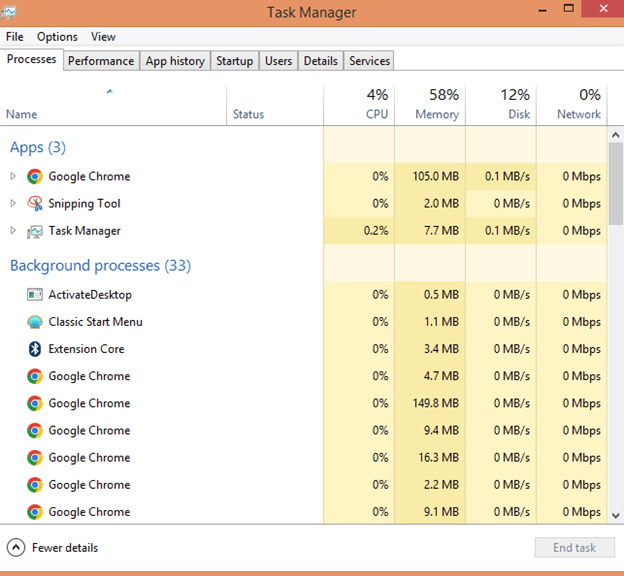
QuickBooks processes can occasionally remain active in the background after the program has been closed. If a QuickBooks process is stuck or not responding correctly, it may interfere with another attempt to open the company file. You can use Windows Task Manager to check for QuickBooks processes:
  • Make sure QuickBooks Desktop is closed.
  • Press Ctrl + Shift + Esc to open Task Manager.
Task Manager
  • If necessary, select More details to view the running processes.
  • Look for QuickBooks-related processes, such as QBW32.exe, qbupdate.exe, or QBDBMgr.exe.
  • Select a process only if you are certain it belongs to QuickBooks and is safe to close.
  • Select End task.
  • Close Task Manager.
  • Reopen QuickBooks Desktop and try accessing the company file.

QuickBooks Error 6176 Still Not Resolved? Try These Steps

If Error 6176 in QuickBooks continues after trying the troubleshooting methods above, first determine whether the problem is limited to one company file or affects multiple files. Try the following checks:

  • Open a different QuickBooks company file from the same computer.
  • If possible, copy the affected company file to a local folder on the computer where it is stored and try opening it.
  • Confirm that other computers on the network can access the company file.
  • Check whether the issue occurs only in QuickBooks multi-user mode.
  • Verify that the server computer is powered on and accessible from the workstation.
  • Confirm that QuickBooks Desktop is installed and updated on the computers participating in the network.
  • Make sure the company file and its folder have the appropriate Windows permissions.
  • If the problem affects only one company file, consider checking that File for damage before making further changes to the network configuration.

If you are unable to determine whether the issue is related to the company file, network, Windows configuration, or QuickBooks installation, consider contacting a qualified QuickBooks professional for further assistance.

If the issue is related to accessing or opening a company file, you can also check QuickBooks Error 6000 Series for related company-file troubleshooting steps.

Tips to Avoid QuickBooks Company File Error 6176

Although not every occurrence of error 6176 can be prevented, maintaining your QuickBooks and network environment can reduce the chances of company-file access problems. Keep these practices in mind:

  • Keep QuickBooks Desktop Updated: Install available QuickBooks updates to maintain compatibility and receive program fixes.
  • Keep Windows updated: Regularly install appropriate Windows updates on the server and workstations.
  • Maintain a reliable network: Make sure the server and workstations have a stable network connection when using QuickBooks in multi-user mode.
  • Check hosting settings: Ensure your QuickBooks hosting configuration is appropriate for your network setup.
  • Maintain folder permissions: Make sure authorized users have the necessary access to the company file folder.
  • Review firewall settings: Ensure that security software does not unnecessarily block QuickBooks network communication.
  • Back up your company file: Maintain regular backups so that your financial data can be restored if an unexpected problem occurs.
  • Avoid unnecessary changes to configuration files: Do not delete or modify QuickBooks configuration files unless a troubleshooting procedure specifically requires it.
  • Protect your system: Keep your security software active and perform regular scans to help protect QuickBooks and Windows files from malware.

Conclusion!

QuickBooks Error 6176 can occur when QuickBooks has trouble connecting to your company file or the server where it is stored. Updating QuickBooks, checking hosting settings, reviewing firewall permissions, and verifying file access can often help resolve the issue. You can also use QuickBooks File Doctor or repair the QuickBooks installation if needed. Before troubleshooting, always create a backup of your company file. If the error continues, consider contacting a Data Service Team professional for further assistance at +1(888)-718-7888.

Frequently Asked Questions (FAQ’s)

Update QuickBooks Desktop, check the network connection and hosting settings, and verify the company file permissions. You can also run QuickBooks File Doctor to identify and fix company file or network issues.

QuickBooks Error 6176 can occur when QuickBooks cannot connect properly to the computer or server where the company file is stored. Firewall restrictions, incorrect hosting settings, network problems, or file access issues may cause the error.

Yes, a damaged company file may prevent QuickBooks from opening or accessing company data correctly. Running QuickBooks File Doctor can help identify and repair certain company file issues.

Check your QuickBooks updates, network connection, hosting settings, firewall permissions, and company file location. If the error continues, try repairing QuickBooks or renaming the .ND and .TLG files.

Yes. An outdated QuickBooks version can sometimes cause compatibility or connectivity issues. Updating QuickBooks Desktop can help resolve problems related to older program components.

The error can prevent you from opening or accessing your company file. However, it does not necessarily mean that your company data has been lost or deleted.

Keep QuickBooks and Windows updated, maintain a stable network, check hosting settings, and ensure the company file folder has the required permissions. Regularly backing up your company file is also recommended.

If the error continues after trying the recommended troubleshooting methods, consider contacting a Data Service Team expert. Expert assistance can help you identify whether the problem is related to the company file, network, or QuickBooks installation.


About The Author

Steven Moody

Steven Moody is a bookkeeping and payroll specialist dedicated to helping businesses maintain accurate financial records and efficient payroll operations. His expertise includes payroll management, tax compliance, bookkeeping solutions, and financial reporting. Steven regularly shares insights on accounting best practices and business finance strategies. Outside of work, he enjoys traveling, exploring new places, and keeping up with the latest developments in business technology.

Steven Moody

QuickBooks Error

QuickBooks Error 6189 816: Easy Ways to Fix Company File Issues

Read More
QuickBooks Error

QuickBooks Error 6000 832: How to Fix Multi-User Mode and File Access

Read More
QuickBooks Error

QuickBooks Error QBW32.exe: How to Fix Fatal Application Exit

Read More
QuickBooks Error

QuickBooks Error 6000 -80: How to Fix Company File Access Issues

Read More
QuickBooks Error

How to Fix QuickBooks Error 108 and Restore Bank Access

Read More