
Trying to open your QuickBooks company file and suddenly facing QuickBooks error 6000 95 can be frustrating, especially when you need to access your financial data right away. This error usually appears when QuickBooks has trouble accessing the company file, particularly when the file is stored on a network or shared between multiple computers.
The problem can be related to incorrect hosting settings, damaged network files, folder permissions, connectivity issues, or problems with the Company file itself.
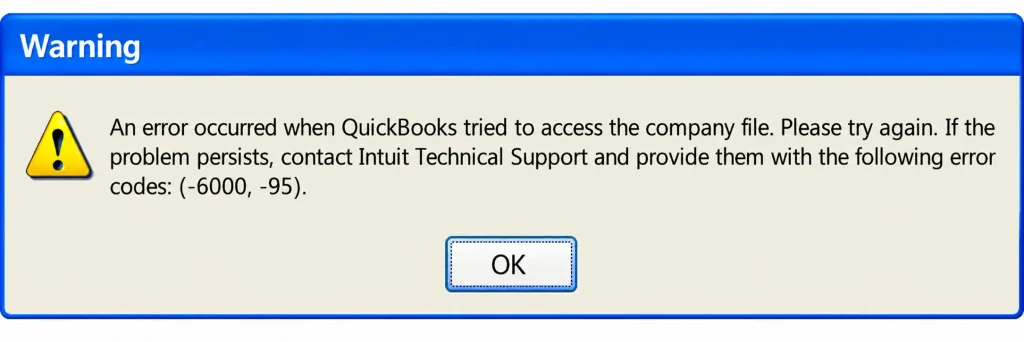
In this guide, we’ll explain the causes and solutions for QuickBooks Error 6000 95. If you’re experiencing similar company file issues, see our guide to QuickBooks Error 6000 Series.
Users may face this error when QuickBooks Desktop is unable to access or open a company file. You may encounter this error when opening a company file saved on a network, server, or another computer. If QuickBooks cannot locate the file, read our guide to QuickBooks Company File Not Found. You may encounter this error because of:
When the error occurs, QuickBooks may prevent you from opening the company file. Identifying whether the problem is with the file, its location, or the network setup can help you choose the right solution.
There isn’t always one specific reason behind QuickBooks Error 6000 95. The problem can come from the company file, the network connection, or the way QuickBooks is set up on your computer. Have a look at the common causes of this error code:
Before moving on to the troubleshooting methods, check these few things first. They can help you avoid making unnecessary changes to QuickBooks or Windows.
If the quick checks didn’t solve the problem, try the following methods one by one. Start with the first method and check your company file after each step.
An outdated QuickBooks version can sometimes cause problems when opening or accessing a company file. Updating QuickBooks makes sure you have the latest fixes and improvements available for your version. Here’s how to check for an update:
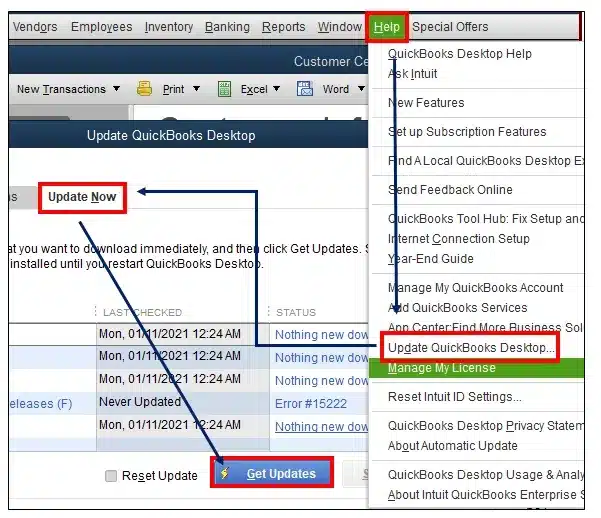
If QuickBooks Error 6000 95 still appears on your screen, you can move on to the next method.
If updating QuickBooks didn’t make a difference, the next step is to check whether something is wrong with the company file or its network connection. QuickBooks File Doctor is useful here; it can scan the file and look for some common file and network issues. You can find the tool inside QuickBooks Tool Hub. Just follow these steps:
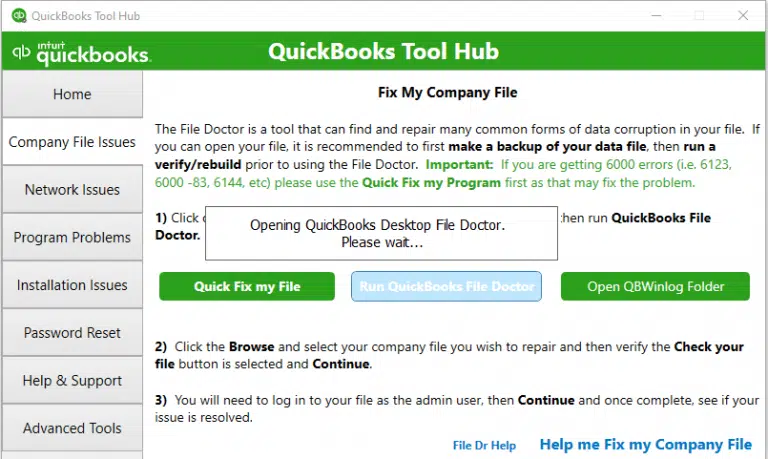
If the file still won’t open and QuickBooks Error 6000 95 keeps showing up, don’t worry. The next method checks whether QuickBooks is being hosted correctly on your network.
If you’re using QuickBooks Desktop on multiple computers, the hosting settings must be configured correctly. Read our guide to QuickBooks Hosting Mode is Off to learn more about checking these settings. If multiple computers are trying to host the same file, QuickBooks may have trouble connecting to it and show QuickBooks Error 6000 95. To check the hosting settings:

Once you’ve checked the settings, close and reopen QuickBooks and try accessing the company file
again.
If QuickBooks Error 6000 95 is still showing up, the next thing you can try is renaming the .ND and .TLG files. QuickBooks uses these files to access the company file, especially when it is stored on a network. If either file is damaged or has an issue, QuickBooks may have trouble connecting to the company file. Follow these simple steps:
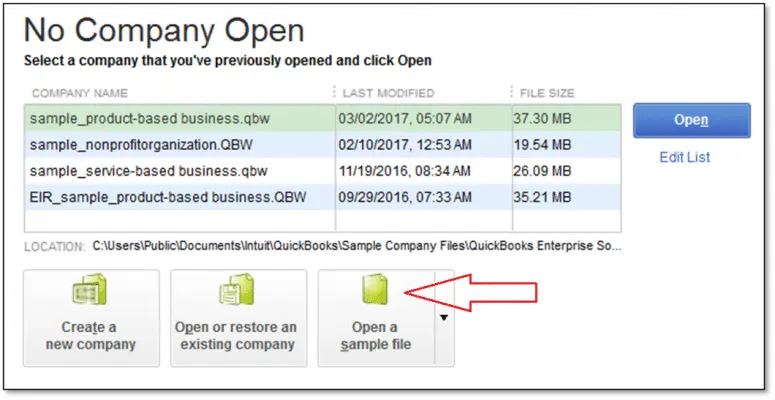
If renaming the .ND and .TLG files didn’t fix QuickBooks Error 6000 95, try opening one of the sample company files that comes with QuickBooks Desktop.
If the sample file opens normally, the problem may be specific to your company file. You can also use Verify and Rebuild Data in QuickBooks Desktop to check for certain data integrity issues. Back up your file before proceeding. If the sample file also gives you an error, there could be a problem with your QuickBooks installation. Here’s how to check:
If the sample company file opens normally but your own company file still shows QuickBooks Error 6000 95, the problem may be related to the location of your company file.
To check whether the file location is causing the problem, try opening a copy of the company file from your Desktop. If the file opens, investigate the original folder’s permissions and network path. Our guide to QuickBooks Not Connecting to Server may also help. Follow these steps:
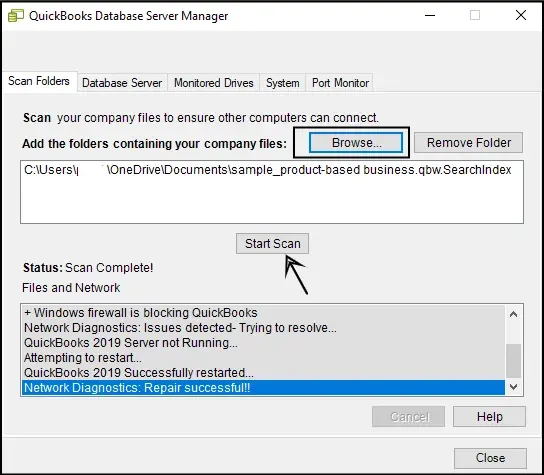
If QuickBooks Error 6000 95 still appears when you try to open a company file over a network, there may be an issue with the way QuickBooks is accessing the file on the server. In this situation, you can use the QuickBooks Database Server Manager to scan the folder where your company file is stored.
The tool can help QuickBooks detect the company file and refresh the network connection. Follow these steps:
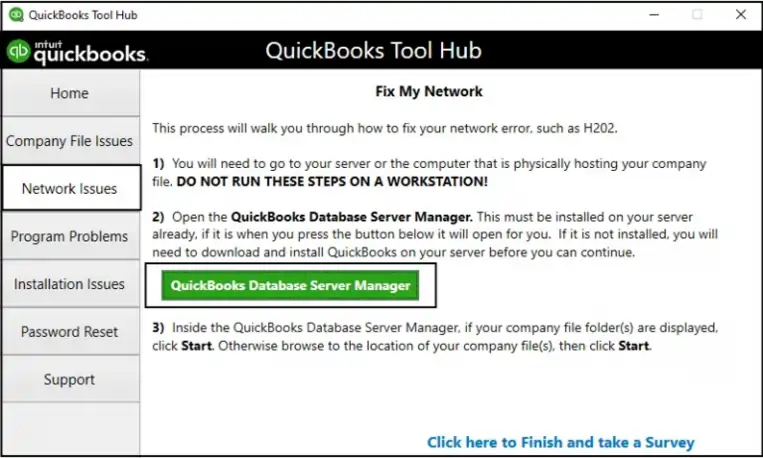
If QuickBooks Error 6000 95 is still appearing after trying the methods above, don’t worry. Go through these final checks before making any major changes to your company file:
Once you’ve fixed the error, a few simple habits can help reduce the chances of running into the same company file problem again:
Make QuickBooks Work Smarter for Your Business
Spend less time managing data and more time growing your business. Whether you need help setting up QuickBooks, cleaning up your books, reconciling accounts, or resolving errors, our team is here to make accounting easier. Get quick solutions that save time, improve accuracy, and keep your business finances on track.
QuickBooks Error 6000 95 can prevent you from opening your company file, but you can usually resolve it by checking the network, hosting settings, file location, and QuickBooks files. Try the solutions above one by one and check your company file after each step. For answers to other common software issues, visit our Data Service Team FAQ.
Also, keep regular backups of your company file to protect your data. If the error still appears after troubleshooting, consider contacting Data Service Team experts at +1(888)-718-7888 for further help.
You can start by updating QuickBooks and running QuickBooks File Doctor. If the error continues, check your hosting settings, rename the .ND and .TLG files, and try opening the company file from a local location.
Open QuickBooks and go to File select Open or Restore Company then click Restore a backup copy. Select your backup file and follow the on-screen instructions. Make sure you have a safe copy of your current company file before restoring the backup.
Yes, it can help if the problem is related to the network or the original file location. Copy the .QBW file to your Desktop or another local folder and try opening it from there.
QuickBooks File Doctor checks for common company file and network problems. You can run it from the Company File Issues section of QuickBooks Tool Hub and let it scan the affected company file.
First, close QuickBooks on all computers connected to the company file. Then reopen QuickBooks and try accessing the file again. If the problem continues, check your hosting and multi-user settings.
Yes. If these files are damaged, renaming them can help QuickBooks create fresh versions. Close QuickBooks, find the .ND and .TLG files in your company file folder, and add .OLD to their names.
Yes, firewall or antivirus software may block QuickBooks from accessing the company file or communicating with the network. Check your security settings and make sure QuickBooks is allowed through the firewall.
Make sure you have a recent backup of your company file and try opening a sample company file. You can also check the file location, hosting settings, folder permissions, and network connection. If the error continues, contact Data Service Team experts for further help.
Keep QuickBooks updated, create regular backups, and use a stable network connection. Also, make sure the company file has the correct folder permissions and that your firewall or security software isn’t blocking QuickBooks.

Get Free Consultation for QuickBooks Upgrade
(2021, 2022, 2023)


