
Are you an accountant struggling to manage employee payroll? QuickBooks Enhanced Payroll for Accountants provide tools to access employee payments/ manage payroll tax calculations/ and maintain organized payroll records. QuickBooks Enhanced Payroll comes with a cap of 50 clients. To use this, you need to understand its process/ features/ and setup requirements. It will help professionals improve workflow and reduce manual errors.
In this guide, we will explain QuickBooks Enhanced Payroll for Accountants, its key benefits, and how accountants can use it to manage payroll responsibilities.
It is a payroll service designed for accounting professionals who manage payroll for multiple client businesses through QuickBooks Desktop. The accountant-focused offering includes tools for after-the-fact payroll processing and client-ready payroll reports along with the standard Enhanced Payroll features.
You can enter employee hours/ review payroll details/ and pay your team from QuickBooks with enhanced payroll. These features help accountants organise payroll records and support their clients’ payroll accounting needs.
Enhanced Payroll for Accountants assists accounting professionals in managing payroll for multiple client businesses using QuickBooks Desktop. Here’s a quick overview of how it works:
Remember: This price change impacts QuickBooks payroll for accountants when you use direct deposit to pay W2 employees.
Enhanced Payroll gives you the tools to create paychecks and file taxes yourself. Check out the table below to learn about additional benefits:
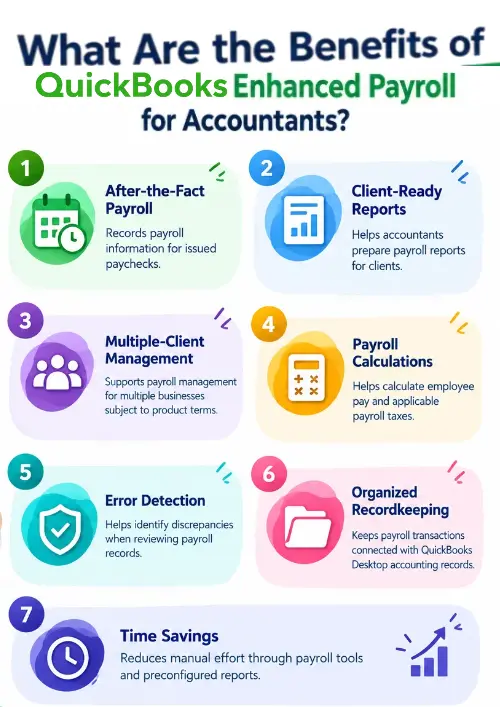
| Benefit | Explanation |
| After-the-Fact Payroll | Records payroll information for issued paychecks. |
| Client-Ready Reports | Helps accountants prepare payroll reports for clients. |
| Multiple-Client Management | Supports payroll management for multiple businesses subject to product terms. |
| Payroll Calculations | Helps calculate employee pay and applicable payroll taxes. |
| Error Detection | Helps identify discrepancies when reviewing payroll records. |
| Organized Recordkeeping | Keeps payroll transactions connected with QuickBooks Desktop accounting records. |
| Time Savings | Reduces manual effort through payroll tools and preconfigured reports. |
Remember: Features depend on the QuickBooks version and subscription. Verify historical product features with Intuit before describing them as currently available.
Here is the complete guidance to set up QuickBooks Enhanced Payroll for your financial activities:
Once you have QuickBooks Enhanced Payroll for Accountants, you need to activate it. The steps to activate depend on whether you bought it online/ by phone/ or from a retail store.
If you purchased payroll online/ by phone, you will get a 16-digit service key by email. You will enter this key in QuickBooks so you can utilise the payroll features.
If you did not receive your service key, check your junk/ spam folder. You will need to sign in through your account login.
You will add the employees and set up the federal & state payroll taxes. Enter paychecks and tax payments you have already paid this year.
We know it takes time to get payroll information into QuickBooks. So the setup is designed to allow you to add info at convenience and save as you go.
Want to track employee payments/ payroll taxes/ and payroll expenses accurately? It helps accountants review payroll data/ monitor expenses/ and maintain organised records for their clients.
It gives you the total payroll wages/ taxes/ deductions/ and contributions. Here is how to run a payroll summary report. Note that the dates in this report are by paycheck dates only, not by period dates.
Run a Payroll Summary by Employee if you need to view the payroll wages/ taxes/ deductions/ and contributors totalled by employees.
What Is After-the-Fact Payroll in QuickBooks Enhanced Payroll for Accountants?
It is a feature designed to help accountants enter/ validate/ and adjust payroll information for paychecks. QuickBooks Enhanced Payroll for Accountants includes streamlined compliance functions & payroll tax tables for federal and all states.
Accountants could use a spreadsheet-style screen to enter employee paycheck details and review payroll tax calculations. The feature helped accountants maintain accurate payroll records and review tax liabilities. These details describe the historical accountant-focused product. Current availability should be verified.
It helps accountants calculate payroll taxes/ track tax labilities/ and prepare tax payments. Users with Enhanced Payroll for Accountants are responsible for paying and filing the payroll taxes themselves.
Ensure QuickBooks Desktop has the latest available payroll tax table before processing payroll taxes.
Remember: An active QuickBooks Desktop Payroll subscription is required to update tax tables. State unemployment insurance rates may need to be updated.
Review the taxes owed to federal and state agencies after processing payroll.
State e-filing and e-payment options differ by state and tax type.
If your state/tax type does not support electronic filing/ payment through QuickBooks, follow manual filing and payment instructions.
Here, we will discuss the process to set up employees in QuickBooks Enhanced Payroll. It helps maintain accurate employee records and calculate payroll.
First set up employee defaults to add an employee in QuickBooks Desktop Payroll. Enter the individual employee’s information.
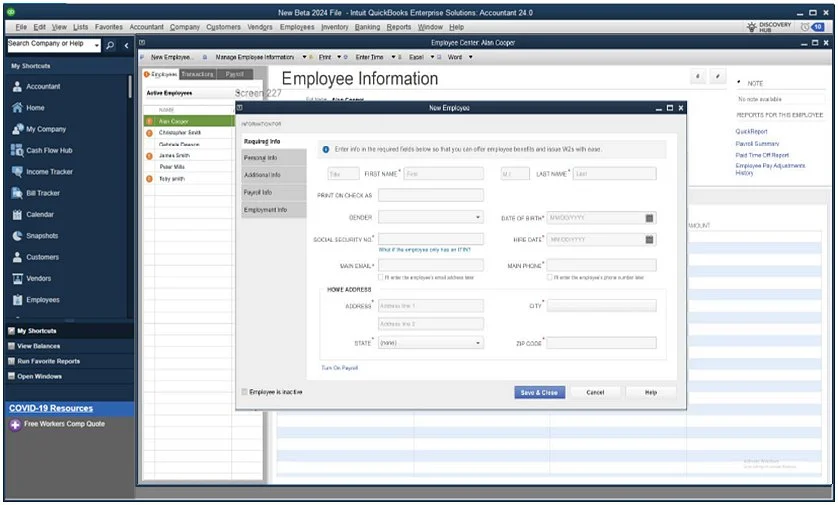
Employee defaults allow you to fill in common fields for new hires like pay schedule and policies to save time. Log in to QuickBooks Admin to access these defaults.
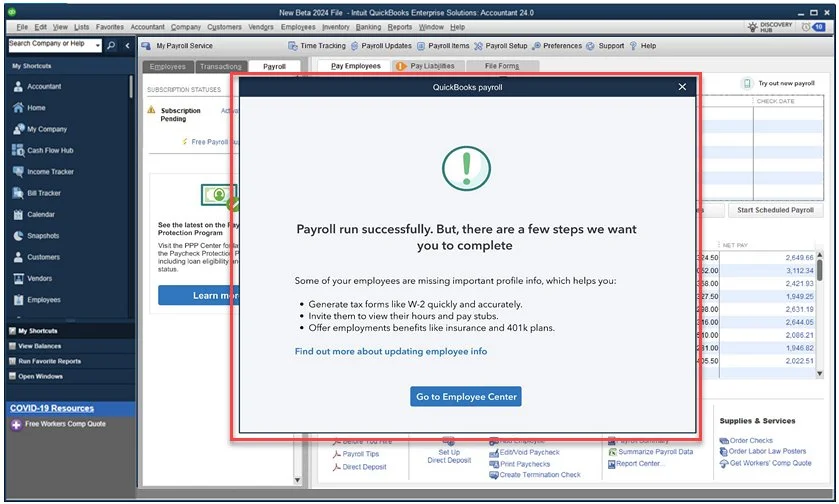
Updating payroll tax tables helps ensure payroll calculations reflect the latest available tax rates and limits. It supports accurate employee withholdings and payroll tax calculations.
Go to Employees and select Get Payroll Updates.
To confirm which update you currently have installed:
It is suggested to understand the difference between QuickBooks Enhanced Payroll and Assisted Payroll. QB Enhanced Payroll gives businesses extra responsibility to manage payroll tax payments while Assisted Payroll allows Intuit to handle those tasks on the employer’s behalf.
| Feature | Enhanced Payroll | Assisted Payroll |
| Tax calculations | Calculated in QuickBooks | Calculated through the assisted service |
| Tax payments | Managed by the employer | Handled by Intuit |
| Tax filings | Employer files supported forms | Intuit handles supported filings |
| User responsibility | More hands-on management | Less administrative work |
| Tax support | Tools and guidance | Additional payroll specialist support |
| Best suited for | Businesses managing their own tax obligations | Businesses wanting payroll tax assistance |
Remember: Product availability and features differ by subscription. If you are subscribed to Enhanced for Accountant Payroll, you can add up to 50 EINs.
Make QuickBooks Work Smarter for Your Business
Spend less time managing data and more time growing your business. Whether you need help setting up QuickBooks, cleaning up your books, reconciling accounts, or resolving errors, our team is here to make accounting easier. Get quick solutions that save time, improve accuracy, and keep your business finances on track.
QuickBooks Enhanced Payroll for Accountants helps professionals organise payroll records/ review employee payments/ and generate reports for their clients. You need to be aware of above outlined features/ setup process/ and tax management responsibilities of enhanced payroll. It can help accountants streamline their workflows and maintain accurate financial records. Product features and availability may change, consult official Intuit resources to confirm the latest information to make an informed decision.
Need professional assistance with your accounting data? Connect with the Data Service Team at +1(888)-718-7888 for expert guidance on QuickBooks data management/payroll record Organisation/ and more. Let our professionals help you keep your financial data Organised!
It supports multiple client management for up to 50 Employer Identification Numbers compared to the standard 3-EIN limit. The enhanced payroll offers core self-management tools such as automated federal and state payroll tax calculations. Other advantages are electronic tax form filings and payments/ W-2 e-filing, direct deposit capabilities/ and seamless integration with QuickBooks Desktop client files.
It is a multi-client and do-it-yourself payroll subscription designed for accounting professionals. The QB Enhanced Payroll allows you to manage & process payroll/ calculate federal and state taxes. It also helps generate forms and handle direct deposits for up to 50 different Employer Identification Numbers (EINs) from a single license. The system calculates wages/ deductions/ and tax liabilities. Accountants will get support for electronic tax and form filing. You remain responsible to review/ submit/ and remitting final tax payments to government agencies.
QuickBooks Enhanced Payroll allows you to manage around 50 Employer Identification Numbers per license, with each EIN tied to a single company file. Users can add extra clients with additional license purchases when the practice needs to exceed this cap.
It allows accountants and bookkeepers to record payroll checks/ earn/ withholdings/ and tax details. These were already issued/ calculated outside of QuickBooks (or in a prior system). This tool is used for record-keeping/ compliance reports/ and generating W-2s/ quarterly tax forms without having QuickBooks calculate them.
Yes! It can create client-ready payroll reports. An active Enhanced Payroll for Accountants subscription unlocks a dedicated set of Client-Ready Payroll Reports in QuickBooks Desktop Accountant. It is available under the Reports > Employees & Payroll menu. These reports provide structured/ detailed data on employee payroll activity and expense analysis. Accountants can present to business clients/ export into formats like Excel.
Employees > Payroll > Enter Payroll Service Key to activate the subscription. Navigate to Employees > Payroll Setup to run the setup interview, where you will enter Federal EIN/ state unemployment/ tax account numbers/ deposit frequencies/ and company details. Add client companies/ employee profiles/ configure pay items/ deductions/ and time-off policies. Input year-to-date payroll history to finalise the setup.
QuickBooks Enhanced Payroll is designed for a single business owner/ employer to manage payroll for their own company/ Enhanced Payroll for Accountants (a legacy product no longer sold to new buyers) is built for accounting and bookkeeping firms to manage payroll across multiple distinct client files. It supports up to 50 Employer Identification Numbers compared to the standard 3 EIN limit on regular desktop payroll plans.
It is not ideal/ available for new accounting firms, as Intuit has discontinued new desktop Enhanced Payroll for Accountants sales and shifted focus toward cloud-based solutions like QuickBooks Online Payroll. Legacy users who are grandfathered in can manage up to 50 Employer Identification Numbers. It handles after-the-fact payroll and tax filings within desktop accounting files/ steep price increases, and a push toward modern.

Get Free Consultation for QuickBooks Upgrade
(2021, 2022, 2023)


