QuickBooks error 15242 is more common when users download or install QuickBooks Desktop or payroll updates. If you’re experiencing similar update problems, read our guide on Update QuickBooks Desktop to learn how to download and install the latest software updates. It usually occurs when Intuit File Copy Service is disabled, damaged, or unable to complete the update process. You may also encounter this error when security settings or digital signature issues interrupt the download. Interestingly, even users without an active payroll subscription can experience this error during regular software updates.
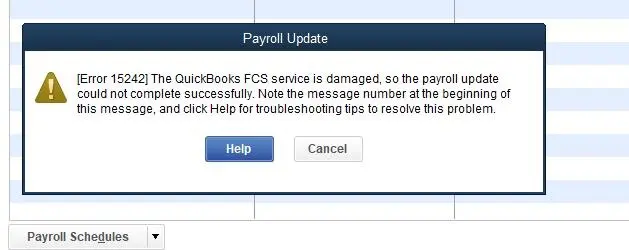
In this blog, we’ll discuss the common causes and explain how to troubleshoot the QuickBooks Error 15242.
It is an update-related error that can interrupt the downloading or installation of QuickBooks Desktop updates. It is commonly associated with problems involving Intuit File Copy Service, which helps QuickBooks manage update files.
You may encounter this error while downloading payroll tax table updates or installing regular software updates. When this error occurs, QuickBooks may fail to complete the Update, leaving the software or payroll tax tables outdated.
QuickBooks error code 15242 can occur when the software can’t access, verify, or process the files required to complete an update. Several factors may contribute to this issue, including:
When QuickBooks Desktop encounters Error 15242, you may notice several interruptions while downloading or installing updates. Watch for these common signs:
If you notice these symptoms, check the FCS service and QuickBooks update components before trying other troubleshooting methods.
To resolve QuickBooks Error 15242, first identify whether the problem is related to Intuit File Copy Service (FCS), update permissions, or damaged QuickBooks components. Try the following troubleshooting methods one at a time and check whether the Update completes after each method.
Before you begin – Close QuickBooks and keep a recent backup of your company file.
Sometimes your QuickBooks can’t complete an update because Windows restricts access to certain program files. If Windows displays a permission-related notification when installing an update, you may also encounter the QuickBooks Administrator Permission Needed Error. Checking your Windows account permissions can help resolve this issue. Running the software as an administrator gives it the permissions needed to perform the Update. Here’s what you need to do:
QuickBooks relies on Intuit File Copy Service (FCS) to manage update files. If this service is disabled or not responding, you may encounter update problems. Checking its settings can help resolve the issue.
Follow these steps to check the service:
If QuickBooks still displays Error 15242, some background processes or damaged program components may be interfering with the Update. Intuit recommends using Quick Fix My Program to close unnecessary QuickBooks processes and repair common program issues. Here’s how to run it:
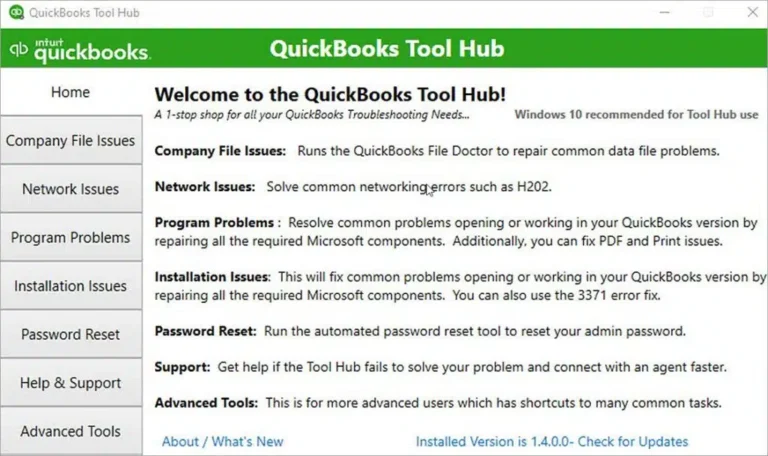
If QuickBooks has downloaded incomplete or damaged update files, resetting the update process can help you clear the previous downloads and fetch fresh update files. Follow these steps:
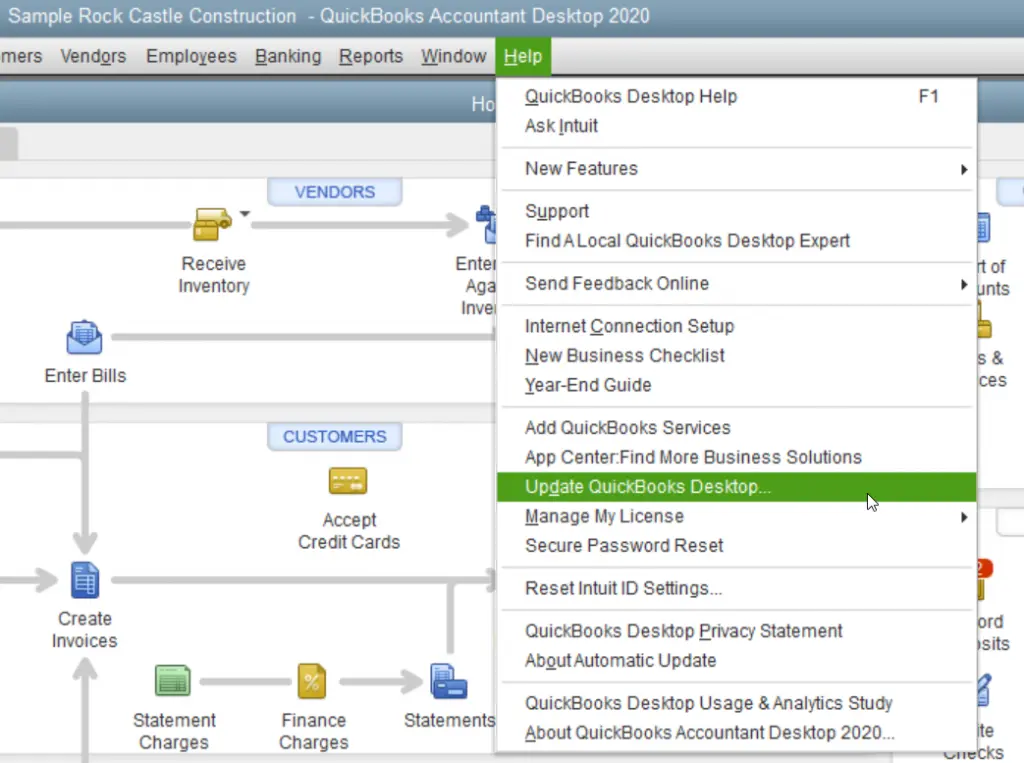
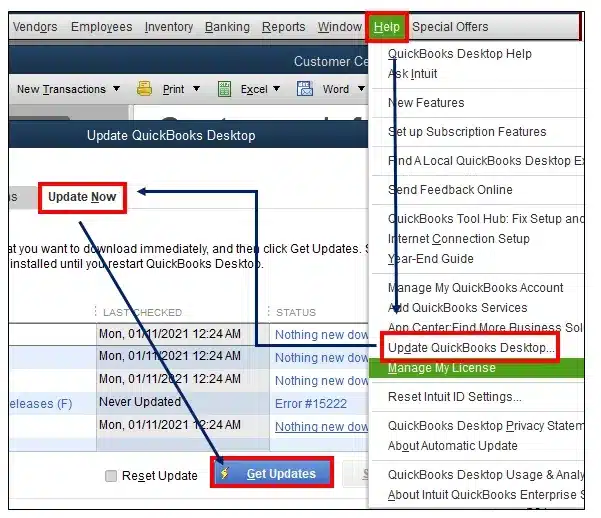
If QuickBooks updates remain stuck or fail repeatedly, you may also be experiencing a QuickBooks Payroll Update Not Working issue. Check your update settings and payroll configuration to identify the underlying problem.
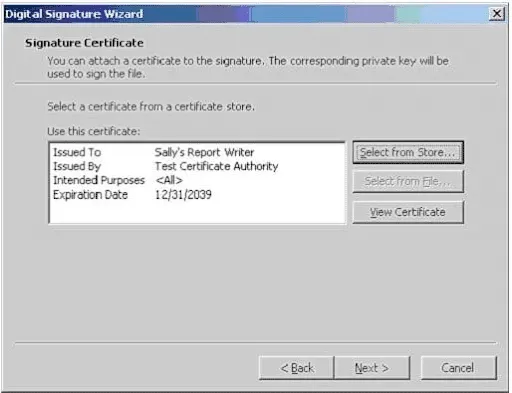
QuickBooks checks digital signatures to verify that update files come from a trusted source. If Windows cannot verify the Intuit certificate, the update process may fail. Try reinstalling the certificate using these steps:
If the previous methods haven’t resolved the issue, your QuickBooks installation may have damaged or missing program files. If repairing the application doesn’t resolve the problem and QuickBooks Desktop still cannot complete the installation, check our guide on Can’t Install QuickBooks Desktop for additional troubleshooting steps. Repairing the application can help restore these components without immediately uninstalling the software. Here’s how to repair QuickBooks Desktop:
If the Repair option is unavailable, check Intuit’s instructions for your installed QuickBooks version before choosing another repair option.
If you encounter QuickBooks Error 15242 while downloading payroll updates, check whether your payroll subscription is active and the correct service key is registered. An inactive subscription or incorrect service key may prevent payroll updates from downloading. Follow these steps:
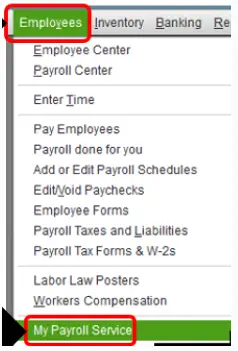
Note: If you don’t use QuickBooks Payroll, you can skip this method. An inactive payroll subscription does not necessarily explain Error 15242 during regular software updates.
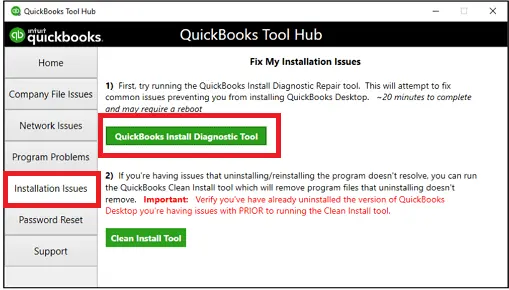
If QuickBooks Error 15242 continues to appear, problems with installation components such as Microsoft .NET Framework, MSXML, or C++ may be affecting the software. Intuit’s QuickBooks Install Diagnostic Tool can help identify and repair certain installation-related issues. Follow these steps:
You may assume QuickBooks error 15242 is related only to payroll updates, but that’s not always the case. Some QuickBooks Desktop users encounter this error while downloading the regular software updates, even when they don’t have an active payroll subscription.
This can happen when Intuit File Copy Service (FCS) is not working correctly, or QuickBooks cannot access the files required for the Update. If you don’t use payroll, try these steps:
Yes, QuickBooks error 15242 can stop payroll tax table updates from downloading or installing successfully. When this happens, you may not receive the latest payroll tax calculations, which can affect payroll processing. If you encounter this problem, check the following:
A few simple maintenance practices can help reduce the chances of encountering QuickBooks Error 15242 again. Follow these tips to keep your software updates running smoothly:
Following these practices can help reduce update failures and keep QuickBooks Desktop working reliably.
We hope you now understand how to resolve QuickBooks Error 15242 and get your software updates working again. This error is commonly associated with Intuit File Copy Service (FCS) issues, update failures, or permission-related problems. Start with simple solutions, such as running QuickBooks as an administrator, checking the FCS settings, and using QuickBooks Tool Hub. If the error continues despite trying these methods, contact Data Service Team live experts for better guidance and assistance at +1(888)-718-7888.
QuickBooks Error 15242 usually occurs when Intuit File Copy Service (FCS) is not working properly. It can also appear due to permission issues or problems downloading payroll updates.
You can try running QuickBooks as an administrator, checking the FCS settings, resetting QuickBooks updates, or using QuickBooks Tool Hub to resolve the error.
Carefully follow these steps:
1. Press Windows + R and type services.msc.
2. Find Intuit QuickBooks FCS in the Services list.
3. Right-click it and select Properties.
4. Set the Startup Type to Manual.
5. Click Apply and OK.
6. Restart the service if needed.
Yes, this error can also occur when downloading regular QuickBooks Desktop updates because it is related to File Copy Service, not just payroll.
Yes, error 15242 is commonly associated with File Copy Service issues, while Error 15240 can involve update download problems, permissions, or security settings.
Yes, it can easily interrupt your payroll updates and prevent the latest payroll tax table from downloading or installing successfully.
You can keep your software updates, check FCS settings regularly, use administrator access, maintain an active payroll subscription, and ensure your firewall is not blocking the QuickBooks updates.

Get Free Consultation for QuickBooks Upgrade
(2021, 2022, 2023)