🔥 BLACK FRIDAY & CYBER MONDAY MEGA SALE ✦ Get 70% OFF QuickBooks Products & Subscriptions ✦ 20% OFF Checks, Forms & Supplies ✦ LIMITED TIME OFFER! 🎉 ✦
QuickBooks-Error-1321
Summarize this blog post with :

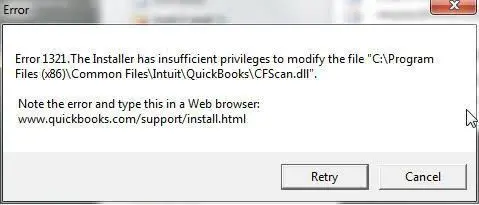
QuickBooks Error 1321 is a common installation/ update issue that occurs when the software cannot access/ modify a required file. This error appears when Windows does not provide enough permission to update/ replace/ or install QuickBooks files. It may also occur due to antivirus interference/ restricted folder access/ or incorrect file permissions.
quickbooks-error-1321

Users may face problems installing QuickBooks updates/ completing the installation process. It is best to understand the causes and symptoms of QuickBooks Error 1321 when installing. This will help you find the right solution. In this guide, we will explain simple and effective methods to fix this issue and get QuickBooks working properly again.

What Is QuickBooks Error 1321?

It is an installation/ update error that occurs when the Windows installer does not have sufficient permission to modify/ replace/ or access a required QuickBooks program file. It appears when installing QuickBooks Desktop/ downloading and installing its updates. The error message may mention specific DLL files/ such as sdkeventl.DLL/ CfScan.DLL/ or QBONLI32.DLL. This issue can occur because antivirus software blocks file access/ Windows folder permissions are restricted. As a result, QuickBooks installation/ updating may fail until the file access issue is resolved.

What Causes QuickBooks Error 1321?

This error occurs due to permission issues/ interference during installation/ updates. Common causes include:

  • Insufficient Permissions – Windows does not allow QuickBooks to modify program files.
  • Antivirus Interference – Security software blocks QuickBooks installation or updates.
  • File Access Issues – Another application is using the file QuickBooks needs to update.
  • Slow File Copying – File updates occur faster than files can be copied.
  • Damaged Program Files – Corrupted or inaccessible installation files prevent successful updates.

What Are the Common Symptoms of QuickBooks Error 1321?

You may notice the following symptoms when QuickBooks installation error 1321 occurs:

  • Installation Failure – QuickBooks installation/ update cannot complete successfully.
  • Repeated Error Messages – Error 1321 appears repeatedly when selecting the Retry option.
  • Installer Failure – Windows Installer cannot complete the required file modification.
  • Update Interruption – The QuickBooks update process stops before completion.
  • DLL File Errors – Windows displays an error and mention a specific QuickBooks DLL file.
  • Incomplete Installation – QuickBooks program updates remain unfinished.

What You Need Before Fixing QuickBooks Error 1321?

Make sure you complete these preparations before troubleshooting QuickBooks installation error 1321:

  • Create a Backup – Back up your QuickBooks company file to protect your financial data.
  • Check Windows Version – Examine whether the Windows operating system is 32-bit/ 64-bit.
  • Keep Administrator Access – Ensure you have access to a Windows administrator account.
  • Note the Error Details – Record the complete error message and affected file name.
  • Download Tool Hub – Keep the latest version available for installation troubleshooting.
  • Save Your Work – Close QuickBooks and save any pending work before starting the repair process.

How to Troubleshoot QuickBooks Error 1321 When Installing?

You need to examine file access issues/ adjust necessary permissions/ and consider repair methods to complete the installation/ update successfully to troubleshoot QuickBooks installation error 1321:

Method 1: Run the QuickBooks Install Diagnostic Tool

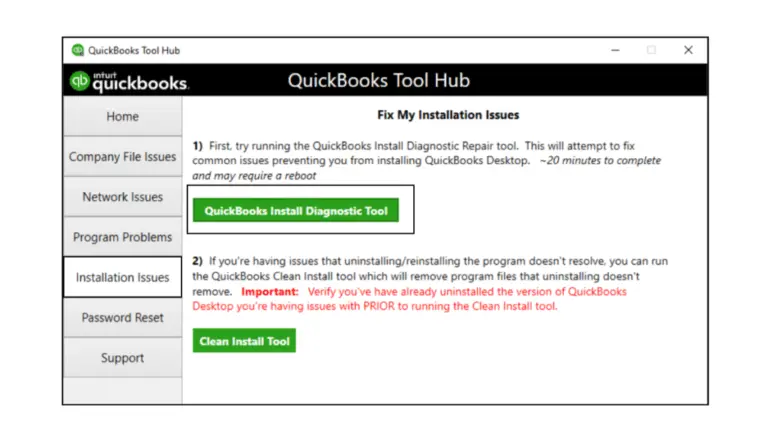
If there was an issue during the installation of QuickBooks, it might lead to problems when you attempt to use the software. Use the QuickBooks Install Diagnostic Tool to resolve QuickBooks Error 1321 when installing.
Step 1: Run the QuickBooks Install Diagnostic Tool

  • Download and install QuickBooks Tool Hub
  • Launch the QuickBooks Tool Hub and choose Installation Problems.
  • Click on QuickBooks Install Diagnostic Tool and allow it to complete its process, which may take as long as 20 minutes.
QuickBooks-Install-Diagnostic-Tool
  • Once the tool has finished running, restart computer and open QuickBooks Desktop.
  • Then access your data file.
  • Ensure you update QuickBooks Desktop to get the latest fixes and security patches.

Method 2: Run Quick Fix My Program Tool

QuickBooks Desktop Error 1321 occurs when the installer lacks the required permissions to change certain files during installation/ updates. The Quick Fix will close any background processes associated with QuickBooks. It will perform a rapid repair on your application.
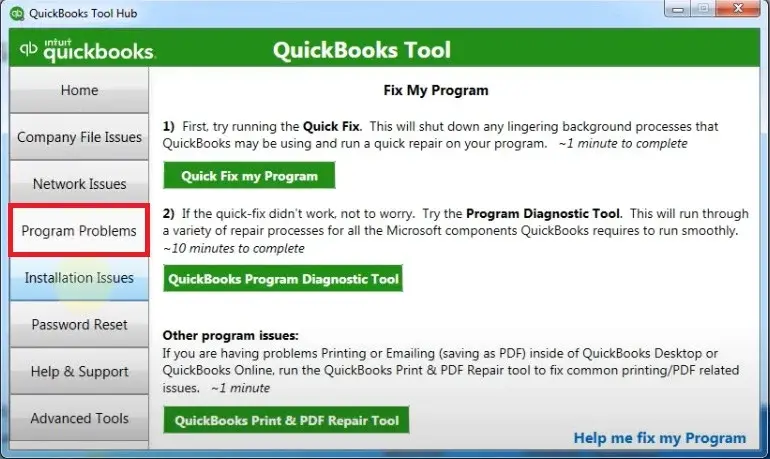
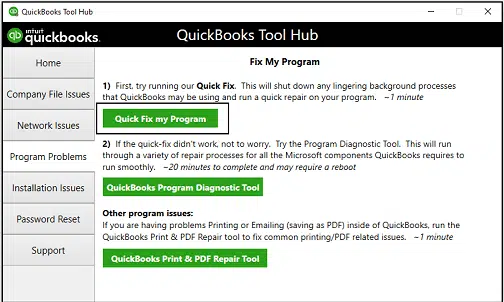
  • Choose Program Problems in the QuickBooks Tool Hub.
quickbooks-program-problems
  • Click on Quick Fix My Program.
Quick-Fix-My-Program
  • Launch QuickBooks Desktop and access your data file.

Method 3: Disable Antivirus Software Temporarily

Antivirus/ security software may interfere with QuickBooks installation/ updates. Follow these steps to temporarily disable it:
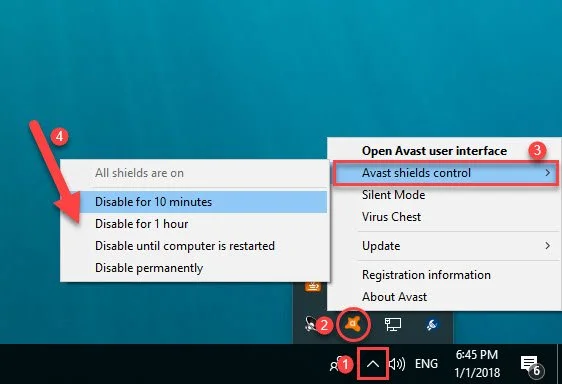
disable-anti-virus-software-temporarily
  • Turn off your internet connection before disabling antivirus protection if you use a persistent connection.
  • Launch your installed antivirus/ security application.
  • Follow the antivirus provider’s instructions to turn off its protection temporarily.
  • Install QuickBooks Desktop or run the pending update again.
  • Turn your antivirus or security software back on immediately after completing the installation/ update.
  • Restore your internet connection only after antivirus protection is enabled.

Note: Do not leave antivirus protection disabled. If you cannot find the disable option, contact your antivirus provider for instructions.

Method 4: Verify Windows Folder Permissions

Verifying and updating Windows folder permissions can resolve QuickBooks Error 1321 when installing. It prevents the installer from modifying files/ though it may not fix the error if the root cause is an active file lock/ fast update timing/ or antivirus interference. “If Windows prevents you from accessing or modifying program files, read our guide on QuickBooks Administrator Permission Needed Error to learn more about resolving administrator permission issues.”

  • Press Windows + R to bring up the Run dialog.
  • Type the folder path that has the QuickBooks program files in the Open field and hit the Enter key.

32-bit versions of Windows (10, 8, 7)

Desktop Enterprise
  • C:\Program Files\Intuit\Enterprise Solutions 20.0
  • C:\Program Files\Intuit\Enterprise Solutions 19.0
  • C:\Program Files\Intuit\Enterprise Solutions 18.0
  • C:\Program Files\Intuit\Enterprise Solutions 20.0
  • C:\Program Files\Intuit\Enterprise Solutions 19.0
  • C:\Program Files\Intuit\Enterprise Solutions 18.0
Pro and Premier
  • C:\Program Files\Intuit\QuickBooks 2020
  • C:\Program Files\Intuit\QuickBooks 2019
  • C:\Program Files\Intuit\QuickBooks 2018

64-bit versions of Windows (10, 8, 7)

Desktop Enterprise
  • C:\Program Files (x86)\Intuit\Enterprise Solutions 20.0
  • C:\Program Files (x86)\Intuit\Enterprise Solutions 19.0
  • C:\Program Files (x86)\Intuit\Enterprise Solutions 18.0
  • C:\Program Files (x86)\Intuit\Enterprise Solutions 20.0
  • C:\Program Files (x86)\Intuit\Enterprise Solutions 19.0
  • C:\Program Files (x86)\Intuit\Enterprise Solutions 18.0
Pro and Premier
  • C:\Program Files (x86)\Intuit\QuickBooks 2020
  • C:\Program Files (x86)\Intuit\QuickBooks 2019
  • C:\Program Files (x86)\Intuit\QuickBooks 2018
  • Navigate to View > Customize this folder in the new window.
  • Select the Security tab in the Properties window.
  • Click on Administrators on the Security tab.
  • Check the Allow box next to Full Control.
  • Select the SYSTEM user on the Security tab.
  • Check the Allow box next to Full Control.
  • Click OK to exit the Properties window.
  • Proceed with the installation of QuickBooks.

Method 5: Operate the Windows System File Checker Tool

Follow these steps to scan and repair corrupted Windows system files:

  • Search for cmd in Windows and select Run as administrator.
  • Enter DISM.exe /Online /Cleanup-image /Restorehealth and press Enter.
  • Type sfc /scannow and press Enter.
  • Allow the scan to finish without closing the window.
  • Restart your computer after the scan completes.
  • Run the QuickBooks installation or update again.

Note: These are Microsoft-recommended repair steps, not a specific fix prescribed by Intuit for Error 1321.

Method 6: Reinstall QuickBooks

Uninstall QuickBooks Desktop from Windows Control Panel, then download QuickBooks Desktop using the latest compatible installation file. Reinstall QuickBooks/ apply the available updates/ and check whether QuickBooks installation error 1321 is resolved.

  • Access the Windows Start menu.
  • Look for Control Panel in the search bar and then open it.
  • Choose Programs and Features/ Uninstall a Program.
  • Examine the version of QuickBooks Desktop you wish to uninstall from the list of installed programs.
  • Click on Uninstall/Change/ then Remove/ and proceed by clicking Next.
  • If this option does not appear, log out and log back in to Windows as an admin/ a user with administrative privileges.

If you continue experiencing installation problems, use the QuickBooks Clean Install Tool to perform a clean installation of the software.

How to Prevent QuickBooks Error 1321 in the Future?

Follow these practices to minimize the chances of encountering QuickBooks installation error 1321 again:

  • Periodically check your QuickBooks installation for potential issues.
  • Avoid running multiple QuickBooks installation or update processes simultaneously.
  • Close QuickBooks and Windows after completing your work.
  • Keep sufficient free space on your system drive for QuickBooks updates.
  • Avoid making unnecessary changes to Windows user permissions.
  • Follow repair procedures if installation issues occur.
  • Keep at least 1 GB of free disk space for the QuickBooks installation process.
  • Always obtain QuickBooks installation packages from Intuit’s official website.

Conclusion

QuickBooks Error 1321 can interrupt installation and update processes, but understanding its causes/ symptoms/ and preventive measures can help you resolve the issue conveniently. Follow the recommended troubleshooting steps and keep your QuickBooks software updated to avoid future interruptions.

Need expert assistance? Contact the Data Service Team today at +1(888)-718-7888 and let our QuickBooks experts help you resolve QuickBooks installation error 1321.

Frequently Asked Questions (FAQ’s)

This error occurs during installation/ updates when the installer cannot access/ modify/ or replace certain program files. The reason behind this is insufficient Windows permissions/ restricted folder access/ antivirus interference/ or files being locked by another process. These access restrictions prevent QuickBooks from completing the installation/ update successfully.

Close QuickBooks and restart your computer to fix QuickBooks Error 1321 in Windows 10/11. Run the QuickBooks installer as an administrator. Check the permissions of the folder containing QuickBooks files/ temporarily disable antivirus software if it is blocking installation. Ensure no other process is using the required files.

Right-click the QuickBooks installation folder to change Windows folder permissions and fix QuickBooks Error 1321. Select Properties \> Security \> Edit/ and choose your Windows user account. Grant the necessary Modify and Write permissions. Click Apply/ then OK/ restart your computer. Finally, run the QuickBooks installer as an administrator and install/update the software again.

Yes! Antivirus software can cause QuickBooks installation error 1321 as it blocks access to installation files/ prevent QuickBooks from modifying required folders. Security settings/ real-time protection may restrict file permissions during installation/ updates. Temporarily pause antivirus protection/ retry the installation/ and add QuickBooks as an exception to resolve this.

Close QuickBooks and restart your computer to fix QuickBooks installation error 1321 when updating Payroll/ QB. Run QuickBooks Desktop as an administrator/ check & correct Windows folder permissions/ and ensure your antivirus software is not blocking update files. Also, verify that the required installation folders have Modify and Write permissions before downloading and installing the latest payroll again.

Yes! This error can occur due to insufficient administrator privileges/ restricted Windows folder permissions. If your Windows user account does not have the required access to modify/ replace QuickBooks installation files, the installation or update may fail. Running QuickBooks as an administrator and granting the necessary folder permissions can help resolve this issue.

Error 1321 in QuickBooks occurs when the installer cannot modify/ replace required files due to insufficient permissions/ restricted file access. In contrast, error 1303 in QuickBooks indicates that the installer lacks sufficient privileges to access a particular directory. Both errors are related to Windows permission issues/ but Error 1321 focuses on file access/ while Error 1303 primarily involves folder access permissions.

If QB error 1321 persists after changing folder permissions, restart your computer and run QuickBooks Tool Hub to repair installation issues. Check whether antivirus software/Windows security settings are blocking access to QuickBooks files. Use the QuickBooks Install Diagnostic Tool/ repair QuickBooks Desktop/ and retry the installation or update.

About The Author

Steven Moody

Steven Moody is a bookkeeping and payroll specialist dedicated to helping businesses maintain accurate financial records and efficient payroll operations. His expertise includes payroll management, tax compliance, bookkeeping solutions, and financial reporting. Steven regularly shares insights on accounting best practices and business finance strategies. Outside of work, he enjoys traveling, exploring new places, and keeping up with the latest developments in business technology.

Steven Moody

QuickBooks How to

QuickBooks Invoice Payment Error? Here’s How to Fix It

Read More
QuickBooks

QuickBooks Enterprise File Corrupted After Update: Fix It

Read More
QuickBooks Error How to

QuickBooks Event ID 4 Error: Causes and How to Fix It

Read More
QuickBooks Error How to

QuickBooks Error 3007 During Verification? Here’s How to Fix

Read More
QuickBooks Error How to

QBPOSShell Has Stopped Working: Here’s How to Fix It Fast

Read More