
Maintaining regular backups of your QuickBooks company file is important to protect confidential business data from possible loss, file corruption, or system failures. However, while creating or scheduling a backup, you may encounter the Intuit Data Protect Has Stopped Working error. It prevents your backups from completing successfully. In some cases, you may also receive an error message stating:
“Intuit Data Protect Backup Failed: Firewall or connection issue.”
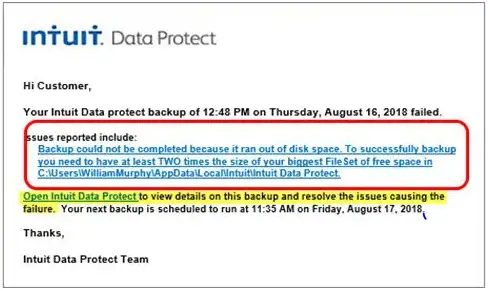
This issue may occur due to outdated Windows components, firewall or antivirus restrictions, corrupted Intuit Data Protect services, network connectivity issues, or compatibility conflicts. As a result, Intuit Data Protect may freeze, crash unexpectedly, stop responding, or fail to create automatic backups, leaving your QuickBooks company data at risk if the issue isn’t resolved.
In this guide, you’ll learn the most common causes of the Intuit Data Protect Has Stopped working error, along with step-by-step troubleshooting methods to restore backup functionality.
The following are the common symptoms that you may notice when you run into the Intuit Data Protect has stopped working error. Let’s have a look at all those symptoms for better understanding.
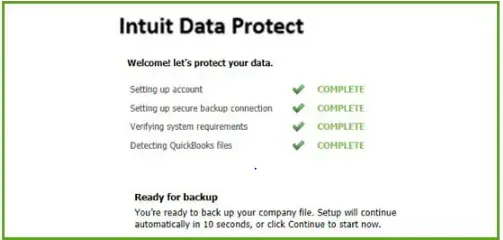
The Intuit Data Protect has stopped working issue can occur due to an outdated Intuit Data Protect or QuickBooks Desktop version. It can also occur due to other factors, such as:
Consider the following tips to prevent the “QuickBooks has stopped working” error to ensure a smooth backup process. These are:
Now that you understand the common causes and symptoms of the Intuit Data Protect Has Stopped Working error, it’s time to resolve the issue and restore your backup functionality. Below, we’ve outlined proven troubleshooting methods to help you fix the problem and resume automatic backups.
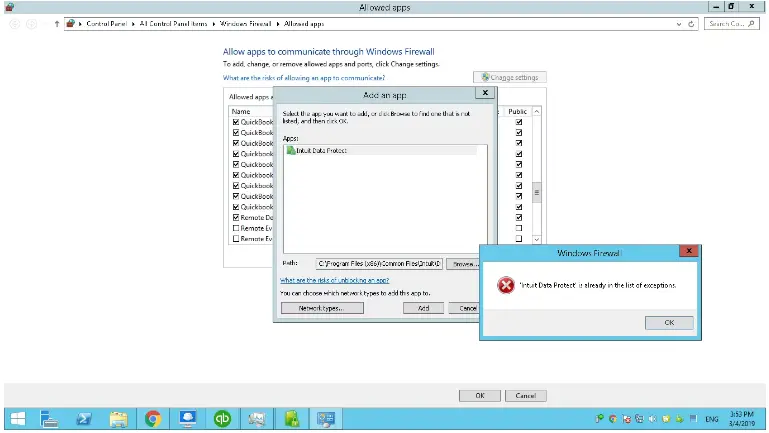
To run the Intuit Data Protect for generating the backup, proper firewall access is required. Otherwise, it might run into the IDP not working issue. Therefore, to fix the issue, add important files to the Windows firewall using the steps given below.
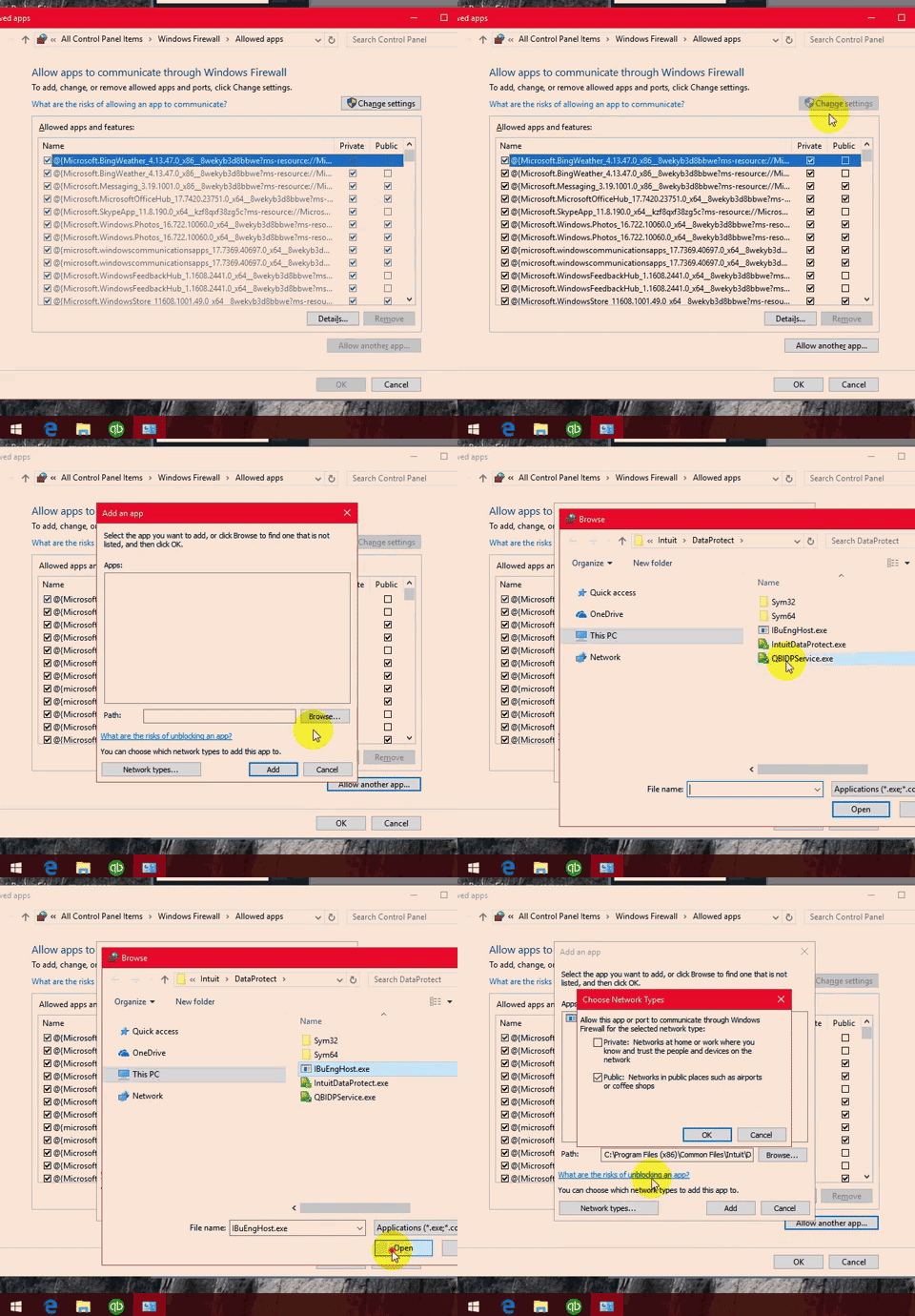
| Important Tip: Sometimes, the third-party software installed on your system can block these important files. So, ensure these files are allowed. You can use the software maker to do so. |
Ensure that the IBuEngHost.exe process runs as a system user for the smooth working of the Intuit Data Protect feature.
Ensure that the file is running as System
If IBuEngHost.exe isn’t running as System, perform these steps,
Note: Save the downloaded setup file to an easy-to-find location.
Note: If QuickBooks keeps showing errors, download and use the QuickBooks Tool Hub to diagnose and repair common issues like installation, company file, and network problems before trying advanced troubleshooting.
Intuit Data Protect Diagnostic is a great tool that checks your computer’s memory, disk space, Windows components, such as .NET Framework, and IDP version. Also, it tests whether you are able to connect with the backup server. Perform the following steps to run the IDP Diagnostic tool and fix the issue.
Note: If Ctrl + F2 doesn’t work, use the Fn + Ctrl + F2. Otherwise, use the On-Screen Keyboard.
| C:\Program Files(X86)\Common Files\Intuit\Data Protect\IntuitDataProtect.exe |
| C:\Program Files(X86)\Common Files\Intuit\Data Protect\IbuEnghost.exe |
| C:\Program Files(X86)\Common Files\Intuit\Data Protect\QBIDPServices.exe |
Ensure the following Windows Firewall ports are added to run Intuit Data Protect smoothly. Follow the steps below to add the Firewall ports.
Note: You need to add HTTP ports 80 and 443 for connecting IDP to the internet. If you are able to use the internet and can log in to secure
Adding Intuit websites to your browser’s trusted sites can help Intuit Data Protect communicate securely with Intuit servers.
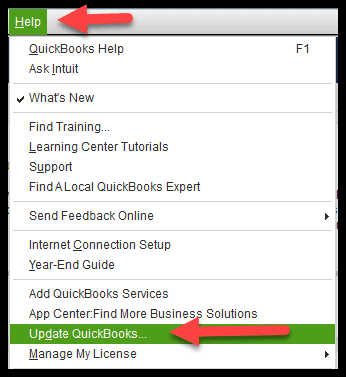
Regularly checking and updating the QuickBooks Desktop and Intuit Data Protect versions are important for proper functioning, authentication, and general reliability.
Steps to update Intuit Data Protect
| Note: If you are using IDP, click on its icon and choose About Intuit Data Protect. Then, see if you are using the latest version i.e, 1.70.21.5009. If it’s not updated, then download and install the latest one. |
Steps to update QuickBooks Desktop manually
Check for the latest release
See if your QuickBooks software is updated to the latest version.
Here’s how to update QuickBooks Desktop
The Intuit Data Protect has stopped working error may disrupts the backup and put your valuable QuickBooks data at risk. Fortunately, the issue is usually caused by firewall restrictions, outdated software, damaged Windows components, or incorrect system settings. By following the above solutions, you can easily fix this issue.
If the problem continues after performing these troubleshooting steps, consider reinstalling Intuit Data Protect. Otherwise, contact our QuickBooks Data service team for better guidance +1(888)-718-7888.
Yes, you can use QuickBooks Data protect on multiple computers if they are linked with a same licensed QuickBooks account. Make sure that every computer has installed IDP installed is configured properly to creta the backup.
Follow these steps to recover lost QuickBooks data;
QuickBooks Data Protect not working due to outdated software, damaged Windows components, improper internet connection, firewall or antivirus restrictions.
To fix QuickBooks Data Protect not working issue,
The common causes behind QuickBooks Data Protect backup errors includes, outdated QuickBooks or IDP, insufficient disk space, damaged Microsoft .NET Framework components, and corrupted Windows system files.
Before fixing QuickBooks Data Protect not working issue check;
To repair backup issues on Windows 10 and Windows 11;