
QuickBooks Error H202 occurs when QuickBooks Desktop cannot communicate with the computer hosting your company file. It commonly appears when you try to switch to Multi-User Mode or open a company file stored on another computer over a network.
This problem can result from incorrect hosting settings, blocked firewall ports, inactive QuickBooks Database Server services, damaged Network Data (.ND) files, or insufficient folder permissions.
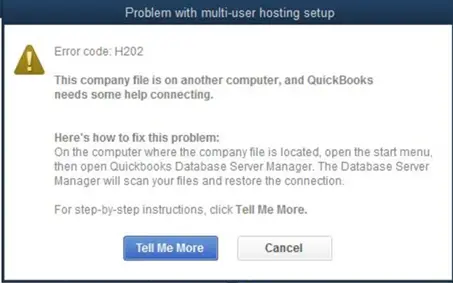
To fix QuickBooks Error H202, first verify that only the designated server hosts the company file. Then check QuickBooks Database Server Manager, restart the required background services, verify firewall permissions, and test the connection between your workstation and server.
This guide explains the causes, preparation steps, troubleshooting methods, and prevention practices for restoring QuickBooks Desktop multi-user access.
The following table summarizes the main troubleshooting options.
| Problem | Recommended action |
| Incorrect hosting configuration | Enable hosting on the designated server only |
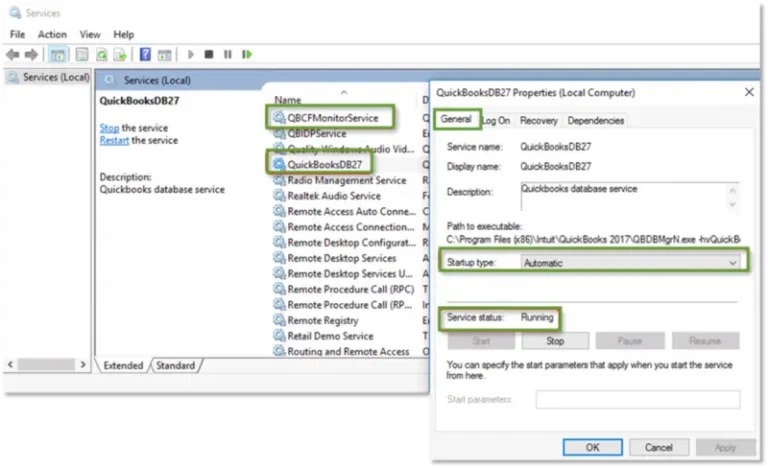
| Database service not running | Restart QuickBooksDBXX and QBCFMonitorService |
| Database Server Manager issue | Scan the company file folder |
| Firewall restriction | Allow the required QuickBooks TCP ports |
| Network connection failure | Test the server using its hostname or IP address |
| Damaged .ND file | Rename the existing file and regenerate it |
| Folder access problem | Verify sharing and Windows security permissions |
| Possible company file issue | Run QuickBooks File Doctor after backing up |
Important: Before making changes to your company file, create a verified backup and ensure all users have closed the file.
QuickBooks Error H202 occurs when the software is unable to access the company file due to specific network issues. This error arises in a multi-user setup where the QuickBooks database server is not reachable. QuickBooks checks for the server, and if it fails to connect, it displays the QuickBooks error H202 switching to multi-user mode, switching to multi-user mode when you try to open a company file that’s hosted on another computer.
It can arise due to different reasons like incorrect configuration settings, firewall settings blocking communication, or issues with the QuickBooks Database Manager. Users need to ensure that the correct network settings are applied and that the company file is accessible from the machine attempting to open it.
QuickBooks Error H202 is a network connection issue that prevents workstations from accessing the company file hosted on a server in multi-user mode. The following symptoms can help you identify whether QuickBooks Error H202 is affecting your multi-user network.
Every cause of QuickBooks Error H202 relates to the manner in which QB interacts with network resources:
Before troubleshooting Error H202, it is important to understand the role of the server and workstation in a QuickBooks Desktop multi-user environment.
In a standard multi-user setup, the server hosts the company file, while workstations connect to it. If a workstation cannot communicate with the server, QuickBooks may display Error H202.
Understanding this setup helps you identify whether the problem is related to the server, workstation, or network configuration.
QuickBooks Desktop error code H202 occurs when something blocks the multi-user connection to the server computer. To fix this issue quickly, refer to the methods described below and choose the suitable one:
The QB Tool Hub helps fix H202 error QuickBooks desktop. Users need to close QuickBooks to utilize the tool hub. It is good to use the Tool Hub on Windows 11, 64-bit for better results. Consider the given instructions to do so:
Tip by Data Service Team Experts: Find out which version you have when you have installed Tool Hub before. Choose Home tab and the version will be available in the bottom section.
QuickBooks Error H202 indicates that your multi-user connections are blocked. Check the host settings to resolve it. Ensure the hosting is disabled on workstations and enabled on your server. QuickBooks Data Server Manager and background service must running well to resolve H202 error QuickBooks desktop.
Open QuickBooks on each workstation when you are done. Select File and Switch to Multi-user mode.
Your server computer stores your QuickBooks company. Your other computer connected to the network is your workstation.
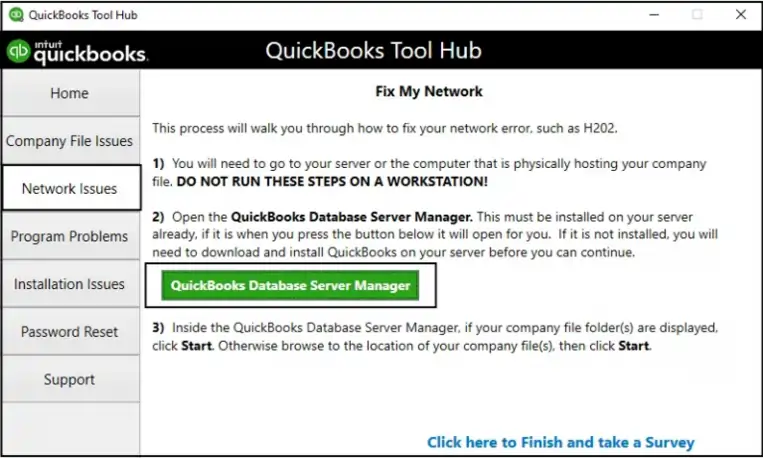
QuickBooks Error H202 occurs when the company file in multi-user mode cannot connect to the server hosting the file. Perform the steps below to fix this issue quickly:
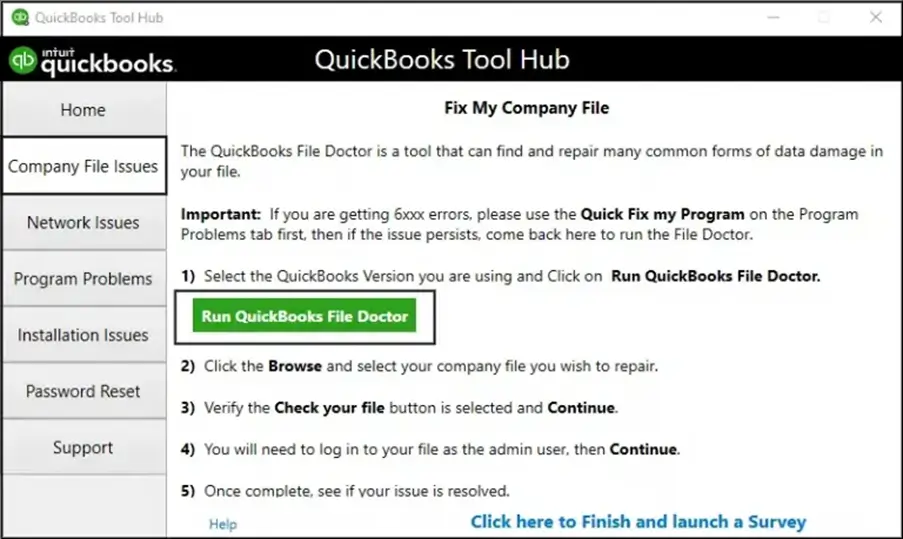
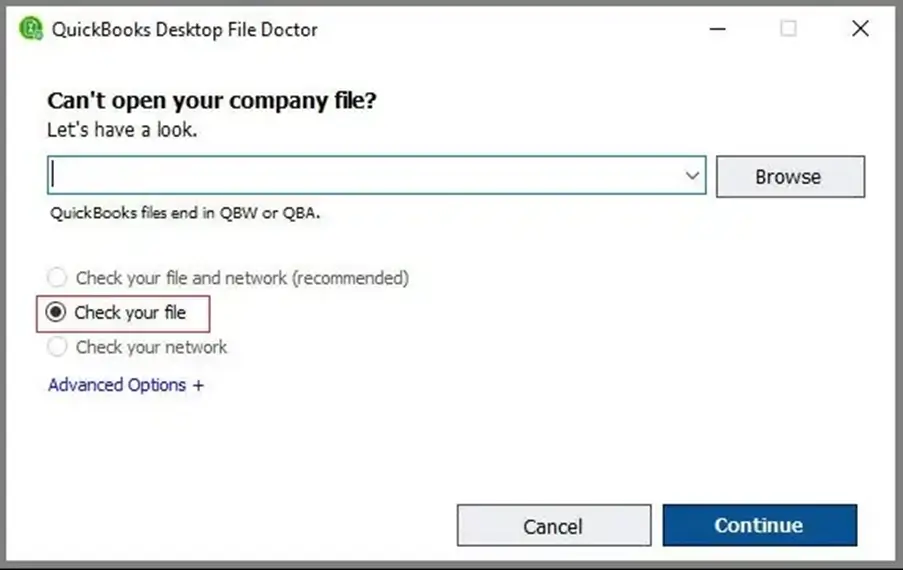
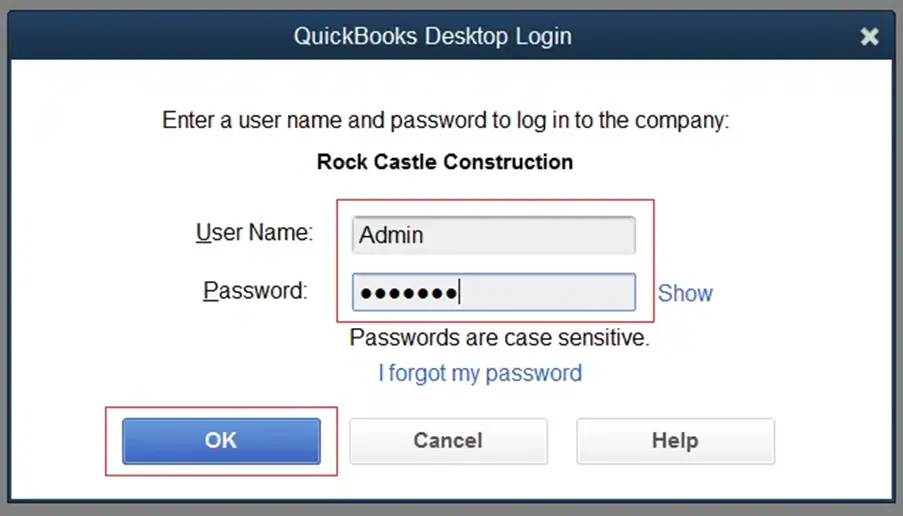
Tip by Data Service Team Experts: Search for QuickBooks Desktop File Doc and open it when the QuickBooks File Doctor does not open. If the workstations can go into multi-user mode without issues, everything is fixed. If QuickBooks Error H202 still persists, move to the solution below.
QuickBooks Error H202 occurs when QuickBooks Desktop fails to linked with the company file located on another computer (the server). Use the given steps to resolve this issue quickly.
Ping the server from a workstation to check the connection. Ping your server from each workstation that is experiencing QuickBooks Error H202. Enable Network Discovery on the server computer and workstations that are facing error H202:
Next, obtain your server name from the server you are using:
Go back to your workstation to perform a server test. These procedures can become intricate, so you might consider contacting a QuickBooks specialist for assistance.
It is possible that an incorrect file path could lead to QuickBooks error H202. Here, we will relocate the company file to a different location.
Next, check if the error has been resolved. If QuickBooks works on all the computers and you can access the company file, then QuickBooks Error H202 is resolved. If it is not, it is time to reach out to Data Service Team experts now.
QuickBooks Error H202 occurs when Desktop can not connect to the server computer that hosts the company file. Check the permissions and rights with the consideration of the provided steps:
Ensure you choose the option to apply to subfolders and files so the settings propagate.
QuickBooks Error H202 arises when a workstation cannot establish a connection with the server to hosts the company file in multi-user mode. Preventing this error necessitates ensuring that your network setup and hosting configurations are correctly aligned. Here are some practical strategies to avoid this error:
Make QuickBooks Work Smarter for Your Business
Spend less time managing data and more time growing your business. Whether you need help setting up QuickBooks, cleaning up your books, reconciling accounts, or resolving errors, our team is here to make accounting easier. Get quick solutions that save time, improve accuracy, and keep your business finances on track.
QuickBooks Error H202 can be a roadblock for users to manage their financial data in a multi-user environment. Users can take steps to mitigate the impact on their workflow by understanding the root causes of this error, such as network issues, firewall settings, or QuickBooks configuration problems. Implement the recommended strategies to prevent the error from occurring in the first place. If you do experience Error H202, remember that resolving it quickly will save you time and keep your financial operations running smoothly.
If you still need guidance with QuickBooks H202 error multi-user, contact our experts at the Data Service Team +1(888)-718-7888. They are available to guide you at all times.
QuickBooks Error H202 occurs when a workstation cannot communicate with a server hosting the company file. The communication breakdown is caused due to blocked Windows Firewall ports or inactive QuickBooks background services on a server. It means the desktop knows file exists but lacks network permission to open it in multi-user mode.
The fastest method to fix QuickBooks Error H202 without risking data loss is to run the QuickBooks Database Server Manager using the official QuickBooks Tool Hub. This tool scans your company files and repairs Windows Firewall permissions. It re-establishes multi-user communication without altering or deleting the underlying data.
Temporarily disable your firewall or use the QB Tool Hub to run a network scan to determine if your firewall is causing QuickBooks Error H202. Your firewall settings are the culprit if your workstations connect to the multi-user company file while the firewall is disabled.
Download the latest QuickBooks Tool Hub on your server and run the QuickBooks Database Server Manager to scan your company file folder to rebuild the connection after QuickBooks Error H202. This resolves firewall permissions and regenerates your Network Data files. Restart your hosting services through QuickBooks Tool Hub and confirm your firewall allows QuickBooks ports.
Use the QuickBooks Database Server Manager, since Error H202 relates to network connectivity problems. Users can find it through the QuickBooks Tool Hub to examine your folder and automatically set up the necessary firewall permissions for multi-user mode. If this approach doesn’t resolve the issue, proceed to use the QuickBooks File Doctor to identify any potential damage to the company file.
Your QuickBooks company file can fail to open in Multi-User mode due to incorrect hosting configuration, restrictive Windows Firewall settings, or damaged network data.ND file. These issues prevent the workstation from communicating with the server hosting the database. Ensure the QuickBooks Database Server Manager is installed and active on your server to check on your server.
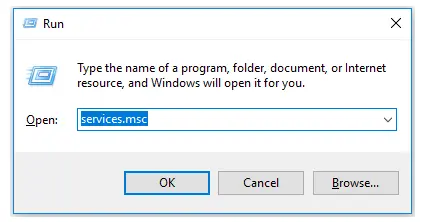
Ensure all users have logged out of the company files and closed the QuickBooks Desktop applications on their workstations to restart the QB Database Server Manager. Open the Windows Run Dialog and type services.msc to launch the service console. Right-click the QuickBooksDBXX service to match your version and select Restart.
QuickBooks Error H202 arises when workstations are unable to connect with the multi-user hosting server. Mistakes made by administrators can cause this issue. It includes activating hosting on several workstations rather than solely on the server, not setting up Windows Firewall exceptions for necessary QuickBooks ports, and leaving important database services inactive.
Users must ensure the network and server environments are configured to communicate to prevent QuickBooks Error H202 after migrating to a new Windows server. Use the QuickBooks Tool Hub to download and run the QuickBooks Database Server Manager on a server.
Verify server hosting settings, check QuickBooks services, and run Database Server Manager or File Doctor. Back up your company file before making major changes.
Check whether Windows Firewall or antivirus software blocks QuickBooks connections. Review inbound and outbound rules, then test connectivity after applying appropriate exceptions.
Confirm server connectivity, verify folder permissions, and scan the company file folder using Database Server Manager. Then reopen QuickBooks and test Multi-User Mode.
Yes, QuickBooks Desktop may open a locally stored company file without internet access. However, accessing a company file hosted on another computer generally requires a functioning local network connection.
No, Error H202 usually indicates a network communication problem rather than company file damage. However, if connection checks do not resolve it, further diagnostics can help identify additional file or configuration issues.

Get Free Consultation for QuickBooks Upgrade
(2021, 2022, 2023)