
Have you ever tried opening your QuickBooks Desktop company file in Multi-User Mode, only to encounter an error message saying that the company file is stored on another computer and QuickBooks needs help connecting? This problem is commonly associated with QuickBooks Error H202, which occurs when a workstation cannot establish the required connection with the computer hosting the company file. If you experience similar connection problems, read our guide on QuickBooks Multi-User Mode Not Working.
This error can interrupt accounting operations, prevent employees from accessing shared financial records, and delay important business activities. It is commonly associated with incorrect hosting settings, Windows Firewall restrictions, inactive QuickBooks database services, network connectivity problems, or inaccessible company file folders.
The good news is that you can troubleshoot most H202 connection problems by checking the hosting configuration, verifying database services, testing network communication, and configuring the appropriate firewall permissions.
In this guide, you will learn what QuickBooks Error H202 means, why it occurs, how to identify its underlying cause, and how to fix it using 10 detailed troubleshooting methods.
QuickBooks Error H202 is a Multi-User Mode connectivity error that appears when QuickBooks Desktop cannot communicate with the server computer hosting the company file.
QuickBooks Desktop uses a client-server communication process to allow multiple users to access the same company file over a local network. The server computer stores the company file, while other computers (workstations) connect to it through QuickBooks Database Server Manager.
When this communication process fails, QuickBooks may display Error H202 while switching from Single-User Mode to Multi-User Mode or attempting to access a company file stored on another computer.
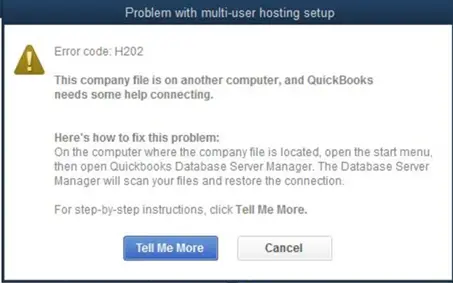
Common error message:
“This company file is on another computer, and QuickBooks needs some help connecting.”
The error does not automatically mean that your company file is damaged. In many situations, the underlying problem is related to network communication, hosting configuration, firewall permissions, or database services.
Understanding how QuickBooks communicates across a network can make troubleshooting much easier.
A typical QuickBooks Desktop Multi-User environment contains three important components:
For example, suppose a business stores its company file on Server A, while employees use Workstation B, C, and D to access the same accounting data.
When an employee opens the company file in Multi-User Mode, QuickBooks attempts to communicate with the database service running on Server A.
If the workstation cannot reach the required server service or network port, QuickBooks may display QuickBooks Error H202.
Before applying troubleshooting methods, identify the possible reason behind the connection failure. This helps prevent unnecessary changes to Windows settings and QuickBooks configurations.
The following issues are commonly associated with QuickBooks Error H202.
QuickBooks Desktop requires an appropriate hosting configuration to allow multiple users to access a company file.
If hosting is disabled on the computer storing the company file, or incorrectly configured across computers, workstations may fail to establish the required connection.
Windows Defender Firewall controls incoming and outgoing network communication.
If the firewall blocks the required QuickBooks executable files or TCP ports, workstations may be unable to communicate with the database server. Read our guide on Windows Firewall is Blocking QuickBooks to understand how to troubleshoot these restrictions.
QuickBooks Database Server Manager manages company file access in a multi-user environment.
If it is missing, incorrectly installed, or unable to scan the company file folder, the workstations may not establish a successful connection.
QuickBooks relies on Windows services such as QuickBooksDBXX and QBCFMonitorService.
If the required service is stopped, disabled, or unable to start, network access to the company file may be interrupted. You can also learn how to fix the QBDBMgrN Not Running on This Computer issue.
QuickBooks creates a Network Data (.ND) file alongside the company file.
This file contains network-related information, including the server address and port used to locate the database server.
If the .ND file contains incorrect information or becomes inaccessible, QuickBooks may fail to connect to the company file.
Workstations need to locate the correct server computer over the network.
An incorrect server name, changed IP address, DNS resolution problem, or network configuration issue can prevent the workstation from reaching the host.
An unstable LAN connection, disconnected network cable, wireless connectivity issue, or incorrectly configured network adapter can interrupt communication between the server and workstations.
QuickBooks database services require appropriate access to the folder containing the company file.
If the Windows account used by the database service cannot access the shared folder, QuickBooks may be unable to open the file for multiple users.
Some antivirus and endpoint security applications restrict network connections or block QuickBooks executable files.
These restrictions may prevent workstations from communicating with the server even when Windows Firewall settings appear correct.
Using an unsupported network storage configuration, incorrect server setup, or incompatible hosting environment can interfere with the normal QuickBooks multi-user connection process.
Before changing any settings, perform these preliminary checks.
| What to check | Where to check | Expected result |
| Server computer is switched on | Server | Computer is accessible |
| Company file location | Server | Correct .QBW folder is available |
| Hosting configuration | Server and workstations | Appropriate hosting setup |
| Database services | Server | Required services are running |
| Shared folder access | Workstation | Company file folder opens |
| Network connectivity | Workstation | Server responds over network |
| Firewall permissions | Server | Required QuickBooks traffic is allowed |
| Company file backup | Server | Recent backup is available |
Important: Close QuickBooks on all computers before making changes to hosting, database services, firewall settings, or company file network configurations. Ensure that nobody is actively working in the company file.
Follow these solutions in order. Start with the basic configuration checks and move toward advanced network troubleshooting if the QuickBooks error H202 continues.
Incorrect hosting settings are one of the first things to investigate when troubleshooting QuickBooks Error H202. If QuickBooks displays that hosting is disabled, follow our guide on QuickBooks Hosting Mode is Off.
In a typical dedicated-server setup, the server computer hosts the company file, while workstations access it remotely.
Where to perform: Server and all workstations.
Steps to check hosting settings:
Expected result: The designated server should handle hosting, and ordinary workstations should connect to it without attempting to host the same company file.
If the problem continues: Proceed to the next solution and verify whether QuickBooks Database Server Manager is configured correctly.
QuickBooks Database Server Manager helps manage network access to company files stored on the server.
If the company file folder has not been scanned or the database manager is not configured correctly, workstations may encounter QuickBooks Error H202.
Where to perform: Server computer.
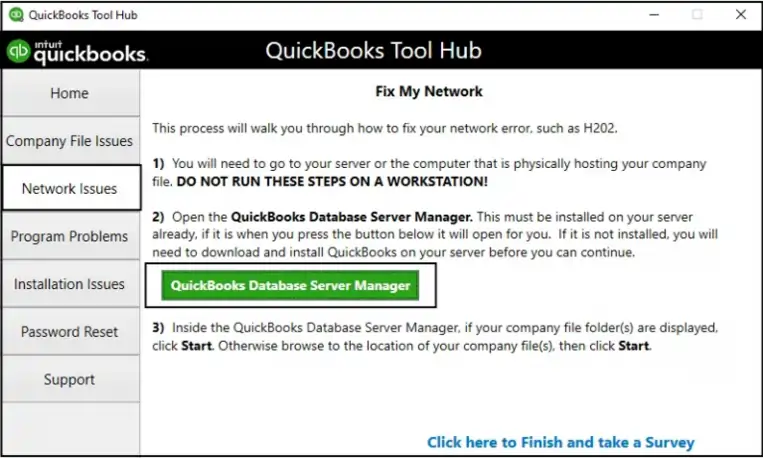
Steps to run Database Server Manager:
The scanning process can help identify company file folders and configure the required firewall permissions.
Expected result: Database Server Manager should recognize the company file folder and complete its scan.
If the problem continues: Check whether the required QuickBooks database services are running.
QuickBooks uses Windows services to manage company file access in a multi-user environment.
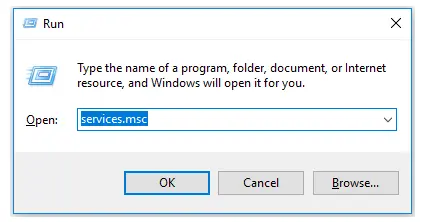
Two important services to check are QuickBooksDBXX and QBCFMonitorService. If the monitoring service fails to start, see our guide on QBCFMonitorService Not Running.
The XX in QuickBooksDBXX corresponds to the installed QuickBooks Desktop version. For example, Intuit identifies QuickBooksDB33 with QuickBooks Desktop 2023 and QuickBooksDB34 with QuickBooks Desktop 2024.
Where to perform: Server computer.
Steps to verify QuickBooks services:
Important: Use the database service corresponding to your installed QuickBooks version. Do not randomly start or modify unrelated QuickBooks services.
Expected result: The required database services should be running and configured to start appropriately.
If the problem continues: Verify that the database services have the required Windows permissions.
Windows Firewall may block the communication required for QuickBooks Desktop Multi-User Mode.
If the necessary TCP ports or QuickBooks executable files are restricted, workstations may be unable to access the company file through the server.
Where to perform: Server computer and any other computer whose firewall is blocking the connection.
QuickBooks Desktop 2019 and later versions use dynamic ports. Therefore, do not blindly apply an old port range to a newer installation.
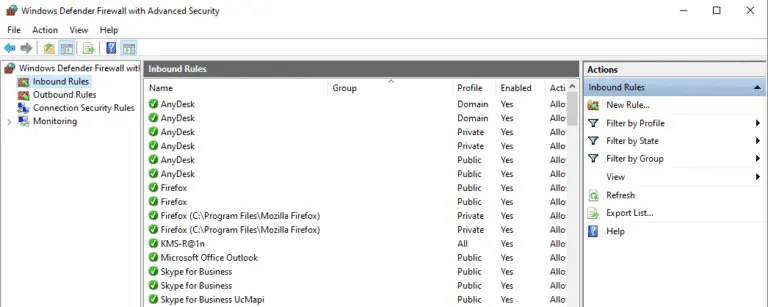
Repeat the process under Outbound Rules using the same verified port number.
If required, configure appropriate firewall exceptions for the QuickBooks executable files identified in Intuit’s firewall documentation, including:
Use the actual installation paths on your computer. Do not assume that every installation uses an identical folder location.
Expected result: The required QuickBooks network traffic should be allowed through the firewall.
If the problem continues: Check whether your antivirus or third-party security software has separate network restrictions.
QuickBooks File Doctor can help identify and troubleshoot certain company file and network-related problems.
It is available through QuickBooks Tool Hub.
Where to perform: Server computer or the computer recommended by the diagnostic process.
Steps to run File Doctor:
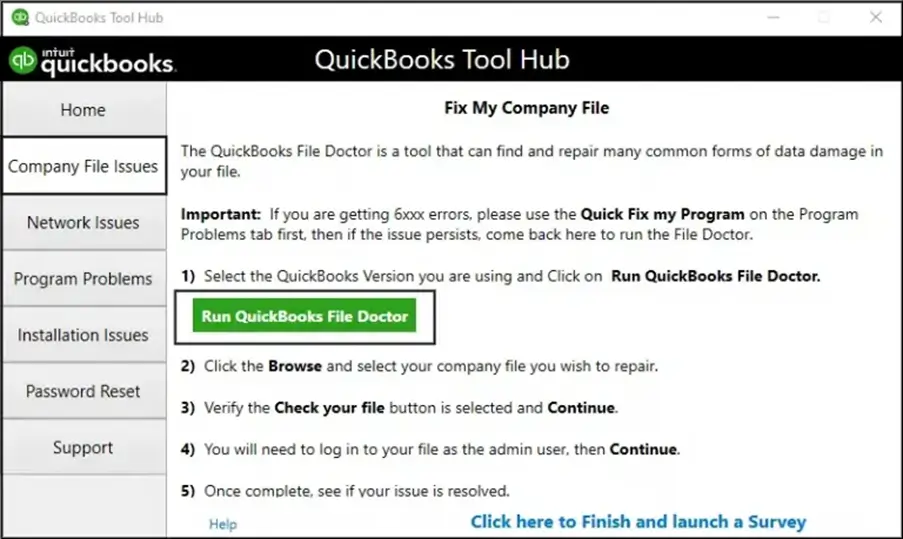
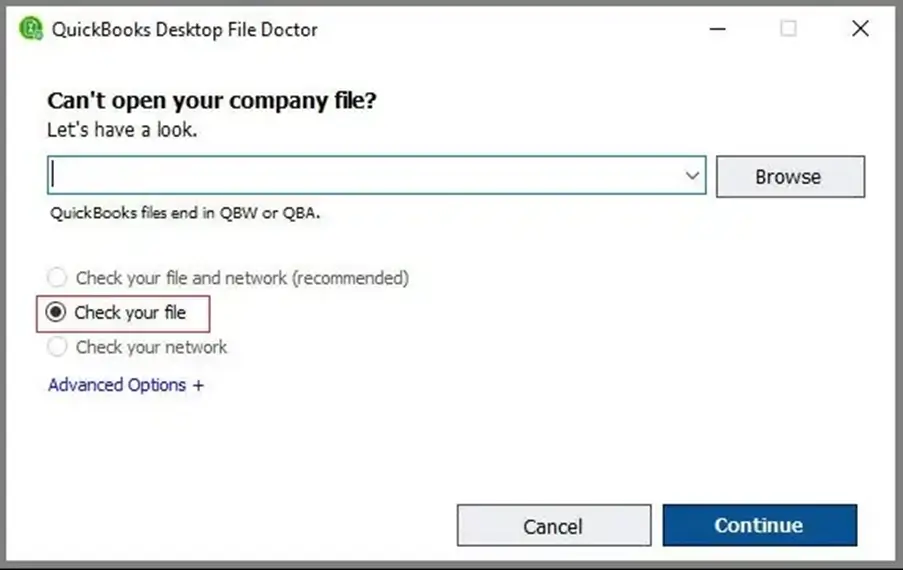
Expected result: File Doctor should complete its network and company file checks and may identify issues that need further attention.
If the problem continues: Do not assume that an unsuccessful scan means the company file is permanently damaged. Continue with the manual network checks below.
QuickBooks Database Server Manager must have the necessary access to the company file folder. If Windows cannot access the company file correctly, you may also encounter the QuickBooks Company File Not Found error.
Incorrect sharing or security permissions can prevent database services from accessing the company file. If you need help checking Windows network sharing and folder access, follow Microsoft’s guide to file sharing over a network in Windows.
Where to perform: Server computer.
Steps to check folder permissions:
Do not confuse Sharing permissions with Security permissions. Both layers can affect access to a network folder.
Expected result: The appropriate Windows users and QuickBooks database service account should be able to access the company file folder.
Security precaution: Avoid granting unrestricted access to Everyone or changing permissions on the entire drive. Apply only the minimum permissions required for the intended QuickBooks environment.
If the server and workstations cannot communicate properly, QuickBooks Error H202.
A basic network test can help identify whether the problem is related to server accessibility or name resolution.
Where to perform: First on the server, then on each affected workstation.
ipconfig /all
ping SERVERNAME
Alternatively, use the server’s IP address:
ping 192.168.1.10
Important: A failed ping alone does not prove that QuickBooks is blocked. Some networks intentionally block ICMP traffic.
Expected result: The server should be reachable through the appropriate network path.
If ping works but H202 remains, investigate the QuickBooks database port, services, and firewall rules.
QuickBooks creates a Network Data file to store information used to locate the database server.
The .ND file has the same base name as the company file but uses the .ND extension.
For example:
If the network information becomes outdated or the file is not configured correctly, recreating it may help restore communication. For other company file access and data-related problems, see our guide on Verify and Rebuild Data in QuickBooks Desktop.
Where to perform: Server computer.
Steps to recreate the .ND file:
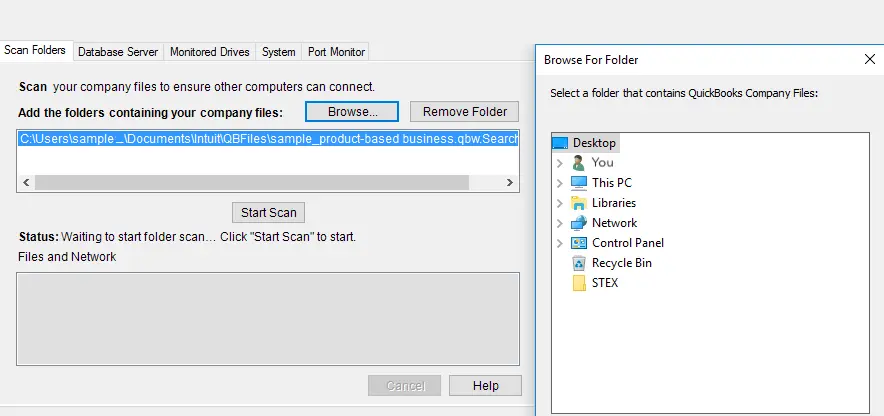
Expected result: QuickBooks should recreate the network data information and attempt to establish a fresh database connection.
Important: Back up the company file before performing advanced troubleshooting. Do not rename, move, or delete the .QBW company file as part of this procedure.
Even after configuring Windows Firewall, third-party antivirus or endpoint security software may block QuickBooks network communication.
This can happen when security software restricts an executable file, database service, or network connection.
Where to perform: Server computer and affected workstations.
Steps to investigate:
Do not permanently disable antivirus protection or leave the company network unprotected.
Expected result: Security software should allow the required QuickBooks communication without compromising the computer’s security.
Outdated QuickBooks installations or inconsistent network components may contribute to multi-user connectivity problems. Follow our guide on Update QuickBooks Desktop to learn how to install the latest available updates.
Updating the software and restarting the relevant computers can help restore normal operation when updates or configuration changes are involved.
Where to perform: Server and affected workstations.
Steps to update QuickBooks:
Restart the network environment:
Expected result: QuickBooks should establish the required connection with the server and allow users to access the company file in Multi-User Mode.
QuickBooks H-series errors are associated with problems accessing company files in a multi-user network environment.
However, these error codes are not interchangeable. They can indicate different hosting or connection configuration problems.
| Error code | General meaning | What to investigate |
| H101 | Multi-user hosting or connection configuration issue | Hosting settings and server configuration |
| H202 | Workstation cannot establish the required connection with the host server | Server connectivity, firewall, database services |
| H303 | Multi-user connection or hosting configuration issue involving another computer | Hosting arrangement and network communication |
| H505 | Server or workstation hosting configuration is preventing the required connection | Server hosting, services, and network settings |
All four errors should be investigated using the relevant Intuit troubleshooting guidance rather than assuming that one solution fixes every error.
If the error continues after completing the recommended steps, perform a more detailed network diagnosis instead of repeatedly changing QuickBooks settings.
Consider the following situations.
If every workstation displays the same error, investigate the shared components first.
Check:
A problem affecting the shared server can interrupt access for multiple users simultaneously.
If other computers can open the company file successfully, the issue may be isolated to the affected workstation.
Check:
Compare the affected workstation’s network configuration with a computer that connects successfully.
If you can access the shared company file folder through File Explorer but still displays QuickBooks Error H202, basic file sharing may be working while database communication remains blocked. You can also read our guide on QuickBooks Not Connecting to Server for additional connection troubleshooting.
Investigate:
Opening a shared folder successfully does not establish that the QuickBooks database service is reachable.
If the workstation cannot locate the server, check:
If these settings require advanced changes, involve a qualified network administrator.
Preventive maintenance can reduce the possibility of recurring multi-user connection problems. Follow these practices:
Document server changes: Record changes to computer names, IP addresses, hosting configurations, and firewall rules.
Make QuickBooks Work Smarter for Your Business
Spend less time managing data and more time growing your business. Whether you need help setting up QuickBooks, cleaning up your books, reconciling accounts, or resolving errors, our team is here to make accounting easier. Get quick solutions that save time, improve accuracy, and keep your business finances on track.
QuickBooks Error H202 can prevent workstations from accessing a company file stored on another computer, interrupting normal accounting operations. However, the error does not necessarily indicate that the company file is damaged.
Start by verifying hosting configuration, database services, and network connectivity. Then check the assigned firewall ports, shared folder permissions, and Network Data file. If the basic troubleshooting methods do not resolve the issue, investigate the affected workstation and server separately to identify the underlying connection problem.
Maintaining the correct hosting environment, regularly checking database services, and keeping firewall permissions updated can help reduce recurring Multi-User Mode connection issues.
If you continue experiencing QuickBooks Error H202, contact Data Service Team at +1(888)-718-7888 for a free consultation and assistance in identifying the underlying server or network connectivity problem.
QuickBooks Error H202 is a multi-user connectivity error that occurs when QuickBooks Desktop cannot establish a connection with the server hosting the company file. It commonly occurs due to incorrect hosting settings, firewall restrictions, network connectivity problems, or inactive QuickBooks database services.
To fix QuickBooks Error H202, check the hosting configuration, restart QuickBooks database services, and verify network connectivity between the server and workstations. You can also run QuickBooks Database Server Manager, configure the required firewall ports, and use QuickBooks File Doctor to diagnose network-related problems.
Yes, Windows Firewall can cause QuickBooks Error H202 by blocking the TCP ports or executable files required for Multi-User Mode communication. To resolve this issue, identify the assigned QuickBooks port through Database Server Manager and create the appropriate inbound and outbound firewall rules.
To enable hosting, open QuickBooks Desktop on the designated server computer, select File, and navigate to Utilities. Choose Host Multi-User Access if available. Also, verify that hosting is disabled on ordinary workstations to prevent incorrect hosting configurations.
QuickBooks Error H202 generally occurs when a workstation cannot establish the required connection with the host server. Error H505 is associated with hosting or server configuration problems that prevent access to the company file. Both errors require checking hosting settings, database services, and network communication.
QuickBooks Desktop uses version-specific TCP ports for Multi-User Mode communication. Versions from QuickBooks Desktop 2019 onward use dynamic ports. You can identify the assigned port by opening QuickBooks Database Server Manager and selecting the Port Monitor tab before configuring firewall permissions.
Press Windows + R, type services.msc, and press Enter to open Windows Services. Locate the appropriate QuickBooksDBXX and QBCFMonitorService entries, check their status, and restart the required services if necessary. Ensure the database service corresponds to your installed QuickBooks Desktop version.
If QuickBooks Error H202 appears on only one workstation while other computers can access the company file, the problem may be related to that computer’s network configuration. Check its server name resolution, firewall permissions, antivirus restrictions, network connection, and access to the shared company file folder.
Yes, an incorrect or outdated Network Data (.ND) file can prevent QuickBooks Desktop from locating the database server correctly. Renaming the existing .ND file and rescanning the company file folder through QuickBooks Database Server Manager may help recreate the necessary network information.
No, QuickBooks Error H202 does not necessarily mean your company file is corrupted. It generally indicates a network communication problem between the workstation and the server. However, if QuickBooks displays additional company file errors, perform the appropriate company file diagnosis and verify your backup before attempting repairs.

Get Free Consultation for QuickBooks Upgrade
(2021, 2022, 2023)