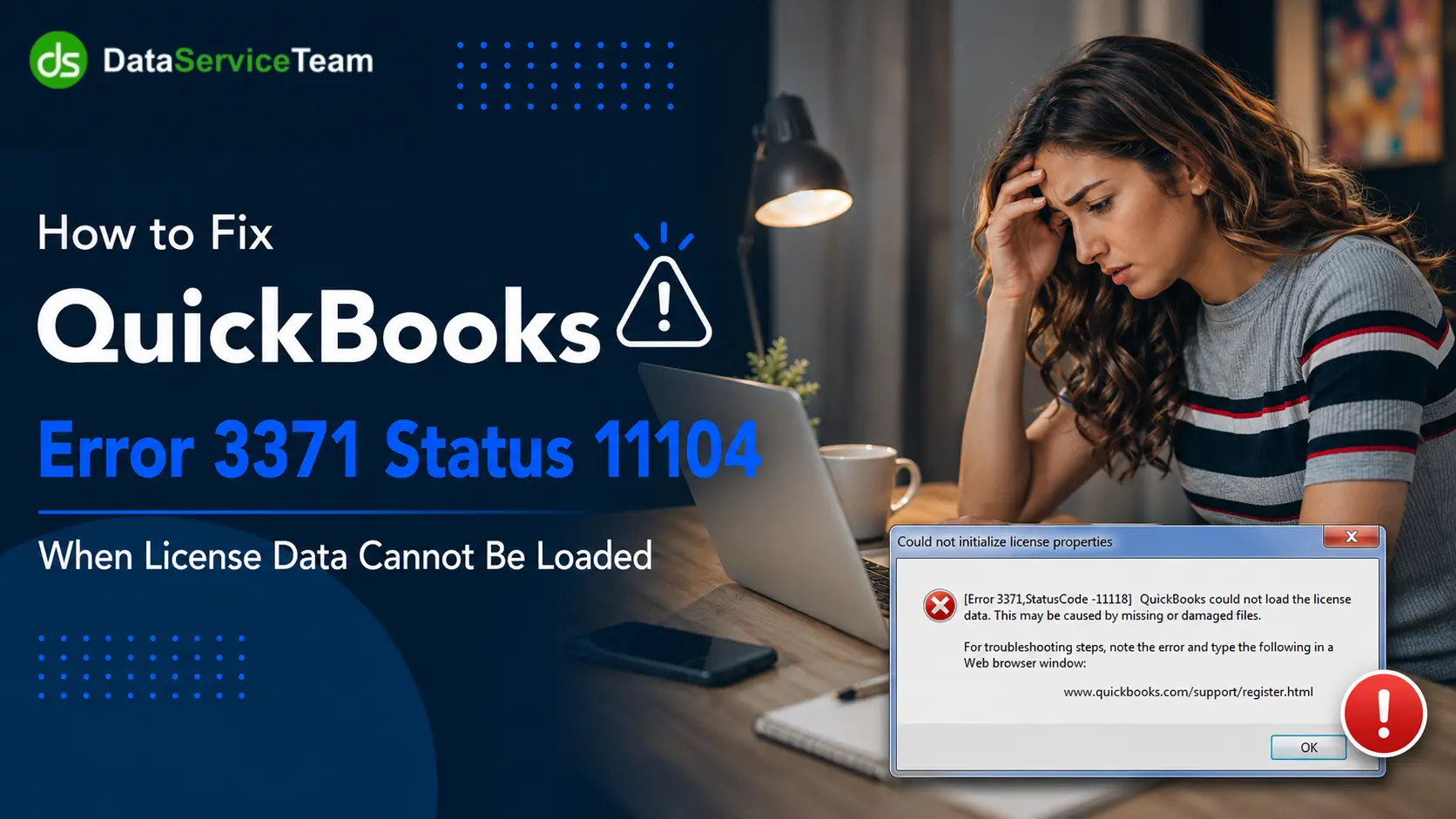
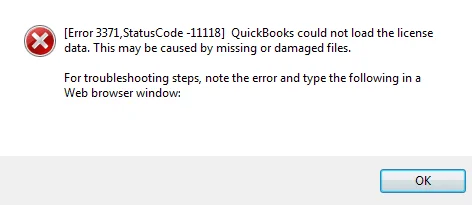
Have you opened QuickBooks Desktop only to see the message, “Could not initialize license properties”? If the error also displays QuickBooks Error 3371, Status Code -11118, QuickBooks may be unable to read the license information it needs to start.
This error can interrupt your accounting work, especially when you need to access company records, prepare payroll, or complete a bank transaction. The good news is that Error 3371 does not automatically mean your company file is damaged. If QuickBooks Desktop fails to start with a similar licensing or startup problem, you can also review our guide on QuickBooks Won’t Open to identify other possible causes.
The right fix depends on when the error appears. Start with the QuickBooks Tool Hub, then move to license-file or installation troubleshooting only if the first solution does not work.
In this guide, you’ll learn what Error 3371 means, why it may occur, and how to troubleshoot it safely.
QuickBooks Error 3371 is a license initialization error. It appears when QuickBooks Desktop cannot load the license data required to open or activate the software.
You may see one of these messages:
The status code may vary, but the main problem is that QuickBooks cannot initialize its license information.
Important: Error 3371 is associated with QuickBooks Desktop. QuickBooks Online runs in a web browser and does not use the same desktop license initialization process.
QuickBooks may display Error 3371 when it cannot access or validate required licensing information. Common possibilities include:
The error message alone does not confirm which cause applies to your computer. Follow the troubleshooting steps in order and stop when QuickBooks opens normally.
Before changing any license or installation files, take a few precautions.
Close QuickBooks Desktop and make sure it is not running in the background.
If you can access your company file, create a current backup.
Keep your QuickBooks product and license information available.
Make sure you have permission to install or repair software on the computer.
If QuickBooks is installed on a hosted or multi-user system, coordinate with your administrator before making changes.
Do not delete or modify your company file to fix a license initialization error. The troubleshooting steps below focus on QuickBooks program and licensing components.
This error can disrupt your accounting processes and cause frustration. But it is possible to overcome this issue if you know a couple of workarounds. Let’s break down several fixing solutions you must address the problem and restore the seamless QuickBooks Desktop functioning.
QuickBooks Tool Hub includes a specific tool for Error 3371. This is the recommended first step in Intuit’s current troubleshooting guidance.
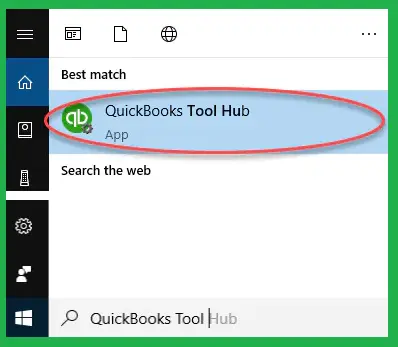
Intuit recommends Windows 11, 64-bit for the best Tool Hub experience. Check the official download page for the current version and requirements.
If QuickBooks starts without the error, you do not need to continue with the remaining solutions.
QuickBooks uses entitlement information to verify its license and registration. If your access is also affected by a subscription issue, see our guide on QuickBooks Subscription Has Lapsed. If the entitlement data file is missing, damaged, or unreadable, QuickBooks may fail to initialize its license.
You can refresh this file by following Intuit’s license-file troubleshooting instructions.
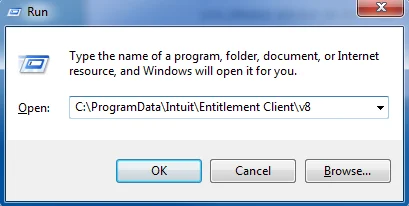
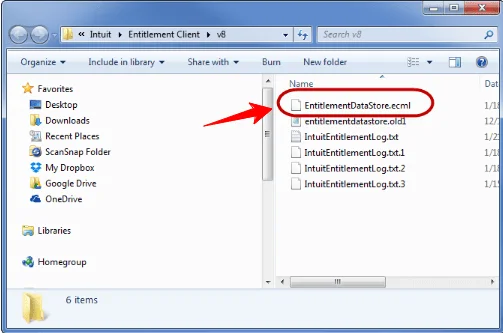
The ProgramData folder may be hidden. In File Explorer, enable Hidden items if you cannot see it.
If you are unsure about deleting a licensing file, stop and ask a qualified technician to help. Do not delete other files in the Entitlement Client folder.
If QuickBooks still fails to open, a program-related issue may be contributing to the problem.
This tool is intended to address common program problems. If QuickBooks still closes unexpectedly or fails to launch, follow our guide to fix QuickBooks Has Stopped Working. It does not replace the dedicated 3371 Error Fix, so run it only after trying Solution 1.
If Error 3371 appeared after installing, updating, or repairing QuickBooks, installation components may need attention.
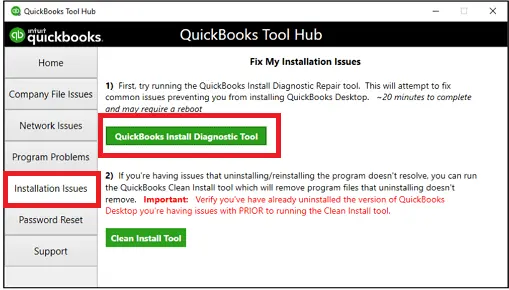
The diagnostic tool may take some time to finish. Keep the tool open until the process is complete.
Sometimes Error 3371 appears during a specific Web Connect workflow rather than when opening QuickBooks normally.
If you use QuickBooks Enterprise on Rightworks and encounter the error while importing a .QBO bank file, Intuit notes that the file may have been opened before it was saved. Try this:
Do not open the bank file before saving it. This solution applies to the specific Web Connect situation and is not a general fix for every Error 3371 message.
If Error 3371 started after moving QuickBooks Desktop to another computer, confirm that the installation and activation process was completed correctly. If you are transferring QuickBooks to another computer, review our guide to the QuickBooks Migration Tool for additional information about the migration process.
Do not copy random licensing files from another computer or another QuickBooks installation. Licensing information should be refreshed through the supported activation process.
If the previous solutions do not resolve Error 3371, reinstalling QuickBooks Desktop may help repair a damaged installation. Follow our guide to the QuickBooks Clean Install Tool for additional reinstalling instructions.
Before reinstalling:
Then follow Intuit’s official QuickBooks Desktop reinstall instructions.
After reinstalling, open QuickBooks Desktop and complete activation if prompted.
If Error 3371 continues even after reinstalling, the problem may involve Windows or another system component. At that point, contact a qualified IT professional or Microsoft support rather than repeatedly deleting licensing files or changing system settings.
If QuickBooks displays a separate message that your company file cannot be located, see our guide on QuickBooks Company File Not Found to troubleshoot the file location or access issue. It does not automatically indicate that your company file is corrupted or that accounting data has been lost.
However, no troubleshooting article can guarantee that every company file is safe in every situation. Before performing installation repairs or changing system files, keep a current backup whenever possible.
If QuickBooks opens but your company file displays a separate error, troubleshoot that company-file issue independently.
You cannot prevent every licensing or installation problem, but these habits can reduce avoidable interruptions:
If the error keeps returning, investigate the underlying installation or Windows issue instead of repeatedly applying the same repair.
Make QuickBooks Work Smarter for Your Business
Spend less time managing data and more time growing your business. Whether you need help setting up QuickBooks, cleaning up your books, reconciling accounts, or resolving errors, our team is here to make accounting easier. Get quick solutions that save time, improve accuracy, and keep your business finances on track.
QuickBooks Error 3371 can prevent QuickBooks Desktop from opening, but the message does not automatically mean your accounting data is damaged.
Start with the dedicated 3371 Error Fix in QuickBooks Tool Hub. If the error continues, carefully refresh the entitlement data, check program and installation components, and reinstall only when necessary.
Always keep a backup of your company file and use official troubleshooting instructions before making changes to licensing or system files.
Need help with QuickBooks Desktop troubleshooting? Data Service Team provides independent QuickBooks-related technical assistance. Call +1 (888)-718-7888 for assistance with QuickBooks Desktop troubleshooting.
It means QuickBooks Desktop could not initialize its license properties or load the license data required to start. The problem may involve missing or damaged licensing information or an installation issue.
Yes. Start with the 3371 Error Fix in QuickBooks Tool Hub. If that does not work, check the entitlement data file and use the appropriate program or installation repair tools before considering a reinstall.
No. Error 3371 is primarily a license initialization problem. A company file can have a separate issue, but Error 3371 alone does not prove that the company file is damaged.
QuickBooks may need to be installed and activated correctly on the new computer. Confirm that the correct version is installed and complete the registration process using valid license information.
The error discussed in this guide applies to QuickBooks Desktop licensing. QuickBooks Online is browser-based and does not use the same desktop entitlement-file process.
If the error continues after the Tool Hub fix, license-file refresh, and reinstall, the issue may involve Windows or installation components. Seek help from a qualified IT professional or Microsoft support.

Get Free Consultation for QuickBooks Upgrade
(2021, 2022, 2023)