
To print W-2 Forms in QuickBooks, employers need to follow the appropriate payroll process based on the QuickBooks product they use. W-2 forms contain important wage and tax information and are required for employees to complete their tax-related obligations. QuickBooks Payroll makes it easier to prepare, access, Print, and reprint these forms when needed. However, the steps can vary between QuickBooks Online Payroll, QuickBooks Desktop Payroll Enhanced, and Payroll Assisted.
In this guide, we’ll explain how to print W-2 forms in QuickBooks step by step. You’ll also learn about the printing requirements, employee and employer copies, available paper options, and what to do if an employee loses their original W-2 and needs a reprinted copy.
Before print W-2 forms in QuickBooks, make sure your payroll setup, QuickBooks version, and printing materials are ready. The exact requirements can vary depending on whether you use QuickBooks Online Payroll, QuickBooks Desktop Payroll Enhanced, or Payroll Assisted.
If you are reprinting a W-2 because an employee lost or did not receive the original, follow the applicable QuickBooks and IRS instructions for replacement copies. Intuit’s current QuickBooks guidance states that you should mark the reprinted form “REISSUED STATEMENT” and include a copy of the W-2 instructions.
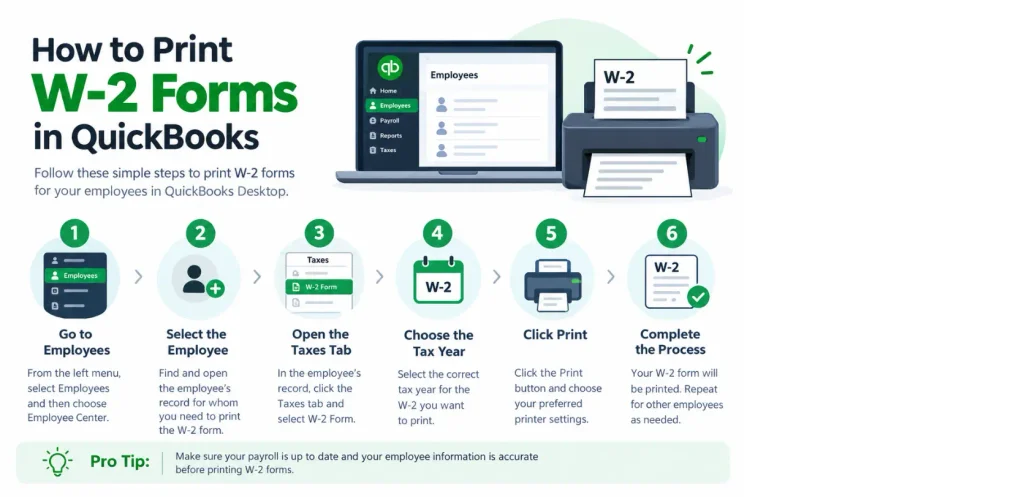
QuickBooks Online Payroll provides different options for accessing and print W-2 forms in QuickBooks Online, depending on whether Automated Taxes and Forms is turned on or off. The steps also vary depending on whether you are printing current-year forms, previous-year forms, employee copies, or employer copies. Before printing, check your payroll settings and determine which option applies to your account.
For the current year or the previous year, follow these steps to access and print employee or employer W-2 forms.
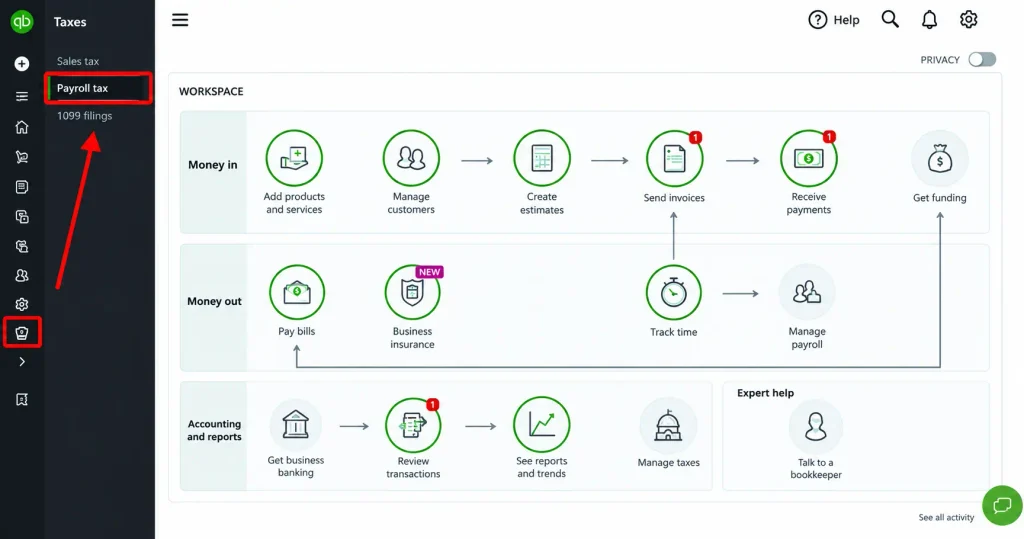
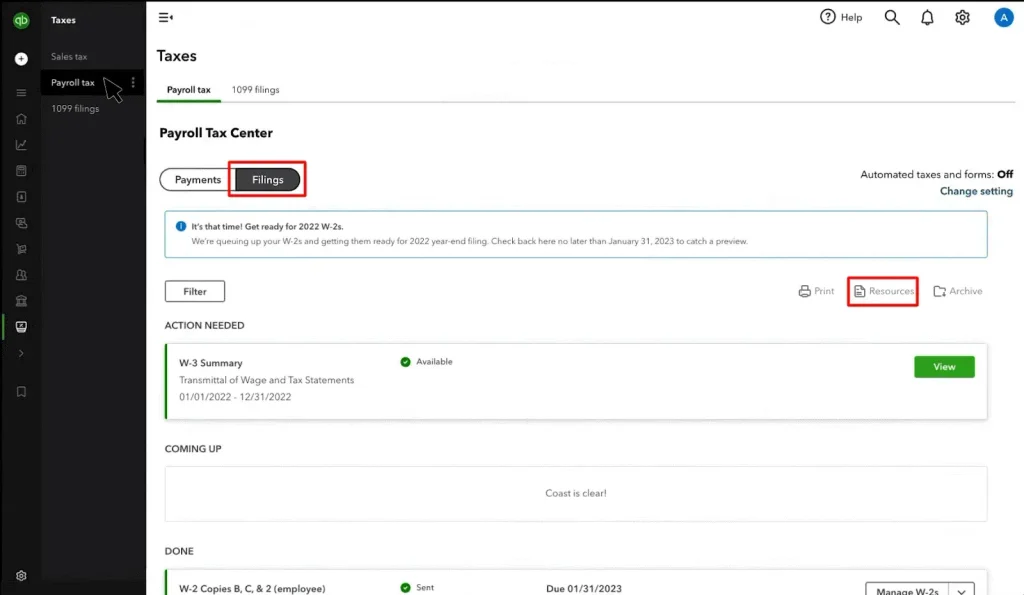
If you need a W-2 from a previous year:
When Automated Taxes and Forms is turned on, you may be able to print and distribute W-2 forms yourself or have Intuit print and mail them to your employees, depending on your payroll service and settings.
To check or change how W-2 forms are handled:
For the current year or one year prior:
To print employer copies or W-3 forms for the current year or one year prior:
For older forms:
Note: The exact availability date and printing options can depend on your QuickBooks Online
Payroll service and whether Automated Taxes and forms are enabled. Check your payroll settings before attempting to print the forms.
If your employer uses QuickBooks Workforce and has made W-2 forms available electronically, employees can access and print their own W-2 copies. This can be useful when an employee needs another copy for personal tax records or has misplaced a previously received paper copy.
QuickBooks Workforce can provide access to the current-year W-2 and, when applicable, W-2 forms from previous years.
If you cannot find your W-2, the form may not yet have been made available electronically, or your employer may not have enabled electronic W-2 access for your account.
In that situation, contact your employer or payroll administrator to confirm how your W-2 will be delivered.
Note: QuickBooks Workforce access depends on your employer’s payroll service and settings. Employees can only access W-2 forms that their employer has made available through Workforce.
QuickBooks Desktop Payroll has different procedures for print W-2 forms in QuickBooks depending on whether you use Payroll Enhanced or Payroll Assisted. Before you begin, make sure QuickBooks Desktop and your payroll tax table are up to date.
If you need to print W-2 forms in QuickBooks Desktop and Online, follow the instructions for the specific QuickBooks Payroll version you use.
QuickBooks Desktop Payroll Enhanced users can print W-2 in QuickBooks Desktop Payroll Enhanced after the forms become available for the applicable tax year. Follow these steps carefully:
If you cannot find the W-2/W-3 form in the File Forms list, check whether the form is active.
You can use the Forms menu to make an inactive federal form active, then return to the File Forms section and select the W-2/W-3 form.
Tip: Review employee names, Social Security numbers, wages, withholding amounts, and other information before submitting the forms for printing.
The process for QuickBooks Payroll Assisted is different from Payroll Enhanced. Follow these steps:
If you selected Intuit Print for your W-2 delivery option, you generally only need to print a W-2 yourself when an employee needs a replacement because the original was lost or not received.
The available printing options can vary depending on your Payroll Assisted service and settings.
If you are printing a replacement W-2 because an employee lost or did not receive the original, follow the applicable replacement-copy instructions. Intuit’s current guidance states that the reprinted form should be marked “REISSUED STATEMENT” and accompanied by the applicable W-2 instructions.
Always review the form before giving the replacement copy to the employee.
If an employee loses their W-2 or does not receive the original copy, you may need to provide a replacement. The steps for reprinting a W-2 depend on the QuickBooks Payroll service you use.
Before reprinting the form, verify the employee’s information and make sure you are printing the correct tax year.
For QuickBooks Desktop Payroll, you can access previously filed W-2 forms through the payroll forms section.
When applicable, QuickBooks will identify the replacement copy as a reissued statement.
If you use QuickBooks Online Payroll, access to previous W-2 forms depends on your payroll settings and the year of the form.
If the employee has access to QuickBooks Workforce, they may also be able to view and print their own available W-2 copy.
When you reprint a W-2 because an employee lost the original or did not receive it, follow the applicable replacement-copy requirements.
According to Intuit’s current guidance, mark the replacement form “REISSUED STATEMENT” and include a copy of the applicable W-2 instructions. Before giving the replacement to the employee, check that:
Important: A replacement W-2 is not the same as correcting an incorrect W-2. If the information on the original form is wrong, you may need to follow the applicable correction process instead of simply reprinting the form.
Sometimes, you may encounter problems when trying to print W-2 forms in QuickBooks. Most issues are related to payroll settings, unavailable forms, incorrect tax years, or printer and paper settings.
If the W-2 form is missing, check that you selected the correct tax year and that the form is available for your QuickBooks Payroll service. For previous years, check Archived forms and filings.
If an employee does not appear when you try to print a W-2, verify that the employee’s payroll information is complete and that the employee is included in the applicable tax year.
If the information does not align correctly on the paper, check your printer settings, paper size, orientation, and form type. If QuickBooks has problems generating or printing the form, you can also use the QuickBooks Print and PDF Repair Tool. When using preprinted forms, perform a test print before printing the actual W-2.
Make sure QuickBooks is updated and that you are using the correct payroll service and printing procedure. If your payroll update is not completing correctly, see our guide on QuickBooks Payroll Update Not Working. QuickBooks Online and QuickBooks Desktop use different steps to access W-2 forms.
For an older W-2, open Archived forms and filings in QuickBooks Online or access the saved filing history in QuickBooks Desktop, depending on your payroll service.
If you still cannot print W-2 forms in QuickBooks, verify your payroll settings and tax-year selection.
To print W-2 forms in QuickBooks, first identify the QuickBooks Payroll service you use and follow the appropriate steps for QuickBooks Online Payroll, Desktop Payroll Enhanced, or Payroll Assisted. Before printing, verify your payroll settings, tax year, employee information, and paper requirements.
You can also use QuickBooks to access previous-year W-2 forms or reprint a replacement copy when an employee loses the original. By following the steps in this guide, you can print W-2 forms in QuickBooks and provide employees with the required copies. If you are still looking for further assistance, you can contact the Data Service Team specialists at +1(888)-718-7888.
Open the payroll section, select the W-2 form for the required tax year, and choose Print. The exact steps depend on whether you use QuickBooks Online Payroll or QuickBooks Desktop Payroll.
To print W-2 forms in QuickBooks Desktop Payroll, go to Employees > Payroll Tax Forms & W-2s > Process Payroll Forms. Select the W-2/W-3 form, choose the tax year and employees, review the forms, and follow the prompts to print.
Go to All apps > Payroll > Payroll taxes > Filings. Find the W-2 form for the required tax year, select View and Print, and then click the Print icon.
To print W-2 forms using QuickBooks Desktop Payroll Enhanced, go to Employees > Payroll Tax Forms & W-2s > Process Payroll Forms. Select Annual Form W-2/W-3, choose the tax year and employees, review the forms, and follow the prompts to print.
You may not be able to print W-2 forms if the tax year is incorrect, the payroll service is inactive, or the required form is not available yet. QuickBooks Desktop users should also check that the software and payroll tax table are updated.
To reprint an employee’s W-2, find the form for the required tax year in QuickBooks Payroll and open it. Select the Print option to create another copy. If the employee lost the original, mark the replacement as “REISSUED STATEMENT” as required.
W-2 forms are generally available in January, but the exact date depends on your QuickBooks Payroll service and settings. Check your QuickBooks Payroll account for the availability date for the required tax year.
Yes. Employees can print their own W-2 forms through QuickBooks Workforce if the employer has made the form available. They can sign in, open their W-2, and select the Print option.
If a W-2 form is missing, first check the tax year, payroll settings, and employee information. For older forms, check Archived forms and filings or your payroll filing history. If the form is still unavailable, contact Data Service Team experts for help.




