
Tax time tends to bring to light all the shortcuts you’ve taken in your bookkeeping throughout the year, such as a reconciliation overlooked in March, a group of transactions not categorized during the summer, or a vendor invoice entered twice in October. All of these issues can appear at the same time when you start preparing your tax return. A QuickBooks tax season cleanup involves reviewing your records, making the necessary corrections, and organizing them so the financial information going into your tax return is accurate, complete, and easy for your accountant to use.
The guide explains what the cleanup process entails, why it matters, and how to do it step by step—whether you’re a small business owner managing your own accounts or working with a bookkeeper or CPA. By the end, you’ll have a reusable checklist you can use every year, along with a clear understanding of the mistakes most people make when trying to do it on their own.
The following table provides a condensed overview of what we discuss in this article on QuickBooks tax season cleanup.
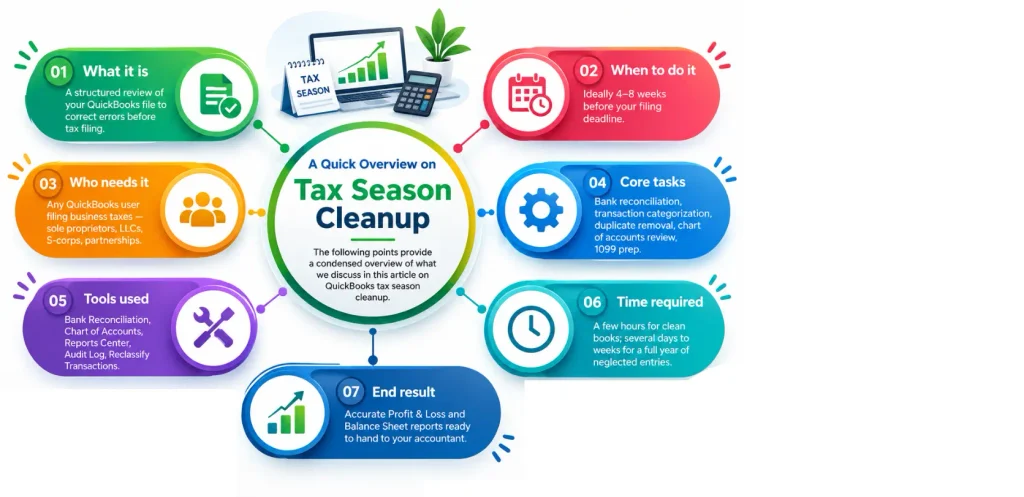
| What it is | A structured review of your QuickBooks file to correct errors before tax filing |
| When to do it | Ideally 4–8 weeks before your filing deadline |
| Who needs it | Any QuickBooks user filing business taxes — sole proprietors, LLCs, S-corps, partnerships |
| Core tasks | Bank reconciliation, transaction categorization, duplicate removal, chart of accounts review, 1099 prep |
| Time required | A few hours for clean books; several days to weeks for a full year of neglected entries |
| Tools used | Bank Reconciliation, Chart of Accounts, Reports Center, Audit Log, Reclassify Transactions |
| End result | Accurate Profit & Loss and Balance Sheet reports ready to hand to your accountant |
A QuickBooks Tax Season Cleanup helps ensure your records are accurate before you prepare your tax return. For instance, if there are errors in your QuickBooks file—such as expenses being wrongly categorized, the bank accounts not having been reconciled, or there being duplicate entries—then these mistakes will appear in your Profit and Loss statement and Balance Sheet, since those are the two statements that accountants normally use when preparing a return. If these errors are not corrected, this could result in:
Maintaining good order in your books not only makes tax season easier but also enables you to get a more accurate view of how your business has really performed over the year, since decisions like setting prices, hiring staff, and planning next year’s cash flow are based on figures that are reliable by the tax deadline.
Since not all businesses require the same degree of cleanup, the following are some indications that your QuickBooks Tax Season Cleanup needs looking into:
If any of the points above sound familiar, it is an obvious sign you should do a proper cleanup instead of a quick check before you file
In this section, we will show you the steps for QuickBooks Tax Season cleanup before filing taxes. Go through these steps one by one, and carry out the instructions given as per the requirements of your books.
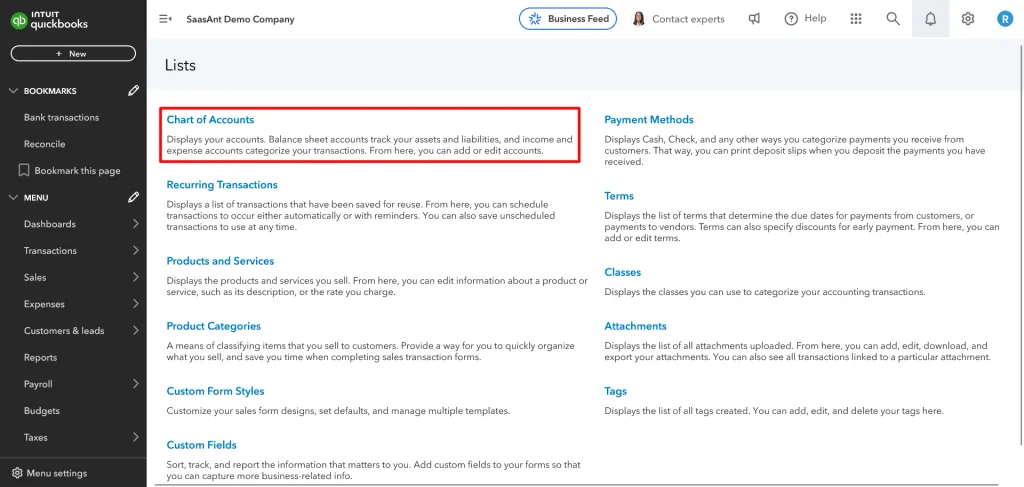
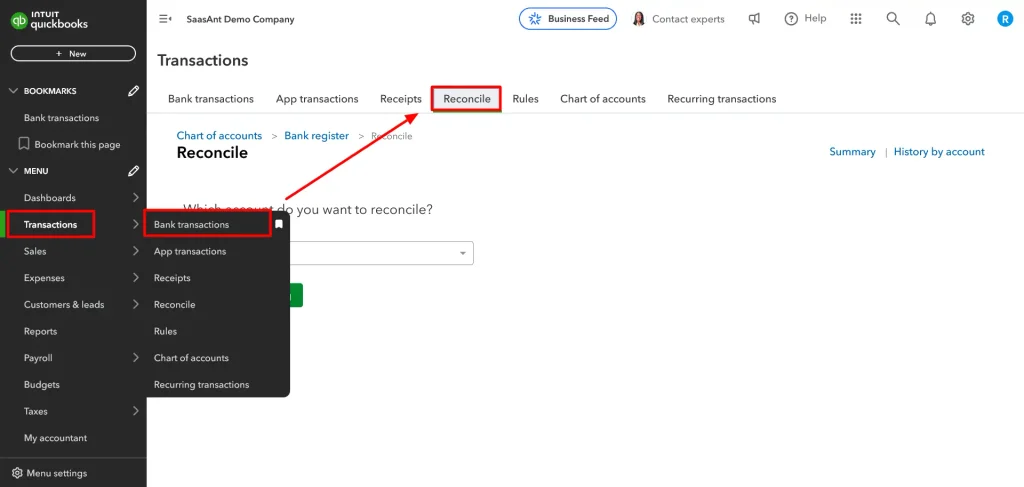
A clean file starts with QuickBooks Bank Reconciliation, which confirms that each transaction recorded in QuickBooks matches the entries in your bank and credit card accounts. To reconcile in QuickBooks:
Review each bank account, credit card, and loan account one statement period at a time, starting with the most recent period you can reconcile. If you have never reconciled an account before, start with the account’s opening balance and work forward month by month rather than trying to reconcile all twelve months at once. Reconciling all twelve months at once almost always creates a discrepancy that is difficult to trace, whereas handling each period separately lets problems surface as soon as they occur.
If the discrepancy appears to be related to damaged or inconsistent company-file data, you can also verify and rebuild your QuickBooks data before continuing with the cleanup.
Uncategorized transactions are one of the most common cleanup issues to address during a QuickBooks Tax Season Cleanup because they are entries from your bank feed that have never been assigned to a specific account and remain in general categories like “Uncategorized Expense” or “Uncategorized Income.” To find them, follow these steps:
When you have many such transactions, the Reclassify Transactions tool in QuickBooks Online Accountant, or the one accessible via batch actions in the register, lets you select several transactions and move them to the right category at once, rather than editing each one individually. This is especially useful when you realize a whole batch of transactions from the same vendor has been incorrectly categorized; instead of correcting each transaction separately, you can filter by both vendor and account, then reclassify the entire group with a single action.
When you are classifying transactions, try to be specific instead of using the general category of “Miscellaneous Expense“, since such a transaction will tell your accountant nothing about whether it is deductible and will therefore make it impossible to compare figures from one year to the next.
Duplicates occur when you enter a transaction manually and then import it again via the bank feed, or when a recurring transaction template creates an extra copy. To locate duplicates:
You should never just delete a transaction that is linked to a bank deposit or payment without first establishing which of the duplicate entries is the correct one, because deleting the wrong one can cause errors in your reconciliation; it is safer to void the transaction rather than to delete it, as voiding retains a record of the transaction number and amount while at the same time eliminating its financial effect and thus keeping your audit trail intact.
Old outstanding checks, uncleared deposits, or unapplied customer payments from previous periods may remain in QuickBooks for as long as several years if no one deals with them. Before tax season:
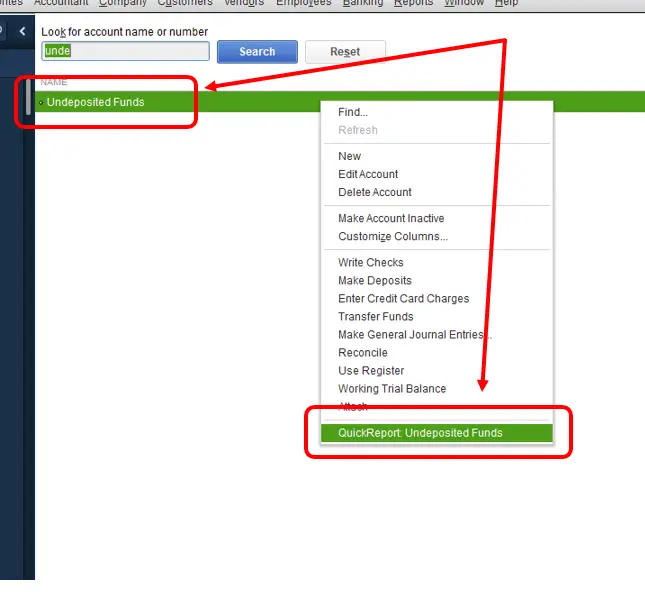
A cluttered Undeposited Funds account is one of the most common problems in files that haven’t been reviewed in a long time; it usually worsens when payments are entered but never actually deposited, so the account remains inflated indefinitely.
Over time, the Chart of Accounts can include duplicate categories, general-purpose accounts such as ‘Miscellaneous’, or one-time accounts that were never removed. Before carrying out the tax filing:
If you have employees or contractors, QuickBooks tax season cleanup includes confirming that payroll and 1099 data are accurate:
Mistakes at this stage can result in mismatched 1099s or incorrect payroll tax returns, and once filed, correcting them takes more time than addressing them beforehand. Make sure your payroll information and tax tables are current by reviewing the QuickBooks Payroll Tax Table Update process before filing.
If your business collects sales tax, review the Sales Tax Center to confirm that:
Once the transaction-level cleanup is done, review your reports as a final check for your QuickBooks Tax Season Cleanup:
When something seems wrong in these reports, it’s usually a transaction earlier in the cleanup process that needs to be examined again. The quickest way to spot an error is usually to compare this year’s Profit & Loss with last year’s, side by side, since any categories that show a sudden increase without a clear business explanation deserve investigation before you send anything to your accountant. If the issue continues after reviewing the transactions, QuickBooks Data Repair Services may help resolve more complex company-file data problems.
Before you finish anything, make a backup of your QuickBooks file (or, if you’re using QuickBooks Online, keep note of the date so that you can refer to the Audit Log if necessary). Keep a basic record of the major changes you make while carrying out the cleanup. If your cleanup also involves moving financial records between QuickBooks files or systems, QuickBooks Data Migration Services can help with the transfer and organization of your data.
This can include actions such as merging accounts, deleting duplicates, and reclassifying transactions, so you or your accountant can explain them if questions arise in the future. The log need not be detailed; typically, a simple spreadsheet listing the date, the change, and the reason is enough to handle queries even months later.
Once your books are reconciled and categorized, package the following for your accountant:
Many accountants also prefer “Accountant” access in QuickBooks Online so they can retrieve reports and review detailed information, rather than relying on static exports. If your accountant needs dedicated remote access to QuickBooks Desktop, QuickBooks Accountant Hosting can provide a hosted environment for accessing the accounting software and company files.
People often make real errors during the QuickBooks tax season cleanup, and you can intentionally avoid them.
As long as your accounts are fairly up to date, you can handle a QuickBooks Tax Season Cleanup yourself when the number of errors isn’t too great. Set aside specific time for it, follow the steps above systematically, and don’t rush the reconciliation step, since that is the one most likely to reveal deeper problems.
When it comes to books you haven’t looked at in months, it is usually because you’re unsure how to classify a transaction or because you’re handling payroll, inventory, or matters involving multiple entities; in those cases, it’s often worth hiring a bookkeeper for a one-off cleanup. If you need ongoing help, Accounting And Bookkeeping Services can help keep your QuickBooks records organized throughout the year.
A business owner doing reconciliation and categorization for the first time generally takes much longer than a professional and is more likely to make a new error while correcting an old one. Since many bookkeepers provide a fixed-fee service to carry out a full cleanup for this reason, separately from their regular monthly bookkeeping, it can be a more economical choice if you only need it done once before filing.
When deciding, compare your hourly rate with the bookkeeper’s fee. In most cases, hiring a professional is more efficient, since it would take you twenty or thirty hours over evenings and weekends just to sort out a year’s worth of neglected transactions. In contrast, a professional can do the same job in much less time, even if you don’t factor in the lower chance of error.
Although this guide focuses on the cleanup before tax season, the core tasks—reconciliation, categorization, and reviewing reports—should be done monthly rather than postponed until once a year. With a monthly closing procedure, tax-season cleanup becomes a simple final check rather than a lengthy project. If you’re currently doing an annual cleanup out of necessity, see it as a sign to set up a lighter, routine going forward.
A basic monthly closing checklist could involve reconciling all accounts, reviewing accounts with unclassified transactions, preparing the Profit & Loss and Balance Sheet, and comparing both with the previous month’s figures to spot anything unusual. Businesses that keep up this practice usually find their annual tax-season cleanup takes only a few hours instead of a few weeks.
QuickBooks tax season cleanup goes beyond a compliance exercise. It helps you catch errors that could otherwise lead to missed deductions, higher accounting fees, or a distorted view of your business’s performance. The most dependable method of ending up with financial records that your accountant can trust and of preparing a return with confidence is to systematically carry out reconciliation, categorization, duplicate elimination, and report review in a methodical sequence rather than switching from one task to another.
If you wish to speak to a seasoned QuickBooks accountant for general queries or to seek assistance regarding your books, you can find them at +1(888)-718-7888!
Start by settling all your bank and credit card accounts, then review and correct uncategorized transactions, eliminate duplicates, and check your Chart of Accounts for errors. Finally, review your Profit & Loss and Balance Sheet reports to make sure nothing looks out of the ordinary before sending the full set to your accountant.
Reconcile all accounts, clear any uncategorized transactions, review your Chart of Accounts, verify payroll and contractor information, and prepare your main financial reports to catch errors. Start this process several weeks before your filing deadline, not at the last minute.
Make sure all accounts have been reconciled, transactions are properly categorized, there are no duplicate entries, payroll and 1099 records match what your payroll provider provided, and your sales tax liability matches the amount of sales tax you have actually collected and paid.
This is a systematic review of your QuickBooks file (involving the reconciliation of accounts, the correction of categorization errors, the elimination of duplicates, and the verification of the reports), and it is carried out specifically to ensure that the financial data upon which your tax return is based is accurate before you file it.
Common signs that you need to perform QuickBooks cleanup before tax filing include a rising amount in the “Uncategorized Expense” account that hasn’t been reconciled for months, duplicate transactions, a Balance Sheet that doesn’t balance, or an accountant constantly asking you to clarify entries from previous filings.
Reconciliation ensures the figures in QuickBooks match those in your bank and credit card statements. If you don’t reconcile, your reports will be based on incomplete or inaccurate data, which will affect the figures that appear on your tax return.
Go to the Chart of Accounts, locate the ‘Uncategorized Income’ or ‘Uncategorized Expense’ accounts and reassign each transaction to the right category; if you are dealing with a large number of transactions, use the Reclassify Transactions tool to update them all at once.
Prepare a Transaction List by Date report, sort the results by amount and date to identify duplicates, and check the Audit Log to confirm the transaction was entered twice. Before voiding or deleting the duplicate, confirm the correct entry.
Check undeposited funds for payments that have never been deposited, settle old uncashed checks, match customer payments that haven’t been applied to the relevant invoices, and flag any accounts that are no longer in use as inactive rather than deleting them.
Go to the Reconcile function, choose the account, and input the ending date and balance from your statement. For each transaction in QuickBooks, match it with the statement and check any discrepancies before declaring the reconciliation complete. Reconcile backward from the most recent period that you successfully reconciled.
Prepare your full-year Profit and Loss Statement and year-end Balance Sheet, and include your 1099 and payroll summaries if relevant. Note any transactions you’re unsure how to classify, and, if appropriate, grant your accountant direct access to QuickBooks Online so they can review the detailed information.




