
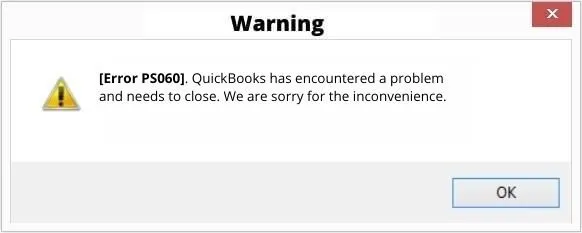
Payroll problems can quickly become stressful, especially when the QuickBooks program stops connecting to its payroll service. QuickBooks Error PS060 may appear when you try to update payroll or access payroll-related features, with a message indicating that the Enhanced Payroll service is unavailable.
The error does not always have one specific cause. It can be related to your payroll subscription, service key, QuickBooks Desktop version, internet connection, security settings, or a temporary issue with the payroll service.
In this guide, you’ll learn what QuickBooks Error PS060 means, why it happens, and practical ways to troubleshoot it safely.
QuickBooks Error PS060 is a payroll-related error that can appear when QuickBooks Desktop has trouble accessing or verifying the Enhanced Payroll service. You may see the message “Current Enhanced Payroll Service is Unavailable” when trying to update payroll or use certain payroll features.
QuickBooks Error PS060 does not always point to a single problem. QuickBooks may show the error because it cannot verify your payroll service information, connect to the required online services, or complete a payroll update.
There are several issues that can trigger the Payroll Update Error PS060 in QuickBooks; some are related to your QuickBooks setup, while others may be caused by connectivity or temporary service problems:
Have a look at the common possibilities below:
You are likely dealing with QuickBooks Error PS060 if you notice any of these signs:
Before trying advanced troubleshooting, start with the simple checks that can affect the QuickBooks payroll service. Try each method one by one, and also try the payroll update again after each major step.
An active payroll subscription is required to access QuickBooks payroll services and download payroll updates. If QuickBooks can’t verify your subscription, QuickBooks Error PS060 may appear on the screen. If your subscription has expired or become inactive, see our guide on QuickBooks Subscription Has Lapsed before continuing with the troubleshooting steps. To check your payroll services, perform these steps:
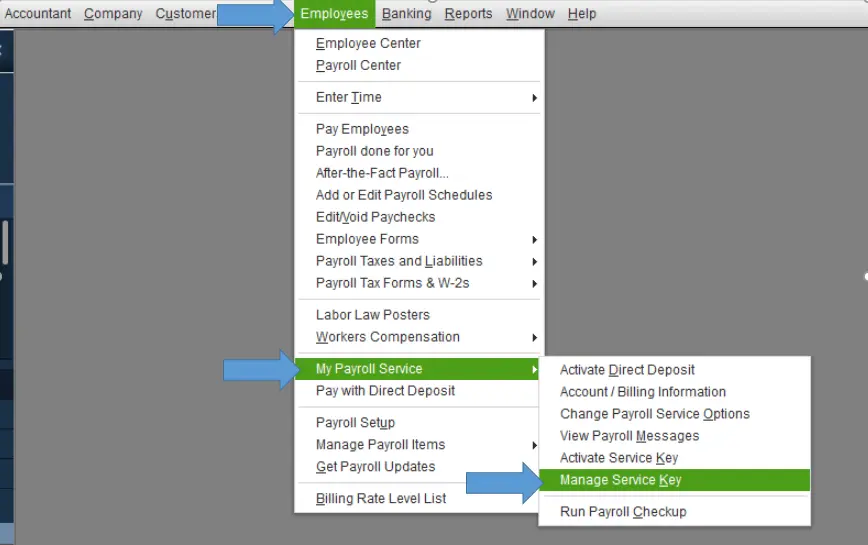
If the service information is incorrect, review the service key and enter the correct details. Once the information is updated, restart QuickBooks Desktop and try downloading the payroll update again. If QuickBooks still cannot verify your payroll service, see QuickBooks Error PS036 for additional troubleshooting steps.
Tip: If your subscription is already active and the service key is correct, move to the next step instead of repeatedly changing your payroll settings.
If your payroll subscription is active but QuickBooks still shows PS060, the next thing to check is your payment information. An expired credit card, incorrect billing details, or an unsuccessful payment can affect your payroll subscription. To check your payment information:
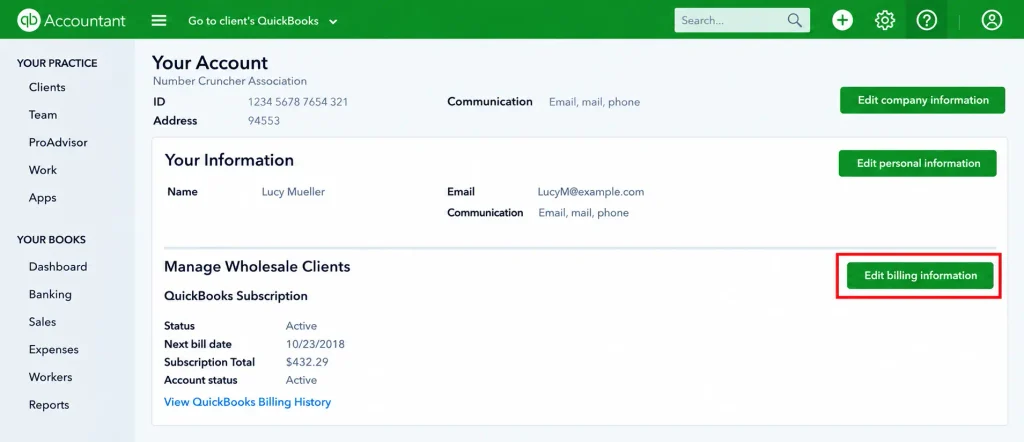
If everything looks correct and your payroll subscription is active, don’t make unnecessary changes to your payment information. Move on to the next solution to continue troubleshooting QuickBooks Error PS060.
Using an outdated version of QuickBooks can easily cause the problem. Installing the latest available version can help you resolve compatibility and program-related issues that may trigger the QuickBooks error PS060. Here are the steps to update the QuickBooks program:
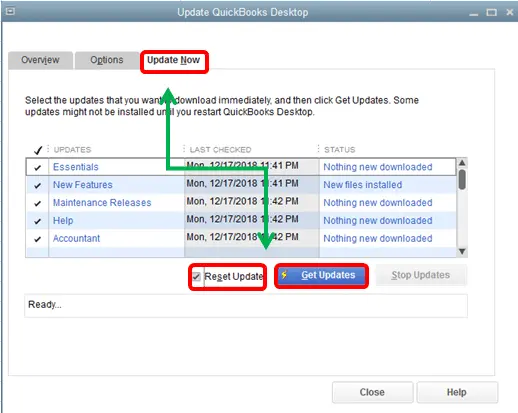
If QuickBooks was already updated and QuickBooks Error PS060 still appears, move on to the next solution rather than repeatedly installing the same Update. If your payroll update is still failing after updating QuickBooks, see QuickBooks Payroll Update Not Working for additional solutions. You can also review QuickBooks Error PS033 if the payroll update continues to fail, or check QuickBooks Error PS038 for another payroll update issue.
If your connection is slow, interrupted, or incorrectly configured, QuickBooks may have trouble accessing the payroll service and display QuickBooks Error PS060. Before changing any QuickBooks settings, check whether your internet connection is working normally. Try these steps:
If the issue still occurs, then the problem may be related to QuickBooks connection settings, firewall, or security software. Continue to the next solution to check those settings.
If your internet connection is working normally but you still face the QuickBooks error PS060, your firewall or other security software is blocking QuickBooks. If you suspect a firewall restriction, see Windows Firewall is Blocking QuickBooks for additional troubleshooting steps. Follow these steps to check the settings:
If your payroll subscription, billing information, internet connection, and security settings are all correct, a problem with QuickBooks itself could be preventing payroll updates from working.
QuickBooks Tool Hub includes tools that can help you diagnose and repair common problems or installation issues.
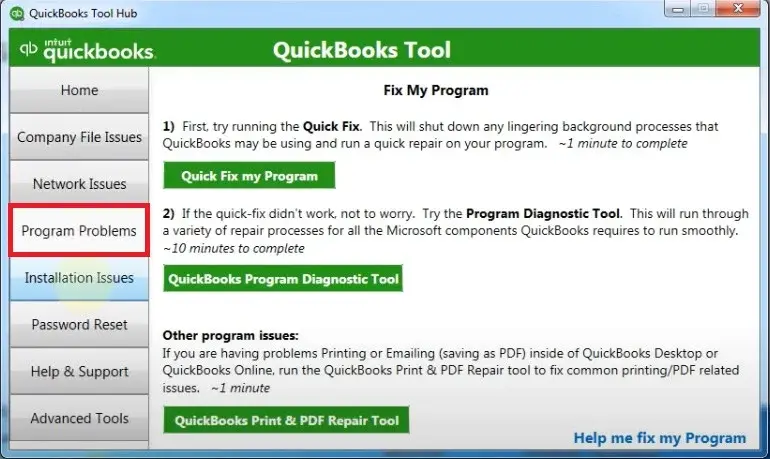
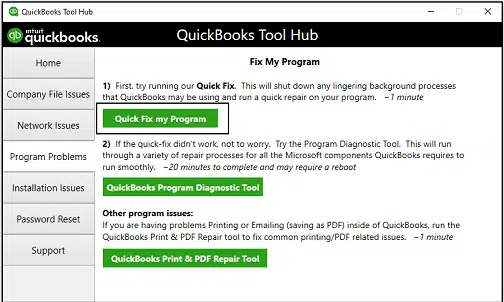
QuickBooks relies on a hidden folder called “CPS” to download, store, and unpack new tax tables. If a file inside this folder gets damaged, your updates will stop working. Renaming this folder forces QuickBooks to make a clean copy.
Now, open QuickBooks again and try to download your payroll updates. QuickBooks will see that the old folder is gone and will automatically create a new, working folder for you.
Fixing an error is great, but making sure it never comes back is even better. You can keep your payroll running smoothly without interruptions by following these simple tips:
This simple guide gives you everything you need to fix QuickBooks Error PS060 quickly. By following these steps from verifying your billing card to clearing out old system folders, you can safely bypass the network block and get your team paid on time. Keeping your software updated and checking your account details are the best steps to keep this error away.
If you have tried these solutions and the “service unavailable” message still pops up. Reach out to certified Data Service Team experts at +1(888)-718-7888 for direct help.
You see this error because QuickBooks can not verify your payroll subscription with Intuit’s servers. It usually happens due to an expired credit card, network connection issues, or a blocked firewall.
Your software might be blocked by your computer’s security program, or a local system folder like the CPS folder might be damaged. A weak internet connection can also interrupt the download.
Yes. Using older versions of QuickBooks can cause compatibility issues and cause the software to lose its connection with modern Intuit servers. Keeping your software updated ensures it connects with the server correctly.
Go to the Employees menu in QuickBooks, select My Payroll Service, and click Manage Service Key. Check the status column to make sure it explicitly says Active.
Even if your account is active, old network cache files, an incorrect computer system time, or strict antivirus rules can still block QuickBooks from connecting to the server.
If the error stays on your screen after you update, try clearing your computer’s network memory or renaming your local CPS folder. If those steps do not remove the block, open the official QuickBooks Tool Hub and run the Quick Fix My Program tool to repair the software files automatically.
No. This error stops you from using features like calculating paychecks, downloading fresh tax tables, and submitting your payroll taxes online. You must fix the error first.
Keep your credit card details updated in your Intuit profile, turn on automatic software updates, and always open QuickBooks by right-clicking and choosing “Run as Administrator.”
You should reach out to an expert if you have tried all the standard troubleshooting steps, if you cannot find your service key, or if you face problems changing firewall settings on your own.




