Set-Up-Direct-Deposit-in-QuickBooks

Wondering how to set up direct deposit in QuickBooks and pay employees without the hassle of paper checks? Direct Deposit in QuickBooks makes payroll easier by allowing businesses to pay employees’ wages directly into their bank accounts. It configure payroll preferences, enter accurate business and bank information, and complete the required verification steps.

In this guide, we will walk you through how to set up direct deposit in QuickBooks, explain the key requirements, and share helpful tips to make the process easier.

Direct Deposit in QuickBooks: What It Is and How It Works?

It is an e-payment method that allows employers to deposit the wages of employees into bank accounts. It works in QuickBooks through payroll services to process employee payments.

Here is how it helps businesses:

  • Activate QuickBooks payroll and complete the required business & bank account information.
  • Enter personal and banking information of each employee to obtain the necessary authorization for direct deposit.
  • Calculate employee wages, taxes, deductions, and other payroll amounts in QuickBooks.
  • Review the payroll details and submit the payment to process before the required deadline.
  • The payroll service transfers the employees’ net pay to designated bank accounts.
  • Employees receive their wages in their bank accounts without the need for a physical paycheck.

Requirements and Key Considerations Before You Set Up

Ensure the employee information is complete and accurate to set up direct deposit in QB. The correct banking details are crucial and completing required verification helps avoid delays when processing payroll.

  • Use an eligible bank account – Ensure your business has a U.S. bank account for ACH transactions.
  • Prepare business information – Have your legal business name, address, and EIN ready.
  • Provide principal officer details – Submit the officer’s full name, home address, Social Security number, and birth date.
  • Keep bank details available – Have your bank routing and account numbers or online banking credentials ready.
  • Complete bank verification if needed – QuickBooks may send a test transaction under $1 for verification.
  • Collect employee banking information – Employees must provide bank account details and authorization for direct deposit.
  • Check information before payroll – Verify all banking details and submit payroll on time.

What to Keep in Mind When Processing Direct Deposit Payroll?

When processing direct deposit payroll in QuickBooks, remember to:

  • Verify payroll details (hours, pay rates, taxes, deductions).
  • Check that banking information is accurate.
  • Meet payroll submission deadlines.
  • Confirm direct deposit is active and verified.
  • Select the correct pay date.
  • Fix any errors or warnings.
  • Save payroll confirmations for future reference.

How to Set Up Direct Deposit in QuickBooks: Step-by-Step Guide

Ready to simplify payroll? Follow these simple set up direct deposit in QuickBooks and pay employees securely.

Setup 1: Connect Your Business Bank Account to QuickBooks Payroll

Before starting, it is essential to set up the company file and collect all essential information. This step ensures a secure installation and prevents disruptions later on.

Gather the essential information:

  • Business name, address, and EIN
  • Principal officer’s Social Security number, date of birth, and home address
  • Business bank account information or online banking login details
  • Employee banking information (if available)

QuickBooks Online Payroll

Consider these instructions to connect a bank account in QuickBooks Online:

  • Go to Connect your bank and click Let’s go.
  • Select Get started and review your business information.
  • Click Edit under Business and provide any missing details like your federal tax ID.
  • Enter the Principal Officer’s information and click Next.
  • Choose Add new bank account.
  • Search for your bank or input the details manually (routing and account number).
  • Once you are finished, click Save, then Accept and Submit to complete the setup.

Follow the setup steps for the specific version of QuickBooks to connect your business bank account to QuickBooks Desktop Payroll for direct deposit, For businesses using QuickBooks Assisted Payroll, the setup and payroll processing requirements may differ.

  • Launch QuickBooks and log in using your QuickBooks credentials.
  • Navigate to Employees > My Payroll Service > choose Activate Direct Deposit.
  • Click on Get Started. If the Get Started screen is not visible:

Choose “I’m the admin,” indicating that I am the main individual who can… and provide the admin’s email address or user ID.

  • Click on Continue.

Enter your Intuit Account email or user ID and password, then select Sign In. If you do not have an Intuit Account, click on the link to create an account. If you are logged into the Intuit Account in

  • QuickBooks, this screen will not be displayed.
  • Click on Get Started.
  • Choose Start from the Business tab.
  • Enter the required information and click Next.
  • Provide the Principal officer details and click Next.
  • Select Add new bank account.
  • Input your bank’s name along with online banking credentials/ bank routing and account numbers.
  • Set up a PIN that you will use to process payroll.
  • Re-enter your PIN for confirmation and click Submit.
  • Click Next, then Agree and Submit.
  • If asked, verify the Principal officer’s complete Social Security number and click Submit.

Once submitted, you will receive a confirmation message.

Setup 2: Verify Your Company Information and Set Security Limits

Verify company information and check account access status to set up direct deposit in QuickBooks. This precaution helps avoid payroll mistakes and guarantees a seamless verification process.

QuickBooks Online Payroll

If you experience QuickBooks Online Payroll Not Working issues, first check your company information and payroll settings.

  • Confirm Company Information
  • Navigate to Settings (Gear icon) > Account and Settings.
  • Select the Company tab.
  • Click the Edit (pencil) icon to review and make updates to:
  • Legal Business Name and Company Name for accurate documentation,
  • Employer Identification Number (EIN) for payroll tax purposes,
  • Business Address and Contact Information.
  • After you finish, you must click Save.

Assess Account Access and Security

Once you have confirmed company details, ensure that the appropriate users have access:

  • Go to Settings > Manage Users.
  • Review the current users and change roles as necessary.
  • Assign the correct access levels (for instance, restrict payroll access to only authorized users).
  • Once everything is complete, you need to save the changes.

QuickBooks Desktop Payroll

You can check company information and control user permissions via the company settings in QuickBooks Desktop.

Verify Company Information

  • Navigate to Company > My Company.
  • Click on the Edit (pencil) icon.
  • Check and modify your Company Name, Address, and EIN.
  • Once you have completed this, make sure to save the changes.
  • Alternatively, you can press F2 to access the Product Information window and promptly review your company details.

Review User Access

Make sure to secure access to payroll functionalities to confirm information:

  • Navigate to Company > Set Up Users and Passwords > Set Up Users.
  • Designate roles & limit access to sensitive areas such as payroll and banking.
  • After completing that, you need to verify the changes.

Setup 3: Activate Direct Deposit in QuickBooks

You need to activate the direct deposit option in your payroll settings:
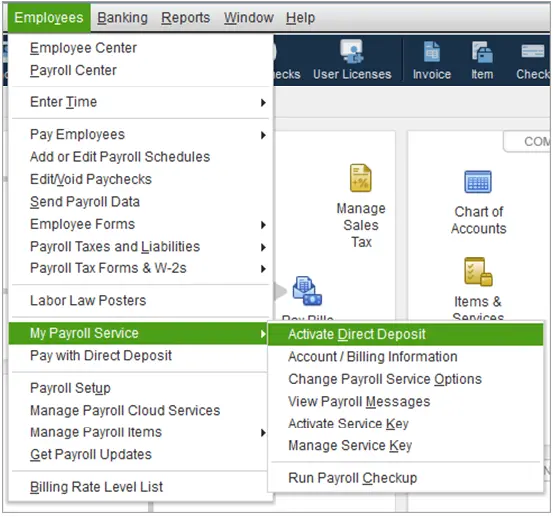
For QuickBooks Desktop

  • Navigate to Employees < My Payroll Service < Activate Direct Deposit.
Activate Direct Deposit
  • Follow the prompts on the screen to input business and banking information.
  • Accept the terms and conditions.
  • Once completed, QuickBooks will start a bank verification process.

After the Direct Deposit feature is enabled, payroll submissions could still fail if the bank details or authorization are not accepted. QuickBooks Payroll Update Not Working can also prevent payroll from processing correctly. Resolve QuickBooks Error 2308 related to Direct Deposit to submit payroll again.

QuickBooks Online

  • Go to the Gear icon and Payroll Settings.
  • Choose Bank Accounts in the Business section.
  • Enter the required bank details.
  • Once finished, QuickBooks will send test deposits for verification.

Setup 4: Verify the Direct Deposit Test Transaction

You need to check the business bank account once you have checked set up direct deposit in QuickBooks. It sends small test deposits to confirm the account details and ensure secure transactions.

QuickBooks Online Payroll

Verify the bank account through payroll settings to Set Up Direct Deposit in QuickBooks:

  • Move to Settings > Payroll Settings > Bank Accounts.
  • Wait 1-3 business days for two small test deposits to appear in the bank account.
  • Return to the same section and enter the exact deposit amount.
  • Click Verify to complete the procedure.

If you are unable to see the deposits after a few days, you can re-enter the bank details to trigger the test transaction again.

QuickBooks Desktop Payroll

The verification steps differ in QB Desktop, and these are as follows:

  • Go to Employees > My Payroll Service > Direct Deposit Bank Account.
  • Wait for 1-2 business days for the test deposits to appear in the bank account.
  • Open the verification window and enter the exact amounts of the deposits.
  • Once you are done with it, you must confirm the info and complete the verification.

Important Note: You need to enter the Direct Deposit PIN to finalize the process in certain situations.

Setup 5: Have Employees Authorize Direct Deposit

Ensure you have proper authorization to comply with regulations and obtain legal consent for direct deposits. After that, you can Add Employee to QuickBooks Payroll and enter their banking details for processing payroll.

QuickBooks Online Payroll

Employees can authorize direct deposit through a self-service option/ a signed form in QuickBooks Online.

  • Move to Payroll > Employees and select the employee.
  • Invite the employee to QuickBooks Workforce so they can enter and approve their bank details.
  • Ask the employee to complete the authorization process within Workforce.
  • You have to confirm that the employee has submitted their consent.

Alternatively, if you are not using Workforce:
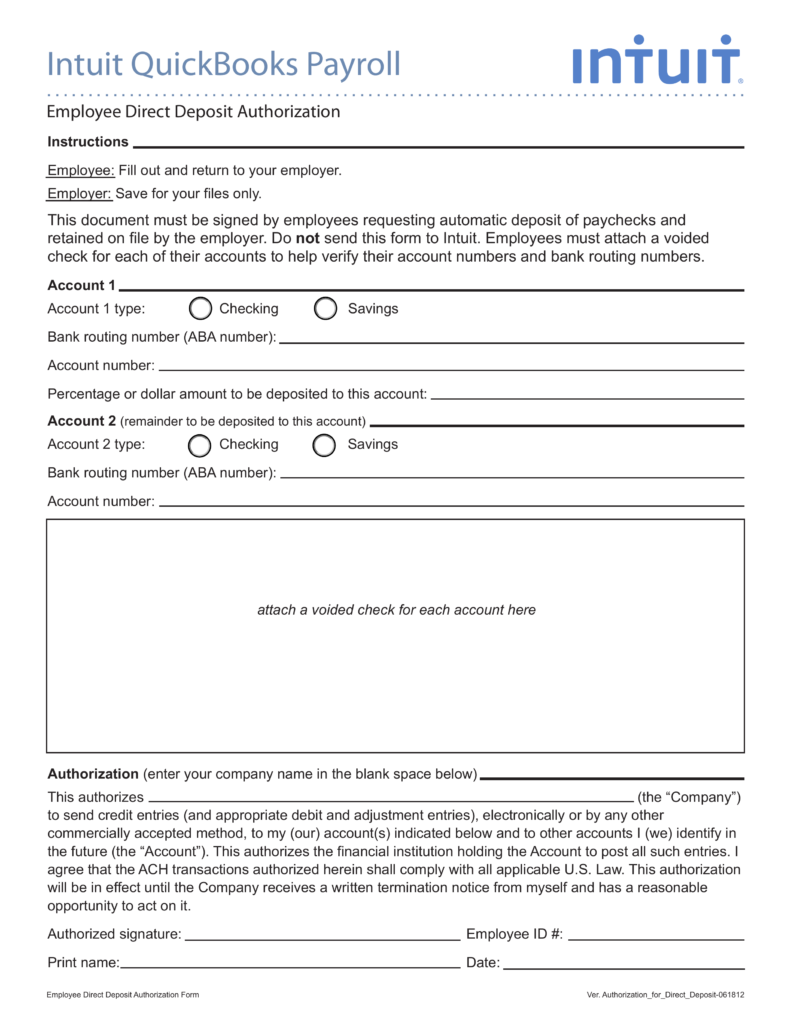
  • Go to Taxes & Forms > Employee and Contractor Setup.
  • Download the Direct Deposit Authorization Form.
Direct Deposit Authorization Form
  • Keep the form securely for your records.

QuickBooks Desktop Payroll

You need to collect and manage authorization manually in this:

  • Provide the employee with a Direct Deposit Authorization Form.
  • Ask them to fill in their bank details and sign the form.
  • Review the form to ensure all information is complete and accurate.
  • You have to store the signed form for compliance and future reference.

Obtain and Complete the Direct Deposit Authorization Form

This step guarantees you have the necessary permission before moving on to the next phase.

QuickBooks Online Payroll

  • Acquire a Direct Deposit Authorization Form from QuickBooks/payroll resources.
  • Distribute the form to the employee/ request them to fill it out and sign it.
  • Check the information for accuracy.
  • After you finish, be sure to store the signed form.

QuickBooks Desktop Payroll

  • Obtain a Direct Deposit Authorization Form from your payroll sources.
  • Give the form to the employee for them to complete and sign.
  • Confirm the details provided on the form.
  • Ensure you keep the document safe for records.

Setup 6: Enter Employee Bank Account Details

The next step when you have received employee authorization is to enter the banking details. This ensures payments are deposited into the correct accounts without delays.

QuickBooks Online Payroll

You can add an employee’s bank details from their profile:

  • Move to Payroll > Employee and select the employee from the list.
  • Click Start/Edit under the Payment method section.
  • Choose Direct Deposit from the dropdown menu.
  • You must choose the preferred deposit method:
    • Direct Deposit to one account
    • Direct deposit to two accounts
  • Enter the employee’s routing number and account number.
  • Click Save to store the banking information.

QuickBooks Desktop Payroll

You need to enter employee bank details through the Employee Center.

  • Go to Employees and then Employee Center.
  • Choose the employee from the list.
  • Navigate to the Payroll Info tab.
  • Once you are done, you must click the Direct Deposit button.
  • Enable Use Direct Deposit for Employee Name.
  • Choose whether to deposit into one/two accounts.
  • Enter the employee’s bank name, routing number, account type, and account number.
  • Specify the amount or percentage for the first account, and the remaining amount will go to the second account when splitting deposits.
  • You have to click OK to save the details.

Benefits of Direct Deposits in QuickBooks for Employees

It ensures employees receive their funds quickly/ securely/ and seamlessly without the hassle of physical checks. Know about the notable benefits in brief:
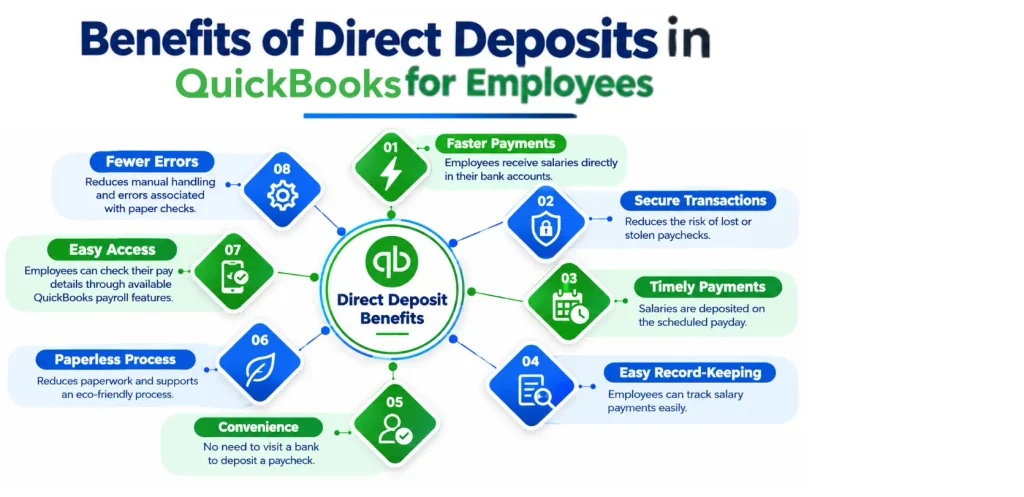
Benefits or set up Direct Deposits in QuickBooks for Employees
BenefitExplanation
Faster PaymentsEmployees receive salaries directly in their bank accounts.
Secure TransactionsReduces the risk of lost or stolen paychecks.
Timely PaymentsSalaries are deposited on the scheduled payday.
Easy Record-KeepingEmployees can track salary payments easily.
ConvenienceNo need to visit a bank to deposit a paycheck.
Paperless ProcessReduces paperwork and supports an eco-friendly process.
Easy AccessEmployees can check their pay details through available QuickBooks payroll features.
Fewer ErrorsReduces manual handling and errors associated with paper checks.

Does My QuickBooks Payroll Plan Include Direct Deposit?

Yes! All QuickBooks Payroll plans include direct deposit, and the processing speed depends on which tier you use. Read the information below for additional details:

  • QuickBooks Online Payroll Core includes next-day direct deposit. You need to submit payroll by the cutoff the day before the planned payday.
  • QuickBooks Online Payroll Premium includes same-day direct deposit. Employees receive the funds that same business day on the payday when you submit the payroll by 7:00 AM PT on the same business day.
  • QuickBooks Online Payroll Elite includes same-day direct deposit. It features a 7:00 AM PT same-day processing cutoff like the Premium tier.
  • QuickBooks Desktop Payroll contains Direct deposit. It must be set up and verified through a bank test debit before your first active run. Separate transaction fees may apply based on the desktop plan.
  • When it comes to contractor direct deposit, all online plans support direct deposit for 1099 contractors. It is managed through the account’s contractor dashboard. For year-end payroll tasks, you may also need to Print W-2 Forms in QuickBooks for eligible employees.

Conclusion!

Set up direct deposit in QuickBooks can make payroll faster and easier to manage. It eliminates the need for paper checks. Complete the required payroll setup, verify the business & banking information to streamline employee payments and reduce routine administrative work. Keeping QuickBooks updated and completing the QuickBooks Payroll Tax Table Update when required can also help prevent avoidable payroll issues. Expert assistance can help you move forward when you encounter difficulties managing direct deposit.

Need a smooth payroll setup? Connect with the Data Service Team experts at +1(888)-718-7888 for practical guidance and personalized assistance with QuickBooks direct deposit. Let our specialists help you simplify payroll.

Frequently Asked Questions (FAQ’s)

Enter business details, federal EIN, principal officer information, and company bank account credentials to enable the feature in company setup and set up direct deposit in QuickBooks Payroll. Have each employee fill out a signed direct deposit authorization form along with a voided check. Navigate to the Employees tab in QuickBooks, select the employee, edit their payment method to direct deposit, input bank routing and account numbers, and save.

Go to the Employees or Payroll menu and select My Payroll Service/Activate Direct Deposit to activate direct deposit in QuickBooks Payroll. Sign in with your Intuit Account. Enter company and principal officer details. Enter the small test debit amounts/verify the bank credentials to link the business bank account and complete the verification process.

Sign in as the QuickBooks Admin and go to the Employees menu to activate direct deposit in QuickBooks Desktop. Select My Payroll Service and click Activate Direct Deposit to launch the setup wizard. Log in to your Intuit Account and fill out company & principal officer details. Connect/enter the business bank routing and account numbers to create a secure Direct Deposit PIN. Submit the application and verify the bank account when prompted by entering the small test debit amounts deposited. Assign direct deposit information to each individual employee through the Employee Center.

You need the company’s legal name, address, federal Employer Identification Number (EIN), principal officer details, and business bank account routing & account numbers. You generally need the employee’s bank account type, routing number, account number, and required direct deposit authorization.

Wait 2 to 3 business days for two small test transactions to appear on your online bank statement and log in to your QuickBooks account to verify a bank account for QuickBooks Direct Deposit. Navigate to payroll settings or overview and enter the exact transaction amounts to confirm & activate the service.

Activating direct deposit in QuickBooks takes anywhere from immediate (if you connect your bank account instantly via Instant Bank Verification) to 2 to 3 business days. It also applies if Intuit has to send a test debit of less than $1.00 to verify bank account details.

Navigate to Payroll and select Employees to set up an employee for direct deposit in QuickBooks Online. Choose the target employee and click Start or Edit next to Payment method. Select Direct deposit and enter the employee’s bank account type. Provide the routing number and account number from a voided check/authorization form before saving the changes.

The QuickBooks direct deposit activation option is missing because of outdated software/payroll tax tables, an inactive/unverified bank account, and other issues. In some cases, it can also stem from known system glitches where current server-side investigations require contacting support to resolve backend configuration blocks.

You should first check payroll run status and submission timing when QuickBooks Direct Deposit is not working. This ensures you met the 5:00 PM PT cutoff at least two banking days before the pay date. Verify that company & employee bank account details are active and accurate. Void the original entry and fix the underlying banking/verification error if a paycheck is rejected. Reissue the payment through the QuickBooks Direct Deposit/Intuit QuickBooks Payroll service.

About The Author

Steven Moody

Steven Moody is a bookkeeping and payroll specialist dedicated to helping businesses maintain accurate financial records and efficient payroll operations. His expertise includes payroll management, tax compliance, bookkeeping solutions, and financial reporting. Steven regularly shares insights on accounting best practices and business finance strategies. Outside of work, he enjoys traveling, exploring new places, and keeping up with the latest developments in business technology.

Steven Moody

QuickBooks

How to Upgrade QuickBooks Desktop to 2024 (Old Versions)

Read More
QuickBooks Error

QuickBooks Error 6154: How to Fix Invalid File Path and Access

Read More
QuickBooks Error

QuickBooks Error 6144 82: How to Fix Company File Access Issues

Read More
Payroll

How to Add Employee to QuickBooks Payroll: Step-by-Step Guide

Read More
QuickBooks Error

QuickBooks Error 6147, 0: Fix Company File and Backup Issues

Read More
