QuickBooks Error Code PS038 can often be fixed by locating paychecks stuck at “Online to Send,” repairing company-file data, and downloading the payroll update again. Before changing payroll transactions, create a backup of your company file.
This issue usually shows up when you’re trying to download or install payroll updates, and it can cause the update process to freeze or fail. While it may look serious at first, QuickBooks Error PS038 is a payroll update error that can occur when QuickBooks has difficulty processing payroll transactions. and can usually be fixed with a few simple troubleshooting steps.
In this guide, we’ll walk you through an easy, step-by-step way to troubleshoot QuickBooks error PS038 so you can get back to running payroll without unnecessary delays.
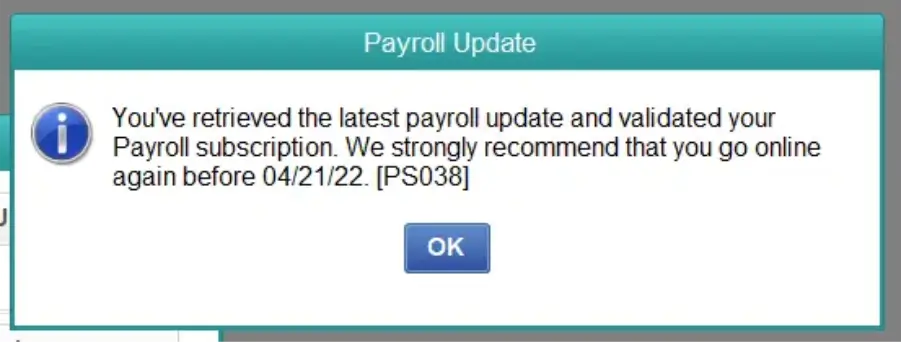
QuickBooks error PS038 is a payroll update issue that occurs when the system is unable to complete or process payroll data correctly.
In most cases, it shows up when one or more paychecks are stuck with an “Online to Send” status. This means QuickBooks is still trying to send or sync those payroll transactions, which blocks the update process from moving forward. As a result, the payroll update fails, and the software cannot download the latest tax table or payroll changes.
QuickBooks Error PS038 is commonly associated with payroll transactions that remain stuck with an “Online to Send” status. When QuickBooks cannot properly process or transmit those transactions, the payroll update may not complete. Other issues, such as company-file data problems, outdated QuickBooks Desktop components, or connectivity and installation problems, may also interfere with payroll updates.
Understanding the possible causes can help you identify the issue and apply the appropriate solution. Let’s explore each of the possible causes one by one:
Note: If payroll updates keep failing, see our guide to QuickBooks Error PS032 or Error 15276 explains the causes, symptoms, and effective fixes to get QuickBooks working again.
By following the troubleshooting methods below, you can restore normal payroll update functionality. Here are the top 8 solutions to resolve QuickBooks error PS038 when updating payroll:
Running the latest version of QuickBooks Desktop can help eliminate payroll update errors by installing important fixes, performance enhancements, and compatibility updates.
Note: If you use QuickBooks in a multi-user environment, make sure the Database Server Manager is also updated to maintain seamless connectivity and performance.
Stuck paychecks can block payroll updates and trigger QuickBooks Error PS038, so they need to be identified and reset properly.
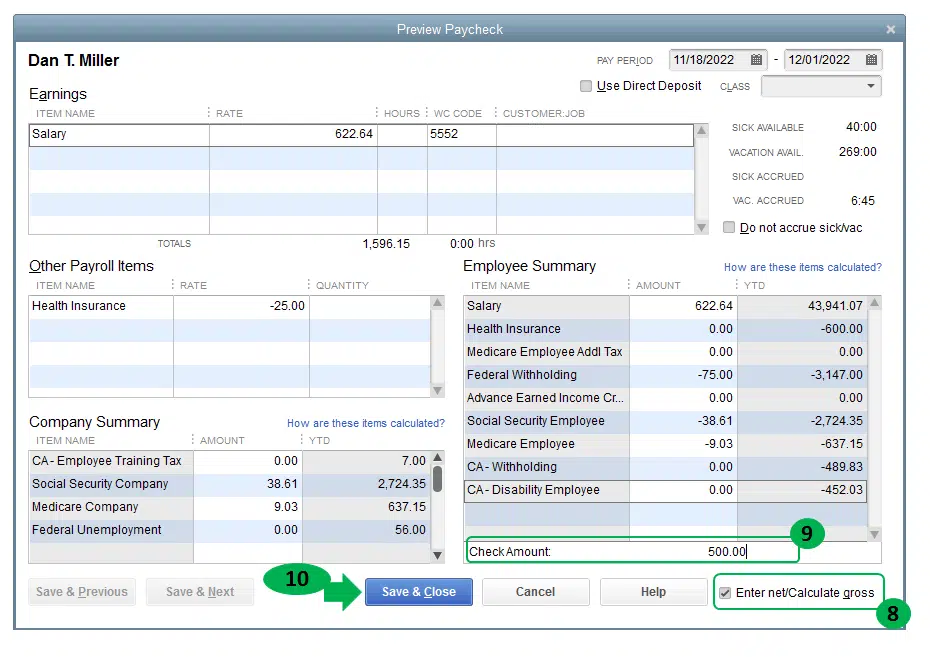
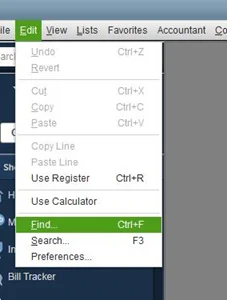
Start by locating paychecks that are stuck in the sending queue and then repair any data issues within the company file.
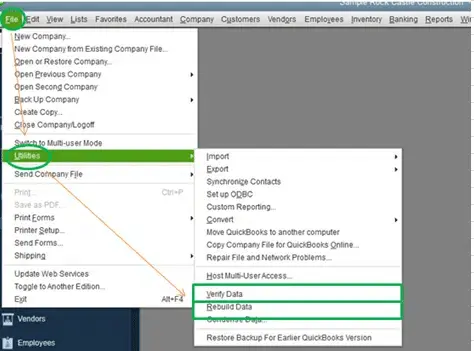
Note: If you are also experiencing issues while downloading or installing payroll updates, check our guide on QuickBooks Error PS033 for additional troubleshooting solutions.
Manually resetting stuck paychecks helps refresh their status and allows payroll updates to process correctly.
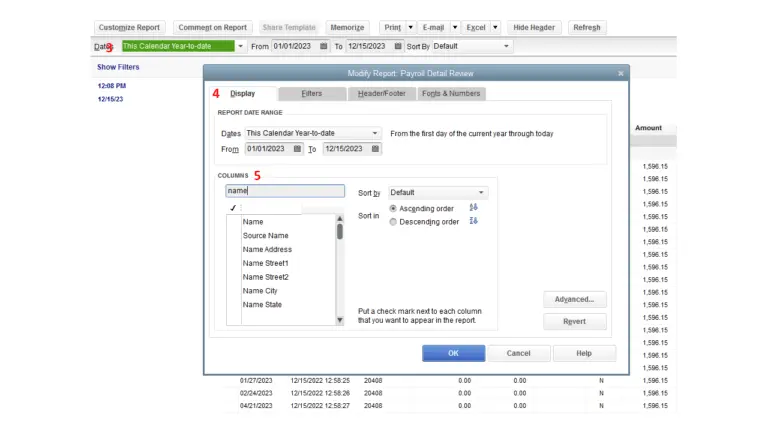
Before making any significant changes to your QuickBooks data, it’s a good idea to create a backup. This ensures your financial information remains protected and can be restored if needed.
Data integrity issues within your company file can often trigger payroll update errors like QuickBooks Error PS038. Let’s repair the QuickBooks company file data by Verifying and Rebuilding the company file data:
Use the Verify Data tool to check your company file for errors or data damage.
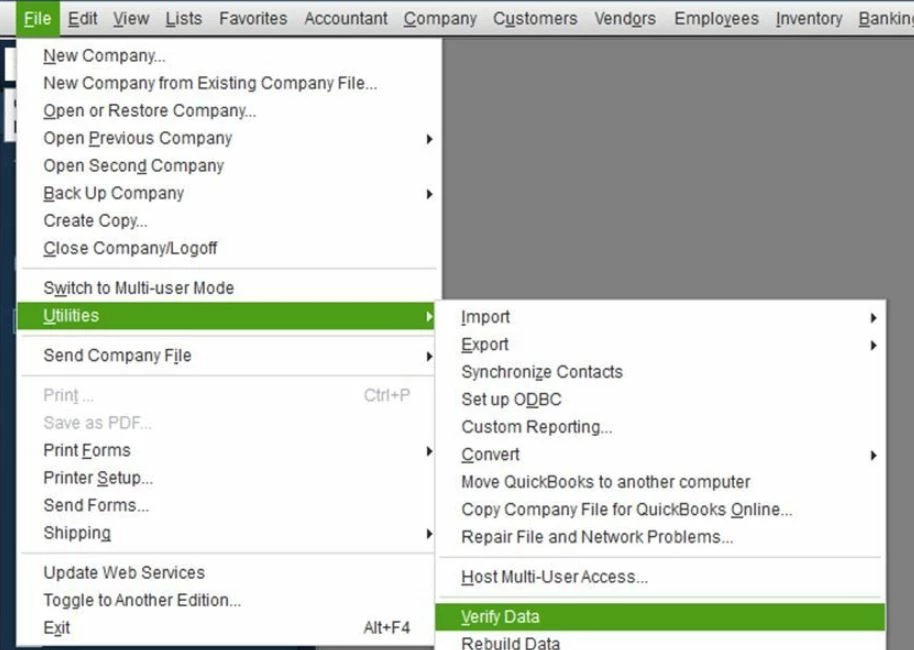
Results:
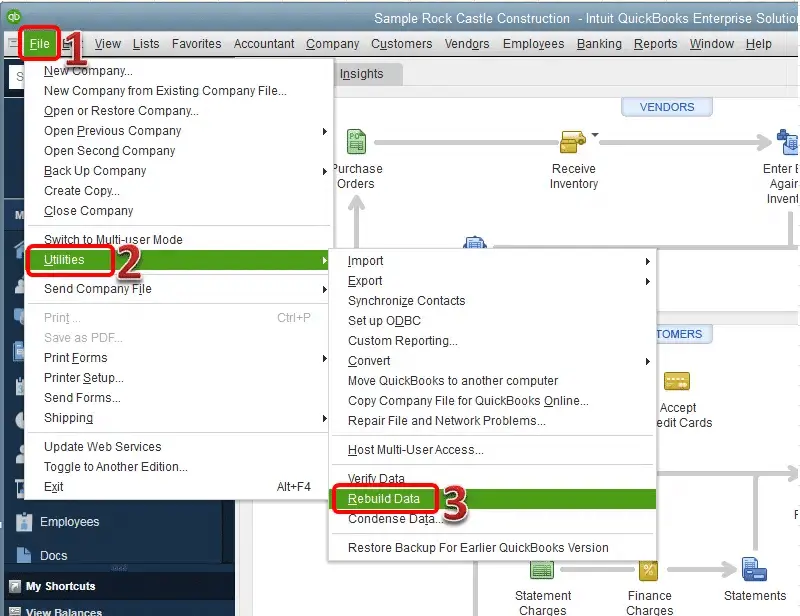
If the Verify Data tool detects data damage, use the Rebuild Data utility to repair your company file. Make sure to create a backup before proceeding.
Note: If you use Assisted Payroll, contact us before rebuilding your data.
An active payroll subscription is required for payroll updates to work properly, and an outdated or inactive service can lead to errors like QuickBooks Error Ps038 or Error PS077.
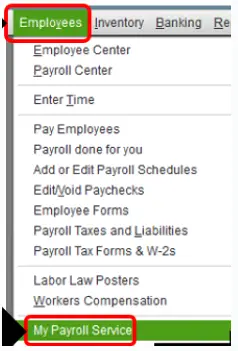
Note: If your payroll subscription is inactive or you encounter problems while validating your payroll service, see our guide on QuickBooks Error PS036 to learn how to troubleshoot the issue.
Corrupted program files or installation issues can cause payroll update errors like QuickBooks error PS038, so repairing QuickBooks Desktop can help restore proper functionality.
Quick Fix My Program can help close background QuickBooks processes and troubleshoot certain program-related issues.
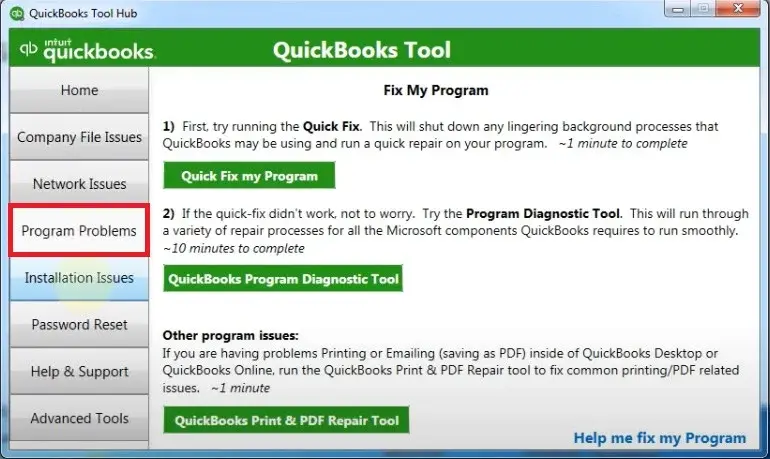
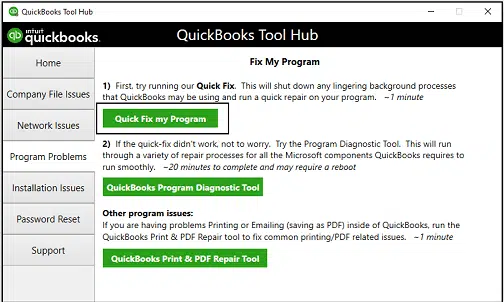
Installation issues or corrupted program components can also trigger payroll update errors, so repairing the installation may help resolve the problem.
After completing the repair, check for available QuickBooks Desktop updates if the payroll update still fails.
QuickBooks error PS038 can stop payroll updates and create issues while downloading the latest tax tables. This usually happens when an update gets stuck or there’s a small glitch in the system.
By following the detailed steps above, such as updating QuickBooks, checking your company file, or running the payroll update again, you can resolve the error. For fast and reliable support, call our QuickBooks experts now at +1(888)-718-7888 and get your payroll back on track in no time.
QuickBooks error PS038 is a payroll update error that occurs when one or more paychecks are stuck at “Online to Send” status. This prevents QuickBooks Desktop from properly syncing payroll data with Intuit’s servers during a payroll update or tax table download.
To fix payroll error PS038 in QuickBooks, start by identifying any paychecks stuck in “Online to Send” status using the Find feature. Then open each one, resend it, or slightly edit it and save it to force a sync. After clearing the stuck transactions, run Verify Data and Rebuild Data to repair any company file issues, and then try downloading the payroll updates again.
Running Verify Data and Rebuild Data in QuickBooks Desktop can sometimes help fix QuickBooks error PS038, but it is not a guaranteed solution. It mainly works when the error is caused by data integrity issues or minor file corruption.
No, you generally will not lose payroll data because of PS038. The error is related to sync and transmission issues, not deletion of records in QuickBooks Desktop. Also, the Rebuild Data tool creates a backup before making changes, so your payroll data remains safe.
Open QuickBooks Desktop and review your payroll update or payroll data status. Look for pending or unsent payroll transactions that may prevent the latest payroll update from completing successfully.
QuickBooks Error PS038 may occur when payroll data is stuck or pending for submission. Outdated software, connection problems, or incomplete payroll updates can also contribute to the issue.
Paychecks can remain stuck at “Online to Send” when QuickBooks cannot properly process or transmit payroll data. Outdated software, company-file issues, connectivity problems, or payroll service errors may prevent the transactions from being sent.
Yes. You usually do not need to reinstall QuickBooks. First, update QuickBooks Desktop, identify stuck paychecks, verify and rebuild company data, check your payroll subscription, and use QuickBooks Tool Hub if program issues are suspected.
If PS038 appears after a payroll update, check for paychecks marked “Online to Send.” Update QuickBooks again, verify your company file, check your payroll subscription, and retry the payroll update after resolving any stuck transactions.
Open QuickBooks Desktop and go to Employees > My Payroll Service > Manage Service Key. Check that the payroll service status shows Active and verify that the correct service key is configured.
If PS038 continues after rebuilding data, check for remaining “Online to Send” paychecks, confirm your payroll subscription is active, update QuickBooks, and run QuickBooks Tool Hub repair tools before attempting the payroll update again.

Get Free Consultation for QuickBooks Upgrade
(2021, 2022, 2023)