Encountered QuickBooks Error 12007 right in the middle of updating your payroll? We understand that it can instantly bring the daily accounting tasks to a screeching halt. The common connection timeout issue occurs when your network settings, firewall, or Internet Explorer configuration is incorrect. This error means QuickBooks can start a connection but fails to read data successfully. QuickBooks Error 12007 is provoked when QB Desktop is unable to communicate with the internet or your internet connection is experiencing technical difficulties.
This guidance will help you understand the causes, symptoms, and preventions, along with simple methods so you can resolve this error and avoid facing it again.
QuickBooks Update Error 12007 occurs when system files are misconfigured which causes registry errors in your operating system.
Security programs on the computer can mistake the QuickBooks update process for a threat and block its access to the internet.
Dropped packets, high latency, or sudden network outage can cut off the communication link between the computer and Intuit’s server.
Incorrect SSL protocol configuration in your system’s Internet Options can prevent secure connections.
Internet components may fail if Internet Explorer is not set up as the default web browser.
Slow response times can cause the update utility to time out before data transfer finishes.
Wrong system clock settings can conflict with digital security certificates required during online verification.
Running an older and unpatched release of QuickBooks Desktop. It can lead to compatibility issues with current server requirements.
Competing software restrictions can intercept network traffic meant for QuickBooks.
Data Service Team Tip: Struggling with QuickBooks Error 12007? This common issue arises due to connectivity problems or misconfigured settings. Get in touch with us now for live assistance.
How Can You Identify QuickBooks Desktop Error 12007?
QuickBooks Error 12007 occurs when there is a problem with your internet connection and prevents QB from accessing the internet. Check out the signs that indicate this desktop error:
QuickBooks file system error 12007 in Windows 10 pops up on the computer screen during an active task.
The software fails to download the latest software updates. If your QuickBooks Update Stuck, check our detailed troubleshooting guide.
Payroll service updates get stuck or fail.
The active program window responds slowly to commands.
The Windows operating system experiences performance slowdowns.
Internet connection inside QuickBooks drops during server communication.
Web-dependent features and online services refuse to load.
The computer’s active screen stops responding when trying to sync data.
How Does QuickBooks Error 12007 Affect Functioning?
It is essential to understand the consequences of facing this error so you can make an informed decision. QuickBooks Update Error 12007 is an issue that occurs while you are trying to update QB or its payroll service. Read the given pointers carefully:
Stop the download of critical maintenance releases and new QuickBooks Desktop features.
Prevent updating employee tax tables and direct deposit details.
QuickBooks file system error 12007 in Windows 10 can lead to sluggish behavior or crashing while attempting background web syncs.
Displays a network timeout message because the connection to server drops.
Blocks built-in features, bank feeds, and live verification services inside the app.
Forces users to pause financial tasks until internet connectivity and security permissions are fixed.
Signals underlying misconfiguration in Internet Explorer settings.
Shows that third-party antivirus programs are blocking QuickBooks processes.
QuickBooks Error 12007 occurs due to internet issues or security settings. Fix it now with Data Service Team Experts’ guidance to restore updates and payroll functionality.
Easy Methods To Troubleshoot QuickBooks Desktop Error 12007
There are various ways to fix the QuickBooks error 12007. Try each method on the system until the issue is resolved.
Method 1: Check Your Internet Connectivity Status
The initial step is to verify the internet connection to resolve the QuickBooks Desktop Error 12007. An unstable connection can cause various issues like interruptions in the update process. Follow these steps to assess the internet connection.
Launch Internet Explorer and navigate to a secure website such as google.com.
Download and run the TLS 1.2 utility.
Verify which browser is set as your Default.
If you are able to connect to the internet, proceed to the next troubleshooting step.
However, if you are experiencing difficulties accessing the internet, please reach out to your IT professional or contact Data Service Team experts right away.
Method 2: Verify and Correct Date & Time Settings
Incorrect date and time settings can disrupt QuickBooks update process.
Select the system clock on your desktop.
Choose Adjust Date/Time.
Click Change Date and Time and set the correct values.
Select OK and restart QuickBooks.
Again, run QuickBooks Desktop and update.
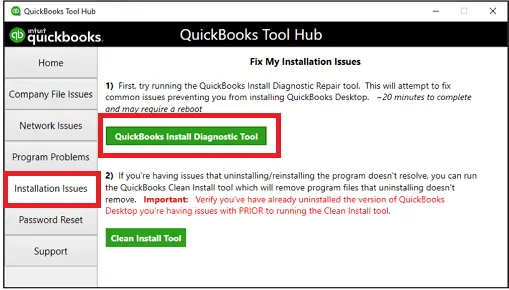
Method 3: Reinstall QuickBooks Using Tool Hub
Reinstall QuickBooks using the Tool Hub to fix issues related to installation, such as Error 12007 in QuickBooks Desktop.
To Uninstall QuickBooks:
Get the Control Panel.
Navigate to the Programs and Features.
Select Uninstall a Program option.
Move to QuickBooks Desktop from the list.
Click on Uninstall option.
Allow the process to finish and the application will be removed.
To Reinstall QuickBooks:
Download QuickBooks Desktop from the Intuit website.
Verify that system requirements are met (e.g., 4GB of free RAM).
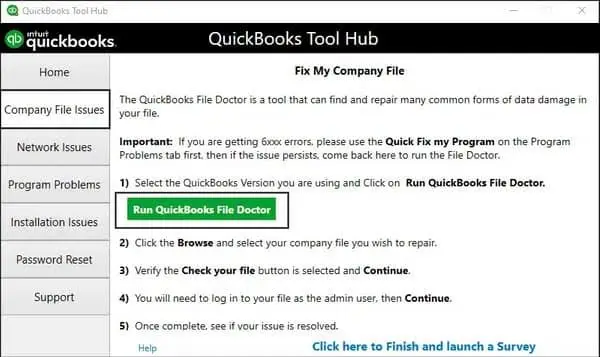
Data Service Team Tip: If you are unable to open QuickBooks File Doctor, search for QuickBooks Desktop File Doc manually and open it.
Select your company file from the drop-down list in QB File Doctor.
If the file is not visible, click Browse and locate the data file.
Select Check your file > Continue.
Enter the QB admin password > Next to grant access.
The duration of the scan is based on the size of the company file and could take up to 10-15 minutes. It might also indicate it was unsuccessful, even if it resolves QuickBooks Error 12007. Once finished, open QuickBooks and access your company file.
Method 11: Use the Verify and Rebuild Tool
If your system is experiencing data integrity problems, you may encounter QuickBooks error 12007. Follow these steps to resolve this issue.
Go to the Window option.
Select the Close All option.
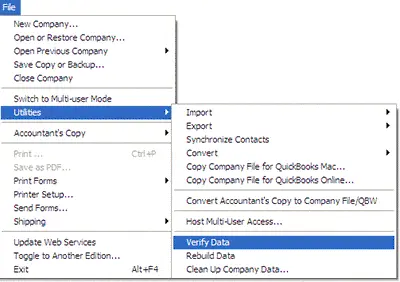
Navigate to the File section and choose Utilities.
Select Verify Data.
If QuickBooks indicates no problems with your data, it confirms your data is intact and no further action is necessary.
Repair the data integrity of the file if you receive the message “Your data has lost integrity,“.
Proceed to the rebuild company data section:
Access the File menu.
Go to the Utilities tab.
If QuickBooks prompts you for a backup, create one.
Click OK.
After the backup process is completed and saved, QuickBooks will rebuild the company file.
Keep QuickBooks software updated for business efficiency and financial accuracy. Here is why using the latest version matters:
Patches protect sensitive financial data from new cyber threats.
Automation accurately reflects the latest federal and state tax laws.
Software updates resolve known glitches and prevent system crashes.
Latest versions sync with modern bank feeds and other apps.
Updates introduce innovative automation tools and deep insights.
Intuit provides customer service and payroll services for live versions.
Code optimization increase loading period and report generation.
Modern file structures reduce the risk of company file corruption.
Crucial Prerequisites to Fix QuickBooks Error 12007
Resolving update issues in QB requires the consideration of a few prerequisites. Error 12007 in QB Desktop happens when the client is refreshing Payroll administrations or programming. These considerations are:
The internet connection must active and able to load secure external websites.
Set Internet Explorer as the Default Web Browser.
Ensure QuickBooks Desktop depends on its main internet settings.
Navigate to Control Panel > Internet Options > Advanced. Make sure the option for Use TLS 1.2 is selected.
Right-click the system clock in Windows to verify that your local date, time, and time zone are correct to prevent handshake errors with the server.
Adjust the security software to permit QuickBooks executables to open network ports 80 and 443.
Adjust the company file setup to single-user mode to download update packages.
You will exit the software and restart QuickBooks Desktop.
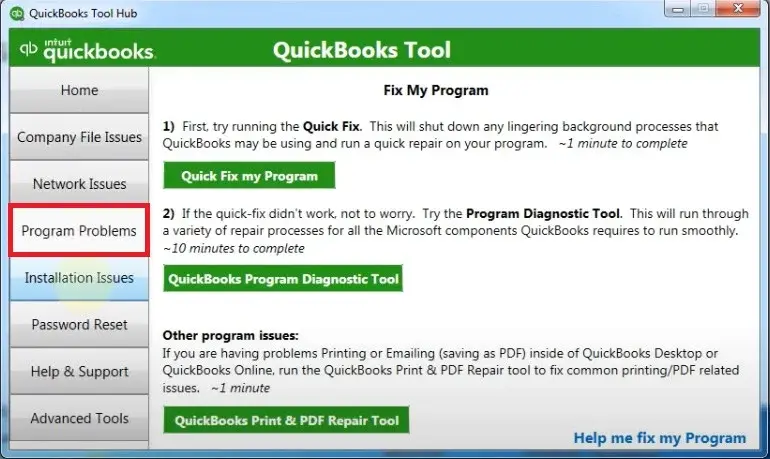
Download and prepare the QuickBooks Tool Hub on the computer to perform quick program and network diagnostic repairs if you continue to experience timeouts.
How to Avoid Facing QuickBooks Update Error 12007 Again?
Users can avoid this update error again in the future, but ensure to follow the given prevention tips:
Check Internet Stability – Open external secure web pages in a standard browser to test your active network connection.
Enable TLS 1.2 Protocols – Open Internet Options from the Windows Control Panel and go to the Advanced tab. Ensure TLS 1.2 is checked.
Configure Firewall Exceptions – Adjust the Windows Defender settings to allow QuickBooks executable files full outbound access.
Whitelist Antivirus Ports – Add exceptions for ports 80 and 443 in the security software so update files are not blocked.
Set Default Browser – Confirm that Internet Explorer is configured and set as the default connection handler for web processes.
Correct System Clock – Right-click the taskbar clock to check the date and time settings of the computer. It must match the accurate local time zone.
Reset Update Settings – Move to the Help menu in QuickBooks and select QuickBooks Desktop. Move to Options and use the reset option to clear stuck files.
Run as Administrator – Launch QuickBooks with full administrator rights to start large software and prevent permission blocks.
Conclusion!
QuickBooks Error 12007 can be an irritating obstacle for users trying to manage their financial tasks. Understand the potential causes of this error like internet connectivity issues, incorrect configuration settings, or firewall restrictions to resolve the QuickBooks file system error 12007 in Windows 10. The solutions outlined in this blog will guide you to resolve this issue. Just verify network connections, update QuickBooks, adjust security settings to restore functionality and ensure seamless operations.
Reach out to the Data Service Team’s technical expert +1(888)-718-7888 for further assistance if the issue still persists. You can overcome QuickBooks Error 12007 with the right approach.
Frequently Asked Questions (FAQ’s)
This issue happens due to a connection timeout caused by firewall blocks, misconfigured browser properties, incorrect SSL/TLS settings, etc. It means general web browser works fine even though the specific server path for QuickBooks updates is blocked.
Yes! This error occurs on both Windows 10 and Windows 11 because it is a network connectivity timeout issue rather than an operating system-specific bug. QuickBooks Update Error 12007 happens when the software fails to reach Intuit servers during an update due to shared environmental factors. It includes unstable internet or legacy browser security settings present across both platforms.
You must check the internet connection, update SSL/TLS settings in Internet Options, and configure firewall to fix QuickBooks Desktop Error 12007. Verify the network and open Internet Options from the Control Panel to ensure TLS 1.2 is enabled. Adjust the firewall settings to obtain QuickBooks access.
QuickBooks error 12007 is a network timeout issue that indicates the software cannot connect to the server due to a connection timeout. Other 12xxx errors cover different WinINet connectivity and configuration failures like 12002, 12029, 12057.
Ensure a stable internet connection, configure firewall and antivirus exceptions for QuickBooks executables and enable TLS 1.2 in your Windows internet settings to avoid QuickBooks update errors like Error 12007.
Verify the internet connection and ensure Internet Explorer uses TLS1.2 to fix QuickBooks error 12007. Also, check that the firewall is not blocking QuickBooks ports 80 and 443. Review the connection setup inside QuickBooks and do not reinstall the application.
Error 12007 is not certain to any single release. It is a general network timeout issue that can affect any supported version of QuickBooks Desktop whenever the application fails to connect to the internet during an update.
About The Author
Steven Moody is a bookkeeping and payroll specialist dedicated to helping businesses maintain accurate financial records and efficient payroll operations. His expertise includes payroll management, tax compliance, bookkeeping solutions, and financial reporting. Steven regularly shares insights on accounting best practices and business finance strategies. Outside of work, he enjoys traveling, exploring new places, and keeping up with the latest developments in business technology.