QuickBooks-Fatal-Error

Are you experiencing unexpected crashes within QuickBooks? It can be a QuickBooks Fatal Error that can freeze the application and disrupt accounting tasks. It does not allow access to important company data. This issue may occur because of outdated software, damaged company files, compatibility problems, incorrect installation, etc.

You must understand the possible causes and signs to troubleshoot this error with ease. In this blog, we will provide information on common causes, symptoms of QuickBooks Fatal Error, practical troubleshooting methods, preventive measures, and useful tips to keep QuickBooks running seamlessly.

What Does QuickBooks Fatal Error Mean?

This error means the software has encountered a critical and non-recoverable issue. It forces a crash immediately to prevent further system damage. This severe interruption happens when the software hits corrupted program files, damaged Windows system components, a broken company data file, etc. You are kicked out of the software with a sudden error message when a QuickBooks Fatal Error occurs. It risks unsaved data loss and requires troubleshooting tools like the QuickBooks Tool Hub.

A fatal error may appear when QuickBooks crashes during startup, while opening a company file, during installation, or while performing accounting tasks. Depending on the underlying cause, the problem may also resemble a QuickBooks Unrecoverable Error, particularly when the application closes unexpectedly or displays an error message.

Why Do You Encounter QuickBooks Fatal Error?

QuickBooks Fatal Error can occur during startup, installation, company-file access, software updates, or regular accounting tasks. The underlying cause may be related to QuickBooks program files, company data, Windows components, permissions, or system configuration.

  • Damaged setup files can interrupt the installation process.
  • An outdated Windows version causes QuickBooks Desktop Fatal Error.
  • Lack of administrator privileges prevents QuickBooks from installing properly.
  • Antivirus software may block QuickBooks installation files.
  • Leftover files from an older version can interfere with a new installation.
  • Low available storage can stop the installation from completing.
  • Issues with components such as Microsoft .NET Framework trigger QuickBooks Fatal Error.

How to Resolve QuickBooks Desktop Fatal Error?

There are various solutions available to resolve this fatal error and make QuickBooks Desktop function smoothly. Consider the stepwise guidance given below:

Solution 1: Restart Your Computer

Follow the given straightforward instructions to restart the device and verify if the issue has been fixed.

  • Click the Start menu to restart Windows.
  • Select Power and then choose Restart.
  • Click the Apple icon and select Restart for Mac.
  • After your system reboots, launch QuickBooks and see if the issue has been addressed.

Solution 2: Run QuickBooks as an Administrator

  • Find the QuickBooks Desktop shortcut on the Windows Desktop.
  • Right-click QuickBooks Desktop to open the context menu.
  • Click Run as Administrator from the menu.
  • Select Yes if Windows asks to allow this app to make changes to this device.
  • After QuickBooks starts, open the company file and check whether the issue has been resolved.

Solution 3: Update QuickBooks Desktop

In most cases, the primary reason is missing updates when the QuickBooks Desktop Fatal Error occurs. You have the option to configure QuickBooks to automatically download updates.
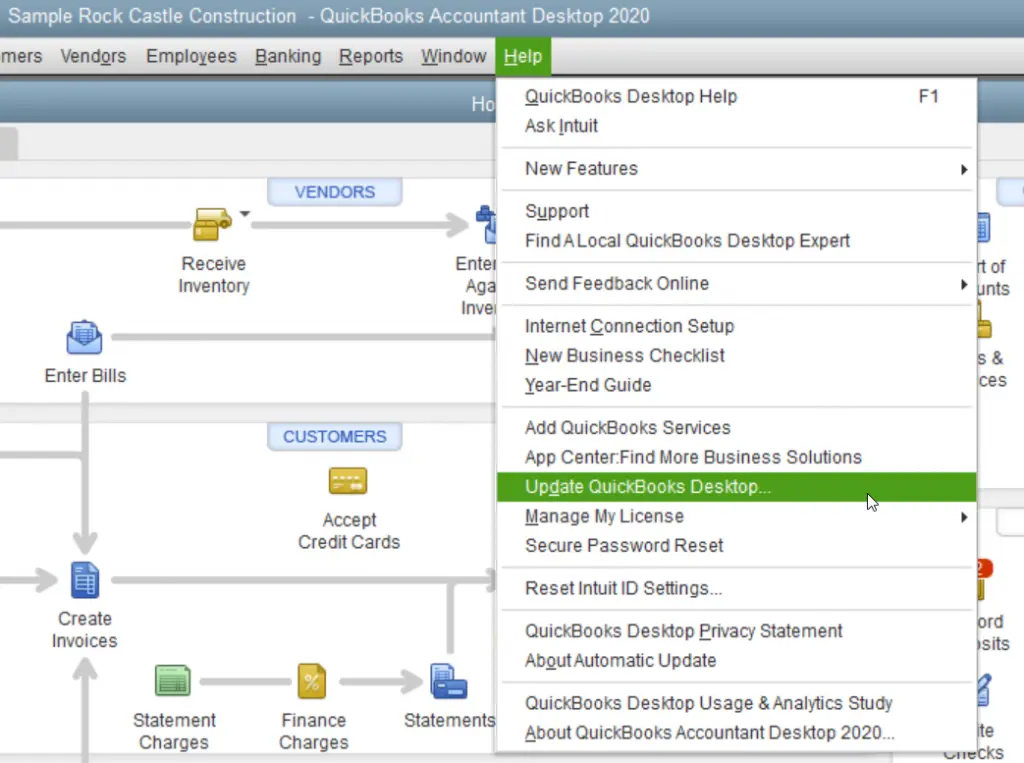
Set up Automatic Updates

  • Navigate to Help and choose Update QuickBooks Desktop.
Update-QuickBooks-Desktop
  • Click on the Options tab.
  • Select Yes to turn on automatic updates.
  • Click Close.

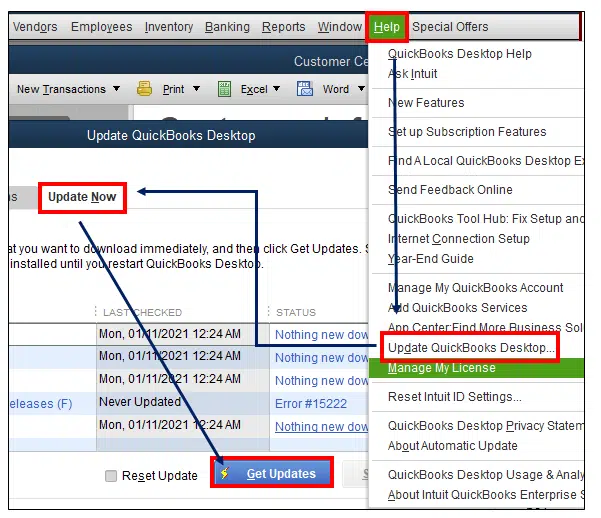
Schedule an Instant Update

  • Go to Help and choose Update QuickBooks Desktop.
  • Click on the Update Now tab.
  • Select Get Updates.
Get Updates
  • Once the update is complete, restart QuickBooks.
  • When prompted to install the update, choose Install Now.
  • You can set QuickBooks to download updates automatically or initiate an immediate update.

Solution 4: Use QuickBooks Tool Hub

  • Shut down QuickBooks Desktop.
  • Install the latest edition of QuickBooks Tool Hub.
  • Save the file in a quick, accessible location, like your Downloads folder.
  • If you are unable to locate the file after downloading, search your computer for “QuickBooksToolHub“.
  • Open the file you downloaded (named QuickBooksToolHub.exe).
  • Follow the given instructions on the screen to install and accept the conditions.
  • Once it is complete, double-click the QuickBooks Tool Hub icon on the Windows desktop to launch it.
  • Click on the Home tab when the tool hub is open to verify the version.

Solution 5: Run QuickBooks Install Diagnostic Tool

If there were issues during the installation of QuickBooks, it may lead to difficulties when using the program. Utilize the QuickBooks Install Diagnostic Tool to resolve typical installation problems like QuickBooks Fatal Error.

  • Launch the QuickBooks Tool Hub and select Installation Issues.
  • Choose the QuickBooks Install Diagnostic Tool.
  • Allow the tool to run, as this process may take up to 20 minutes.
  • Once the tool completes, reboot your computer and open QuickBooks Desktop.
  • Access your data file.
  • Ensure that your QuickBooks is updated to the latest version, which guarantees you have the most recent fixes and security enhancements.

Solution 6: Perform a Clean QuickBooks Installation

If damaged or leftover QuickBooks files are causing the fatal error, use the QuickBooks Clean Install Tool to remove old installation files before reinstalling QuickBooks Desktop.
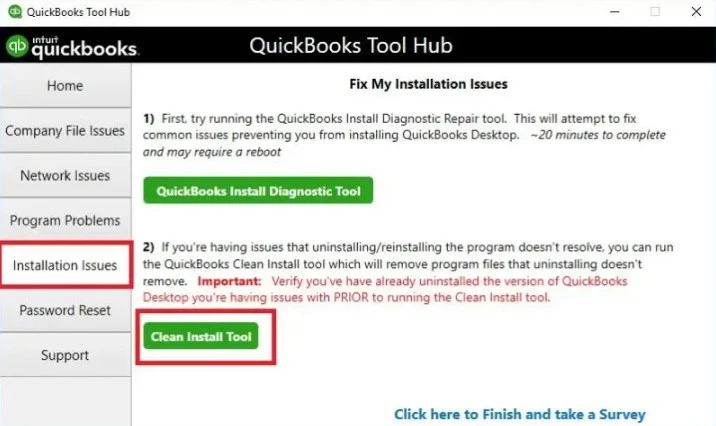
quickbooks-Clean-Install-tool
  • Uninstall QuickBooks Desktop once more.
  • Open the Windows Start menu.
  • Type File Explorer in the search field and hit Enter.
  • Find the QuickBooks company file directory and access it. Typically, the QuickBooks file directory can be located in these paths:
    • C:\ProgramData\Intuit\QuickBooks (year)
    • C:\Users(current user)\AppData\Local\Intuit\QuickBooks (year)
    • C:\Program Files\Intuit\QuickBooks (year) – 64-bit version
    • C:\Program Files (x86)\Intuit\QuickBooks (year)
  • Right-click on that folder and select Rename.
  • Then, append the word “old” to the end of the folder name.
  • This will stop QuickBooks from accessing it during the reinstallation process.

Once you have finished the uninstallation, proceed to install QuickBooks Desktop again. During the reinstallation, QuickBooks will create new folders and rename your existing ones.

Solution 7: Repair QuickBooks Desktop

The QuickBooks Tool Hub offers various utilities such as Quick Fix My Program to resolve QuickBooks Fatal Error. Here is how you can use them:

Data Service Team Tip: Ensure you download the latest version of QuickBooks Tool Hub (1.6.0.8). You need to close QuickBooks to access the Tool Hub. It is advised to use the Tool Hub on Windows 11 (64-bit) for optimal performance.
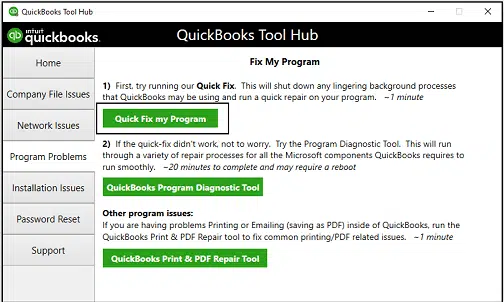
Use Quick Fix My Program

  • The Quick Fix My Program feature will terminate any background processes that QuickBooks relies on and perform a quick repair of the software.
  • Launch the QuickBooks Tool Hub.
  • Navigate to Program Problems in the left-hand menu.
  • Click on Quick Fix My Program.
Run-Quick-Fix-My-Program
  • Open QuickBooks Desktop and access the company file.

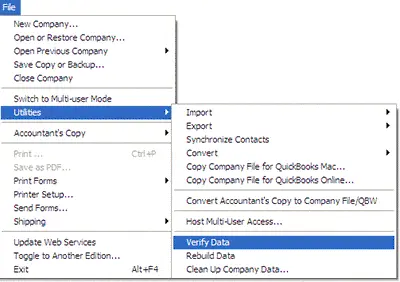
Solution 8: Verify and Rebuild the File Data

Confirm your Company Information

  • Utilize the Verify utility to check your company file for any issues or data corruption.
  • Navigate to Window and choose Close All.
  • Select File and then click on Utilities.
  • Click Verify Data. If you encounter:
    • QuickBooks found no issues with your data – everything is intact, and you do not need to take further action.
    • An error notification – Refer to the QuickBooks Desktop support website for guidance on resolving it.
    • Your data has compromised integrity – Rebuild your data to fix the damage.
Verify-data

Rebuild the Company File Data

If the verification tool detects data damage, use the rebuild tool to fix your company file. A backup must be created before you can initiate the rebuild process.

Note: If you are using Assisted Payroll, please reach out to us prior to rebuilding your data.
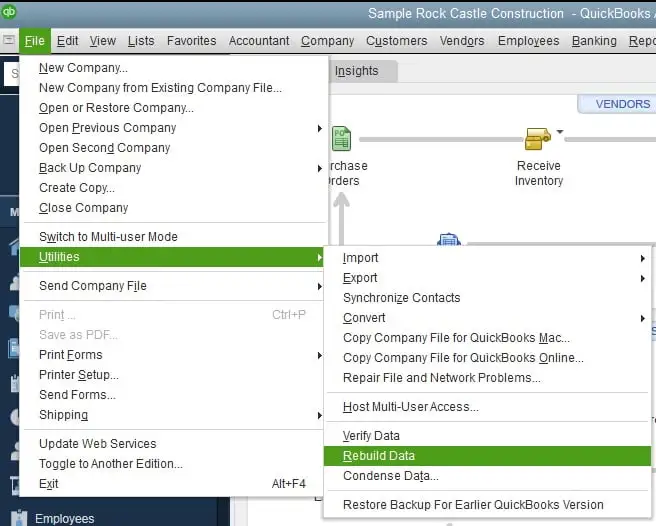
  • Navigate to File, then Utilities, and choose Rebuild Data.
Rebuild-Data
  • The system will ask you to create a backup and proceed with the rebuild of your company file.
  • Click OK.
  • Choose the location where you want to save your backup and then click OK.
  • Do not replace an existing backup file.
  • Provide a new name in the File name field and click Save.
  • Click OK when you see the message like “Rebuild has completed.”

If you suspect that your company file contains damaged data, use Verify and Rebuild Data in QuickBooks Desktop. The Verify Data tool checks for data integrity issues, while Rebuild Data can repair certain problems found in the company file.

Solution 9: Rename QBWUSER.INI File

The QBWUSER.INI is a file related to the QuickBooks program that retains the product registration details. If this file becomes corrupted, it can lead to a QuickBooks Fatal Error. Let’s fix the QBWUSER.INI file by following the steps outlined below.

  • Open Windows File Explorer and go to \Users\User Name\AppData\Local\Intuit\QuickBooks to locate the QBWUSER.INI file.
  • If you are unable to find the file, click on Folder and Search Options under the Organize tab.
  • Check the option to Show hidden files under the View tab.
  • Click Apply and select OK.
  • Right-click on the file and choose Rename.
  • Add .OLD at the end of the file name, for instance, (QBWUSER.INI.OLD).
  • Launch QuickBooks and verify if the “QuickBooks Fatal Error During Installation” has been resolved.

Solution 10: Delete the Entitlement Data Store File

The entitlement file stores product and license details for QuickBooks Desktop. It verifies with QuickBooks that the product is activated and valid. If the file is corrupted, you must repair it using the given steps:

  • Press the Windows Start menu.
  • Type Run into the Windows search and press Enter.
  • Enter C:\ProgramData\Intuit\Entitlement Client\v8 and then \ProgramData\Intuit\Entitlement Client\v6 in the Run prompt.
  • Type C:\ProgramData\Intuit\Entitlement Client\v6 instead if the QuickBooks folder does not open.

Data Service Team Tip: If you are unable to find V6 folder, open Windows File Explorer and go to C:, ProgramData, Intuit, and EntitlementClient. Ensure Hidden items is checked in File Explorer.

  • Look for the EntitlementDataStore.ecml.
  • Right-click on the same file and choose the Delete option.
  • Click Yes to Confirm.
  • Move to QuickBooks and then open the company file.
  • Follow the further steps on your screen to register QuickBooks again.

Solution 11: Run the SFC Scan

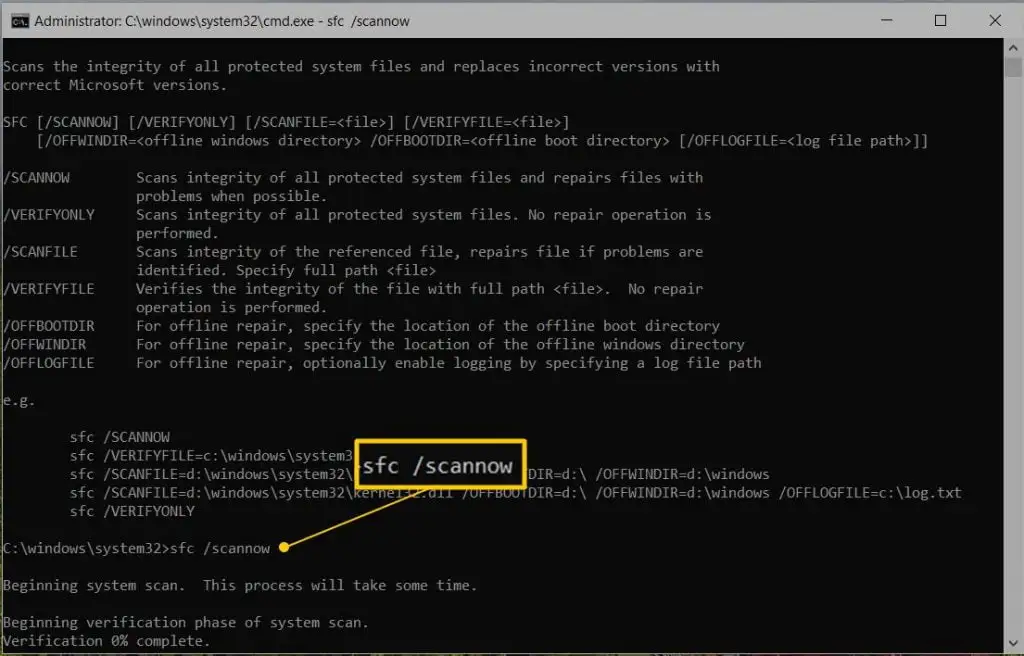
The System File Checker is a built-in Windows tool that checks and repairs corrupted system files. It helps to fix QuickBooks fatal errors that do not allow Windows to function properly.

  • Press the Windows + X keys and select Command Prompt from the Quick Link menu.

Data Service Team Tip: You can also run SFC from Windows PowerShell (Admin).
  • Select Yes on the User Account Control prompt.
  • Type SFC/scannow and hit Enter in the Command Prompt window.
SFC-scannow

The SFC will scan and repair detected issues with Windows system files.
Once the above process is completed, restart the computer.

Solution 12: Repair the Hard Drive

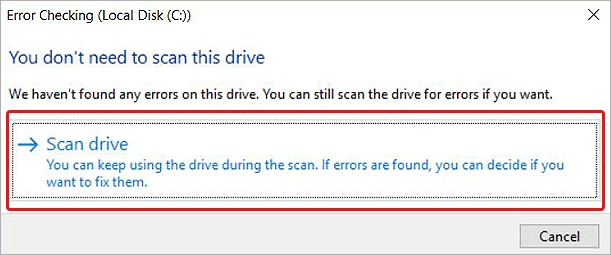
Run CHKDSK from File Explorer to repair the hard drive on the computer, which contributes to fixing the QuickBooks Fatal Error. The steps you need to follow are:
  • Open Windows File Explorer and choose This PC.
  • Right-click on the drive that has the Windows OS (typically C:) and select Properties.
  • Select Tools tab and click on Check.
  • If any errors are found, a message will pop up stating, You don’t need to scan this drive. If you would like to scan the drive anyway, choose Scan Drive.
select-scan-drive

Choose Show Details to view the errors that were fixed after CHKDSK completes its process.

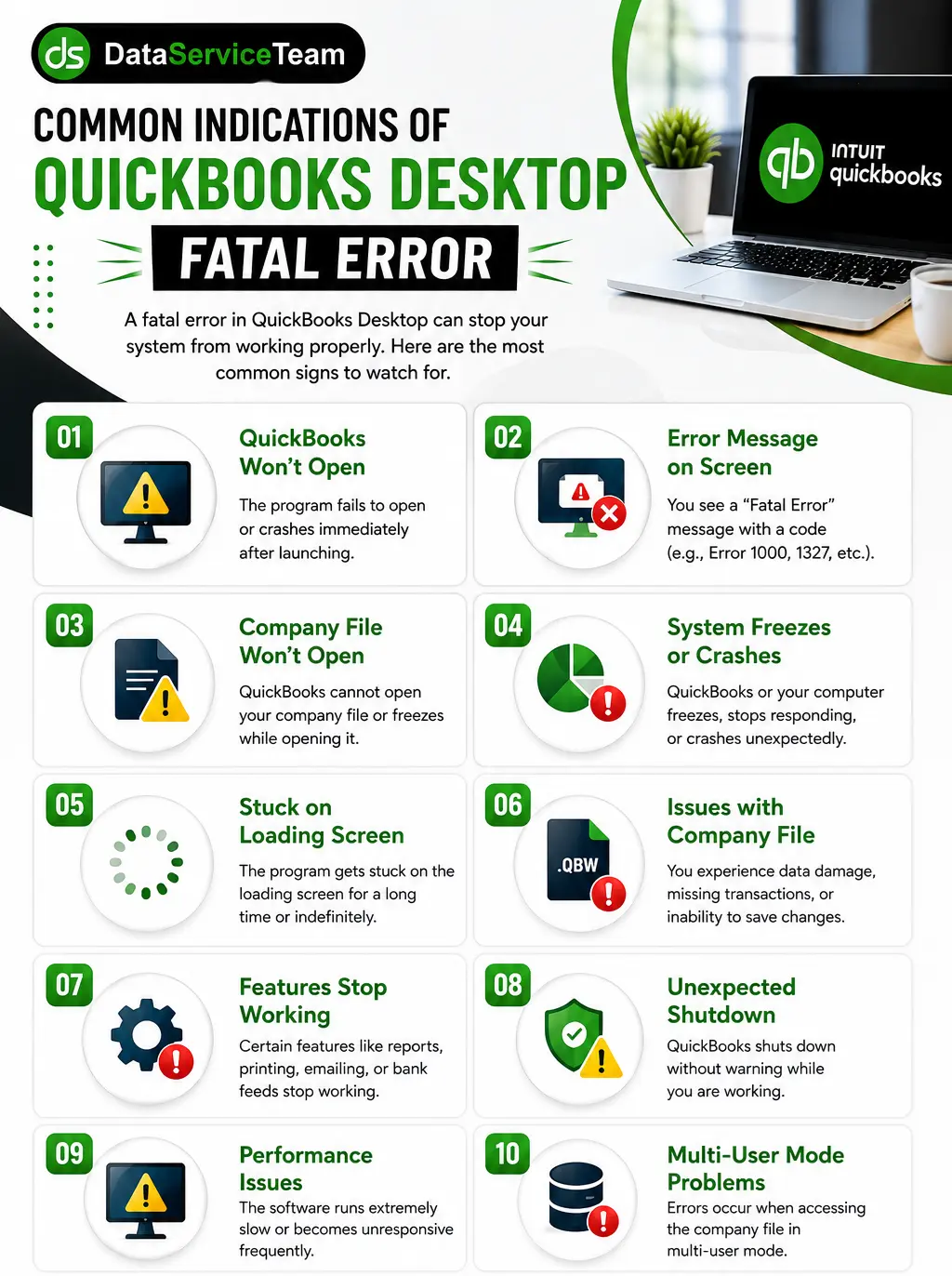
Common Indications of QuickBooks Desktop Fatal Error

Here are the common signs of a fatal error in QuickBooks that you need to know:
quickbooks-fatal-error
  • QuickBooks Crashes Suddenly – The software closes unexpectedly while you are working.
  • Error Message Appears – A fatal error notification may appear on the screen.
  • Program Freezes – The application may stop responding during startup or while performing tasks. See our guide on QuickBooks Freezing.
  • Company File Won’t Open – You may be unable to access your company file.
  • Slow Performance – QuickBooks may become unusually slow. See QuickBooks Running Slow.
  • Unexpected Shutdowns – The application may shut down without warning.
  • Data Entry Problems – You may be unable to enter, save, or edit transactions.
  • Repeated Error on Startup – The fatal error may appear every time QuickBooks starts.

Important Actions To Take While Troubleshooting QuickBooks Fatal Error

Before resolving a QuickBooks Fatal Error During Installation, take these actions for a smooth experience:

  • Create a Company File Backup – Protect the accounting data and then make changes.
  • Update QuickBooks – Ensure you are working with the latest available version and updates.
  • Check Windows Updates – Make sure the operating system and required components are current.
  • Close QuickBooks and Background Apps – Prevent other programs from interfering with troubleshooting.
  • Confirm Administrator Access – Use an account with sufficient permissions to repair or update QuickBooks.
  • Note the Exact Error Message – Record the error code and when it occurs to help identify the cause.

What To Do To Avoid QuickBooks Desktop Fatal Error in Future?

Keep QuickBooks Updated – Install the latest software and security updates regularly.
Back up Company Files – Create frequent backups to protect important accounting data.
Maintain System – Keep Windows and required system components updated.
Avoid File Corruption – Use reliable storage and close QuickBooks after each session.
Check Compatibility – Ensure QuickBooks works properly with the operating system and other installed programs.
Use QuickBooks Tools – Run built-in repair and diagnostic tools when you notice performance issues.

Conclusion!

QuickBooks Fatal Error can disrupt accounting tasks as it causes the software to freeze, crash, or close suddenly. It may result from outdated QuickBooks software, damaged company files, incompatible programs, insufficient system resources, incorrect installation, etc. You must identify the underlying cause and choose the right troubleshooting approach to prevent QuickBooks Desktop Fatal Error in future. Keep QuickBooks updated, maintain reliable backups, and regularly check your system to ensure smoother QuickBooks performance.

Do not let a Fatal Error slow your business down! Connect with Data Service Team at +1(888)-718-7888 experts today for fast and reliable assistance if basic troubleshooting does not resolve the problem.

Frequently Asked Questions (FAQ’s)

Download and open the official QuickBooks Tool Hub to fix a desktop fatal error. Choose Program Problems and run Quick Fix My Program. If the error still persists, hold the Ctrl key and double-click the QuickBooks icon to suppress the application. Open it without loading background processes. It allows you to safely update QuickBooks software and repair damaged initialization files like QBWUSER.INI.

This issue is triggered when the software encounters a critical internal conflict. It forces it to terminate and close unexpectedly. This sudden crash happens during routine tasks like launching the program, opening a company file, running large financial reports, etc. Common triggers include damaged program installation files, a corrupted configuration file like QBWUSER.INI, hard drive data errors, etc.

End the conflicting background process, clear corrupted update folders, and use official diagnostic repair utilities to get rid of a QuickBooks fatal error. Open Task Manager to end tasks, stop the QBPOS Database Manager service in Windows Services, and delete the contents of the POS update folder under the ProgramData directory of the system.

Damaged program files or corrupted configuration components trigger a fatal error when you launch QuickBooks Desktop. This crash happens when the software tries to read corrupted initialization files, damaged installation components, or conflicts with Windows background processes upon startup, etc.

Download & run the official QuickBooks Tool Hub, select Installation Issues from the menu, and run the QuickBooks Installation Diagnostic Tool to repair corrupted Microsoft components required for the setup. These tricks will help you fix a QuickBooks fatal error when you are trying to install QB Desktop.

Close the program and end running background processes through the Windows Task Manager to fix a QuickBooks Desktop Fatal Error in POS. After that, restart the computer. If the issue persists, hold the Ctrl key and double-click the program icon to open the application in safe mode. Clear corrupted update folders in Windows for a persistent installation and to resolve the underlying conflict.

This problem occurs when core Windows components are damaged or outdated. Another cause may be when third-party antivirus software and restricted user permissions do not allow the setup program to write important files. Diagnose and repair the underlying system issues through the official utilities like the QuickBooks Tool Hub.

Restart the computer and download the QuickBooks Tool Hub to run Quick Fix My Program. Also, install Diagnostic Tool utilities, as these are the suggested steps to resolve QuickBooks Fatal Error During Installation. Hold the Ctrl key and open QuickBooks to suppress background processes when the crash persists. It helps to stop external Windows programs from loading and repair the program through the Windows Control Panel.

About The Author

Steven Moody

Steven Moody is a bookkeeping and payroll specialist dedicated to helping businesses maintain accurate financial records and efficient payroll operations. His expertise includes payroll management, tax compliance, bookkeeping solutions, and financial reporting. Steven regularly shares insights on accounting best practices and business finance strategies. Outside of work, he enjoys traveling, exploring new places, and keeping up with the latest developments in business technology.

Steven Moody

QuickBooks

Download QuickBooks Desktop: Everything You Need to Know

Read More
QuickBooks

QuickBooks Online New Features & Updates in 2026: What to Know

Read More
QuickBooks Error

QuickBooks Error 324: Fix Bank Account Connection Problems

Read More
QuickBooks Error

QuickBooks Error 40001: How to Fix Payroll Update Issues

Read More
QuickBooks Error

QuickBooks Error 6000 Series: How to Fix Company File Issues

Read More