
Are you trying to open a QuickBooks company file in multi-user mode and suddenly getting QuickBooks error 6210? The issue generally appears when QuickBooks can not properly access or communicate with the company file. The problem can stem from the way QuickBooks is set up on your network, an issue with the company file, or a setting that is preventing the application from accessing it correctly.
Instead of changing several settings at once, it is better to narrow down the cause first. A few initial checks can tell you whether the problem is related to the company file, the server, or the network setup.
In this guide, we’ll explain the common causes of QuickBooks Error 6210, 0 and walk you through practical troubleshooting methods to get back to your company file.
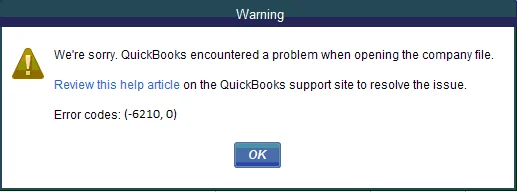
QuickBooks error 6210, 0 is a company file access error that can occur when the QuickBooks program has difficulty opening a file, particularly in a multi-user environment. When the error appears, QuickBooks may display a message such as:
“We’re sorry. QuickBooks encountered a problem when opening the company file. Error codes: (-6210, 0).”
In a multi-user setup, QuickBooks relies on the host computer, network, and related services to access the company file. If any of these have an issue, QuickBooks error 6210 may appear. First, check whether the problem affects one company file or multiple files, as this can help you identify the right solution.
QuickBooks Company File Error 6210 can appear when QuickBooks can not properly access a company file in a multi-user environment. The problem may come from the network, hosting setup, company file, or QuickBooks itself. Look at some common causes of this problem:
Checking these areas first can help you identify the source of the error and avoid applying unnecessary fixes.
Before trying the troubleshooting methods, take a few precautions to protect your company data and avoid unnecessary changes.
Once these checks are complete, you can move on to the troubleshooting methods below.
Once you have completed the initial checks, try the following methods in order. After each method, reopen the company file to see whether the error has been resolved. This approach can help you identify the cause without making unnecessary changes to your QuickBooks setup.
In a multi-user environment, the company file should be hosted from the computer configured to act as the server. If you are experiencing hosting-related problems, see our guide on QuickBooks Hosting Mode is Off for additional troubleshooting steps. If hosting is enabled incorrectly on a workstation, other computers may have trouble accessing the File. To check the hosting settings:
If the error disappears after correcting the hosting configuration, the issue was likely related to the multi-user setup.
Before changing network or firewall settings, test whether QuickBooks can open the company file from the local computer. This helps you determine whether the problem is with the File itself or its network location.
If the copied File opens successfully, the original network location or its configuration may be contributing to the problem. If QuickBooks cannot locate or access the company file from its expected location, see our guide on QuickBooks Company File Not Found for additional troubleshooting steps. If the copied File still fails to open, the company file itself may need further investigation.
QuickBooks uses a Network Data (.ND) file to help manage access to a company file over a network. If this File is damaged or contains outdated information, renaming it allows QuickBooks to create a new one when you reopen the company file.
For example, if the File is named CompanyFile.qbw.nd, rename it to CompanyFile.qbw.nd.OLD.
If the error remains, continue with the next method rather than renaming other QuickBooks files unnecessarily.
If the company file is stored on a server and accessed by multiple workstations, QuickBooks Database Server Manager helps QuickBooks manage network access to the File. Scanning the folder containing the company file can refresh the network configuration and help resolve connection-related problems.
If you are still seeing the same QuickBooks Error 6210, move to the next troubleshooting method.
An outdated QuickBooks installation may have compatibility or program issues that affect access to company files. Updating QuickBooks ensures that available maintenance updates and fixes are installed before you move on to more advanced troubleshooting.
If QuickBooks Error 6210, 0 still appears after updating, continue with the next method.
A firewall or other security software can sometimes interfere with the network communication QuickBooks needs to access a company file. If QuickBooks is being blocked by Windows Firewall, see our guide on Windows Firewall is Blocking QuickBooks. Instead of leaving your security software disabled, check whether QuickBooks and its required network services are allowed through the firewall.
If the error disappears after adjusting the firewall permissions, keep the appropriate exception in place rather than leaving the firewall disabled.
If the earlier checks did not resolve the issue, QuickBooks File Doctor can help identify certain company-file and network-related problems. It is available through QuickBooks Tool Hub.
If QuickBooks File Doctor does not resolve the company-file issue, you can also try Verify and Rebuild Data in QuickBooks Desktop to check for data integrity problems before proceeding with more advanced troubleshooting.
Opening a sample company file is a simple way to find out whether the problem is with your QuickBooks installation or your specific company file. QuickBooks provides sample company files that you can use for testing without affecting your actual business data.
Now check what happens:
This test helps you narrow down the source of QuickBooks Error 6210 before you make more significant changes to QuickBooks.
If the sample company file also fails to open, QuickBooks Desktop itself may have damaged or missing program components. Before completely reinstalling the software, try repairing the installation.
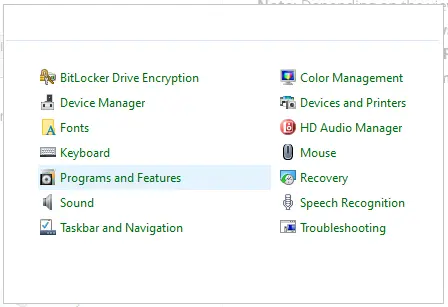
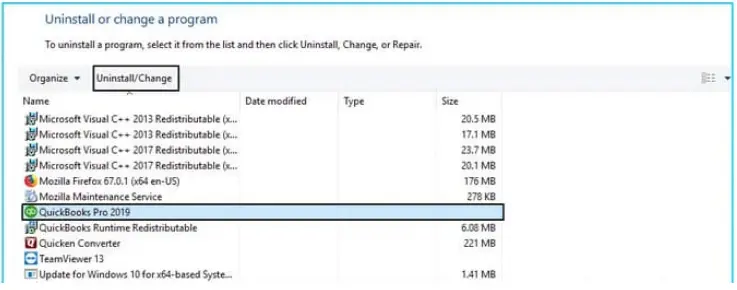
If the repair does not resolve QuickBooks Error 6210, 0, you can consider a clean installation of QuickBooks as a later troubleshooting step.
A clean installation removes the existing QuickBooks installation and related files so you can install a fresh copy. Before proceeding, make sure you have your QuickBooks license and product information available and keep a backup of your company files.
After the clean installation is complete, reinstall the same QuickBooks Desktop version using the appropriate installation source. Enter your license information when prompted and complete the setup.
Once QuickBooks is installed, open your company file and check whether QuickBooks Error 6210, 0 has been resolved.
Once QuickBooks opens the company file without showing QuickBooks error 6210, 0, take a few moments to confirm that the multi-user setup is working properly.
This information will help you narrow down whether the problem is related to the file, network, or QuickBooks setup.
Follow these simple preventive tips to keep your QuickBooks setup properly maintained and reduce the chances of QuickBooks Error 6210, 0 occurring again.
QuickBooks Error 6210 can make it difficult to open your company file, especially when working in multi-user mode. The issue may be related to the company file, network, hosting settings, or QuickBooks itself.
Start with the basic checks and then try the solutions discussed in this guide. In most cases, identifying the source of the problem can help you choose the right fix without making unnecessary changes.
To avoid these issues in the future, keep QuickBooks updated, maintain your network properly, and back up your company files regularly. If the error continues, consider getting help from Data Service Team professionals at +1(888)-718-7888.
It means QuickBooks is having trouble opening the company file. It commonly appears when you try to access the File in multi-user mode. This problem can be related to the network, hosting setup, company file, or QuickBooks installation.
If the company file opens normally on the server but cannot be accessed from a workstation, the problem may be related to the network or multi-user configuration. You can also check the hosting settings and QuickBooks Database Server Manager to find connection issues.
Yes, firewall or antivirus software may block QuickBooks from communicating over the network. Check that QuickBooks and its required services are allowed through your security settings.
You should create a recent backup of your company file first. Also make sure QuickBooks is updated, the network connection is working, and the company file is hosted correctly. These checks can help prevent unnecessary changes to your system.
Yes. If the company file is not hosted correctly, workstations may not be able to access it in multi-user mode. Check the hosting settings on the server and workstations before trying more advanced solutions.
Try opening a sample company file in QuickBooks. If the sample file opens but your company file does not, the problem may be related to your company file or its location. If the sample file also fails, QuickBooks installation may need repair.
You can check whether the error affects one company file or multiple files and then review the network and hosting setup again. If the issue continues, avoid making unnecessary changes to the company file.
You should contact the Data Service Team experts, if the error continues after troubleshooting. The company file may be damaged, or you are unsure how to handle network or QuickBooks configuration settings.




