Keeping your QuickBooks payroll tax table update is essential for accurate paycheck calculations, employee tax deductions, and payroll processing. Intuit regularly releases payroll updates to reflect changes in federal and state withholding tables, tax forms, and other payroll-related requirements. If you use an outdated tax table, QuickBooks may calculate incorrect employee withholdings or display unexpected payroll errors.
QuickBooks Desktop Payroll users generally need to download and install the latest available tax table updates, while QuickBooks Online Payroll handles these updates automatically. However, even after downloading an update, you may experience problems such as incorrect tax calculations, blank tax fields, or an unchanged tax table version.
In this guide, you’ll learn how to check your current QuickBooks payroll tax table version, download and install the latest update, verify successful installation, and troubleshoot common update problems.
A QuickBooks Payroll Tax Table Update is a release provided by Intuit that helps QuickBooks Desktop Payroll calculate employee taxes using the latest supported tax information. It may include changes to federal and state withholding tables, payroll tax calculations, tax forms, and electronic filing or payment features.
These updates help businesses calculate the correct amount of taxes to withhold from employee paychecks. Without an updated tax table, QuickBooks may continue using older tax information, which can lead to inaccurate payroll calculations.
Depending on the update, it may include:
Keeping your payroll tax table current helps you process employee payments more accurately and reduces the risk of payroll discrepancies.
Payroll tax regulations and withholding requirements can change throughout the year. Installing the latest available update helps QuickBooks calculate employee deductions using supported tax information.
Here are some important reasons to keep your payroll tax tables updated:
Before downloading an update, identify which QuickBooks Payroll version you use. QuickBooks Desktop and QuickBooks Online handle payroll tax table updates differently.
QuickBooks Desktop Payroll users generally need to download and install the latest payroll tax table update manually. You can do this through the Employees menu by selecting Get Payroll Updates.
An active payroll subscription is required to access applicable payroll updates.
QuickBooks Online Payroll updates its tax information automatically. Users do not need to download tax table updates manually.
If your QuickBooks Online paycheck calculations appear incorrect, review the employee’s tax withholding settings, payroll details, and applicable tax information instead of following the Desktop download instructions.
Intuit regularly releases payroll updates throughout the year. These releases may contain new withholding tables, revised payroll forms, and changes to supported tax calculations.
According to Intuit’s official payroll update information, the latest release listed in the source checked for this article is:
Payroll Update 22616
You can check the current release and its applicable changes directly through Intuit’s official page:
Latest QuickBooks Payroll News and Updates
Important: Payroll Update 22616 is the release identifier, not the same thing as the tax table version displayed inside QuickBooks. The installed tax table version may depend on your QuickBooks Desktop product and release. Always compare your installed information with Intuit’s official update instructions rather than relying on a static version number.
To get the latest QuickBooks payroll tax table updates, make sure your payroll subscription is active and follow the steps below to download and install the most recent tax table:
You can verify your current version by following these steps:
Reminder: To download and apply the latest tax table update, you must be using QuickBooks Desktop 2024 or QuickBooks Desktop Enterprise Solutions 24.0.
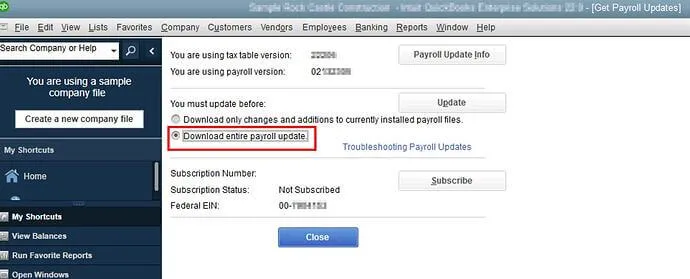
The January 2026 tax table update includes several updates to TD1 amounts compared to the July 2025 payroll tax table release.
If your QuickBooks Payroll subscription is active, you can turn on automatic updates to receive the latest payroll tax table releases as soon as Intuit makes them available.
If you prefer to install the update yourself, follow these steps to manually QuickBooks payroll tax table update:
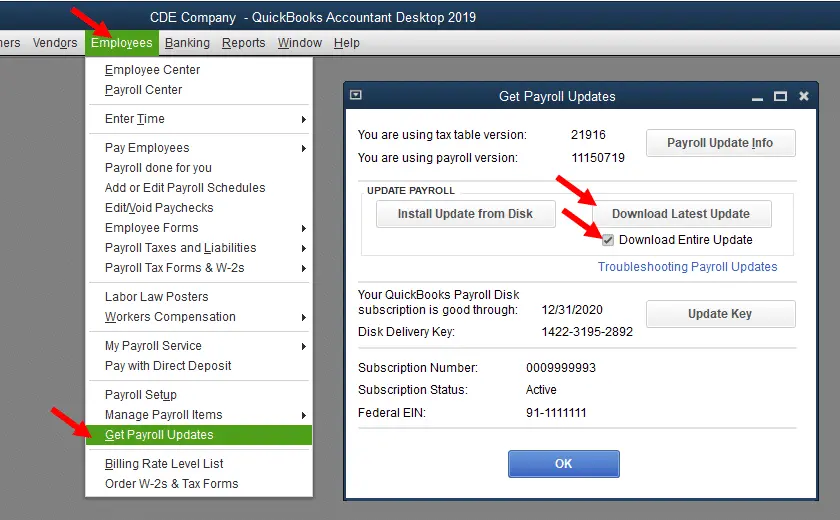
Note: The 2026 tax table updates will not be available as a web patch and must be installed directly within the software.
You may encounter a QuickBooks payroll tax table update error due to connectivity issues, an inactive payroll subscription, or other reasons. Follow the solutions below to identify the issues and resolve them to get your payroll updates:
If your payroll service is inactive, you may receive a QuickBooks Subscription Has Lapsed message that prevents payroll tax table updates from downloading. You can confirm whether your QuickBooks Desktop is registered by following these steps:
Note: If the status does not show as Activated, you will need to register your copy of QuickBooks Desktop.
Incorrect system date and time settings on your system can interfere with payroll updates and trigger update errors. Verify that your computer’s date and time are accurate before attempting the payroll update again.
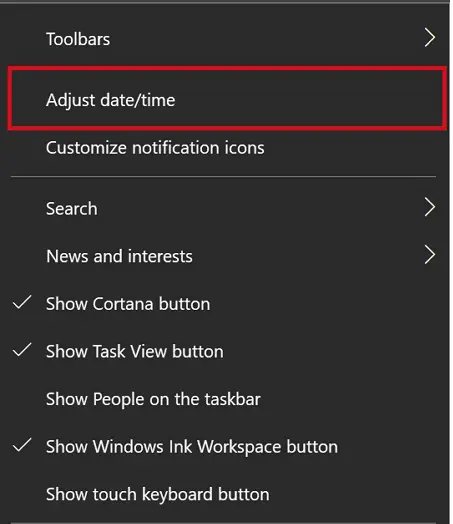
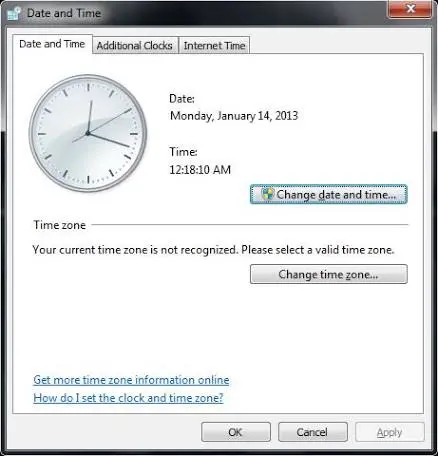
Having the correct system date and time helps avoid common update errors and issues.
If your payroll tax table not updating in QuickBooks, it could be due to QuickBooks being unable to verify the digital signature certificate. Follow the steps below to help resolve payroll update errors:
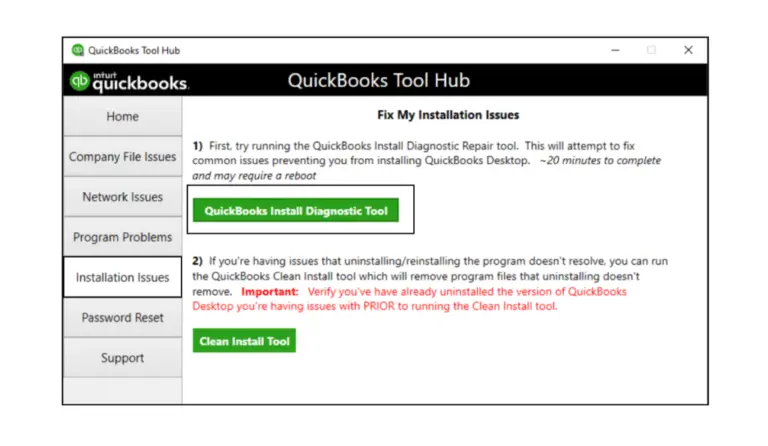
A repair installation can resolve issues caused by damaged QuickBooks components. Follow the steps below to repair QuickBooks Desktop, then try to get the QuickBooks payroll update tax table:
| Important Note: Before proceeding, download and install the latest version of QuickBooks Tool Hub to access the repair tools required for the troubleshooting steps below. |
The Quick Fix tool automatically closes any QuickBooks processes running in the background. It performs a quick repair to fix common program-related issues.
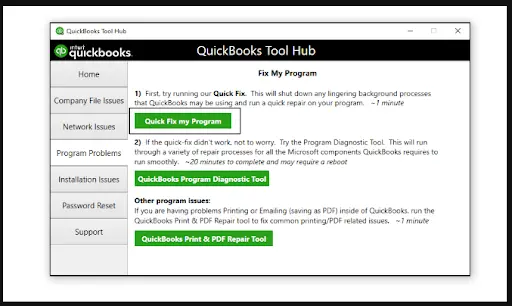
If there was an issue during installation, it can lead to problems while using QuickBooks Desktop.
QuickBooks users may encounter different error messages while downloading or installing payroll tax updates. These errors can be associated with subscription problems, damaged payroll components, or internet connectivity issues. Here is a quick reference table:
| Error code | Possible issue |
| PS032 | Payroll update, tax table, or subscription-related problem |
| PS034 | Payroll update or subscription-related problem |
| PS077 | Payroll update or tax table-related problem |
| PS038 | Unsent payroll data may be blocking the update |
| Error 15240 | Update download or system configuration problem |
| Error 12002 | Internet connection or server communication problem |
| Error 12007 | Connection or update server communication problem |
| UEXP | Unexpected error during the update process |
Make QuickBooks Work Smarter for Your Business
Spend less time managing data and more time growing your business. Whether you need help setting up QuickBooks, cleaning up your books, reconciling accounts, or resolving errors, our team is here to make accounting easier. Get quick solutions that save time, improve accuracy, and keep your business finances on track.
Keeping your QuickBooks payroll tax table update current is essential for ensuring accurate payroll calculations and staying compliant with the latest tax regulations. With the information provided above, you can easily understand how payroll tax table updates work, troubleshoot common update issues, and ensure your QuickBooks Desktop remains up to date.
For further assistance, we recommend consulting QuickBooks professionals or letting a certified expert handle the process for you. Dial the +1(888)-718-7888 to connect with a certified support specialist right away!
QuickBooks Desktop Payroll users should check for available tax table updates before processing payroll, ideally before each pay period. Intuit releases updates when required rather than following a fixed monthly schedule. Checking regularly helps ensure that applicable withholding information remains current.
QuickBooks may display an up-to-date message because of cached update information, an incomplete download, or a version-checking issue. Compare your installed version with Intuit’s official payroll update page. If necessary, reset the update settings and download the complete update again.
Yes. An active and eligible QuickBooks Desktop Payroll subscription is generally required to download payroll tax table updates. If your subscription has expired or your account information needs verification, resolve the subscription issue before attempting another update.
QuickBooks Desktop Payroll provides automatic update options that can help download available payroll updates without requiring you to repeat the entire manual process. You can review these settings through the Get Payroll Updates window. QuickBooks Online Payroll handles tax table updates automatically.
Incorrect payroll calculations may occur because of an effective-date delay, manual tax rate changes, incorrect employee tax information, or employer-specific SUI settings. Review the employee’s payroll profile, applicable tax rates, and effective dates before making additional changes.
Your SUI rate may require a separate manual update because it is assigned according to your employer’s state unemployment insurance account and experience rating. Check the latest notice from your state and verify the employer’s SUI rate in QuickBooks.
First, check your internet connection and confirm that your payroll subscription is active. Close and reopen QuickBooks, then try downloading the complete update again. If the issue continues, review firewall settings and investigate the applicable update error code.
No. QuickBooks Online Payroll handles tax table updates automatically. Users do not need to download or install tax table files manually. If paycheck calculations appear incorrect, review employee tax settings and payroll information.
Open QuickBooks Desktop and navigate to Employees > My Payroll Service > Tax Table Information. Note the installed tax table version and compare it with Intuit’s official payroll update information to determine whether a newer release is available.

Get Free Consultation for QuickBooks Upgrade
(2021, 2022, 2023)