QuickBooks-Error-UEXP

QuickBooks Error UEXP can occur when downloading payroll updates or activating retail payroll in QuickBooks Desktop. The error is generally related to difficulties verifying your payroll account or service information.

Common causes include an outdated QuickBooks Desktop release, outdated e-file and e-pay information, an inactive payroll subscription, or issues with the retail payroll license or company information.

QuickBooks-Error-UEXP

This guide covers the common causes of QuickBooks Error UEXP and provides practical troubleshooting methods for payroll updates and retail payroll activation. If you are experiencing other payroll update problems, see our guide on QuickBooks Payroll Update Not Working for additional troubleshooting steps.

What is QuickBooks Error UEXP?

QuickBooks Error UEXP can occur in QuickBooks Desktop when you download payroll updates or activate retail payroll. The error may appear with the following message:

“We are having difficulties verifying your account status. Error = UEXP.”

The error generally indicates that QuickBooks is having trouble verifying your payroll account or service information.

Common Signs & Symptoms of QuickBooks Error UEXP

You may encounter one or more of the following symptoms.

  • QuickBooks displays the error message when this error appears.
  • Payroll updates fail to download or install.
  • The same error returns when you retry the payroll update or activation process.
  • QuickBooks cannot verify your payroll account status.
  • The error appears while activating retail payroll.

Reasons Why QuickBooks Payroll Update Error =UEXP Occurs

The following are the common causes that may trigger QuickBooks Payroll Update Error = UEXP.

  • QuickBooks may be unable to verify your payroll service if the payroll subscription is inactive. If your subscription has expired, see our guide on QuickBooks Subscription Has Lapsed.
  • An older QuickBooks Desktop release may have compatibility issues with current payroll services. Updating QuickBooks can help determine whether the error is related to an outdated release.
  • If you have upgraded QuickBooks Desktop but the company file still contains older e-file or e-pay information, QuickBooks may have trouble communicating with the payroll service.
  • A disabled retail payroll license can cause UEXP when you are trying to activate retail payroll.
  • Special characters in the company name, legal address, chart of accounts, or contact name may cause UEXP during retail payroll activation.

Things to Do Before Troubleshooting QuickBooks Error UEXP

Before making changes to QuickBooks, take a few precautions:

  • Create a backup of your company file before changing payroll or QuickBooks settings.
  • Stable internet connectivity is required while downloading payroll updates.
  • Make sure you are using the latest available release of QuickBooks Desktop.
  • You may need your payroll subscription or service information during troubleshooting.
  • Firewall or antivirus settings can sometimes interfere with QuickBooks connections. If your firewall is blocking QuickBooks, see our guide on Windows Firewall is Blocking QuickBooks.

How to Fix Error UEXP While Updating QuickBooks Desktop Payroll

If you are still encountering Error UEXP when updating payroll or verifying your payroll account, follow the troubleshooting steps below.

Method 1: Update QuickBooks Desktop to the latest version

Updating QuickBooks Desktop can resolve UEXP when the error is caused by an outdated QuickBooks release. Intuit specifically lists an outdated QuickBooks Desktop release as one possible cause of UEXP when downloading payroll updates.

Method 2: Create a Backup of Your Company File

Before making changes to your payroll settings or reinstalling QuickBooks Desktop, create a backup of your company file. This protects your financial data if something goes wrong during the troubleshooting process. You can also refer to our Restore QuickBooks Backup File guide if you need to restore the backup later. Follow these steps to create a local backup:

To schedule automatic backups

Here are the step-by-step instructions for scheduling an automatic backup of the company file.

  • Open QuickBooks and go to File > Switch to Single-User mode.
Switch-to-Single-User-mode-screenshort
  • Once again, select the File menu and click Back up Company > Create Local Backup.
  • Now, browse to the Local Backup option and click Next.
  • Click Browse and pick the location to save your backup company file.
  • Set the number of backup copies you want to create.
  • Choose the Complete Verification option. This will run a test to make sure your backup file is in good shape.
  • Click OK, then select Save it now and click Next.
  • Wait for QuickBooks to complete the backup process before continuing with the remaining troubleshooting steps.

Once the backup is created successfully, proceed to the next method to troubleshoot QuickBooks Error UEXP.

Method 3: Update the Outdated E-File and E-Pay Files

Updating outdated e-file and e-pay files helps QuickBooks refresh old payroll service information and maintain compatibility with the current payroll system. This helps resolve account-verification or service-related issues that trigger QuickBooks Error UEXP. Thus, it allows payroll updates to download successfully.
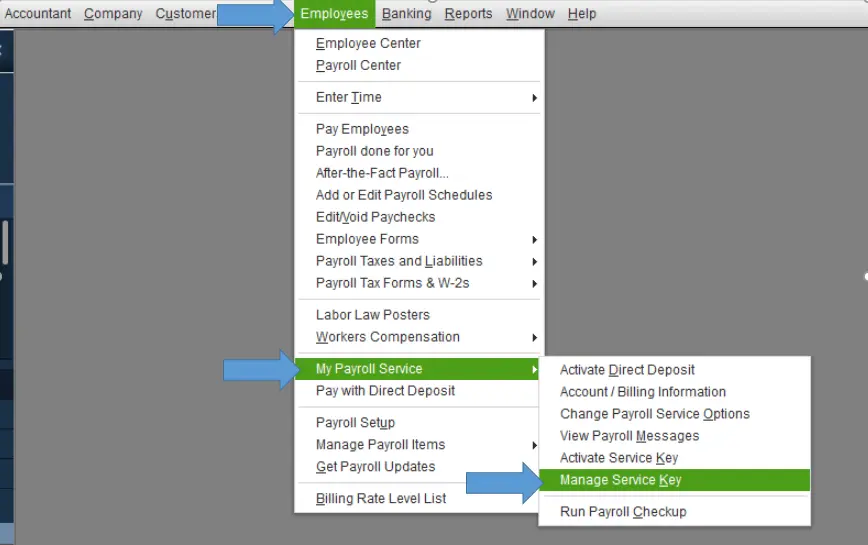
  • Open QuickBooks Desktop and select the Employees menu.
  • Choose My Payroll Service and click Manage Service Key.
My-payroll-service
  • Once you see the QuickBooks Service Key on your screen, proceed.
  • If you are using QuickBooks Direct Deposit, select the Edit menu > Next, and then select the Finish option. If not, then click the Remove tab.
  • Click Yes twice.
  • Finally, try to download the latest payroll updates and check if the issue still exists. You can also review our guide on QuickBooks Payroll Tax Table Update for additional payroll update troubleshooting.

Method 4: Run the QuickBooks Install Diagnostic Tool

The QuickBooks Install Diagnostic Tool helps identify and repair damaged or missing installation components that may interfere with QuickBooks. If UEXP is being caused by damaged or missing installation components, repairing the affected components may help restore normal QuickBooks functionality.

Before running the tool, close QuickBooks Desktop and other open programs. Then use QuickBooks Tool Hub to access the appropriate installation troubleshooting tools.

Method 5: Reinstall QuickBooks Desktop in Selective Startup Mode

If the previous methods do not resolve UEXP and you suspect damaged or conflicting program files, reinstalling QuickBooks may help. You can use the QuickBooks Clean Install Tool to remove and reinstall QuickBooks Desktop components.

Selective Startup allows you to start Windows with a limited set of services while troubleshooting. If you are not comfortable changing Windows startup settings, consider getting help from a qualified Windows professional.
Step 1: Switch to Selective Startup

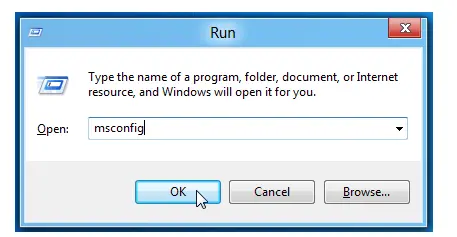
  • Launch the Run window by pressing Windows + R.
  • Type msconfig into the search box and hit Enter to open the Configuration screen.
  • Choose Selective startup and Load system services.
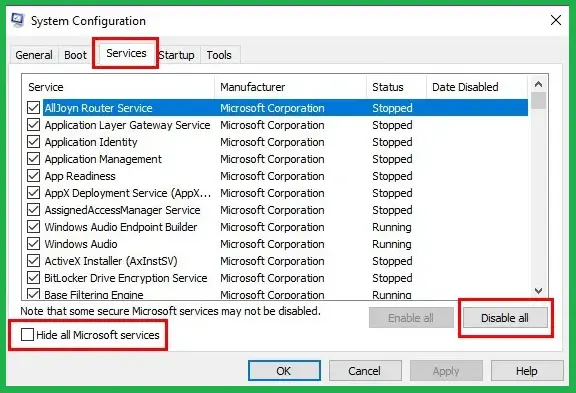
  • Move to the Services tab and mark Hide all Microsoft Services.
Hide-all-Microsoft-Services
  • Select the Disable All option.
  • Unmark the checkbox beside Hide all Microsoft Services.
  • Click the Windows Installer from the available list of services.
  • Select OK and then choose Restart from the System Configuration window.

Step 2: Uninstall or Install QuickBooks Desktop

  • Reinstall QuickBooks Desktop.
  • On your keyboard, press Windows+R to open the Run command.
  • Type msconfig, then select OK.
Msconfig
  • In the General tab, select Normal startup.
  • Click OK.
  • In the System Configuration window, select Restart.

How to Prevent QuickBooks Payroll Error UEXP?

You can reduce the occurrence of payroll update and account-verification problems by following these practices.

  • Keep your QuickBooks Desktop updated.
  • Install available payroll updates regularly.
  • Keep payroll service information up-to-date.
  • Maintain an active payroll subscription.
  • Back up your company file regularly.
  • You must keep your company and contact information accurate.
  • Avoid unnecessary special characters in company or contact information.
  • Check that QuickBooks has the network access it needs to communicate with Intuit services.

Conclusion!

QuickBooks Error UEXP can prevent payroll updates or interfere with payroll activation. Start by updating QuickBooks Desktop and checking your payroll service information. If the issue continues, contact QuickBooks support for account or subscription-related problems.

If you need professional help with QuickBooks Error UEXP, contact Data Service Team at +1(888)-718-7888 for expert troubleshooting assistance.

Frequently Asked Questions (FAQ’s)

QuickBooks may show UEXP when it has difficulty verifying your account status. It can be caused by an outdated QuickBooks release, outdated e-file/e-pay information, or an inactive payroll subscription.

To fix this error, update QuickBooks Desktop, refresh the payroll service, and download the payroll update again.

Yes. An outdated QuickBooks Desktop release is one of the causes identified by Intuit, so installing the latest release may resolve the issue.

Open QuickBooks Desktop, click the Help menu, and choose Update QuickBooks Desktop. Then, install the latest version of QuickBooks Desktop. Restart QuickBooks and try to install the payroll update.

Yes, you can fix the UEXP error by running the Tool Hub if the issue is related to QuickBooks program or installation problems. You can run the QuickBooks Install Diagnostic Tool or Quick Fix My Program to fix the issue.

Yes, if the issue is caused by damaged or missing program files, then reinstalling or repairing QuickBooks can fix this issue.

A damaged company file can cause other QuickBooks errors, but it doesn’t lead to QuickBooks Error UEXP.

If this issue reappears after an update, verify that QuickBooks is fully updated, refresh the payroll service, and try to download the payroll update again.

To avoid this error in the future, update QuickBooks Desktop and payroll components, maintain an active payroll subscription, and regularly download available payroll updates.

If the error still exists after updating QuickBooks and refreshing the payroll service, you need to contact QuickBooks support, particularly if the issue involves your payroll license or account status.

About The Author

Steven Moody

Steven Moody is a bookkeeping and payroll specialist dedicated to helping businesses maintain accurate financial records and efficient payroll operations. His expertise includes payroll management, tax compliance, bookkeeping solutions, and financial reporting. Steven regularly shares insights on accounting best practices and business finance strategies. Outside of work, he enjoys traveling, exploring new places, and keeping up with the latest developments in business technology.

Steven Moody

QuickBooks Error

How to fix QuickBooks Error 6069 When Opening Company File

Read More
QuickBooks Error

QuickBooks Error 80070057: Fix Company File Access Issues

Read More
QuickBooks

QuickBooks Online Login Problem: Here’s How to Fix It

Read More
QuickBooks

Request to Be the Primary Admin or Contact in QuickBooks Desktop & Online

Read More
QuickBooks Error

QuickBooks Error 557: Fix Payroll Tax Table Download Issues

Read More
