QuickBooks-Running-Slow

You are about to send an urgent invoice or run an important financial report, and your QuickBooks screen freezes or QuickBooks Running Slow. A task that used to take thirty seconds stretches into ten unbearable minutes. When QuickBooks Running Slow, your entire business workflow grinds to a halt. Whether you are running QuickBooks Desktop (QBDT) or QuickBooks Online (QBO), performance lags cost you time and money. Take a look at why QuickBooks running slow and go through the various methods to get your software operating at a smooth speed again.

Why is Your QuickBooks Running Slow?

Before we start making any settings, it is important to know why it is actually happening. QuickBooks is not just a simple application; it is a complex database management system. If you are experiencing unexpected QuickBooks Running Slow (performance issues), you are likely wondering, why is my QuickBooks desktop running so slow?

Its slowing down could be due to your local computer hardware choking on data, a bloated file structure or network congestion. By isolating whether the issue is rooted in your local setup, your company file size or your internet connectivity, you can fix the lag without wasting time on the wrong solutions. The most common causes behind a slow QuickBooks performance include:

  • Massive Company File Size: For QuickBooks Desktop (Pro or Premier), performance naturally begins to degrade once the company file exceeds 250 MB. Gigantic files take significantly longer for your computer’s RAM and processor to read, index, and report on.
  • Bloated Transaction Log (.TLG) Files: The Transaction Log runs alongside your main database file to track changes. If you do not perform regular sequential backups, this file can grow larger than your actual company file, clogging background processing speeds.
  • Multi-User Mode: Uninterrupted flow of data packets is necessary for QuickBooks Desktop software. The normal office Wi-Fi network tends to drop tiny data packets because of structural interference. While normal web surfing can tolerate this issue easily, QuickBooks cannot and causes freezes and lags.
  • Hardware and System Bottlenecks: If your system depends on an old mechanical spinning Hard Disk Drive (HDD) rather than a Solid-State Drive (SSD) or if you have less than the recommended 16 GB of RAM, the system will choke during heavy reporting tasks.
  • Overloaded Browser Cache and Extensions (QuickBooks Online): For QBO users, the software executes a large amount of real-time JavaScript. If your web browser is bogged down with gigabytes of old cookies and cached images or if you have aggressive ad-blockers and security extensions running, the scripts will lag or fail to load entirely.
  • Corrupted Database Structure: Sudden power outages, system crashes or turning off the host computer while users are still logged into QuickBooks can result in fragmented data or broken internal integrity links.
  • Conflict with Antivirus and Firewalls: Aggressive real-time antivirus software scans can mistake QuickBooks database communication files (QBDBMgrN.exe or QBW32.exe) for unauthorized threats, constantly pausing them in the background to analyze data packets.

QuickBooks Desktop System Requirements for Suitable Speed

QuickBooks Running slow because of the hardware’s inability to cope with the needs of software upgrades. Intuit regularly updates its database structure. Consider these specifications for optimal performance:

Hardware ComponentMinimum RequirementRecommended Specification (For Optimal Speed)
Processor (CPU)2.4 GHz minimum3.0 GHz or higher (Intel Core i5, i7, or Xeon)
RAM (Memory)8 GB RAM16 GB to 32 GB RAM (Crucial for large files)
Storage TypeStandard HDDSolid State Drive (SSD) NVMe preferred
Internet Speed20 Mbps100+ Mbps (Essential for payroll and QBO)
Operating SystemWindows 10Windows 11 (64-bit natively supported)

How to Speed Up QuickBooks Desktop?

To completely resolve QuickBooks Running Slow issue, implement this technical list of every possible method for troubleshooting slow running software setups. If you have been struggling with a sluggish database or find your local QuickBooks running slow, these steps are arranged from quick software settings to advanced database optimization techniques.

Section 1: In-App Diagnostic Fixes

Method 1: The Verification & Rebuilding of Data Sequence

This scans your .qbw company database file for structural errors, repairs minor file corruption and re-indexes your data tables for faster search queries.
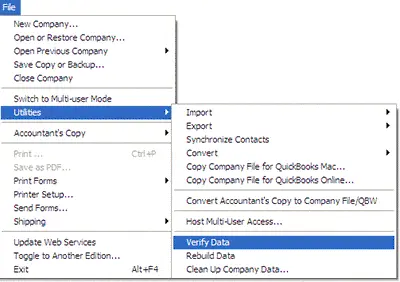
  • Log in to your company file as the Administrator in QuickBooks Desktop.
  • Go to the File menu, hover over Utilities and click Verify Data.
Verify-and-Rebuild-data
  • If it says “QuickBooks detected no problems with your data,” your database structure is fine; move to Method 2. If it says “Your data has lost integrity,” you must run a repair.
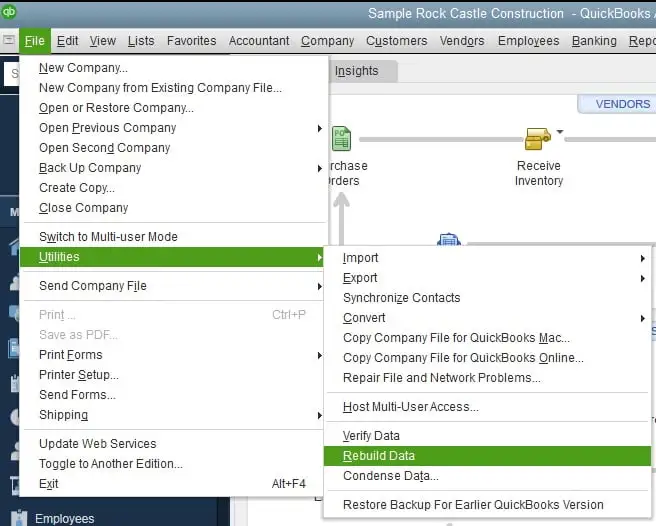
  • To repair, go to File > Utilities > Rebuild Data.
Verify-and-Rebuild-Data
  • The system will prompt you to save a backup copy. Click OK and choose a secure folder on your local computer.
  • Once the backup is complete, the Rebuild tool will run automatically. Wait until you see the message “Rebuild has completed.”
  • Run Verify Data one more time to ensure all errors were successfully cleared out.

Method 2: Reset and Cut the Transaction Log (.TLG) File

The .tlg file acts as a notepad tracking your entries before writing them permanently to the database. Over years of operation, this file can grow larger than your actual company file.

  • Completely close down QuickBooks Desktop on all workstations.
  • Open the file explorer on the host computer or server where your file is located.
  • Navigate to your QuickBooks company file folder.
  • Locate the file matching your company name with the extension .qbw.tlg.
  • Right-click the .tlg file and select Rename.
  • Change the name to CompanyFile.qbw.tlg.OLD.
  • Relaunch QuickBooks. The software will search for the log file, see it is missing, and automatically build a fresh, healthy, 0-byte .tlg file, instantly lifting structural lag.

Method 3: Change In-App Audit Trail Preferences

QuickBooks keeps track of all the edits made by a user, which eventually increases data size. You can turn off unneeded GUI flourishes to free up system RAM.

  • Open your company file and go to Edit > Preferences.
  • On the left pane, click Desktop View, then switch to the My Preferences tab.
  • Under the Desktop section, select the radio button for Don’t save the desktop. This prevents QuickBooks from wasting RAM attempting to reload all previously opened windows and reports upon launch.
  • Move down the left sidebar to Reports & Graphs, and navigate to the Company Preferences tab.
  • Under Reports and Graphs Refresh options, change the selection to Don’t refresh automatically. This stops the database from locking up to recalculate figures every time you modify minor fields.

Section 2: Windows System & Infrastructure Fixes

Method 4: Change From Wi-Fi to a Gigabit Network

QuickBooks Desktop uses a database framework. Micro-drops in a Wi-Fi signal cause database packet drops, which can freeze your workspace.

  • Unplug or disable Wi-Fi on the host server and all connected workstations.
  • Connect every workstation directly to your router or network switch using Cat6 Ethernet cables.
  • Verify that your network switches support Gigabit speed rather than old Fast Ethernet standards.

Method 5: Configure the QuickBooks Database Server Manager

If the network mapping configuration gets corrupted, user workstations will take a highly inefficient route to find the host database file.

  • Go to the main host computer or server where your file physically resides.
  • Open the Windows Start menu, look for QuickBooks Database Server Manager and launch it.
  • Go to the Scan Folders tab.
  • Click Add Folder and map the exact directory path where your company data file is stored.
  • Click Scan. The utility will repair the .ND (Network Descriptor) files and re-index access permissions across your network.

Method 6: Whitelist QuickBooks in Your Windows Firewall & Antivirus

Antivirus scans can block or delay background QuickBooks execution files (QBDBMgrN.exe, QBW32.exe), so do not forget to practice these steps:

  • Press the Windows Key, type Windows Defender Firewall and press Enter.
  • Click Advanced Settings on the left menu pane.
  • Right-click Inbound Rules and select New Rule.
  • Choose Port and click Next. Ensure TCP is selected. In the Specific local ports field, enter the dynamic port numbers for your QuickBooks version. Or, whitelist the executable paths directly: C:\Program Files\Intuit\QuickBooks [Year]\QBW32.exe and C:\Program Files\Intuit\QuickBooks [Year]\QBDBMgrN.exe.
  • Set the action to Allow the Connection. Check all profile options, name the rule “QuickBooks Inbound Fix” and save. Repeat the identical steps under Outbound Rules.

Section 3: Advanced Database Maintenance Tools

Method 7: Use the QuickBooks Condense Data Tool

For files that are more than 250 MB, performance will automatically be reduced. The condense data function compresses the transaction history to summary entries.

Note: This step is completely permanent. Ensure you complete a dual backup onto an external drive or cloud file storage before continuing.
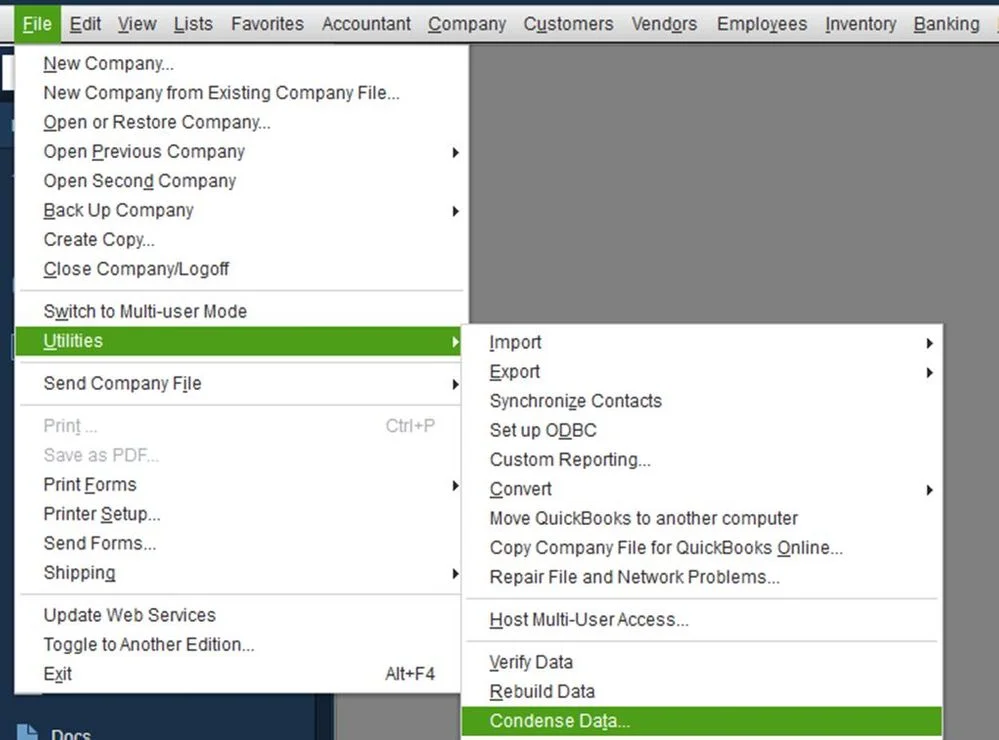
  • Go to File > Utilities > Condense Data.
QuickBooks Condense Data
  • Select Transactions before a specific date and pick an older cutoff point.
  • Check the box for Remove audit trail if you want to slim down the file size aggressively.
  • Click Next and let the program execute. This process can take several hours, so run it at the end of the business day.

Method 8: Run the QuickFix My Program Utility via QuickBooks Tool Hub

Local user profile registry corruption can degrade performance, so make sure you apply the steps below:
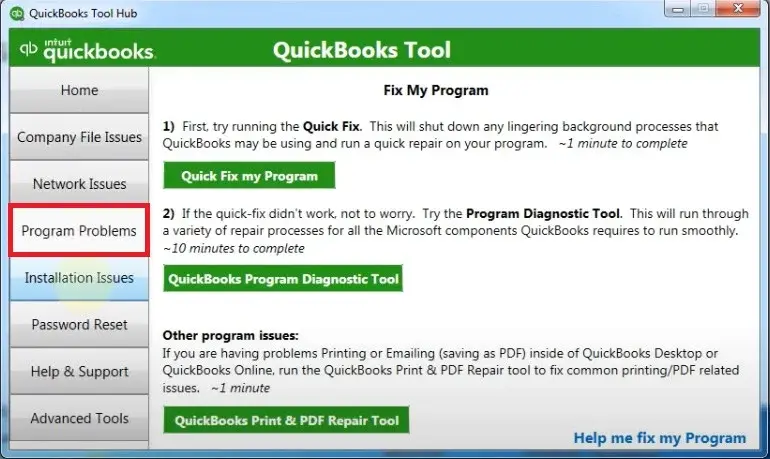
  • Close your accounting software. Install the updated QuickBooks Tool Hub from Intuit’s official support portal.
  • Launch the Tool Hub icon from your Windows desktop.
  • Navigate to the Program Problems tab on the left.
  • Click QuickFix my Program.
quickbooks-program-problems
  • A background command prompt will run, clearing out clogged cache structured processes and resetting application parameters. Restart your computer once it completes.

Section 4: Hardware & Environment Upgrades

Method 9: Move Your Company File onto a Solid-State Drive (SSD)

If your host computer or server is still reading data off an old mechanical spinning Hard Disk Drive (HDD), QuickBooks will crawl during large reporting queries.

  • Check your computer specs. If your storage drive is designated as an HDD, have an IT professional clone your drive or add an NVMe M.2 Solid State Drive (SSD).
  • Moving your company file onto an SSD increases data read and write speeds up to 10x faster, turning long multi-minute reporting freezes into snappy, instantaneous loads.

Why Is QuickBooks Slow in Multi-User Mode?

Multi-user slowdowns are almost always caused by network infrastructure bugs. If your company file is hosted on a server or a designated Host PC, every action a user takes must travel across your office network. If your network switches are outdated or if someone is accessing the database over a weak Wi-Fi connection rather than an Ethernet cable, data collisions occur, delaying responses for everyone on the team.

How to Fix QuickBooks Running Slow in Multi-User Mode?

To resolve network lags and get your team working in sync, apply these fixes:

Method 1: Switch to a Wired Ethernet Connection

Never run QuickBooks Desktop multi-user mode over standard office Wi-Fi. A single split-second drop in wireless connectivity will drop database packets, causing massive lag or file corruption. Ensure all users and the host server are connected via Cat6 Gigabit Ethernet cables.

Method 2: Optimize the QuickBooks Database Server Manager

  • Go to the Host/Server computer where the company file physically lives.
  • Open the QuickBooks Database Server Manager.
  • Click the Scan Folders tab.
  • Click Add Folder and select the folder holding your company data.
  • Click Scan. This updates the network map, ensuring user workstations can communicate directly and rapidly with the host database.

Method 3: Check Hosting Settings on Workstations

Only the server should have hosting turned on. If a regular workstation has it on, it causes data conflicts.

  • On a regular user’s computer, open QuickBooks and go to File > Utilities.
  • Look for Host Multi-User Access. If it says “Host Multi-User Access,” do not click it.
  • If it says “Stop Hosting Multi-User Access,” click it immediately to turn it off.

Why is QuickBooks Online Running Slow?

When you find QuickBooks running slow, it is connected to three things:

  • High Browser Payload: Your browser has accumulated too much history and cache data to efficiently process new scripts.
  • DNS Routing Issues: There is an inefficient routing of traffic by your Internet service provider to Intuit Cloud Servers
  • Server-Side Outages: There are too many requests to Intuit Cloud Servers or regional problems at Intuit Cloud Servers.

How can I Fix QuickBooks Online Running Slow or Not Loading Issues?

Follow these steps to resolve QBO performance bottlenecks:

Step 1: Test via Incognito/Private Browsing

Open an Incognito/Private Window in your browser and access QuickBooks Online. If you notice improved speed, then the problem could be due to browser caching or an add-on. You will have to clear the browser history and cookies to correct the issue.

Step 2: Clear Browser Cache and Cookies

Mark both Cookies and other site data and Cached images and files. Next, click the Clear data button and then relaunch the browser after logging back into QBO.

Step 3: Switch Your DNS Server

If you don’t experience problems connecting to the internet on any other websites but QuickBooks Running Slow, change your DNS server to Google’s Public DNS for faster data transfer. First, launch Windows Settings -> Network and Internet -> WiFi / Ethernet. Next, click on the settings of your network, select the DNS server assignment and switch from automatic to manual. Set the Primary DNS to 8.8.8.8 and Secondary DNS to 8.8.4.4.

How to Condense Your QuickBooks Company File to Boost Speed?

If your QuickBooks Desktop file is over 250 MB, or if you run into larger structures like QuickBooks Enterprise running very slow at 1.5 GB, it is time to condense data. The Condense Data Utility removes transaction history and replaces it with summary journal entries.

Note: Condensing data is an irreversible process. Always ensure you have a verified backup copy stored in a safe place before proceeding.

  • Select File from the menu bar and then click on Utilities. Choose Condense Data.
  • Select the option required.
  • Follow the wizard to choose which audit trails or unused items to eliminate.
  • Click Begin Condense. QuickBooks will create a backup and then work on shrinking the active database file size.

How to Clean Up QuickBooks Online Data?

Unlike Desktop, QuickBooks Online does not have a Condense button. Things are moving quickly by decluttering the account structure:

  • Purge Unused Accounts: Go to your Chart of Accounts and make inactive any old, redundant accounts you no longer use.
  • Merge Duplicate Lists: If you have duplicate vendors or customers, merge them. This reduces the size of the list arrays QBO has to load every time you open an invoice screen.
  • Limit Bank Feed Rules: Having hundreds of automated banking rules running simultaneously slows down the Banking page. Delete rules that are no longer applicable to keep the automation engine lean.

Practices to Prevent QuickBooks from Slowing Down Again

To ensure you don’t have to deal with a sluggish QuickBooks file again down the road, adopt these regular maintenance habits:

  • Log Out Properly: Do not just click the X on your browser or window. Explicitly click Log Out or Exit so QuickBooks can close open database sessions properly.
  • Weekly Data Rebuilds: Schedule a quick 5-minute Verify/Rebuild cycle every Friday afternoon for your Desktop files.
  • Keep Windows and QuickBooks Updated: Set your updates to automatic. Bug fixes that optimize software performance are pushed out regularly.
  • Invest in SSDs: If you are still running QuickBooks on a spinning HDD, upgrade to an SSD. It is the cost-effective hardware upgrade you can make to instantly boost data read/write speeds.

Conclusion

Now that you have all the solutions about QuickBooks running slow, you are all set. Do not let the above-mentioned causes ruin your day and slow down your business growth. Take a few minutes to clean up the data file and ensure the network is wired correctly. Also, maintain a clean browser environment to restore your software to peak performance. Keep your data lean, your hardware up to date, and say goodbye to the waiting game!

Need expert help getting your QuickBooks back up to speed? Reach out to the Data Service Team and speak to our QuickBooks live agents at +1(888)-718-7888.

Frequently Asked Questions (FAQ’s)

A sudden slowdown is triggered by a massive increase in background file size, such as a bloated Transaction Log (.TLG) file, or structural data corruption that occurred during a recent crash or unexpected shutdown. It can also happen right after a Windows update if your security settings or third-party antivirus software begin aggressively scanning QuickBooks data packets in real-time.

QuickBooks Online depends on the execution of script packages. In case of slow functioning, your browser’s history, cache, or tracking cookies may have too much information stored, or there may be a conflict between your browser extension and the website. A poor Wi-Fi connection and the inefficient DNS server from your internet provider may cause significant loading delays.

The easiest way to test this is by opening a standard sample company file instead of your own. If the sample file opens quickly and runs smoothly, your primary company file is the main issue because of excessive file size, an accumulated audit trail or internal database corruption.

QuickBooks freezes upon launch because it is attempting to reload all the heavy reports, windows and transaction forms that were left open when the software was last closed. It can also freeze if the user preference cache is corrupted or if it loses its connection to the network host or mapped drive while trying to establish a secure database session.

It repairs broken database connections, fixes fragmented data and cleans up structural errors. Ensure you run a Verify Data scan first to diagnose the errors and always create a secure backup copy before initiating the rebuild.

Make sure all workstations and the host server are connected via hardwired Cat6 Ethernet cables rather than unstable office Wi-Fi. Next, open the QuickBooks Database Server Manager on your main host computer and run a fresh folder scan to re-map data routes. Check all user workstations to ensure that Host Multi-User Access is turned off everywhere except on the main server.

About The Author

Steven Moody

Steven Moody is a bookkeeping and payroll specialist dedicated to helping businesses maintain accurate financial records and efficient payroll operations. His expertise includes payroll management, tax compliance, bookkeeping solutions, and financial reporting. Steven regularly shares insights on accounting best practices and business finance strategies. Outside of work, he enjoys traveling, exploring new places, and keeping up with the latest developments in business technology.

Steven Moody

QuickBooks

QuickBooks Display Issues: Why It Happens & How to Fix It

Read More
QuickBooks Error

How to Fix QuickBooks Error H202 and Restore Multi-User Access

Read More
QuickBooks Error

QBDBMgrN Not Running on This Computer? Here’s How to Fix It

Read More
QuickBooks Error

QuickBooks Error 80029c4a: Why It Happens and How to Fix It

Read More
QuickBooks

QuickBooks Won’t Open? Causes and How to Fix It

Read More
