QuickBooks Error 6177

QuickBooks Error 6177 (often accompanied by code 0) occurs when the software cannot locate the path to your company file. This error usually occurs in multi-user setups. The underlying cause of QuickBooks Error 6177 is a broken file path. This happens when QuickBooks tries to open a company file but cannot communicate with the exact location where the data file (and its corresponding .ND network data file) is stored. This comprehensive guide provides detailed instructions to fix this error using various methods easily.

What should you know about the QuickBooks Error 6177?

If you are unable to open your company file in QuickBooks and you face QuickBooks Error 6177, then you need not worry because it is one of the most frequently occurring company file errors, and it usually happens when QuickBooks is unable to find the path of the company file on the server or network drive. It occurs when QuickBooks tries to open a company file (.qbw) but cannot establish a proper connection to the server or local path where the file is stored. It is common in multi-user setups where the file path is either misconfigured or incorrect.

A Quick Overview of the Error Code 6177 in QuickBooks

The QuickBooks Error 6177 is very annoying, as the user cannot perform several operations on the file. It generally happens during a multi-user session and sometimes during a single-user session as well. We have provided an overview table hereunder.. We have provided an overview table hereunder.
quickbooks error 6177
ParameterDetails
Error NameQuickBooks Error 6177
Also Known AsQuickBooks Company File Error 6177
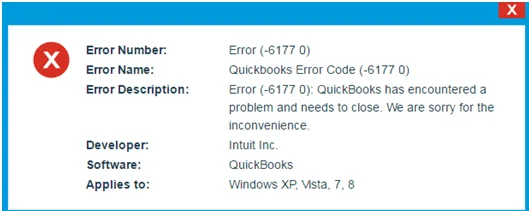
Error CodeError Code 6177 in QuickBooks (-6177, 0)
Error Message“QuickBooks is attempting to open this company file. Before you can open the company file, QuickBooks must resolve the path to the company file.”
Common IssueQuickBooks cannot locate or access the company file because the file path cannot be resolved.
Difficulty LevelModerate
Estimated Resolution Time20 to 45 minutes (depending on the underlying cause)

Users can make their troubleshooting process easier when they take the help of expert technical representatives. Resolve every QuickBooks-related error from the comfort of your home via a call to the Data Service Team at +1(888)-718-7888.

What is the cause of the QuickBooks Error 6177?

This error is generally caused when the QB software cannot use the file path to open the company file. It happens due to damaged network descriptor (.ND) files. We have provided the primary causes of this error hereunder.

  • Network Configuration Problems:
    • If the .ND and .TLG files become corrupted or become too old (files keep a record of all multi-user access), they can create a communication problem between your PC and the host PC.
    • A company file stored on an inaccessible network location also leads to this error.
  • Problems with File Location:
    • The location of the company file might have changed. This file may now have a new name or is stored on mapped network drives using Windows.
    • The incorrect or damaged company file path also causes this error.
  • Problems with Permissions:
    • There is no permission for the Windows account that you use. It prevents you from having access to the folder containing the company file on the server.
    • You may also encounter this error if your QuickBooks Desktop version is outdated.
  • QuickBooks Database Server Manager Malfunctions:
    • The QuickBooks database manager could be out of date or malfunctioning.
    • A damaged Windows network configuration can also throw this error. It causes broken path links.
  • Network Interruptions:
    • Network interruptions during file access create a disruption in file access.
    • It leads to a broken path between the host and the server.
  • Firewall or antivirus Blocking:

Signs that you are experiencing QuickBooks Error 6177

You can act fast if you know the disruptions you are facing are because of the QuickBooks Error 6177. Users can easily diagnose this error and apply the troubleshooting steps accordingly if they know the signs. We have provided the signs below.

  • QuickBooks fails to open the company file.
  • The application freezes or crashes while accessing network/ company files.
  • Multi-user mode stops functioning.
  • Slow performance when opening company files.
  • Windows becomes sluggish during QuickBooks operations.
  • The QuickBooks Error 6177 0 Cannot Use The Path Problem appears repeatedly.
  • A message is shown in a dialog box that explains why QuickBooks cannot use the path to the company file.
  • It takes unusually long for the program to give a response before it displays the error.
  • No other user on the network is able to access the company file, although everything was working fine before.

Top Solutions for the QuickBooks Error 6177 in 2026

Users can easily fix the QuickBooks Error 6177 with the help of several methods. It includes troubleshooting approaches offered by Intuit as well as the fixes that have worked for technical experts. We have provided every single solution available for customers hereunder.

Solution 1: Update Your QuickBooks to the Latest Version

Users can fix this error when they make an update to the QuickBooks application. Running an out-of-date version of QuickBooks may lead to compatibility and company file issues. Follow the steps below to update your QB application.
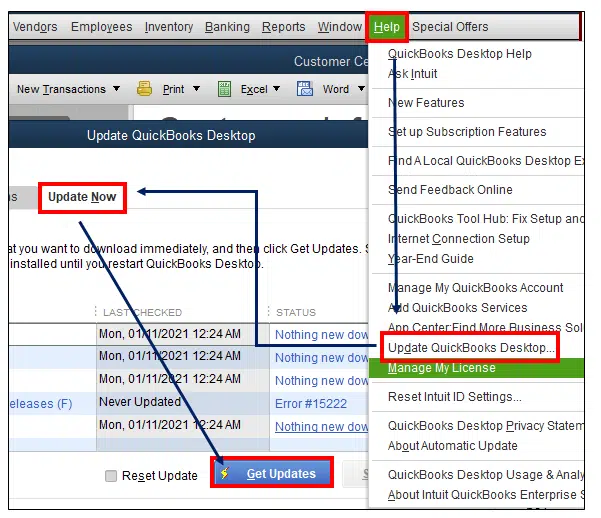
  • Open the QuickBooks application.
  • You need to head to the Help menu.
  • Users then need to click on the Update QuickBooks Desktop option.
  • Select the Update Now option.
  • You will then have to tick the Reset Update checkbox.
Get Updates
  • Press the Get Updates button.
  • Wait for some time to let the update be complete. Restart your QB application.

Solution 2: Move the Company File to the Local Drive

You can also make this error go away if you update the file location. This method works best if you keep the company file on an external hard drive, a server, or in the cloud.

Step 1: Transfer your Company File

  • Launch the Windows Start menu.
  • Users will then have to type File Explorer in the search box and click on it to open it.
  • You need to search for the QuickBooks folder and click it to open it. Alternatively, users can also click F2 to get the location when QuickBooks is still open.
  • Users will then have to find their Company File that ends with the QBW extension. It should look like this: [company_name].qbw.
  • You will then have to write down the name of the drive and its location. Users will put their file back here later on.
Transfer your Company File
  • Users then need to transfer their company file from this folder to the C: drive.

Note: Ideally, you should carry out all these procedures on your server computer (the one hosting your company files). However, if this is not possible for some reason, it does not matter since you can carry out these procedures on one of your workstations (computer attached to your server).

Step 2: Create a Transferable Company File and reinstate it to your Server

The above step helps users move their company to a local drive. Users can then create a transferable company file. It is usually a packed version of your financial data. Check the steps below for the same.
  • Open QuickBooks Desktop on the computer where you have transferred your company file.
  • Choose the Open or Restore an Existing Company option.
  • Browse and open your company file that is transferred to your C drive.
  • You will then have to make a Portable company file. This will make a portable copy of your company file and will also reset your file location information.
  • Choose the File Menu
  • Users then need to select Quit QuickBooks.
  • After that, reopen QuickBooks.
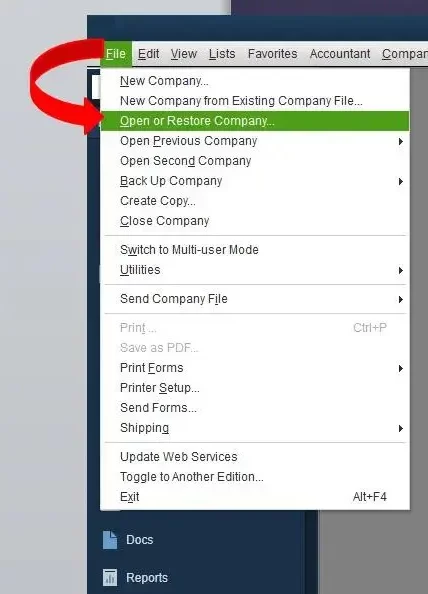
  • Choose the File menu in the next step.
  • You should then choose Open or Restore Company.
Open-or-Restore-Company
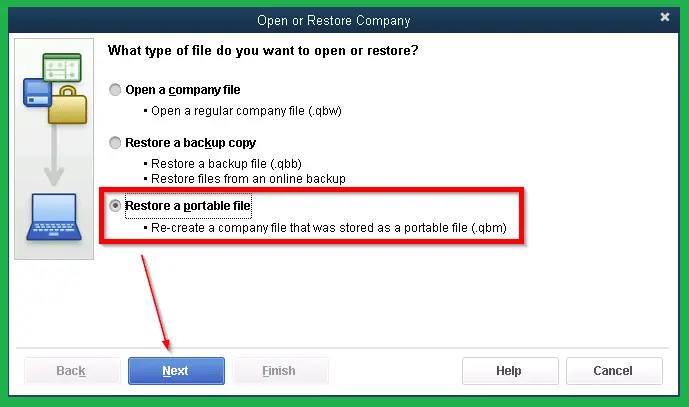
  • Choose Restore a Portable file option after this.
Create-and-Open-Portable-Company-Files-in-QuickBooks
  • Users then need to choose Next.
  • Find and choose your portable company file (QBM) that you have made. You then need to select Open and Next.
  • As the restore location, choose the drive where you have transferred your company file previously. You had noted that before.
  • Choose Save. This will put your company files back on your network.
  • Choose the File menu.
  • Select Quit QuickBooks at the end.

Solution 3: Run the QuickBooks File Doctor on your Server

Users can also make this error go away with the help of QuickBooks File Doctor. You will have to download this application. It scans all the company files and cleans the ones that are causing the error. This utility also helps you refresh the location.
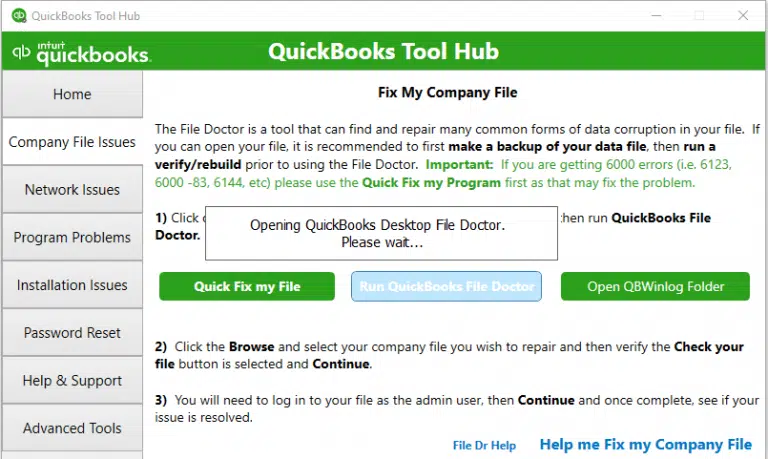
Run-QuickBooks-File-Doctor
  • You will see the Run QuickBooks File Doctor option there.
  • Users will then have to select the company file from the drop-down menu. You can click the Browse option and locate the file manually if it does not appear automatically.
  • You need to select the Check your file and network option next.
  • Click on Continue in the end.
  • Clients will then have to enter their QuickBooks admin password when asked.
  • You should then let the QB tool scan and repair the company files.
  • Open the QuickBooks company file again after the process is complete.

Note: Users need to ensure that they back up their company file after the issue is fixed.

Solution 4: Fix the Company File Path Manually

Users can troubleshoot this error if they manually fix the file path. It includes deleting the corrupted or damaged Network Descriptor (ND) file. You will also have to configure the QuickBooks Database Server Manager. We have provided the applicable steps hereunder.

Step 1: Find and Delete the damaged ND file

  • Users need to open File Explorer on the Server Computer.
  • Search for the QuickBooks folder next.
  • You will then have to find the file that has your company name and ND extension at the end. The file should resemble the following: [Company_File_Name].qbw.nd.
  • You should then right-click the ND file.
  • Select the Delete option at the end.

Users should not worry, as this step does not affect the accounting data of the company.
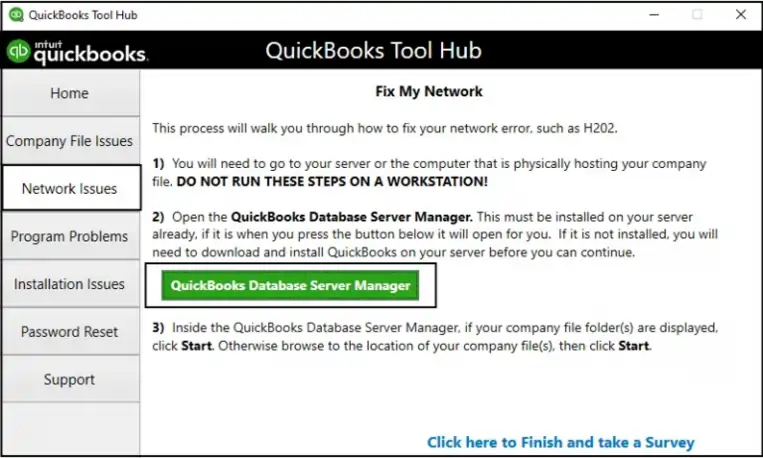
Step 2: Set up QuickBooks Database Server Manager

  • Users need to download the QuickBooks Database Server Manager (if you haven’t done so yet).
  • Install the QB Database Server Manager following the prompts shown on the screen.
  • Launch the Windows Start menu on the Server computer.
  • You need to type “Database” in the search box.
  • Click and open the QuickBooks Database Server Manager.
Database Server Manager
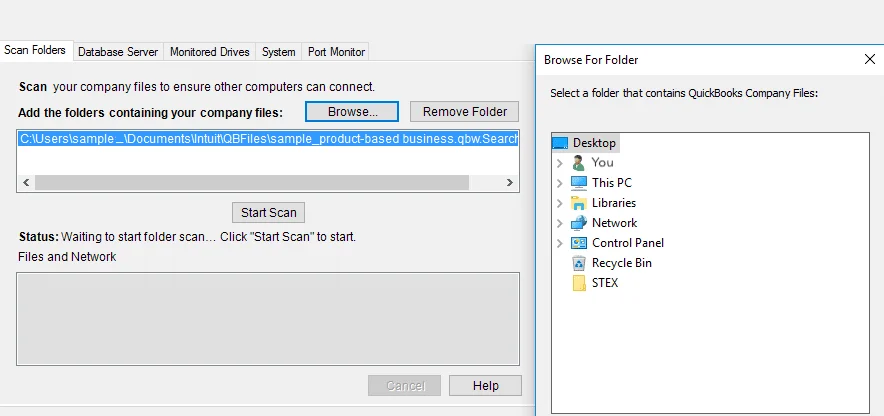
  • You will then have to choose the QuickBooks folder that holds all your company files.
Start Scan option
  • Next, select the Start Scan option.
  • Wait for some time to let the scan finish. You will then need to choose the Close option.
  • Users will then have to set the folder permissions to share the QB company files.

Solution 5: Verify the Company Folder Permissions

QuickBooks requires full read and write permissions for the company file folder. Insufficient permissions frequently contribute to QuickBooks Company File Error 6177. Users need to ensure that:

  • Everyone has Full Control (if appropriate for your environment).
  • The hosting computer can access the folder.
  • Users have sufficient Windows permissions.

You can follow the steps shared below to configure the permissions.

  • Right-click on the folder whose permission properties you want to configure.
  • Users then need to choose Properties.
  • In the Sharing tab, select “Share this folder“. You can rename the shared folder by entering a new name in the “Share Name” box.
  • Then go to the Security tab or select Permissions and set up permissions for all users who will have access to your folder.
  • Select Apply and OK.

Solution 6: Rename the QuickBooks Company Files Name and Revert it

You encounter the QuickBooks Error 6177 due to damaged .ND and .TLG files. Users can create fresh and uncorrupted versions when they rename these files. We have provided the steps to rename the related .QBW files hereunder.

  • Users need to open QuickBooks.
  • You should then press the F2 or Ctrl + 1 option to open the Product Information Window.
  • Find the section on File Information and note the location of the File.
  • Launch the File Explorer.
  • Thereafter, open the folder that contains the .QBW file of your company.
  • Find the files having the same name as that of your company file but have the extensions of .ND and .TLG.
  • Right-click the .ND file and click “Rename,” then add .OLD after the file name.
  • Follow the above step for .TLG files too.
  • Open QuickBooks and attempt to open your company file again. The QuickBooks software will generate new .ND and .TLG files.

How to Configure QuickBooks to Recognize the Renamed File

  • Users need to open QuickBooks.
  • Go to the File tab next.
  • You will then need to click the Next option.
  • In the next step, select Open a Company File.
  • Customers will then have to click Next.
  • You should then choose the renamed company file and click Open.

Solution 7: Reconfigure the Multi-User Hosting

Users often ask, “Can QuickBooks Error 6177 occur in Single-User Mode?” This error can occur in single-user mode as well, but it is more prominent in multi-user hosting. Incorrect hosting settings may interfere with company file access. We have provided the steps to reset this hosting process below.
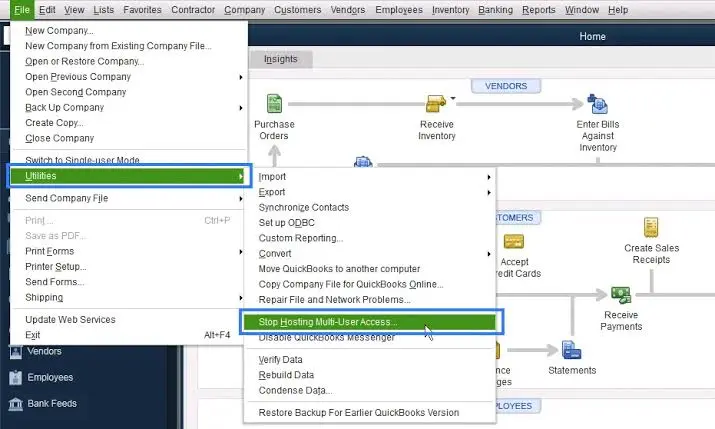
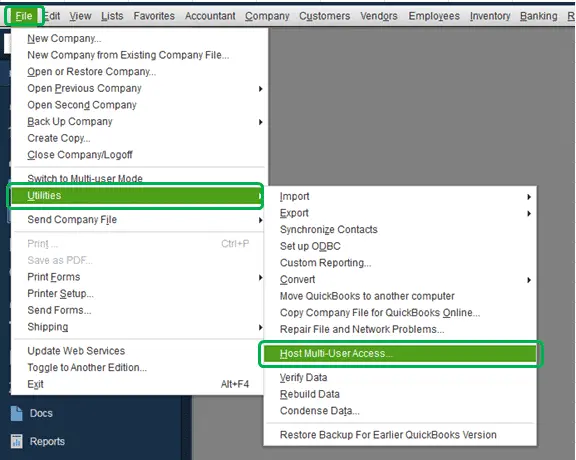
  • Users need to open QuickBooks on the Server.
  • You should then head to the File section.
  • Choose the Utilities option in the next step.
  • Clients then need to select Stop Hosting Multi-User Access.
Stop Hosting Multi-User Access
  • Click on the Yes option to confirm.
  • You should then close QuickBooks by selecting File > Quit QuickBooks option to reset the hosting settings.
  • Users then need to reopen QuickBooks without opening the Company File.
  • Go to the File section next.
  • Again, select the Utilities option.
  • You need to select Host Multi-User Access.
  • Click on Yes to confirm.
  • Close the QuickBooks application again.
  • Restart all connected workstations afterward.

Solution 8: Review Firewall and Antivirus Settings

Security software can block QuickBooks network communication. Antivirus and Firewall settings may interfere with file path access and throw the QuickBooks error 6177. Users need to verify that:

  • QuickBooks executable files are allowed.
  • Required QuickBooks ports are open.
  • Antivirus exclusions include the QuickBooks installation and company file folders.

Solution 9: Execute the QuickBooks Connection Diagnostic Tool

Users can fix network and company file issues with this tool as well. You will need to pay heed to the steps provided hereunder.

  • You need to download the tool from the QuickBooks website.
  • Users need to install it by following the instructions shown on the screen.
  • You then need to open the tool from the desktop or start menu.
  • Click Browse and then select the company file.
  • You then need to click Test Connectivity. Users should wait for the repair to finish.

Solution 10: Close all the QuickBooks Background Processes

Discontinuing background processes may assist in solving problems with QuickBooks. The following are some of the procedures you should undertake before trying any other troubleshooting:

  • Restart your PC.
  • Update to the latest version of QuickBooks.
  • Ensure the company file location is correct.
  • Fix the QuickBooks application.
  • Restore company file backup.

The following are steps to end all QuickBooks background processes:

  • Open Task Manager using the Ctrl + Shift + Esc shortcut key.
  • Right-click on each QuickBooks process and select “End task.”
  • Go to the Processes tab.
  • Look out for processes like QBW32.EXE, qbupdate.exe, and QBDBMgrN.exe.
  • Click on each process and end it.

Solution 11: Run the QuickBooks Clean Install Tool

Sometimes a corrupted installation can cause the file path access error. Users can rectify this issue when they install this accounting software again. We have provided the applicable steps herein.

  • Users need to uninstall QuickBooks from their System.
  • You then need to download and execute the QuickBooks Clean Install Tool.
  • Follow the instructions shown on the screen to complete the clean installation.
  • Users will again have to install the QuickBooks tool.
  • Open the company file to check its proper working.

How to Prevent QuickBooks Error 6177 in the Future?

Users can encounter this error once again if they do not take preventive steps. We have provided expert tips that will help you prevent QuickBooks Error 6177, 0 in the future below.

  • Users need to make sure that their QuickBooks Desktop is updated.
  • You need to store company files on a reliable server.
  • Avoid abrupt system shutdowns. It may cause corrupted file paths.
  • Customers need to back up their company files regularly.
  • Users need to monitor network connectivity.
  • Verify folder permissions periodically.
  • Use QuickBooks Database Server Manager correctly in multi-user environments.
  • Scan the company file on a regular basis using QuickBooks Tool Hub.
  • Always connect your server and workstation computers via hardwired Ethernet cables. Wireless drops are a primary cause of network path failures.
  • You should exclude QuickBooks ports from your firewall rules. This ensures your security software doesn’t accidentally block the path translation.

Conclusion!

QuickBooks Error 6177 primarily occurs when the software cannot identify or access the correct path to your company file. The System freezes or takes a longer time to respond when you open a company file. This problem manifests itself with a QuickBooks Error 6177, 0. Although the issue often seems serious, it can usually be resolved by updating QuickBooks. You can move the company file temporarily to a local drive and repair the network configuration with QuickBooks File Doctor for a quick fix as well. We have provided every possible fix for this error in this blog, along with the preventive measures.

If the problem still persists after completing these troubleshooting steps, you should contact QuickBooks support for advanced diagnostics. Call the expert live agents of the Data Service Team at +1(888)-718-7888 for a hassle-free solution.

Frequently Asked Questions (FAQ’s)

Yes! This error can happen in single-user mode as well. However, it is more common in multi-user network configurations. A moved file location or a damaged Network Descriptor is a common cause of this error in single-user mode.

This error means the software is unable to use the correct path to locate and open your company file. It usually occurs in multi-user environments when a workstation cannot communicate with the server hosting the file. It is often caused by mapped drives instead of full UNC paths.

Error 6177 occurs when QuickBooks Desktop cannot find or access the correct path to the company file. This blockage usually happens because the workstation is looking for the file via a mapped drive instead of the full network path. It may also happen because the hosting service is misconfigured or network permissions have changed.

QuickBooks Error 6177 does not damage or corrupt your company data. It is strictly a network and file-path issue that occurs when the software loses the correct path to access your company file on the hosting server. It usually happens during multi-user setups. Your accounting data remains safe, but your workflow will be temporarily blocked.

Moving the company file to the local C: drive fixes Error 6177 by bypassing network connectivity issues. It also resolves mapping discrepancies and restricted folder permissions. It allows you to create a fresh and clean path to the data. Users can also verify that the file itself is uncorrupted before returning it to the Server.

Yes! Both of these errors are exactly the same. Both refer to Error 6177, 0, which is a common QuickBooks Desktop error indicating the program cannot use the correct path to access your company file. The ” 0″ is just an extra parameter Intuit includes with the specific 6177 code.

Customers can use different methods to prevent QuickBooks Error 6177 (which occurs when the software cannot locate or access the company file path) from happening again. The common fix is to avoid using mapped network drives to store files. Instead, always use full UNC paths and ensure your hosting, folder permissions, and antivirus settings are optimized.

About The Author

Steven Moody

Steven Moody is a bookkeeping and payroll specialist dedicated to helping businesses maintain accurate financial records and efficient payroll operations. His expertise includes payroll management, tax compliance, bookkeeping solutions, and financial reporting. Steven regularly shares insights on accounting best practices and business finance strategies. Outside of work, he enjoys traveling, exploring new places, and keeping up with the latest developments in business technology.

Steven Moody

QuickBooks Error

QuickBooks Delivery Server Down Error? Here’s How to Fix It

Read More
QuickBooks Tool

How to Resolve Installation Issues with the QuickBooks Install Diagnostic Tool?

Read More
QuickBooks Error

QuickBooks Error 1904? Here’s How to Fix It Quickly

Read More
QuickBooks Error

What is QuickBooks Error H101? Here’s How to Fix It

Read More
QuickBooks Error

ABS PDF Driver Issue in QuickBooks: Here’s How to Fix It

Read More