QuickBooks-Error-H101

Are you facing error H101 while using QuickBooks for your business tasks? QuickBooks error H101 is a common multi-user hosting error and occurs when QuickBooks Desktop is unable to connect to the company file. It can disrupt your accounting tasks and lead to frustration. There are many causes behind this error that every user must know to fix it quickly.

This detailed article will help you understand causes, reasons, troubleshooting methods, and tips to make your QuickBooks experience smooth. Read the information below carefully and implement the given solutions to resolve the issue on your own.

What Does QuickBooks Error H101 Mean?

QuickBooks error H101 indicates that the software is trying to access a company file saved on a different drive but is unable to do so due to issues. This error arises in multi-user mode when QuickBooks Desktop is not able to communicate with the server where the file is stored. Common causes include network configuration problems or the QuickBooks service not running. Check the network connection and ensure important services are active to resolve QuickBooks Desktop Error H101.

How to Recognize QuickBooks Desktop Network Error H101?

The initial signs of the H101 error in QuickBooks Desktop are as follows:

  • QuickBooks Error H101 is recognized when users encounter the error message: “QuickBooks cannot access the company file because it is being utilized by another user.”
  • This error occurs in multiuser mode when QuickBooks fails to establish a proper link to the company file due to network problems, file corruption, or an improper hosting configuration.

Things to Understand Before Fixing QuickBooks Error H101

QuickBooks error H101 occurs when a workstation cannot communicate with the server that host your company file and blocks multi-user access. Users must be aware of the foundational network requirements before troubleshooting.

  • Hosting must be enabled on the server or host computer. It should be disabled on all individual workstations.
  • You must have proper Windows permissions set up, and Network Discovery must be enabled on both the server. It allows your workstations to share files.
  • The Database Server Manager relies on background services named QuickBooksDBXX and QBCFMonitorService. These must be running in Windows with the Startup type set to Automatic.
  • Windows Firewall or third-party antivirus software blocks the ports QuickBooks uses to communicate across the local network. Users may need to create port exceptions for your firewall.
  • Error H101 is triggered by corrupted network data files in your company file folder.
  • Users can rebuild these by rescanning the folder with the QuickBooks Database Server Manager.
  • Unstable or dynamic IP addresses as well as incorrect DNS configuration on your network. It can disrupt the connection between the server and the host computer.

How to Troubleshoot QuickBooks Desktop Network Error H101?

QuickBooks Desktop error code H101 occurs when something blocks the multi-user connection to server computer. Users can isolate this error through different solutions described below:

Solution 1: Download and Install QuickBooks Tool Hub on Your Server

The QB Tool Hub helps fix common errors. Users need to close QuickBooks to use the tool hub. Check out the step-by-step guidance given below:

  • Close QuickBooks.
  • Download the newest version of QuickBooks Tool Hub.
  • Save the company file in a folder where you can find it easily.
  • Open the File that you have downloaded.
  • Follow the on-screen steps to install and agree to the conditions.
  • Double-check the icon on your Windows desktop to open the Tool Hub when the install finishes.

Data Service Team Tip: Users can find out which version you have if you have already installed Tool Hub. Select the Home tab and the version details will appear at the bottom.

Solution 2: Run the QuickBooks Database Server Manager

The server computer stores QuickBooks company files. Other computers connected to your network are workstations. Here are the steps to be considered:
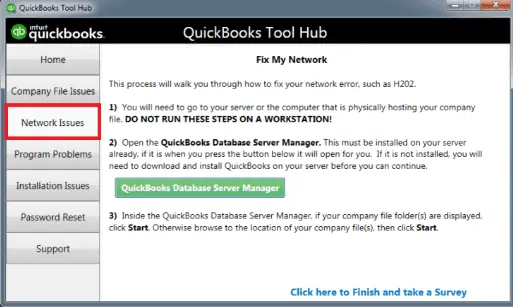
QuickBooks-Tool-Hub-Network-Issues
  • It will prompt you to install it if QuickBooks is not on your server.
  • Choose Start scan if you see company Files.
  • Browse to the location of your company file if you don’t and click on the Start Scan.
  • QuickBooks Database Server Manager repairs the firewall permissions.
  • Select Close when the scan finishes.
  • Open QuickBooks on each workstation and select File.
  • Switch to Multi-user mode.

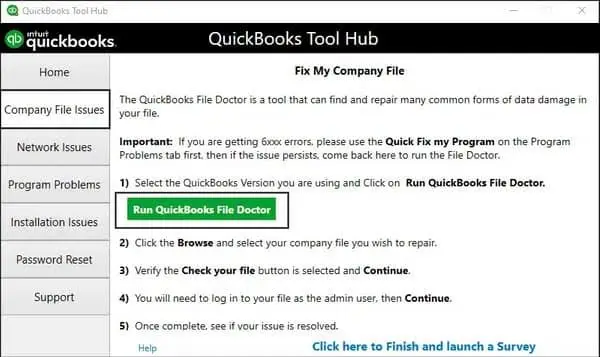
Solution 3: Run the QuickBooks File Doctor From the Tool Hub

Company File Issues to run file doctor
  • It can take a few minutes to open.
  • Select your company file from the drop-down menu in QuickBooks File Doctor.
  • Select Browse option and search for your File if you do not see your File.
  • Select Check Your Network and then Continue.
  • Enter your QuickBooks admin credentials and select the Next tab.

Search for QuickBooks Desktop File Doc and open it manually if the QuickBooks File Doctor does not open.

Solution 4: Verify Hosting Settings on Server and Workstations

When H101 pops up, it means the necessary server connection or the QuickBooks Database Server Manager is not communicating correctly. Implement the instructions provided below to fix QuickBooks error H101 Desktop:
  • Launch QuickBooks on the workstation that displays the QuickBooks Error H101.
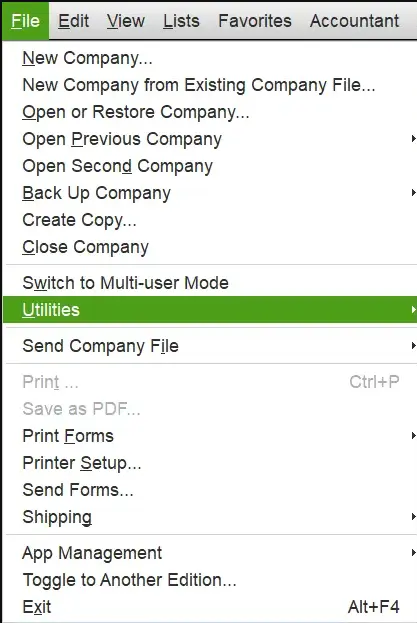
  • Navigate to File> Utilities.
Navigate to File Utilities
  • If Host Multi-User Access is visible, this configuration is correct, and you should not click it.
  • If Stop Hosting Multi-User Access appears, select it.
  • Perform steps 2–4 on every workstation.
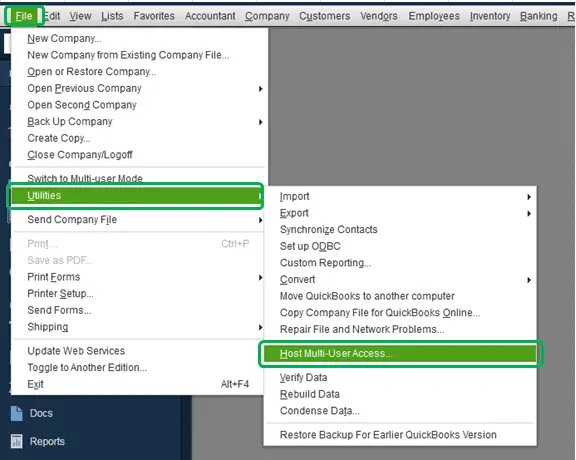
  • Go to your server computer, open QuickBooks, and navigate to File> Utilities.
  • Choose Host Multi-User Access.
Host Multi-User Access

Solution 5: Rename the. ND (Network Data) File

The.ND file acts as a configuration file that tells QuickBooks how to connect to the server. Renaming it forces QuickBooks to create a fresh, uncorrupted version.

  • Open the folder where your company file is saved on the server.
  • Look for the File ending in.ND (e.g., company_file.qbw.nd).
  • Right-click the File and choose Rename option.
  • Add . OLD to the end of a filename (e.g., company_file.qbw.nd.old).
  • Reopen QuickBooks. A new.ND file will be generated automatically.

Solution 6: Check Service on the Server

Ensure a stable network connection, use the latest version of QuickBooks, and properly configure the hosting setup to fix QuickBooks Error Code H101. QuickBooks relies on certain services running on the server. Make sure they are active and configured:
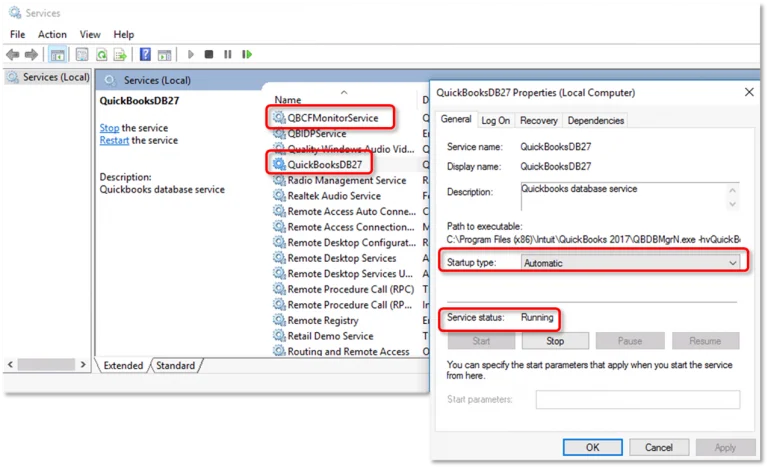
  • Open the Run command and press Windows+R.
  • Type services.msc and press Enter.
  • Look for QuickBooksDBXX.
  • Double-click it and set the Startup Type to Automatic.
  • Ensure the service status is Running.
status is Running
  • Click Start if it is not.
  • Configure the Recovery tab to restart the service if it fails.

Repeat the same steps for QBCF Monitor Services.

Solution 7: Configure Windows Firewall Settings

It can impact the functionality of QuickBooks in multi-user mode if the Windows Firewall is not set up correctly. This results in the display of QuickBooks Error H101. Follow these steps to fix this problem: The steps are divided into three sub-steps.

Add QuickBooks as an Allowed Program in Firewall

  • This step will help QuickBooks work and operate fully.
  • Press the Windows and R keys.
  • Type Control Panel in the space.
  • Click OK and go to the Firewall Settings.
  • Go to Allow Programs and add QuickBooks there.
  • Save the changes and restart your PC.

Check Your QuickBooks Port

Here, you need to confirm the QuickBooks port that you are using.

  • Start the process and launch the QuickBooks Database Server Manager.
  • Click on the Port Monitor and locate the QB version.
  • Write down your Port Number.

Configure Firewall Ports

You have to configure the Windows Firewall for the QB ports that you have noted down in the previous steps.

  • Use Windows + R and access the command box.
  • Enter the Control Panel text and select OK.
  • Access System Security and click on Windows Firewall.
  • Choose Advanced Settings, followed by the Inbound Rule option.
  • Select New Rule, followed by the Port option.
  • Click Next and mark TCP.
  • Type the port numbers in the given space.

Data Service Team Tip: The three steps given will help isolate Error Code H101 in QuickBooks Desktop with ease. Remember that this error happens because the computer hosting is not set up to allow multi-user access.

Solution 8: Stop Hosting Multi-User Access

QuickBooks Error H101 comes when one or above workstations are set as QB servers. Consider these steps to fix the issue and ensure the server is hosting multi-user access:

On the Workstations:

  • Launch QuickBooks but do not open the company file.
  • Move to the File menu and choose Utilities.
  • Select it if the Stop Hosting Multi-User Access option is available.
  • Move on to the next workstations and repeat.

On the Server:

  • Open QuickBooks on the server computer.
  • Click Utilities from the File menu.
  • Do nothing if Stop Hosting Multi-User Access is visible.
  • Click on it if Host Multi-User Access is available.

Turn off multiuser access on workstations as the company file will be solely handled by the server It should fix the QuickBooks Desktop Network Error H101. If issues with the hosting configuration persist on a local network, use QuickBooks Pro Hosting to centralize company files and enhance remote collaboration. It reduces the need for complicated server management.

Solution 9: Change QuickBooks File Location

Users must perform the below-mentioned steps on the server computer where they have hosted the company file to change the file location.

  • You have to create a new folder.
  • Copy file and paste it into the new folder.
  • Open QuickBooks > File > Open or Restore Company.
  • Click on the option to open a Company File followed by Next.
  • Browse to the location where you have stored the company file and click on Open.

Solution 10: Confirm QuickBooks Services are Running

Sometimes, inactive QuickBooks services prevent it from normal operations and cause errors like QuickBooks error H101. Users need to check if the QuickBooks services are active or not:

  • Hit the Windows + R keys.
  • Type Services.msc in the text box.
  • Click OK and locate the services QuickBooksDBXX.
  • Click twice on it and choose the Startup Type.
  • Select the Automatic button and ensure the status is Running.

Data Service Team Tip: To fix QuickBooks error H101, toggle the multi-user hosting settings, check Windows Firewall settings, or use the QuickBooks Database Server Manager to scan files.

Major Causes of Error code H101 in QuickBooks Desktop

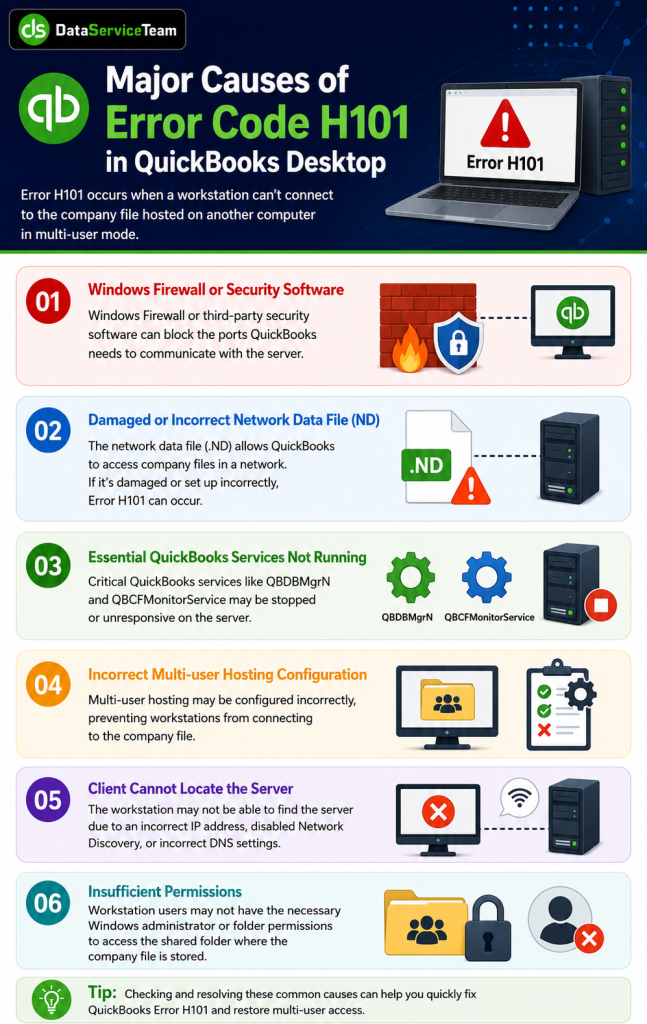
QuickBooks error H101 occurs when a workstation attempts to open a company file on another computer and cannot establish a connection. It does not allow you to make a multi-user mode switch. The major causes include:
quickbooks error h101
  • Windows Firewall or third-party security software can block the ports QuickBooks needs to communicate with the server.
  • The network data file allows QuickBooks to get company files in a network. But it may be damaged or incorrect.
  • Essential QuickBooks background services like QBDBMgrN and QBCFMonitorService. It may be stopped or unresponsive on the server.
  • Multi-user hosting may be configured incorrectly.
  • The client computer cannot locate the server due to an incorrect IF address, disabled Network Discovery, or incorrect DNS settings.
  • Workstation users may lack the necessary Windows administrator or folder permissions to access the shared folder where the company file is stored.

What Are the Signs of QuickBooks Desktop Network Error H101?

QuickBooks Error H101 is an H series network issue and occurs when a workstation cannot communicate with the server hosting your company file. It always indicates that the multi-use setup is misconfigured, blocked, or experiencing connection dropouts. The primary signs and symptoms include:

  • The company file is on another computer and QuickBooks needs assistance to connect with it.
  • The software prevents you from switching into or using Multi-user Mode. It locks you out of shared financial data.
  • Workstations are unable to open the company file stored on the host computer or server.
  • QuickBooks may become completely unresponsive or freeze when attempting to open a file.
  • Essential QuickBooks background services are inactive or stopped on the server PC.
  • Slow network performance when accessing shared files or folders prior to the error occurring.
  • Repeated errors indicating that the Windows Firewall or third-Party antivirus is blocking QuickBooks ports and executables from communicating to the host.
  • The Network Data File on the host machine is corrupted and prevents QuickBooks from locating the company file.

What are the Requirements to Fix QuickBooks Desktop Error H101?

Error H101 usually occurs when QuickBooks cannot establish a proper connection to the server where the company file is stored. To resolve this error, make sure you have the following requirements:

  • A dependable and steady network connection.
  • The most recent version of QuickBooks Desktop is installed.
  • QuickBooks Database Server Manager is operational on the server.
  • Correct hosting configuration for the company file.
  • Administrator access to both the computer and QuickBooks.
  • QuickBooks Tool Hub has been installed for troubleshooting purposes.

How to Prevent Error Code H101 in QuickBooks Desktop?

QuickBooks Error H101 occurs when your computer tries to open a company file stored on another computer. But the network blocks the connection. Users must ensure that devices are configured to communicate with each other to prevent this error. Here are the tips to prevent this error from affecting your business tasks:

  • Ensure Host Multi-User Access is turned on on your main server. But turn it OFF on all other workstations.
  • Run the Database Server Manager on your server to scan and share your company files.
  • Configure your Windows Firewall or antivirus to allow communication for the QBCFMonitorService.exe and QBDBMgrN.exe files.
  • Verify that your server and workstations are on the exact same local network or workgroup.
  • Install the latest software releases for QuickBooks Desktop so network components remain compatible.
  • Assign a IP Address to your server so client computers never lose track of where the company file is located.

Conclusion

QuickBooks Error H101 can usually be resolved by correcting hosting settings, network configuration, and firewall permissions. If the issue continues, contact Data Service Team at +1(888)-718-7888 for expert QuickBooks support and reliable multi-user troubleshooting.

Frequently Asked Questions (FAQ’s)

Severe underlying data corruption can cause your system to drop its connection to the server, while a damaged company file itself rarely triggers the H-series Network faults. QuickBooks Error H101 indicates a network misconfiguration like a damaged file, blocked firewall permissions, etc. It prevents the user’s computer from communicating with the host system.

All of these are part of H-series network errors and they mean a computer cannot connect to the company file. Error H101 means one specific workstation cannot reach the server. Error H202 and H505 occur when multi-user connections are blocked by a firewall or when your network gets confused.

Yes! Hosting configuration issues are a primary cause of QuickBooks Error H101. This error occurs when workstations try to access a company file on the server. But it cannot connect. It is triggered when hosting is turned on across multiple computers.

Your multi-user network setup is unstable if QuickBooks Error H101 keeps coming back. Verify that your server computer has hosting turned on. Use the QuickBooks Tool Hub to run the Database Server Manager. It repairs corrupted configuration files and firewall permissions.

Yes! Windows Firewall can block QuickBooks and cause Error H101. This happens when the firewall’s security rules block certain network ports or background services QuickBooks needs to communicate with the company file on a remote server.

About The Author

Steven Moody

Steven Moody is a bookkeeping and payroll specialist dedicated to helping businesses maintain accurate financial records and efficient payroll operations. His expertise includes payroll management, tax compliance, bookkeeping solutions, and financial reporting. Steven regularly shares insights on accounting best practices and business finance strategies. Outside of work, he enjoys traveling, exploring new places, and keeping up with the latest developments in business technology.

Steven Moody

QuickBooks Error

ABS PDF Driver Issue in QuickBooks: Here’s How to Fix It

Read More
QuickBooks Error

What is QuickBooks Error 0x800701b1? Here’s How to Fix It

Read More
QuickBooks Error

What is QuickBooks Unrecoverable Error? Here’s How to Fix It

Read More
QuickBooks Desktop

QuickBooks Email Setup: How to Configure & Fix Email Issues

Read More
QuickBooks Error

How To Fix QuickBooks Error 15276 When Payroll Update Failed

Read More
