QuickBooks-Error-15243

Running into QuickBooks error 15243 while updating the software can be frustrating, especially when you need the latest tax tables and security updates. Instead of completing the updates, QuickBooks suddenly stops working and displays an error. If you are experiencing QuickBooks Payroll Update Not Working, Error 15243 may prevent QuickBooks from downloading and installing the latest payroll updates successfully. However, damaged installation files, Windows configuration issues, or other system-related problems can also trigger the error.

The good news is, you can easil y fix the QuickBooks error 15243 with a few troubleshooting steps. This detailed blog explains the possible causes, common signs, and proven solutions to help you get QuickBooks updating normally again.
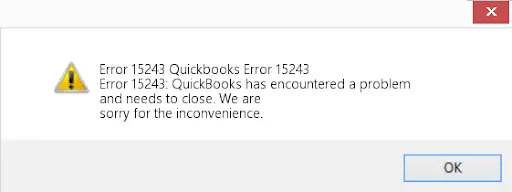
QuickBooks-Error-15243

Quick Fix for QuickBooks Error 15243

To troubleshoot QuickBooks Error 15243, first update QuickBooks Desktop, check that the QuickBooks File Copy Service is running, and restart QuickBooks. If the error continues, use QuickBooks Tool Hub to repair installation problems, check firewall or antivirus restrictions, and repair or reinstall QuickBooks if necessary.

How Can QuickBooks Error 15243 Impact Your Workflow?

The QuickBooks update error 15243 may seem like a simple update issue, but it can affect various important functions if left unresolved.

Here are some of the common issues you may experience:

  • Payroll updates may fail: You might not be able to download the latest payroll tax table updates, making it difficult to process payroll accurately.
  • QuickBooks updates won’t install: New product updates, bug fixes, and security patches may fail to download or install.
  • Repeated update failures: Every time you try to update QuickBooks, the same error code may appear, preventing the process from completing.
  • Missing security improvements: Running an outdated version of QuickBooks means you could miss important performance enhancements and security updates.
  • Unexpected program interruptions: In some cases, your QuickBooks may freeze, slow down, or close unexpectedly while attempting to install updates.

What’s Causing QuickBooks Payroll Update Error 15243?

There is not a single reason behind QuickBooks Error 15243. Several other factors also prevent QuickBooks from installing payroll or software updates successfully. Below are the most common reasons why this error may appear:

1. Intuit File Copy Service is Disabled

The Intuit File Copy Service is required to install QuickBooks updates. If this Windows service is disabled, stopped, or damaged, QuickBooks won’t be able to complete the update process, resulting in QuickBooks Error 15243.

2. Damaged QuickBooks Installation Files

If some QuickBooks program files are missing or corrupted, the software may fail to install updates correctly. This often happens after an incomplete installation or an interrupted update.

3. Incomplete or Failed QuickBooks Update

A failed or partially installed update can leave important update files damaged, causing QuickBooks to display Error 15243 the next time you attempt an update.

4. Windows System Issues

QuickBooks relies on several Windows components to function properly. If system files are corrupted or required services aren’t running, the update process may fail.

5. Antivirus or Firewall Restrictions

Some antivirus programs or firewall settings can mistakenly block QuickBooks from accessing the files or services it needs to download and install updates.

6. Outdated Windows Version

Running an older version of Windows can create compatibility issues with newer QuickBooks updates, making it difficult for the software to install them successfully.

7. Malware or Third-Party Software Conflicts

Malware infections or background applications can interfere with QuickBooks processes, preventing updates from completing and triggering QuickBooks Error 15243.

How to Fix QuickBooks Error 15243? Proven Solutions

Before making any major changes to fix QuickBooks error 15243, start with the basic troubleshooting steps first.

Solution 1. Install the Latest QuickBooks Desktop Updates

An outdated QuickBooks version can create compatibility problems during payroll or software updates. Follow these steps to get the new update:
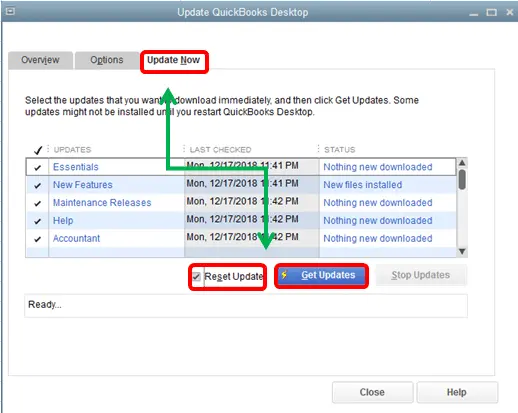
  • Open QuickBooks Desktop.
  • Go to the Help menu.
  • Select Update QuickBooks Desktop.
  • Open the Update Now tab.
  • Select the updates you want to install.
  • Click Get Updates.
Update-QuickBooks-desktop
  • Once the update finishes, restart QuickBooks.

Solution 2. Check and Enable QuickBooks File Copy Service (FCS)

The Intuit QuickBooks File Copy Service plays an important role during QuickBooks updates. If this service is stopped, disabled, or not configured correctly, QuickBooks may fail to install the latest updates. To check the FCS service, follow these steps:
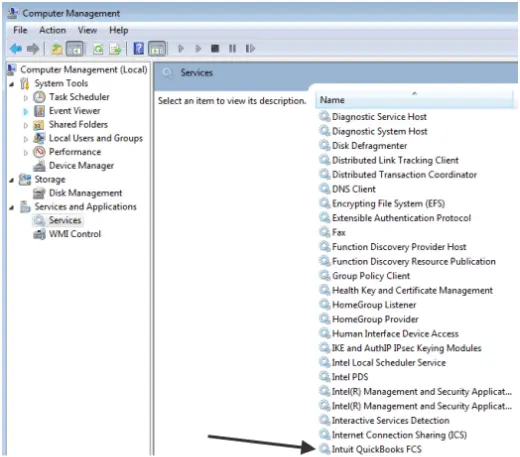
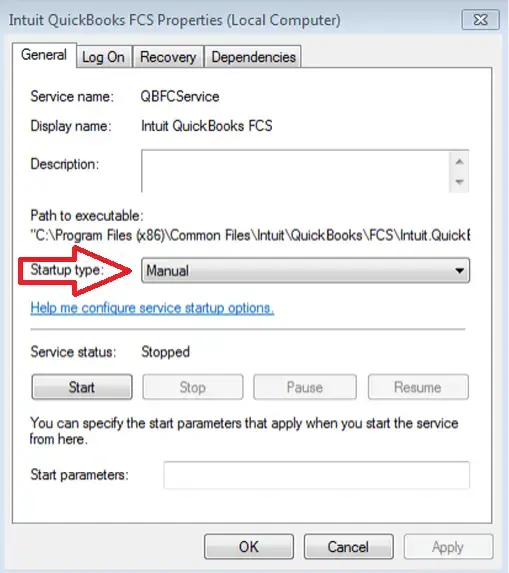
  • Press Windows + R to open the Run window.
  • Type services.msc and press Enter.
  • Find Intuit QuickBooks FCS from the list.
Intuit QuickBooks FCS
  • Click double on the service.
  • Check the Startup Type and set it to Manual.
Intuit-QuickBooks-FCS-Properties-Manual
  • If the service is stopped, click Start.
  • Click Apply and then OK.
  • Restart QuickBooks and try the update again.

Solution 3. Verify Your QuickBooks Payroll Service Key

If you are facing QuickBooks Payroll Update Error 15243, an incorrect or outdated payroll service key may prevent QuickBooks from connecting with payroll services properly. Follow these steps:
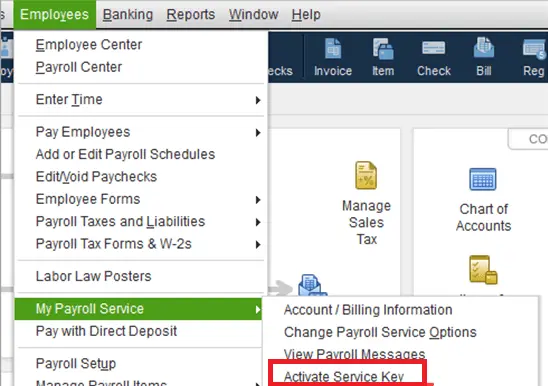
  • Open QuickBooks Desktop.
  • Go to Employees.
  • Select My Payroll Service.
  • Click Activate Service Key.
Activate-Service-Key-in-QuickBooks
  • Select your current payroll service key.
  • Click Edit.
  • Enter the correct service key details.
  • Click Next and then Finish.
  • After updating the service key, restart QuickBooks and try downloading the payroll update again.

Solution 4. Repair QuickBooks Using QuickBooks Tool Hub

Damaged QuickBooks program files are one of the common reasons behind update errors.
Step 1: Install QuickBooks Tool Hub

Step 2: Run Quick Fix My Program

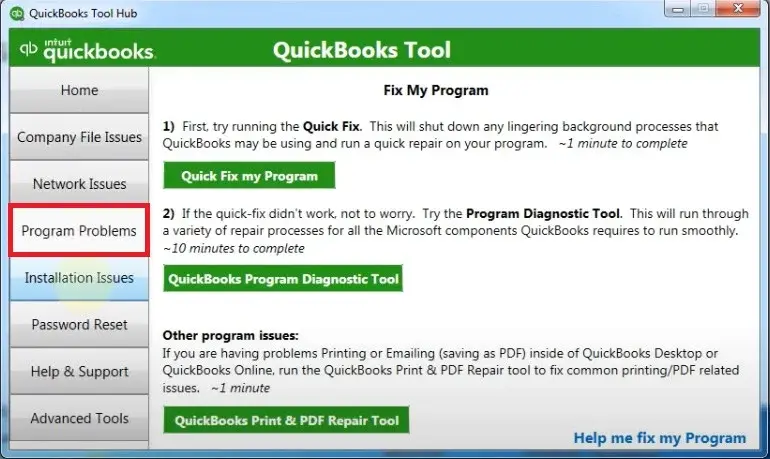
  • Open QuickBooks Tool Hub.
  • Select Program Problems.
  • Click Quick Fix My Program.
quickbooks-program-problems
  • Allow the tool to complete the repair process.

Step 3: Run QuickBooks Install Diagnostic Tool

  • If the problem continues:
  • Open Tool Hub again.
  • Go to Installation Issues.
  • Select QuickBooks Install Diagnostic Tool.
  • Wait for the tool to scan and repair installation problems.
  • Restart your computer after the process finishes.
  • Open QuickBooks and try installing the update again.

Solution 5. Perform a Clean Installation of QuickBooks Desktop

A clean installation removes old program files and installs a fresh copy of QuickBooks. This helps you fix the Error 15243 in QuickBooks.

Step 1: Uninstall QuickBooks

  • Open your Control Panel.
  • Select Programs and Features.
  • Find the QuickBooks Desktop.
  • Click Uninstall/Change.
  • Follow the instructions to remove QuickBooks.

Step 2: Reinstall QuickBooks Desktop

  • Download the latest QuickBooks Desktop installer.
  • Run the installation file.
  • Complete the setup process.
  • Open QuickBooks and check if the update error is fixed.

Solution 6. Temporarily Disable Firewall or Antivirus

Temporarily disabling firewall protection can help identify whether security settings are causing the problem. If Windows Firewall is preventing QuickBooks from connecting to its update servers, follow our guide on Windows Firewall is Blocking QuickBooks for additional troubleshooting steps. Steps:

  • Open Windows Security.
  • Select Firewall & Network Protection.
  • Temporarily turn off firewall protection.
  • Open QuickBooks and try the update.
  • Once the update completes, turn your firewall protection back on.

Note: If QuickBooks cannot connect to its update servers because of security restrictions, you may also need to troubleshoot Windows Firewall is Blocking QuickBooks before trying the payroll update again.

Solution 7. Run the QuickBooks Reboot.bat File

The Reboot.bat file refreshes QuickBooks-related Windows components and re-registers program files. It can resolve conflicts that prevent updates from installing. Follow these steps to fix the error:

  • Before you start, close QuickBooks.
  • Open the QuickBooks installation folder and find reboot.bat.
  • Click right on the file and select run as administrator.
  • Wait until the process completes and restart the computer.
  • Open QuickBooks and check whether Error 15243 is resolved.

Solution 8. Install a New Digital Signature Certificate

QuickBooks uses digital certificates to verify that its files are genuine. A missing or outdated certificate can interfere with updates. Here’s how:

  • First, you need to open the C:\Program Files (x86)\Intuit\QuickBooks.
  • Find QBW32.exe and click right to select Properties.
  • Open the Digital Signatures tab.
  • Select Intuit Inc.
  • Click View Certificate.
  • Choose Install Certificate.
  • Complete the installation process.
  • Restart your computer.

Solution 9. Add Intuit as a Trusted Website

Browser security settings may block communication with Intuit servers. Adding Intuit as a trusted site can help restore the connection. Perform these steps:

  • Open Microsoft Edge.
  • Go to Settings.
  • Open Cookies and Site Permissions.
  • Add: intuit.com as a trusted website.
  • Save the changes and retry the QuickBooks update.

Solution 10. Repair QuickBooks Installation

If QuickBooks program files are damaged, repairing the installation can replace missing or corrupted components. Look at the steps below:

  • Open Control Panel.
  • Select Programs and Features.
  • Choose QuickBooks Desktop.
  • Click Uninstall/Change.
  • Select Repair and follow the on-screen instructions.
  • Restart your computer after the repair finishes.

Things to Check Before Fixing QuickBooks Error 15243

Before troubleshooting QuickBooks Error 15243, complete these quick checks to avoid unnecessary issues:

  • Make sure Intuit File Copy Service (FCS) is enabled and configured correctly.
  • Run QuickBooks Desktop with administrator privileges.
  • Update QuickBooks Desktop to the latest available version.
  • Check that your internet connection is stable.
  • Temporarily disable antivirus or firewall settings if they are blocking QuickBooks updates.

How to Identify QuickBooks Payroll Error 15243?

You may be facing QuickBooks Payroll Error 15243 if you notice these signs:

  • QuickBooks fails while downloading payroll or software updates.
  • Payroll updates repeatedly stop or do not install.
  • You see update-related messages such as “The File Exists” error.
  • QuickBooks becomes slow, freezes, or crashes during updates.
  • The same error appears every time you try to update QuickBooks.

How to Prevent QuickBooks Error 15243?

After resolving QuickBooks Error 15243, taking a few preventive measures can help you avoid facing the same update issue again.

  • Keep QuickBooks Desktop updated regularly: Installing the latest QuickBooks updates helps fix known bugs, improve compatibility, and prevent update-related errors.
  • Ensure Intuit File Copy Service (FCS) remains enabled: The FCS service plays an important role in downloading and installing QuickBooks updates. Make sure it is running properly so updates can run.
  • *Add .intuit.com as a trusted site: Browser security settings can sometimes block QuickBooks from connecting with Intuit services. So, add the Intuit as a trusted site.
  • Configure your firewall to allow QuickBooks updates: Firewall or antivirus restrictions can prevent QuickBooks from accessing required update servers. Make sure QuickBooks-related processes are allowed through your security settings.
  • Maintain a stable internet connection: A weak internet connection can cause incomplete downloads and failed updates. Always use a reliable connection when installing QuickBooks or payroll updates.

Conclusion!

An update related problem like QuickBooks Error 15243 can slow down your work, especially when payroll updates are involved. However, with the right approach, you can identify the cause and fix the issue without major changes to your QuickBooks setup.

Follow the above mentioned solutions to fix the error efficiently, always keep your software updated, and maintain proper system settings to keep QuickBooks working smoothly. If you’re still looking for further assistance, you can get in touch with the live representatives of the Data Service Team at +1(888)-718-7888 for instant help.

Frequently Asked Questions (FAQ’s)

QuickBooks Error 15243 may show an “Access is Denied” message when QuickBooks does not have enough permission to access required files or services. This can happen due to restricted user access, firewall settings, or problems with the Intuit File Copy Service (FCS).

You may see QuickBooks Error 15243 when QuickBooks cannot complete the update process. There are various reasons behind this error, such as a disabled FCS service, damaged QuickBooks files, or security programs blocking QuickBooks updates.

To prevent this error, keep QuickBooks Desktop updated, maintain a stable internet connection, and make sure the Intuit File Copy Service is working properly. Also, configure your firewall and antivirus settings so they do not block QuickBooks update processes.

Yes, creating a backup of your company file before troubleshooting is always best. Although most solutions for Error 15243 do not affect your data, having a recent backup keeps your financial information safe.

Yes, in most cases, you can fix QuickBooks Error 15243 without reinstalling the software. You can implement the solutions like updating QuickBooks, repairing program files using QuickBooks Tool Hub, checking FCS, and fixing system settings.

About The Author

Steven Moody

Steven Moody is a bookkeeping and payroll specialist dedicated to helping businesses maintain accurate financial records and efficient payroll operations. His expertise includes payroll management, tax compliance, bookkeeping solutions, and financial reporting. Steven regularly shares insights on accounting best practices and business finance strategies. Outside of work, he enjoys traveling, exploring new places, and keeping up with the latest developments in business technology.

Steven Moody

QuickBooks Error

How to Fix QuickBooks Web Connector Error QBWC1039? Complete Guide

Read More
QuickBooks Error

QuickBooks Web Connector Error QBWC1085: Here’s How to Fix It

Read More
QuickBooks Desktop

QuickBooks Cannot Communicate with the Company File? Fix It Now

Read More
QuickBooks Error

What is QuickBooks Error 15241? Here’s How to Fix It

Read More
QuickBooks Error

QuickBooks Error 12152: Why It Happens and How to Fix It

Read More
