QuickBooks Error 557 is one such error that may appear when using payroll-related features. Users may experience unexpected application behavior and interruptions during payroll tasks when this error occurs. This issue occurs due to an inactive payroll subscription or update verification problems. Other factors can contribute to the problem, including outdated software, incomplete updates, damaged QuickBooks files, or system configuration conflicts.
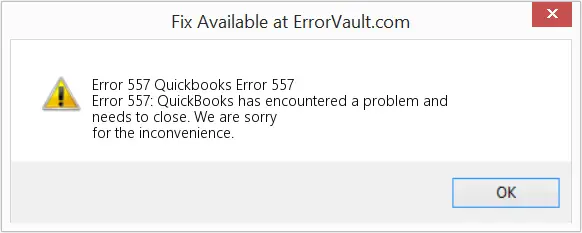
All you need to do is understand the possible causes and recognize the warning signs to make an informed decision for troubleshooting. Explore the blog below to learn about error 557, its common symptoms, causes, and proven ways to prevent and resolve it.
This payroll error may appear through several noticeable issues when completing tasks associated with payroll.
The error can occur when issues with payroll updates, software files, or system settings interrupt QuickBooks operations. Read the pointers below to learn more about possible causes:
Taking a few preventive steps before using QuickBooks Desktop can reduce the chances of facing Error 557 and keep payroll tasks running smoothly.
Here, we will learn the step-by-step instructions for effective solutions suggested by experts to fix QuickBooks Error 557:
This effective method helps fix compatibility problems and rectify QuickBooks Error 557. Update QuickBooks Desktop to improve payroll functionality and prevent related issues. If the update does not complete, see QuickBooks Update Stuck for additional troubleshooting steps.
Verify that your payroll subscription is active and properly configured to help resolve Error 557 in QuickBooks Desktop. If your payroll subscription has expired or become inactive, review QuickBooks Subscription Has Lapsed before continuing with the troubleshooting steps.
Important Note: It may take up to 24 hours for the reactivation process of your subscription to be fully completed. Your subscription will display Active once it’s completed.
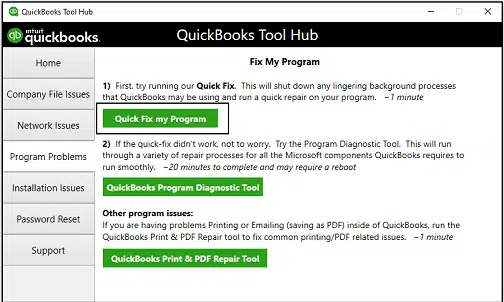
You can use the Quick Fix My Program tool in QuickBooks Tool Hub to repair program issues and resolve QuickBooks Error 557.
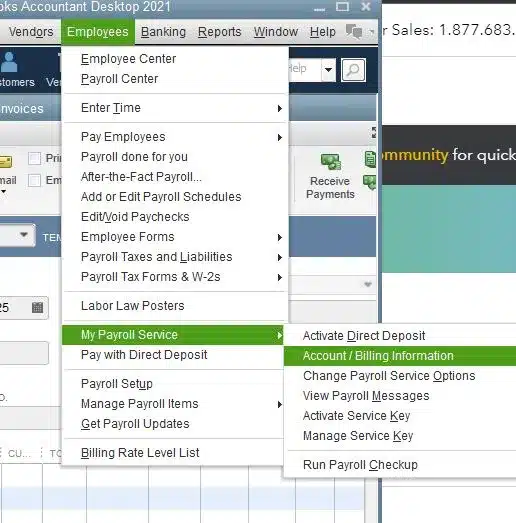
Check your QuickBooks billing details and ensure the payment information is up to date to help resolve QuickBooks Error 557.
Note: If payroll updates continue to fail after verifying your subscription and billing details, check QuickBooks Error PS038 for additional payroll update troubleshooting.
Remove the entitlement data file in the QuickBooks folder to revalidate the program and resolve QuickBooks Error 557. You will need to re-enter your license and product number. Press F2 to find your product information
Run the Verify and Rebuild Data utility in QuickBooks Desktop to detect and repair data issues that may contribute to the payroll update error.
Use the verification tool to check your company file for any errors or data corruption.
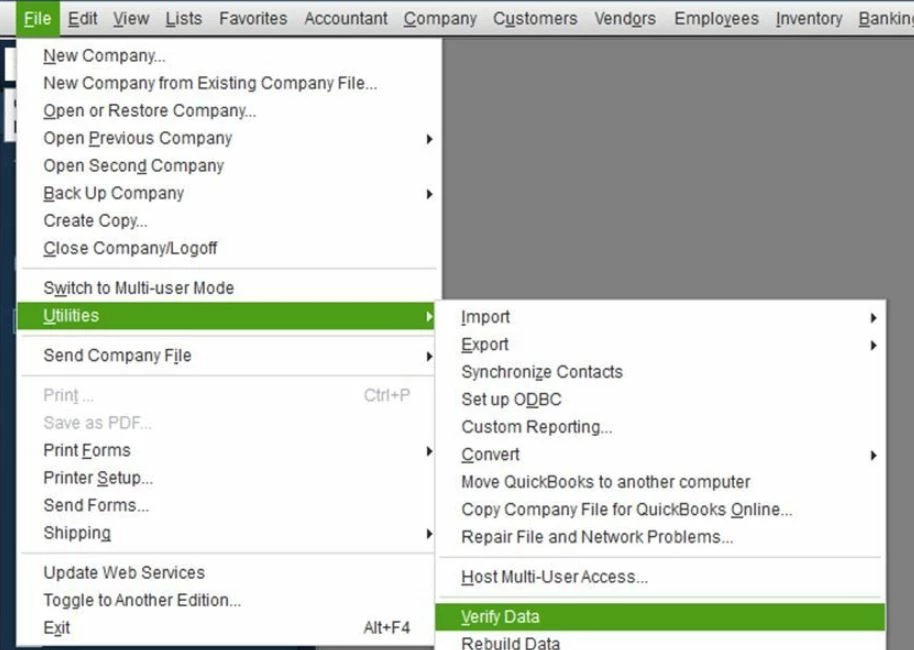
If the verification tool detects any data corruption, use the rebuild tool to fix your company file. A backup is required to rebuild the data file.
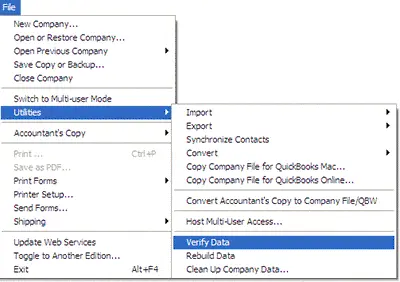
Run the QuickBooks Install Diagnostic Tool to identify and fix issues with QB installation components. Error Code 557 occurs when updating payroll after installing a new QB version. It is crucial to fix this payroll issue to prevent data issues. This can also help repair underlying installation problems.
Here are some smart preventive tips to help reduce the chances of encountering QB error 557 ever again:
Make QuickBooks Work Smarter for Your Business
Spend less time managing data and more time growing your business. Whether you need help setting up QuickBooks, cleaning up your books, reconciling accounts, or resolving errors, our team is here to make accounting easier. Get quick solutions that save time, improve accuracy, and keep your business finances on track.
QuickBooks Error 557 can halt payroll operations and make it difficult to complete important financial tasks smoothly. QB users need to understand its possible causes and consider the above-discussed troubleshooting steps to resolve it. This issue occurs when you update payroll after installing a new QuickBooks version. It is crucial to fix error code 557 to prevent data issues. We have also outlined a few preventive measures so you won’t face this error again and can perform all financial tasks seamlessly.
Need live assistance to rectify QuickBooks Error Code 557? Get in touch with the Data Service Team professionals at +1(888)-718-7888 now and get your QuickBooks operations back to normal.
This error happens when the software fails to verify payroll setup data during an update because the payroll subscription is inactive. An inactive or expired payroll subscription can sometimes generate Error 557. It can be triggered due to an outdated version of QuickBooks Desktop, an incorrect service key, corrupted company data, etc. It blocks communication with Intuit’s servers.
The error 557 appears when you download payroll updates and is triggered by an inactive payroll subscription. Another cause is an outdated software version or damaged tax table files after upgrading the QuickBooks Desktop application.
Yes! Restrictive security software can cause QuickBooks Payroll Update Error 557 by blocking the application from reaching Intuit’s servers to update the payroll subscription. QuickBooks fails to confirm active status data and triggers the error when a firewall program interrupts this vital background authentication process.
Verify and refresh your service key status within the QuickBooks software to fix error 557. This error indicates an unverified payroll subscription. QuickBooks error 557 happens when the payroll subscription is inactive or has an issue verifying with the Intuit Account Management servers during payroll update.
Indeed! An outdated version of QuickBooks Desktop can cause Error 557, and it appears as a payroll update failure. The software cannot verify the active payroll subscription when the application launches.
Indeed! A damaged QuickBooks installation can corrupt program and support files required to verify payroll tax tables. It directly triggers Error 557 in QuickBooks Desktop. This error occurs when an inactive payroll subscription or outdated software is detected. These factors do not allow QuickBooks Software to communicate with its service keys.
This error does not corrupt historical payroll data. But it actively blocks the downloading of payroll tax tables and new subscriptions due to an inactive service status. This operational issue does not permit users to run current payroll until the subscription issue is fixed.
You must first verify and reactivate the payroll service status to fix QuickBooks Payroll Update Error 557. This issue indicates an expired payroll subscription. You must ensure the software and tax tables are updated to the latest release.
Confirm your payroll subscription and billing details, check for updates, and repair QuickBooks if necessary. If the error persists, contact Intuit Support for further diagnosis.
Yes, damaged or missing program components may interfere with payroll functions. Run available QuickBooks repair tools and consider reinstalling the software if simpler troubleshooting fails.

Get Free Consultation for QuickBooks Upgrade
(2021, 2022, 2023)


