QuickBooks-Error-80070057

QuickBooks Error 80070057 usually appears when QuickBooks Desktop cannot properly access or open a company file. You may see the message “The parameter is incorrect” when trying to open the File.

The cause can be as simple as opening the company file incorrectly, or it may involve the file location, Windows permissions, or a network configuration in a multi-user setup.

quickbooks-error-80070057

The good news is that you don’t need to start by changing advanced Windows settings. Check the way you open the company file first, then work through the solutions based on where the File is stored and whether other computers can access it.

What is QuickBooks Error 80070057?

QuickBooks Error 80070057 is a company-file access error. The message “The parameter is incorrect” can appear when QuickBooks Desktop cannot properly access or open a company file. You may see the error when:

  • Opening a .QBW company file.
  • Accessing a company file stored on another computer or server.
  • Working in multi-user mode.
  • Opening a company file directly from Windows File Explorer.
  • Accessing a file when Windows or network permissions are restricted.

The error does not automatically mean that your company file is damaged. Before trying advanced troubleshooting, check how the File is being opened and where it is stored.

Error Messages You May See

Depending on the situation, QuickBooks may display messages such as:

quickbooks-error-code-80070057
  • “The parameter is incorrect.”
  • “You do not have sufficient permissions to delete files.”
  • “There was an unexpected error reported while trying to run QuickBooks with the company file.”
  • Error 80070057 when opening a company file.

Why Does QuickBooks Error 80070057 Occur?

The QuickBooks error 80070057 can have different causes, so it’s useful to identify how you’re accessing the company file before changing anything. Common causes include:

  • Incorrect file access: Opening the company file directly from File Explorer can sometimes cause an access problem.
  • File location: QuickBooks may have difficulty accessing a company file stored in an unsuitable or inaccessible location.
  • Windows permissions: Your Windows account or QuickBooks may not have the required permissions for the company file folder.
  • Network problems: A weak or incorrectly configured network connection can affect access to a company file stored on another computer.
  • Multi-user configuration: Incorrect hosting or server settings can prevent workstations from connecting to the company file.
  • Problems with the .ND file: A damaged or outdated Network Data file can interfere with network access.
  • Security software: Firewall or antivirus settings may block QuickBooks from communicating with the company file or network. See Windows Firewall is Blocking QuickBooks if Windows Firewall is preventing the connection.
  • QuickBooks installation problems: Damaged program files can sometimes affect company-file access.

What to Check Before Fixing QuickBooks Error 80070057?

Before making changes, take a few minutes to determine where the problem is occurring.

  • Back up your company file: Keep a recent backup available before troubleshooting.
  • Check the file location: Determine whether the .QBW file is stored locally, on another computer, or on a server.
  • Test another computer: In a multi-user setup, check whether other users can open the same company file.
  • Note the exact error: The wording of the message can help identify whether the issue involves permissions, networking, or file access.
  • Close QuickBooks: If you’re changing network settings or working with the .ND file, close QuickBooks on the computers using the company file.
  • Don’t change file extensions: A .QBW, .QBB, and .QBM file serve different purposes. Don’t rename one file type to another to make it open.

How to Fix QuickBooks Error 80070057?

Try the following solutions in order. After each solution, open the company file again. If the QuickBooks error 80070057 is gone, you don’t need to continue with the remaining steps.

Method 1: Open the Company File From QuickBooks

If you normally open the company file by double-clicking it in Windows File Explorer, start by opening it from QuickBooks Desktop instead.

  • Open QuickBooks Desktop.
  • Select the company File you want to open.
  • Select Open.

If the File opens normally, the problem may have been related to how the company file was being accessed.

If the File is stored on another computer or server, make sure the network setup is configured correctly before continuing.

Method 2: Update QuickBooks Desktop

An outdated QuickBooks release may have compatibility or software issues that affect company file access. To check for updates:
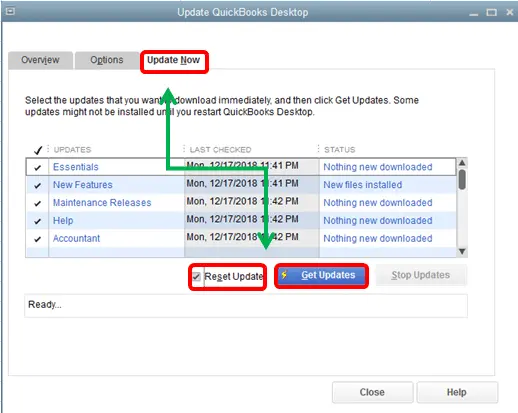
get-update-QuickBooks-desktop
  • Allow the Update to finish.
  • Close and reopen QuickBooks.
  • Try opening the company file again.

Method 3: Run QuickBooks As An Administrator

Windows permissions can sometimes prevent QuickBooks from accessing files correctly, especially when you see a QuickBooks Administrator Permission Needed Error.
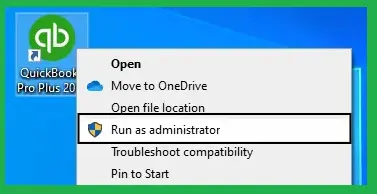
  • Close QuickBooks Desktop.
  • Right-click the QuickBooks icon.
  • Select Run as administrator.
run-as-administrator
  • If Windows asks for confirmation, select Yes.
  • Select your company file and choose Open.

If the File opens successfully, the issue may be related to permissions on the affected computer.

Method 4: Move a Copy of the Company File to the Default Location

If QuickBooks error 80070057 continues to appear, the location of your company file may be causing the problem.

Before you begin, close QuickBooks and back up your company file. Follow these steps:

Move-the-company-file-to-its-default-location
  • Open File Explorer and go to the folder where your company file is saved.
  • Find the company file with the .QBW extension.
  • Right click on the .QBW file and select copy.
  • Go to the default company file location: C:\Users\Public\Public Documents\Intuit\QuickBooks\Company Files
  • Right click inside the folder and select paste.
  • Open QuickBooks Desktop.
  • Select open or restore an existing company.
  • Choose Open a company file and browse to the copied .QBW file.
  • Select the File and click Open.

If the copied File opens successfully, the original file location may have been causing the error. If the same error appears, move to the next method.

Method 5: Check the Company File Folder Permissions

Incorrect Windows permissions can prevent QuickBooks from accessing or modifying the company file. This is especially important when the File is stored in a shared or restricted folder. To check the folder, perform these steps:

  • Close QuickBooks Desktop.
  • Open File Explorer and locate the folder containing your .QBW file.
  • Right-click the folder and select Properties.
select-properties
  • Open the Security tab.
  • Select your Windows user account.
  • Check whether you have the required permissions to access and modify files in that folder.
  • If changes are required, update the permissions and select Apply, then OK.
  • Open QuickBooks and try accessing the company file again.

Method 6: Run QuickBooks Database Server Manager

QuickBooks Database Server Manager helps QuickBooks Desktop access company files stored on a network. Scanning the folder can refresh the network configuration and help QuickBooks recognize the company file. You can access it through QuickBooks Tool Hub:
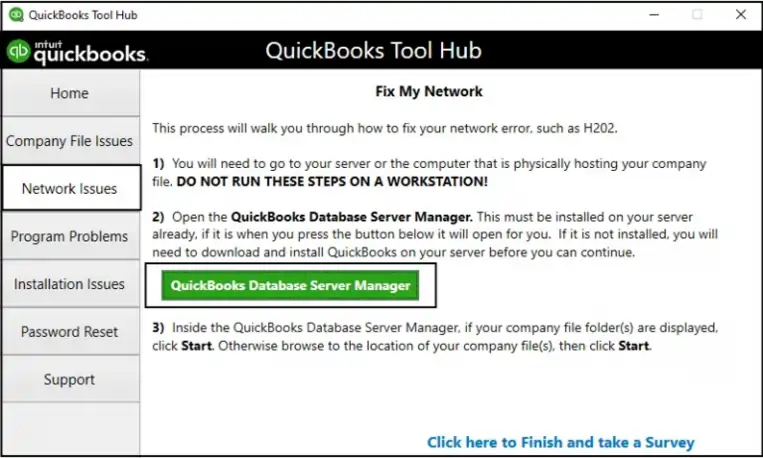
  • First, close your QuickBooks Desktop.
  • Open the QuickBooks Tool Hub.
  • Select Network Issues.
  • Choose QuickBooks Database Server Manager.
Database Server Manager
  • If your company file folder is already listed, select Start Scan.
  • If it isn’t listed, select Browse and locate the folder containing your company file.
  • Select Start Scan.
  • Wait for the scan to finish.
  • Select Close.
  • Open QuickBooks Desktop and try opening the company file again.

If you use QuickBooks in multi-user mode, run the Database Server Manager on the computer that hosts the company files. If multi-user access is not working, see QuickBooks Multi-User Mode Not Working.

Method 7: Use QuickBooks File Doctor

QuickBooks File Doctor can help identify and repair common company-file and network-related problems.
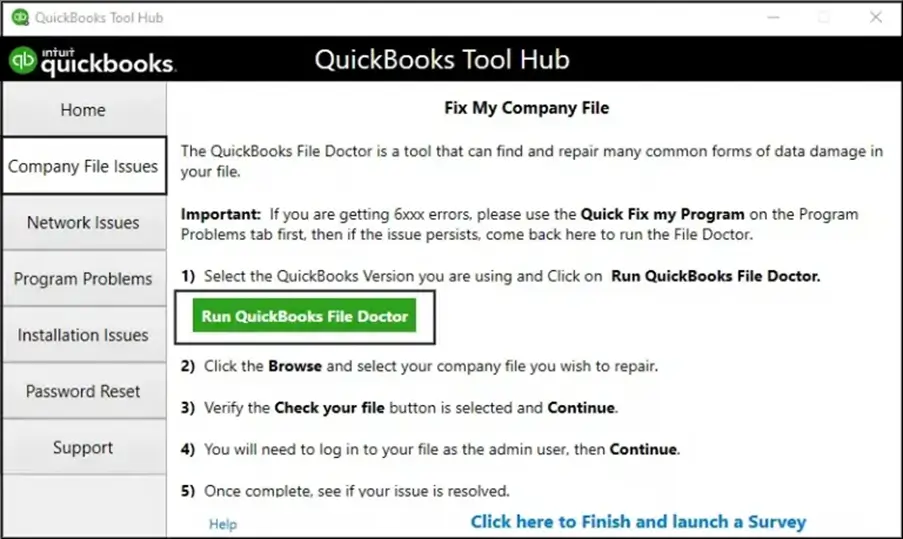
  • Download and install QuickBooks Tool Hub.
  • Open QuickBooks Tool Hub.
  • Select Company File Issues.
  • Choose Run QuickBooks File Doctor.
run-quickbooks-file-doctor
  • Select your company file from the list. If you don’t see it, browse to its location.
  • Enter your QuickBooks admin password when prompted.
  • Select Next and allow the tool to complete the scan.
  • Open QuickBooks Desktop and try accessing the company file again.

If File Doctor doesn’t resolve QuickBooks Error 80070057, you can also Verify and Rebuild Data in QuickBooks Desktop before moving to the next method.

Method 8: Manually Resolve the QuickBooks Error 80070057

If the error occurs when accessing a company file over a network, the .ND file or QuickBooks Database Server Manager may need attention.

Step 1: Rename the .ND File

The .ND file contains network configuration information that QuickBooks uses to access a company file in a multi-user environment.

  • Close QuickBooks Desktop on the computers accessing the company file.
  • Open the folder where your company file is stored.
  • Find the .ND file associated with your company file, example: MyCompanyFileName.qbw.nd
Rename-Network-Data-files
  • Right-click the .ND file and select Rename.
  • Add .old to the end of the file name, example: MyCompanyFileName.qbw.nd.old
  • Press Enter to save the new name.

QuickBooks can create a new .ND file when the company file is scanned again through the Database Server Manager.

Step 2: Run QuickBooks Database Server Manager

If the company file is stored on a server, use QuickBooks Database Server Manager on the server computer to rescan the company file folder.

  • Open QuickBooks Tool Hub. If you don’t have it, install it first.
  • Select Network Issues.
  • Select QuickBooks Database Server Manager.
  • If QuickBooks Database Server Manager isn’t installed on the server, follow the prompts to install it.
  • In Database Server Manager, check whether your company file folder is listed.
  • If it isn’t listed, select Browse and locate the folder containing the company file.
  • Select Start Scan.
Start-scan-QuickBooks-Database-Server-Manager
  • Wait for the scan to finish.
  • Select Close.
  • Open QuickBooks on the workstation and try opening the company file again.

What If QuickBooks Error 80070057 Still Appears?

If QuickBooks Error 80070057 still appears after trying the relevant solutions, avoid making further changes to the company file. Check the following steps:

  • Confirm that you are opening the correct .QBW company file.
  • Check whether the error occurs on one computer or multiple workstations.
  • If the File is stored on a server, verify that other users can access the same File.
  • Make sure QuickBooks Desktop and QuickBooks Tool Hub are updated.
  • Confirm that the company file folder has the required read, write, create, and delete permissions.
  • Keep a recent backup of the company file before attempting any further repairs.

How to Prevent QuickBooks Error 80070057?

You can reduce the chances of QuickBooks error 80070057 by keeping your company file, QuickBooks installation, and network setup properly maintained.

  • Keep QuickBooks updated: Install available QuickBooks Desktop updates to get the latest fixes and improvements.
  • Back up your company file regularly: Maintain recent backups so you can recover your data if a file or system problem occurs.
  • Use the correct company file location: Avoid storing active QuickBooks company files on USB drives or other locations that may become unavailable.
  • Maintain proper folder permissions: Make sure authorized Windows users and QuickBooks Database Service have the required access to the company-file folder.
  • Check your network setup: If you use multi-user mode, keep the server, workstations, and hosting settings configured correctly.
  • Allow QuickBooks through security software: Make sure your firewall or antivirus does not block QuickBooks or its required network connections.
  • Avoid changing file extensions: Don’t rename .QBW, .QBB, or .QBM files manually. Use QuickBooks to open, restore, or convert these file types.
  • Use a stable file-sharing setup: For multi-user access, keep the company file on a properly configured server or host computer rather than moving it between computers.

Conclusion!

QuickBooks Error 80070057 is usually connected to company file access, permissions, file location, or network configuration. So you can start with the simpler fixes and move to the network-related solutions if you are using QuickBooks in multi-user mode.

If the error still appears after trying the relevant fixes, keep a backup of your company file and contact Data Service Team qualified professional for further assistance at +1(888)-718-7888. Avoid changing file extensions or making advanced changes to the company file without knowing what they affect.

Frequently Asked Questions (FAQ’s)

QuickBooks Error 80070057, also known as “The parameter is incorrect,” usually appears when QBDT cannot properly access or open a company file. Common causes include opening the File incorrectly, file-location or permission problems, network configuration issues, problems with the .ND file, or interference from security software.

You can start by opening the company file from within QuickBooks Desktop instead of double-clicking it in File Explorer. If the error continues, update QuickBooks, try running it as an administrator, and use QuickBooks Tool Hub or File Doctor if the problem is related to the company file.

If other users can open the same company file normally, the problem may be specific to the affected workstation. Check its QuickBooks installation, Windows permissions, firewall or antivirus settings, and network connection.

For a single-user setup, the company file can be stored in a suitable local folder that QuickBooks can access. If you’re using multi-user mode, the File should be stored in a properly shared folder on the host or server with the required permissions.

Simply changing the extension is not recommended. A .QBW file is a regular company file, while .QBB and .QBM files are backup and portable files. Use the appropriate Open or Restore Company option in QuickBooks rather than manually changing the extension.

First, check whether the problem affects all users or only one workstation. Then check the .ND file, run QuickBooks Database Server Manager, verify hosting settings, and make sure the company-file folder has the required network permissions.

Yes, if QuickBooks cannot read, write, or access the company file folder properly, Windows or network permissions can cause the error. This is particularly important when the company file is stored on another computer or server.

You should keep your QuickBooks updated with the latest releases, take regular backups of the company files, maintain proper folder and network permissions, and make sure your firewall and antivirus allow QuickBooks to work correctly.

About The Author

Steven Moody

Steven Moody is a bookkeeping and payroll specialist dedicated to helping businesses maintain accurate financial records and efficient payroll operations. His expertise includes payroll management, tax compliance, bookkeeping solutions, and financial reporting. Steven regularly shares insights on accounting best practices and business finance strategies. Outside of work, he enjoys traveling, exploring new places, and keeping up with the latest developments in business technology.

Steven Moody

QuickBooks Error

QuickBooks Error 12157: How to Fix Internet Connection Issue

Read More
QuickBooks Error

QuickBooks Error PS034: How to Fix Payroll Update File Issue

Read More
QuickBooks Error

How to fix QuickBooks Error 6069 When Opening Company File

Read More
QuickBooks

QuickBooks Online Login Problem: Here’s How to Fix It

Read More
QuickBooks Error

QuickBooks Error UEXP: Fix Payroll Update Activation Issues

Read More
