QuickBooks error 6010 100 is a common company file access issue that prevents users from opening their financial data in QuickBooks Desktop. It usually occurs due to incorrect multi-user hosting configurations, damaged network configuration files like .ND and .TLG, blocked network ports, or installation file corruption.
When this error happens, it completely disrupts accounting operations and locks you out of your records. Fortunately, you can resolve these connection and setup conflicts.
This guide will explain the primary causes of the error and provide clear, step-by-step troubleshooting methods to help you restore access to your company file safely.
QuickBooks Error 6010, -100 is a startup error that appears when the software fails to load your company file. When this happens, users typically encounter a warning message stating:
“An error occurred. Your QuickBooks installation may have been modified. Reinstall QuickBooks and try again (-6010, -100).”
Here is how the error typically shows up:
It immediately blocks access to your financial records, customer lists, and daily accounting operations.
QuickBooks may become unresponsive, hang, or crash entirely when you attempt to launch the data file.
It often signals that a standard workstation is incorrectly attempting to act as the host server rather than a client device.
It frequently restricts users from switching or syncing properly between single-user and multi-user environments.
Why Does QuickBooks Error -6010, -100 Happen?
QuickBooks Error 6010, -100 can occur because of incorrect hosting settings, damaged network configuration files, installation problems, or security software blocking network access.
Incorrect Hosting Setup: A regular computer or workstation is trying to host the company file instead of the main server, which creates a network connection clash.
Damaged Network Files: The configuration files (.ND and .TLG) that QuickBooks uses to open files across a network have become corrupted or disconnected.
Installation Glitches: If your core program files or registry entries were altered, damaged, or incomplete, you may get this error during operations.
Antivirus or Firewall Blocking: Windows security programs are blocking QuickBooks background processes, preventing the software from reaching server resources or network ports.
Damaged Company File: Minor data corruption within your main company file (.QBW) can trigger warnings and prevent the application from loading it properly.
Registry Optimization Conflicts: System cleaning or registry optimization tools may have accidentally deleted or modified essential QuickBooks registry keys.
Improper File Location: The company file has been moved into an unsupported directory or its overall file path exceeds normal system character limitations.
How to Fix QuickBooks Company File Error 6010 100?
Fixing this error requires checking your network settings, repairing damaged files, and clearing out software conflicts. Follow these step-by-step methods to resolve the issue and get your company file to open smoothly.
Solution 1: Update QuickBooks and Run Basic Checks
Before diving into advanced troubleshooting, make sure your software is running on the latest version to prevent compatibility bugs. Look at the steps below:
Download and install any available updates, then restart the application.
Check your QuickBooks product version to confirm it matches the newest available release.
Solution 2: Run QuickBooks File Doctor
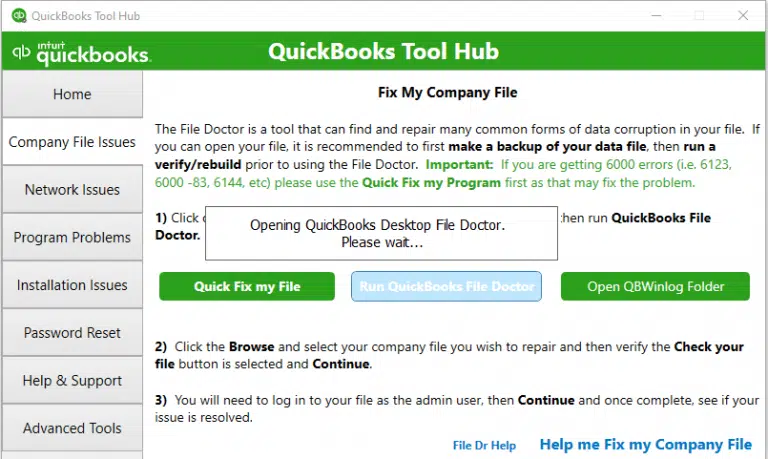
The QuickBooks Tool Hub provides a built-in repair utility called QuickBooks File Doctor that automatically scans and fixes common company file and network damage. Here’s how it works:
Close QuickBooks completely on your computer.
Open the QuickBooks Tool Hub from your desktop icon.
Select the Company File Issues tab.
Click Run QuickBooks File Doctor; it can take up to one minute for the tool to open.
Choose your company file from the drop-down menu. If you don’t see it, click Browse to locate it.
Select Check yourFile and click Continue.
Type in your QuickBooks admin password and select Next.
Check the final scan screen to confirm that the tool completed its check and indicated that no unresolved errors remain. If QuickBooks still reports a company-file problem, you can also use Verify and Rebuild Data in QuickBooks Desktop to check the integrity of your company data.
Solution 3: Rename the .ND and .TLG Files
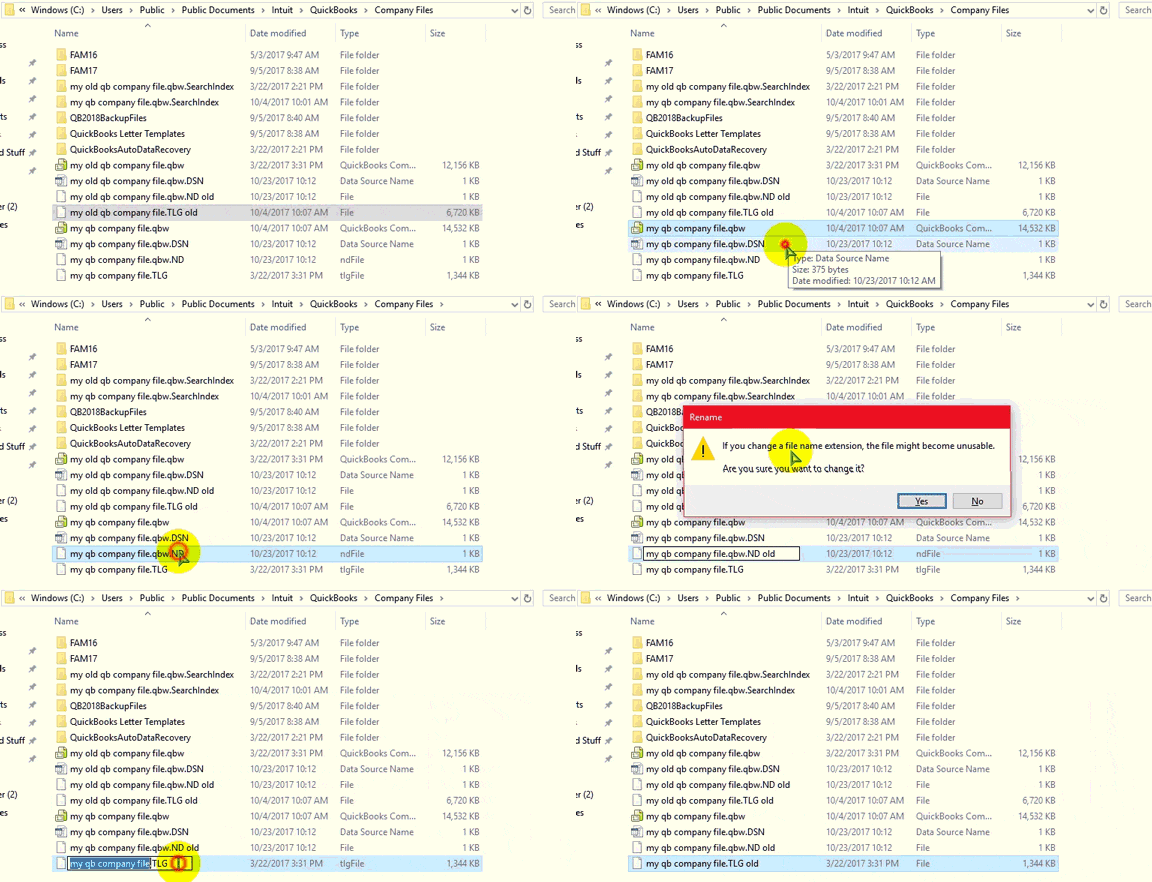
If the .ND and .TLG files are damaged, they can trigger startup errors. Renaming them is safe because QuickBooks will automatically create fresh copies when you open your File again. Follow these steps:
Open the folder on your computer where your company file is saved.
Look for files that share your company file’s exact name but end with .ND and .TLG (for example: company_file.qbw.nd and company_file.qbw.tlg).
Right-click each File, select Rename, and add .OLD to the very end of the file name (for example: company_file.qbw.nd.OLD).
Open QuickBooks and try to sign in to your company file.
Check your company file folder to ensure QuickBooks automatically generates brand-new .ND and .TLG files, and confirm that the company file opens without the error.
Solution 4: Open a Sample Company File
Opening a sample company file helps you test whether the problem is inside your specific company file or caused by a damaged QuickBooks installation.
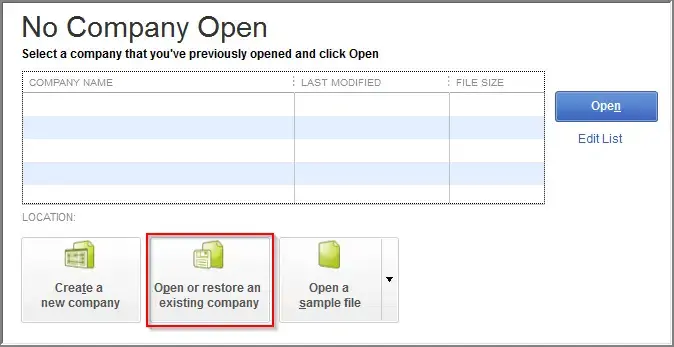
Close your current company file or open QuickBooks so that you see the No Company Open window.
Select Open a Sample File from the options.
Choose any sample company file from the list provided.
If the sample file opens successfully, it means your QuickBooks installation is healthy, and the issue is isolated to your company file. If the sample file shows the same error, your QuickBooks installation files are damaged and need to be repaired.
Solution 5: Copy the QuickBooks File to the Desktop
Copying your company file to your desktop helps you check whether the issue is caused by the folder location, file path, or a QuickBooks Company File Not Found problem.
Open the folder where your company file is currently saved.
Find the File with the .QBW extension.
Right-click the File and select Copy.
Go to your Windows desktop, right-click an empty space, and select Paste.
Hold down the Ctrl key on your keyboard and open QuickBooks to bring up the No Company Open window.
Select Open or restore an existing company, browse to your desktop, and select your company file to open it.
Check if the company file opens successfully from the desktop. If it does, your original folder path was likely too long or restricted, and moving or shortening the path will resolve it.
Solution 6: Restore a Backup
Restoring a recent backup copy of your company file helps you bypass a damaged file and get back to work safely.
Open QuickBooks so that you see the No Company Open window.
Select Open or restore an existing company, then choose Restore a backup copy.
Follow the on-screen prompts to locate and select your backup file.
If you get an error while restoring, open your company file and click on File in the top menu.
Go to Utilities and select Stop Hosting Multi-User Access if it is listed.
Click Yes on the confirmation windows that pop up.
Check your folder path length to make sure it is under 210 characters. You can copy the path from your file folder’s address bar and paste it into Notepad to count the characters.
Try to restore your company File backup again.
Confirm that the backup file restores successfully and that your QuickBooks data loads completely without any error messages.
Solution 7: Check Hosting Settings and Run Database Server Manager
Open QuickBooks Desktop on one of the workstations.
Go to File and select Utilities.
If you see Host Multi-User Access, don’t select it on the workstation. If you’re troubleshooting a QuickBooks Hosting Mode is Off issue, verify the hosting settings on the server before continuing.
If you see Stop Hosting Multi-User Access, select it and confirm the prompts.
Repeat the same check on the other workstations.
Now open QuickBooks on the server where the company file is saved.
Go to File, choose Utilities, and make sure Host Multi-User Access is enabled.
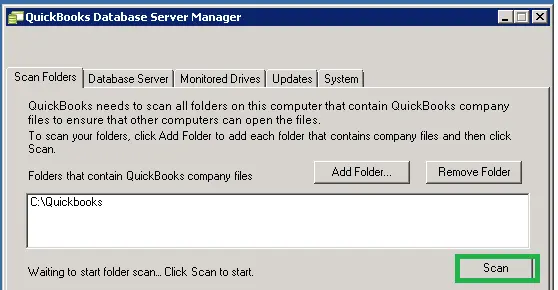
Select Network Issues and then click QuickBooks Database Server Manager.
If your company file folder isn’t listed, click Browse and select the folder where the .QBW file is stored.
Click Start Scan and wait for the scan to finish.
Open QuickBooks again and try opening the company file in Multi-User Mode.
If the company file opens normally, check whether QuickBooks Error 6010 100 has disappeared.
Solution 8: Check Firewall and Antivirus Settings
Windows Firewall or third-party antivirus software can prevent QuickBooks from communicating with the server. If you suspect that Windows Firewall is Blocking QuickBooks, check the firewall rules before changing other network settings.
Close QuickBooks Desktop on all computers connected to the company file.
Open Windows Security from the Windows Start menu.
Select Firewall & network protection.
Check which network profile is currently active.
Open the Advanced settings for Windows Defender Firewall.
Check the Inbound Rules and Outbound Rules for QuickBooks-related entries.
Make sure QuickBooks is allowed to communicate through the Firewall.
If your QuickBooks version requires specific ports, add the appropriate QuickBooks firewall port exceptions.
Check your third-party antivirus or security software for any rules that may be blocking QuickBooks.
Add QuickBooks to the allowed or exception list if your security software has blocked it.
Restart the computer after making the changes.
Open QuickBooks Desktop and try opening the company file again in Multi-User Mode.
If the error disappears, the firewall or antivirus settings were likely interfering with the QuickBooks network connection.
How to Identify the Cause of QuickBooks Error -6010, -100?
Before trying every troubleshooting method, you can narrow down the QuickBooks Error 6010 100 by checking how QuickBooks behaves on your computer and across the network.
The company file opens from the Desktop: The original folder location or file path may be causing the problem.
A sample company file opens without an error: QuickBooks itself is working, so the problem is more likely related to your specific company file or its location.
The sample company file also shows the error: This can point to a problem with your QuickBooks installation. In this case, repairing the QuickBooks installation may be necessary.
The Company File opens on the server but not on a workstation: Check the hosting settings, network connection, Database Server Manager, and firewall configuration. You can also review QuickBooks Error H202, which is associated with multi-user network connectivity problems.
The error appears on multiple workstations: The problem may be related to the server or network setup rather than one particular computer.
Renaming the .ND and .TLG files resolves the issue: The network configuration files may have been damaged or were no longer matching the company file correctly.
The problem started after changing firewall or antivirus settings: Check whether your security software is blocking QuickBooks processes or network communication.
A backup opens successfully, but the current company file does not: The current .QBW file may have a problem, so avoid overwriting it until you’ve confirmed that your backup is usable. You can also review QuickBooks Error 6000 Series for other company-file access problems.
Tips to Avoid QuickBooks Error -6010, -100 in the Future
Once you have fixed the QuickBooks Error 6010 100, a few simple habits can help prevent it from coming back. Most of them are related to keeping the company file, hosting setup, and network connection in good condition.
Keep QuickBooks Desktop updated: Check for available updates regularly and install them when needed.
Use one designated host: In a multi-user setup, keep the company file on the server and avoid enabling hosting on multiple workstations.
Check Database Server Manager: Make sure the Database Server Manager is installed and running on the server that stores your company file.
Keep the company File in a suitable folder: Avoid moving the .QBW file between different folders without a reason, and don’t place it inside a long chain of folders.
Allow QuickBooks through your security software: Check your firewall and antivirus settings to make sure they aren’t blocking QuickBooks or its network connections.
Back up your company file regularly: Keep recent backups in a safe location so you have a recovery option if the working file becomes damaged.
Close QuickBooks before shutting down the computer: This gives QuickBooks time to finish writing changes to the company file.
Avoid working during unstable network connections: If the company file is stored on a server, make sure workstations can maintain a reliable connection to it.
Conclusion!
QuickBooks Error 6010 100 occurs due to network configuration issues or corrupted temporary files. You can easily resolve this error code by running the QuickBooks Tool Hub, renaming the .ND and .TLG files, checking firewall or antivirus settings, and updating the software to the latest version.
Always back up your company file before changing any software or system settings. If the error continues after completing these steps, contact a certified Data Service Team professional at +1(888)-718-7888 to inspect your multi-user hosting setup and server configuration.
Frequently Asked Questions (FAQ’s)
This error usually happens due to installation issues, damaged configuration files, or network hosting conflicts that block QuickBooks from properly reading your company file.
Make sure hosting is turned on only on your main server computer, and turn it off on all other workstations. You should also check your folder permissions and ensure your Firewall isn’t blocking network access.
Yes. The QuickBooks Database Server Manager configures your network files so multiple users can access the data. Running a scan with this tool can repair connection issues and resolve the error if it is caused by network hosting conflicts.
Open the Windows Start menu on your host server, type “Services,” and open the Services app. Scroll down to find the QuickBooks Database service; it will look like QuickBooksDBXX, where XX is your version year. Right-click the service and select Restart.
Open QuickBooks on a workstation and go to File, then Utilities. If you see “Host Multi-User Access” on the list, the workstation is configured correctly. If you see “Stop Hosting Multi-User Access,” select it to turn it off, as only the main server should host the File.
Open the Windows Firewall settings and add exceptions for the QuickBooks executable files and the specific network ports your version uses. You can also temporarily disable third-party antivirus software to check if it is blocking the connection.
Yes. The .ND (Network Data) file allows QuickBooks to access the company file over a network. If this File is corrupted, renaming it to .OLD forces QuickBooks to create a clean, working version of the File the next time you open the program.
Keep your QuickBooks Desktop and Windows operating system updated to the latest releases. Avoid using registry cleaners or optimization software that might delete QuickBooks registry keys, and ensure your server maintains a stable, uninterrupted network connection.
You should contact a professional if you have completed the basic troubleshooting steps but still cannot open the data. If you suspect your primary company file is deeply corrupted, a certified technician should step in to fix the issue.
About The Author
Steven Moody is a bookkeeping and payroll specialist dedicated to helping businesses maintain accurate financial records and efficient payroll operations. His expertise includes payroll management, tax compliance, bookkeeping solutions, and financial reporting. Steven regularly shares insights on accounting best practices and business finance strategies. Outside of work, he enjoys traveling, exploring new places, and keeping up with the latest developments in business technology.