
QuickBooks Web Connector is a Windows utility that allows QuickBooks Desktop to exchange data with compatible web-based applications. It helps automate data synchronization and reduce manual data entry to improve accounting workflows. You need to understand about this tool as it helps you manage financial information.
Web Connector gives you a simple way to set up and manage an app. This guide will help you learn about this tool, its main features, and discuss common issues like connection failures and authorization problems. You will also be aware of the troubleshooting solutions to fix these issues to maintain a reliable connection between QuickBooks Desktop and supported applications.
The Intuit QB Web Connector is a Windows application developed by Intuit. It allows data exchange with QuickBooks Desktop and is how My Works Sync connects WooCommerce to QuickBooks Desktop. It uses a .QWC configuration file to establish the connection and can run scheduled/ manual data exchanges between QuickBooks and supported applications.
Businesses use it to streamline tasks to transfer financial information and synchronize records without same data requirements. QuickBooks Web Connector installation requires a compatible QB Desktop setup and appropriate application authorization, , including QuickBooks Enterprise editions that meet the integration requirements. It is not needed for QuickBooks Online and connects to supported applications through direct integrations/ APIs.
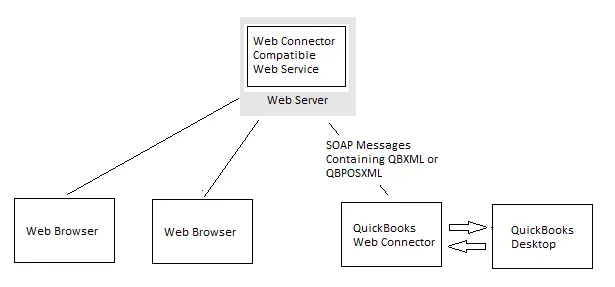
It allows QuickBooks Desktop to exchange data with compatible web-based applications. QuickBooks Web Connector setup uses a .QWC configuration file to connect the application and facilitate authorized data transfers.
Note: QuickBooks Web Connector is designed for QuickBooks Desktop integrations. QB Online uses direct app integration/ APIs instead.
It helps QuickBooks Desktop exchange data with compatible web-based applications. QuickBooks Web Connector download features support data synchronization and scheduled updates.
| Feature | Description |
| Automated Data Exchange | Transfers supported data between QuickBooks Desktop and compatible web applications. |
| Scheduled Synchronization | Runs data updates at configured intervals. |
| Manual Updates | Allows users to initiate synchronization when needed. |
| Third-Party Integration | Connects QuickBooks Desktop with applications that support Web Connector. |
| Application Management | Helps users configure and manage connected applications. |
| Secure Authorization | Uses user approved permissions to control application access to QuickBooks data. |
| QWC File Support | Uses .QWC configuration files to define web service connection details. |
| Error Reporting | Displays error messages that help users identify connection and synchronization problems. |
Note: Web Connector lets you connect third-party applications to QuickBooks Desktop. If you get an error while using it, do not worry.
It requires a compatible Windows environment/ QuickBooks Desktop installation/ and a supported third-party application. Verify the given requirements to install it:
Web Connector provides a single location to configure and oversee the connected applications. Connected apps will display all the applications you have set up with QuickBooks.
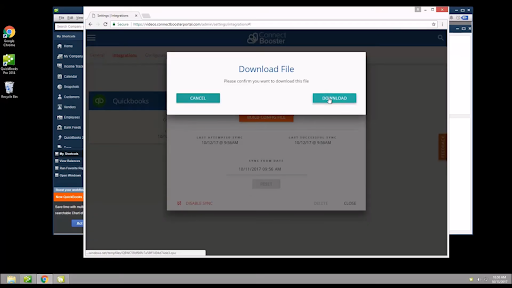
Follow these steps for QuickBooks Web Connector installation:
Note: If you are unable to find the latest version, you can an earlier version available on the page for QuickBooks Web Connector download.
If you get an error after you install Web Connector If you get an error, you can uninstall and reinstall the Web Connector:
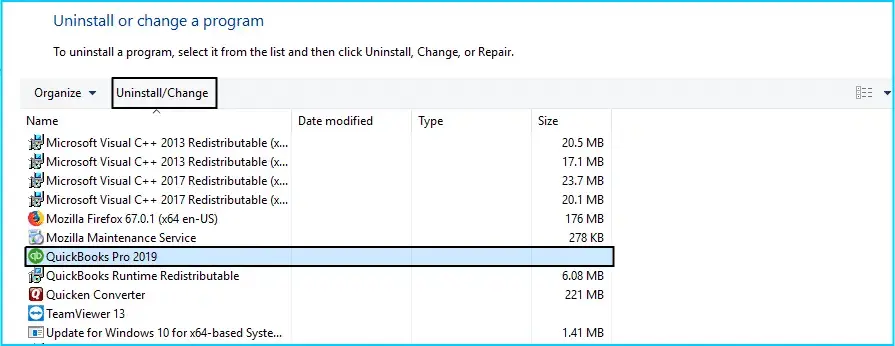
If you are unable to locate QuickBooks Web Connector in the Control Panel, remove the QBWebConnector folder from the following directories: C:\Program Files(x86)\Common Files\Intuit\QuickBooks\ C:\Program Files\Common Files\Intuit\QuickBooks Proceed to QuickBooks Web Connector installation.
It connects QuickBooks Desktop with compatible web applications to exchange data. Install the utility/ connect the supported application/ authorize access/ and configure synchronization to set it up.
If you have your .qwc file from your external web application, you can add a .QBW file.
Note: Ensure you are logged in to QuickBooks as the administrator and have logged into your Intuit Account.
Ensure you are logged in to QuickBooks as the administrator and have signed into your Intuit Account.
Note: Ensure you are logged into QuickBooks as the administrator and have signed into your Intuit Account.
Here is the process to sync data between QuickBooks Time and QuickBooks Desktop using Web Connector:
Select Customers in QuickBooks Time:
Note: You can delete the 1 from their name in QuickBooks Desktop and perform another sync once they have been reactivated.
These errors can stem from connection issues/ incorrect credentials/ missing permissions/ outdated configuration files/ or damaged logs. Identifying the specific error code is crucial for effective solutions rather than repeatedly reinstalling the software. Take a closer look at the table below to learn about common errors and how to fix them:
| Error code | Common Cause | Recommended solution |
| QBWC1005 | Web Connector cannot create a required file. | Check Windows user permissions and file access. |
| QBWC1006 | Web Connector cannot find or access QWCLog.txt. | Check the log file’s location and write permissions. |
| QBWC1007–1009 | QuickBooks connection fails. | Open QuickBooks/ sign in to the correct company file/ and close blocking windows. |
| QBWC1011 | The application is not appear from the registry. | Restart Web Connector and add the app again through its valid .QWC file if needed. |
| QBWC1012 | The third-party server fails to process a request. | Contact the third-party application’s support team. |
| QBWC1033 | Web Connector cannot initialize its log file. | Check file permissions/ available disk space/ and Windows administrator access. |
| QBWC1035 | Incorrect/outdated .QWC configuration. | Request the correct configuration file from the application provider. |
| QBWC1037 | The connected application requires a Web Connector update. | Follow the update instructions and check compatibility. |
| QBWC1039 | Application access is denied/ permissions are missing. | Review Integrated Applications permissions in QuickBooks Desktop. |
| QBWC1040 | Incorrect/ missing application credentials. | Verify the password/ reset it through the application provider. |
| QBWC1048 | Web Connector cannot verify the application server certificate. | Obtain a fresh .QWC file from the trusted application provider. |
| QBWC1085 | The Web Connector log file is damaged or inaccessible. | Follow the appropriate log file repair steps for setup. |
Note: Web Connector gives you one place to set up and manage your connected apps. Connected apps will show all the apps you set up with QuickBooks.
If QuickBooks Web Connector is having trouble syncing, check the Desktop settings, application permissions, and connection configuration. For other persistent QuickBooks Desktop problems, refer to QuickBooks Tool Hub for relevant troubleshooting utilities.
QuickBooks Web Connector is a Windows tool that allows outside apps to sync data with the file. Manage settings like sync frequency and access rights in QuickBooks.
This method can help fix specific Web Connector syncing issues when the problem is caused by a damaged/ corrupted/ or write-protected log file (such as Error QBWC1085/ QBWC1006).
If your company file is not connected to a third-party application:
If your company file is connected to a third-party application using Web Connector:
This method helps if the issue stems from version incompatibilities/ outdated digital certificates/ or fixed bugs. You need to update QuickBooks Desktop as it helps resolve QuickBooks Web Connector not opening issues caused by outdated software/ bugs. If the issue persists, check connection settings/ company file permissions/ and error messages to examine the root cause.
Authorization failures in QuickBooks Web Connector download occur due to expired credentials/ misconfigured settings/ or permission issues. Reauthorize the app/ check the company file location/ and verify Windows permissions to resolve this issue.
Configuring QuickBooks Desktop to allow an application to log in automatically can help resolve certain Web Connector authorization issues, particularly error QBWC1039 when QuickBooks is closed.
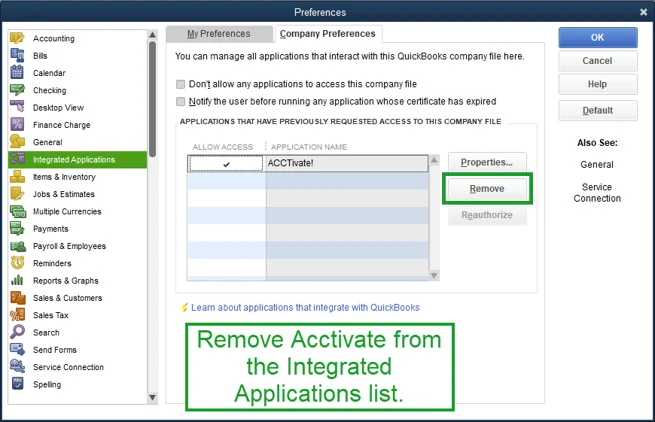
Managing linked applications can help fix authorization problems/ reinstall application connections/ and address QuickBooks Web Connector not opening errors. Adhere to these official instructions:
QB Web Connector (QBWC) is used to integrate third-party applications with QuickBooks Desktop, while the QB Online API connects applications to QuickBooks Online using web APIs and OAuth 2.0 authorization. Go through the table below to learn about the comparison between the two:
| Feature | QuickBooks Web Connector | QuickBooks Online API |
| Primary purpose | Connects web applications to QuickBooks Desktop. | Connects applications to QuickBooks Online. |
| Platform | Windows utility installed on a computer running QuickBooks Desktop/ its local network. | Cloud-based API accessed over HTTPS. |
| Setup | Requires a compatible integration and typically a .QWC configuration file. | Requires an Intuit developer app and OAuth 2.0 authorization. |
| Data exchange | Uses the QuickBooks Desktop SDK and qbXML. | Uses REST API requests and JSON. |
| Synchronization | Supports scheduled/initiated updates through Web Connector. | Supports API requests initiated by the integrated application. |
| Authentication | Uses QuickBooks application authorization and integration-specific credentials. | Uses OAuth 2.0 access and refresh tokens. |
| Internet connection | The web service needs internet connectivity. QuickBooks Desktop and Web Connector communicate. | The application communicates with QuickBooks Online through internet-based API endpoints. |
| Best suited for | Businesses using QuickBooks Desktop with a compatible third-party application. | Businesses and developers integrating with QuickBooks Online. |
QuickBooks Web Connector plays an important role in synchronizing data between QuickBooks Desktop and third-party applications. Authorization errors/ outdated software/ incorrect file locations/ and connection issues can interrupt the syncing process. You need to update software/ check company file settings/ manage application permissions/ and reconnect integrations to resolve common QB Web Connector issues. Ensure that your company file is backed up before making significant changes to application settings/ permissions.
Need expert assistance? Contact the Data Service Team experts today at +1(888)-718-7888 for reliable guidance and professional support to resolve QuickBooks Web Connector not working and authorization issues.
It is a configuration file used by QuickBooks Web Connector to connect QB Desktop with supported web applications. It contains information such as the web application’s service URL and connection settings needed to establish communication with QuickBooks. It helps configure the connection between the two applications so they can exchange data.
Ensure you have the correct file from a trusted provider to add a QWC file to QuickBooks Web Connector. Open QuickBooks Desktop in single-user mode and launch QuickBooks Web Connector. Click Add an Application/ browse for the QWC file/ and select it. Review and authorize the connection details if you trust the provider. Follow the given instructions to finish the setup and the application will appear in the Web Connector list for further configuration.
It stops working because QuickBooks is closed/ an open pop-up window inside QB is blocking the connection. Other common causes include outdated QuickBooks/ Web Connector versions/ damaged log files like QWCLOG.TXT/ incorrect user permission settings in Single Admin mode. It blocks the background communication bridge.
QuickBooks Web Connector may not sync due to incorrect settings/ outdated software/ unstable internet/ invalid credentials/ or company file issues. Ensure QuickBooks is running/ check the Web Connector configuration/ verify application permissions/ update the software/ and review any error messages. You must be able to examine the specific error code to resolve this.
It may fail to connect to QuickBooks Desktop due to an incorrectly configured .QWC file/ missing application permissions/ an incorrect company file/ or an outdated Web Connector version. Log in to the correct company file as an administrator when appropriate to fix the issue. Verify the third-party application’s authorization and check the Web Connector settings.
Verify that the file is valid/ comes from a trusted application provider/ and has not been modified or corrupted to fix a QuickBooks Web Connector file error. Open QuickBooks Desktop and sign in to the correct company file to import the .QWC file through file > Update Web Services. Update QuickBooks & Web Connector and check the exact error message to examine whether the problem involves file configuration/ authorization.
It may ask for authorization when the permissions of the connected application are not saved/ the company file has changed. This can happen if you select the wrong company file/ use an outdated .QWC configuration file. Open QuickBooks Desktop as an administrator when appropriate and sign in to the correct company file to resolve this issue. Review the permissions of connected applications under Edit > Preferences > Integrated Applications > Company Preferences.
Open QuickBooks Desktop and confirm that the correct company file is accessible to fix QuickBooks Web Connector sync errors. Check the internet connection/ verify the authorization of the connected application and ensure the .QWC file is correctly configured. Update QuickBooks Desktop and Web Connector to compatible versions/ restart the application and run the sync again. If the error persists, review the specific error code/ check antivirus restrictions.
Open QuickBooks Desktop and sign in to the correct company file as an administrator to remove an application from QB Web Connector. Go to Edit > Preferences > Integrated Applications > Company Preferences. Select the application you want to remove and click Remove its authorization based on the available options. Confirm the change if prompted and open Web Connector to verify the application is still listed.
No! QuickBooks Web Connector is not required for QB Online. It is a Windows utility used to connect QuickBooks Desktop with compatible web-based applications and exchange data. QB Online integrates with supported applications through direct connections. Verify whether it supports QB Desktop/ offers a separate QB Online integration to proceed when a third-party application requests Web Connector.

Get Free Consultation for QuickBooks Upgrade
(2021, 2022, 2023)


