🔥 BLACK FRIDAY & CYBER MONDAY MEGA SALE ✦ Get 70% OFF QuickBooks Products & Subscriptions ✦ 20% OFF Checks, Forms & Supplies ✦ LIMITED TIME OFFER! 🎉 ✦
QuickBooks Black and White Screen
Summarize this blog post with :

QuickBooks Desktop makes everyday accounting tasks easier, but sometimes unexpected QuickBooks display issues can get in the way. You may notice that your screen suddenly turns black and white, certain fields appear black, or the software opens with a black screen. The QuickBooks Black and White Screen issue can occur while opening the application, signing in, or working on a company file. In some cases, users also experience a QuickBooks blank screen after login, making it difficult to continue their work.

Don’t worry! This guide explains the common reasons behind these display problems and shares simple solutions to help you fix them.

How Does QuickBooks Black and White Screen Issue Affect Your Work?

The QuickBooks Black and White screen issue can interrupt your daily accounting work and make it difficult to use different features. Depending on the cause, you may experience problems while opening the software, accessing company files, or working on different screens.

Here are some common problems you may notice:

  • Black or White Screen: The QuickBooks screen may suddenly turn black or white while you are working.
  • Blank Screen After Login: QuickBooks may display a blank screen after login, preventing you from accessing your company file.
  • Difficulty Opening QuickBooks: The software may show a black screen when opening, similar to the issues experienced when QuickBooks won’t open.
  • Black Fields: Some input fields may appear black instead of white, making it harder to read information.
  • Missing Display Elements: Buttons, icons, text, or other screen elements may not appear correctly.
  • Slow Screen Response: QuickBooks may freeze or respond slowly when you switch between windows or open different features.

What Causes the QuickBooks Black and White Screen Problem?

There can be several reasons why QuickBooks Desktop suddenly displays a black, white, or blank screen. Sometimes, the problem is related to Windows display settings, while other times, damaged program files or graphics drivers may be responsible.

Here are some common causes of the QuickBooks Black and White Screen issue:

  • Outdated Graphics Drivers: Old or incompatible graphics drivers may prevent QuickBooks from displaying windows, colors, and other screen elements correctly.
  • Incorrect Windows Display Settings: Changes to screen resolution, DPI, or display scaling can make QuickBooks windows appear blank, blurry, or distorted.
  • QuickBooks Program Issues: Temporary glitches or damaged program components may cause display problems or cause QuickBooks to stop working.
  • Incorrect High-DPI Settings: High-resolution monitors with unsuitable scaling settings can affect how QuickBooks displays text, buttons, and windows.
  • Incorrect QBW.ini Color Settings: Changes to the QBW.ini configuration file may cause QuickBooks input fields to appear black instead of white.
  • Windows Theme Settings: Certain theme or appearance settings may affect how QuickBooks displays colors and other interface elements.
  • Company File Problems: If the display issue occurs with only one company file, there may be a problem related to that particular file.
  • Multiple Monitor Settings: Different screen resolutions or scaling settings across multiple monitors may cause QuickBooks display problems.

What Should You Check Before Fixing QuickBooks Black and White Screen Issue?

Before trying any troubleshooting method, it is better to perform a few basic checks. These checks can help you understand why QuickBooks is showing a black, white, or blank screen and prevent unnecessary changes to your system.

Here are some things you should check first:

  • Close QuickBooks Desktop and restart your computer to clear temporary system issues.
  • Make sure your graphics drivers are updated to avoid display-related problems.
  • Review your screen resolution, display scaling, and DPI settings.
  • Make sure you are using a supported QuickBooks version and update QuickBooks Desktop to the latest available release.
  • Check whether the same display problem occurs in a sample company file. This helps determine whether the issue is limited to your company file.
  • If you use multiple monitors, verify that their resolution and scaling settings are configured correctly.
  • Before making major changes or repairing QuickBooks, create a backup of your company file to protect your accounting data.

How to Fix QuickBooks Black and White Screen in Windows?

If your QuickBooks screen suddenly turns black or white, don’t worry. You can try several troubleshooting methods to fix the problem. The right solution depends on what you see on your screen.

Follow the solutions below one by one to restore the normal QuickBooks display.

Method 1 – Run the Quick Fix My Program

Temporary program issues can cause QuickBooks to display a black or white screen. Follow these steps to fix this problem:
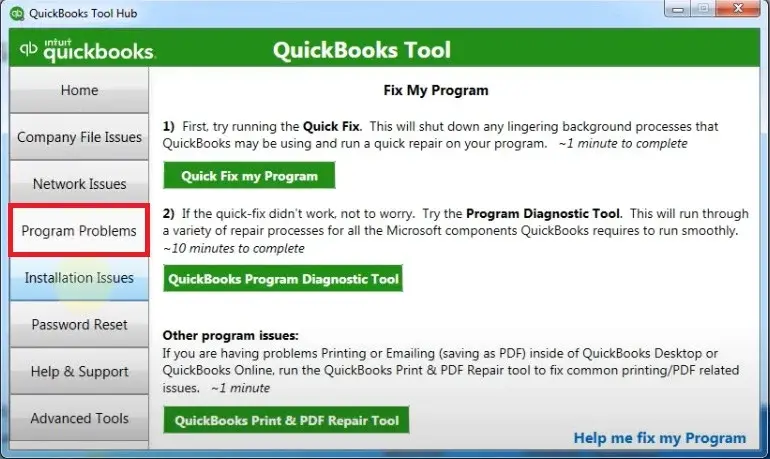
Step 1: Download and Install QuickBooks Tool Hub

  • Close QuickBooks Desktop.
  • Visit the official Intuit website and download the latest QuickBooks Tool Hub.
  • Save the downloaded file to your Desktop or Downloads folder.
  • Open the downloaded file named QuickBooksToolHub.exe.
  • Follow the installation instructions and accept the terms and conditions.
  • Once installed, open QuickBooks Tool Hub.

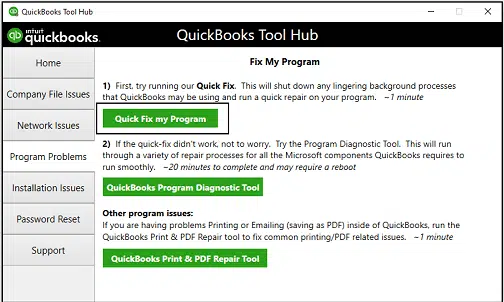
Step 2: Run Quick Fix My Program

  • Open QuickBooks Tool Hub.
  • Select Program Problems.
quickbooks-program-problems
  • Click Quick Fix My Program.
Quick-Fix-My-Program
  • Wait for the tool to complete its repair.
  • Open QuickBooks Desktop again.
  • Check whether the QuickBooks black and white screen problem is resolved.

If repairing the program does not resolve the issue, you can also try the QuickBooks Clean Install Tool to reinstall damaged program components.

Method 2 – Update Your Graphics Drivers

Outdated or incompatible graphics drivers can cause display problems in QuickBooks Desktop. Updating these drivers may help fix black screens, missing colors, and other QuickBooks Black and White Screen issues. You can also review Microsoft’s recommendations for fixing incorrect display colors.

Here’s how to check your graphics driver:
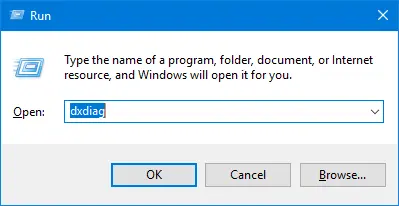
  • Press Windows + R on your keyboard to open the Run window.
  • Type dxdiag and press Enter.
run-dxdiag
  • Open the Display tab.
  • Note the name and manufacturer of your graphics card.
  • Visit the official website of your graphics card manufacturer.
  • Check for the latest compatible driver.
  • Download and install the available update by following the manufacturer’s instructions.
  • Restart your computer and open QuickBooks Desktop again.

Check whether your QuickBooks screen is displaying properly.

Method 3 – Check QuickBooks High-DPI Settings

If you are using a high-resolution monitor, incorrect DPI settings may cause QuickBooks windows, text, and buttons to appear blurry or incorrectly sized. Adjusting the High-DPI settings may help resolve these display problems.

Follow these steps:

  • Close QuickBooks Desktop.
  • Open the Windows Start menu.
  • Search for QuickBooks.
  • Right-click the QuickBooks icon and select Open File Location.
  • In the folder that opens, right-click QuickBooks.exe.
  • Select Properties.
  • Open the Compatibility tab.
  • Select Change High DPI Settings.
  • Review the available High-DPI scaling options.
  • If needed, test the Override High DPI Scaling Behavior option.
  • Select Apply and then OK.
  • Open QuickBooks again and check the display.

If the screen looks worse after changing the settings, return to the previous configuration.

Method 4 – Change QuickBooks Desktop View Preferences

Sometimes, QuickBooks window settings can affect how the application displays different screens. Switching to the One Window view may help resolve certain display and window-sizing problems.

Here’s what you need to do:

  • Open QuickBooks Desktop and select the Edit menu.
  • Click Preferences.
  • Choose Desktop View from the left-side menu.
  • Open the My Preferences tab.
  • Find the View section.
  • Select One Window.
  • Click OK.
  • Close and reopen QuickBooks Desktop.

Now check whether the QuickBooks Desktop blank screen or other display problem has improved.

Method 5 – Adjust Windows Display Settings

Incorrect Windows display scaling or screen resolution can make QuickBooks windows appear blurry, oversized, or partially hidden. Follow Microsoft’s guide to changing Windows screen resolution and display scaling to check the recommended settings.

Follow these steps:

  • Right-click an empty area on your Windows desktop.
  • Select Display Settings.
  • Find the Scale option.
  • Choose the Recommended setting.
  • Locate Display Resolution.
  • Select the resolution marked as Recommended for your monitor.
  • If you use multiple monitors, check the settings for each screen.
  • Restart your computer.
  • Open QuickBooks Desktop and check whether the display is working correctly.

Note: Changing Windows display settings can affect other applications on your computer, not just QuickBooks.

Method 6 – Check the QBW.ini Color Settings

Sometimes, incorrect color settings in the QBW.ini file can make QuickBooks fields appear black instead of white. Changing the settings may help fix this issue.

Follow these steps:

  • Close QuickBooks Desktop.
  • Find the QBW.ini file on your computer.
  • Create a backup of the file.
  • Right-click the QBW.ini file and open it with Notepad.
  • Scroll down and look for the [COLORS] section.
  • Check the color setting and make sure it follows Intuit’s instructions for your QuickBooks version.
  • Save the changes and close Notepad.
  • Open QuickBooks Desktop again and check whether the black fields are fixed.

Note: This solution is mainly for black input fields. It may not fix a complete QuickBooks black screen or blank screen.

Tips to Prevent QuickBooks Black and White Screen Issues

You can follow a few simple tips to prevent the QuickBooks Black and White Screen issue and keep the software running smoothly.

  • Always install the latest available QuickBooks Desktop updates to avoid software-related problems.
  • Make sure your graphics drivers are up to date to prevent display-related issues.
  • Keep your Windows screen resolution and scaling settings at the recommended levels.
  • Don’t frequently change High-DPI settings, as incorrect configurations may affect the QuickBooks display.
  • Make sure your Windows version and QuickBooks Desktop version are compatible.
  • If you use multiple monitors, maintain suitable resolution and scaling settings for each screen.
  • Always exit QuickBooks Desktop correctly instead of shutting down your computer while the application is running.
  • Create regular company file backups to protect your accounting data from unexpected problems.

Make QuickBooks Work Smarter for Your Business

Spend less time managing data and more time growing your business. Whether you need help setting up QuickBooks, cleaning up your books, reconciling accounts, or resolving errors, our team is here to make accounting easier. Get quick solutions that save time, improve accuracy, and keep your business finances on track.

OR Call Us

Conclusion!

Seeing a black or white screen while working in QuickBooks can be annoying, especially when you have important accounting work to finish. But there’s no need to panic. The QuickBooks Black and White Screen issue can be fixed easily by checking a few settings, updating graphics drivers, or repairing QuickBooks program files. You can try the methods explained in this guide and see which one works for your situation. Hopefully, you’ll be able to get your normal QuickBooks screen back and continue your work without further interruptions.

Still facing the QuickBooks Black and White Screen issue? Contact Data Service Team experts at +1(888)-718-7888 to get your accounting work back.

Frequently Asked Questions (FAQ’s)

The QuickBooks black and white screen problem can occur due to outdated graphics drivers, incorrect Windows display settings, damaged program files, or incorrect QBW.ini color settings.

This may happen because of incorrect color settings in the QBW.ini file, graphics driver problems, or Windows display configuration issues.

You can try running Quick Fix My Program, updating your graphics drivers, checking High-DPI settings, or adjusting Windows display settings to fix the issue.

First, restart your computer and run Quick Fix My Program from QuickBooks Tool Hub. If the problem continues, check your graphics drivers and Windows display settings.

Yes, outdated or incompatible graphics drivers can cause black screens, missing colors, blurry text, and other display problems in QuickBooks Desktop.

Yes, adjusting screen resolution and display scaling to the recommended settings may help resolve certain QuickBooks display problems.

You should first try repairing QuickBooks using QuickBooks Tool Hub. If the problem continues, consider reinstalling the software after creating a backup of your company file.

This can happen because of incorrect color settings in the QBW.ini file. Checking the [COLORS] section may help restore the normal field appearance.

QuickBooks may turn black and white while working because of temporary software glitches, graphics driver conflicts, or incorrect display settings.

Yes, in many cases. You can try Quick Fix My Program, update graphics drivers, adjust High-DPI settings, and check Windows display preferences before considering a reinstallation.

About The Author

Steven Moody

Steven Moody is a bookkeeping and payroll specialist dedicated to helping businesses maintain accurate financial records and efficient payroll operations. His expertise includes payroll management, tax compliance, bookkeeping solutions, and financial reporting. Steven regularly shares insights on accounting best practices and business finance strategies. Outside of work, he enjoys traveling, exploring new places, and keeping up with the latest developments in business technology.

Steven Moody

QuickBooks Payroll

QuickBooks Payroll EIN Mismatch: How to Correct Incorrect EIN

Read More
QuickBooks Error How to

QuickBooks Error H202: How to Fix Server and Network Issues

Read More
QuickBooks Error How to

QuickBooks Error 12057: How to Fix Secure Connection Issues

Read More
QuickBooks Error How to

QuickBooks Error 1321 During Installation: How to Fix It

Read More
QuickBooks How to

QuickBooks Invoice Payment Error? Here’s How to Fix It

Read More