Are you unable to download QuickBooks Payroll Tax Table Updates because of QuickBooks Error 12057? This error can appear when QuickBooks Desktop faces difficulties connecting to online services or completing a security certificate check. Incorrect internet settings, restricted network access, firewall interference, or certificate verification problems may be responsible. As a result, your payroll or software update may fail to complete.
But checking a few important system and network settings can help you identify the underlying issue. In this blog, we’ll explain why QuickBooks Error 12057 occurs and how you can troubleshoot it.
QuickBooks Error 12057 is associated with a Windows WinINet security error that occurs when the system cannot complete an SSL certificate revocation check. This verification process helps confirm whether a website’s digital certificate is still trusted.
When this error occurs, you may notice the following issues:
Error 12057 in QuickBooks Desktop may occur when Windows cannot complete the security checks required for a secure internet connection. Here are some possible reasons behind this issue.
A weak or interrupted internet connection may prevent your computer from reaching the servers required for certificate verification. Similar connectivity interruptions may also be associated with QuickBooks Error 12152.
Security software may block QuickBooks or restrict access to online services needed for secure communication.
Misconfigured proxy settings can interrupt communication with certificate verification servers and affect online connections, potentially causing issues similar to QuickBooks Error 12031.
Windows may fail to retrieve or verify certificate revocation information, preventing a secure connection from being established.
Incorrect date, time, or time zone settings may interfere with certificate validation and secure online communication.
Before trying any troubleshooting method, check a few basic settings on your computer. These initial checks can help identify connection or security issues that may be interfering with QuickBooks.
Once you’ve completed these checks, move on to the troubleshooting methods to address QuickBooks Error 12057.
Once you’ve checked the basic system and internet settings, try the following troubleshooting methods to identify and resolve the issue. Follow each method carefully and check whether QuickBooks can connect successfully after completing it.
A stable internet connection is important for QuickBooks to communicate with online services and prevent errors such as QuickBooks Error 12029. If your network is frequently disconnecting or restricting secure connections, the update process may fail. Follow these steps:
If other secure websites also fail to load, contact your internet service provider or network administrator. You can also check whether you’re experiencing a similar connectivity issue, such as QuickBooks Error 12007, which can affect communication with online services.
Incorrect date and time settings can interfere with digital certificate verification. Make sure your Windows clock is set correctly before retrying the update. Follow these steps:
Incorrect proxy configurations may prevent Windows from reaching the servers required for certificate verification. Reviewing these settings can help identify connection restrictions. Follow these steps:
Sometimes, security software may restrict QuickBooks from accessing online services or prevent Windows from reaching certificate verification servers. Learn how to identify and resolve situations where Windows Firewall is Blocking QuickBooks. To check this:
If you’re using third-party antivirus software, review its application permissions as well. Avoid disabling firewall protection completely.
QuickBooks Desktop uses TLS 1.2 to establish secure connections with Intuit services. If you encounter other update-related connection problems, you can also learn how to resolve QuickBooks Error 15215. If your system does not support or properly configure this protocol, certain online services may stop working. Here’s what you can do:
You can also check whether your QuickBooks version meets the TLS 1.2 system requirements.
If the certificate verification issue continues, your current network may be blocking access to certificate status servers. To check this:
This test will help you find whether the issue is related to your network configuration.
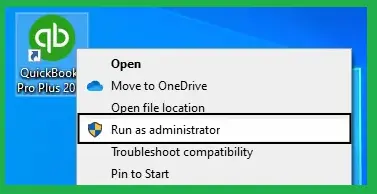
If your QuickBooks does not have sufficient Windows permissions to access the system resources or complete online operations. Running the application as an administrator can help you resolve the permission-related issues. Follow these steps:
QuickBooks Error 12057 is associated with a failed certificate revocation check. Windows uses this check to confirm whether a website’s digital certificate is still valid and trusted.
If Windows cannot reach the required certificate status servers, QuickBooks may experience problems connecting to online services. Here’s what you can do:
Although QuickBooks 12057 Internet Connection Error can interrupt payroll updates, following a few simple practices may help reduce the chances of experiencing it again. Here are some useful tips:
Following these practices can help maintain a stable connection between QuickBooks Desktop and its online services.
Make QuickBooks Work Smarter for Your Business
Spend less time managing data and more time growing your business. Whether you need help setting up QuickBooks, cleaning up your books, reconciling accounts, or resolving errors, our team is here to make accounting easier. Get quick solutions that save time, improve accuracy, and keep your business finances on track.
QuickBooks Error 12057 may seem difficult to handle, particularly when it interrupts your regular payroll activities. However, understanding its causes can make troubleshooting much easier. Issues with internet connectivity, firewall restrictions, proxy configurations, or certificate verification may prevent QuickBooks from connecting to online services. By following the solutions explained in this guide, you can identify the possible cause and take the necessary steps to resolve it. Make sure your system and QuickBooks Desktop stay updated to avoid similar problems.
If none of the methods work, contact Data Service Team professionals at +1(888)-718-7888 to fix QuickBooks Error 12057 and get your payroll updates working again.
QuickBooks Error 12057 usually occurs when Windows cannot verify the security certificate during an online connection. Poor internet connectivity, firewall restrictions, or incorrect proxy settings may also cause this issue.
QuickBooks Desktop may show Error 12057 when it cannot establish a secure connection with Intuit’s servers. This can happen due to certificate verification or network-related problems.
Yes, firewall or antivirus software may block QuickBooks from accessing online services. Check your security settings and allow the required QuickBooks applications through the Firewall.
To fix QuickBooks Payroll Update Error 12057, check your internet connection, correct your system date and time, review proxy settings, and check firewall permissions. You can also try using another network.
Press Windows + R, type inetcpl.cpl, and press Enter. Open the Advanced tab and review the security settings. Make sure certificate verification has not been disabled. Avoid changing settings you don’t understand.
Both errors are related to secure internet connections. However, Error 12057 occurs when Windows cannot complete a certificate revocation check, while Error 12037 indicates that a server certificate failed a validity check.
No, basic troubleshooting methods, such as checking internet settings, correcting system time, and reviewing firewall permissions, are generally free. However, professional technical support may involve additional charges.
Keep QuickBooks Desktop updated, maintain a stable internet connection, check your system date and time, and configure firewall settings correctly. Also, avoid making unnecessary changes to Windows security settings.

Get Free Consultation for QuickBooks Upgrade
(2021, 2022, 2023)