
QuickBooks-Subscription-Has-Lapsed

A valid subscription is required to continue using QuickBooks Desktop features such as payroll services, online banking, updates, and other connected services. However, sometimes QuickBooks may display the message “Your QuickBooks subscription has lapsed” even when the subscription is active or recently renewed.
This issue generally appears when QuickBooks fails to verify subscription details with Intuit servers. As a result, users may continue seeing the lapsed subscription message.
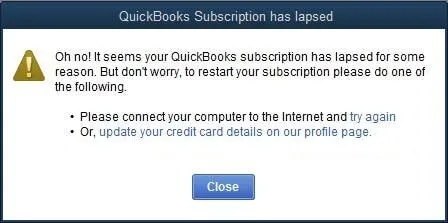
quickbooks-subscription-has-lapsed

This guide explains the common causes, symptoms, and troubleshooting methods to fix the QuickBooks Subscription Has Lapsed issue and restore normal access.

What Does QuickBooks Subscription Has Lapsed Mean?

The QuickBooks Subscription Has Lapsed message appears when QuickBooks can not verify an active subscription connected to your Intuit account. It usually indicates that the subscription status is inactive, expired, or not properly synced with QuickBooks servers.

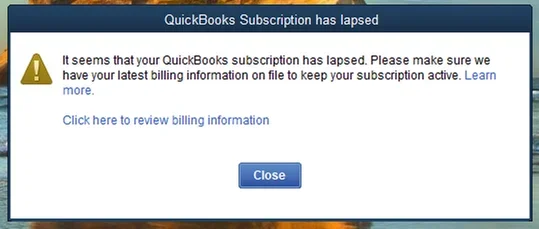
You may face this error message because of billing problems, failed renewal payments, outdated subscription details, or license verification issues. Users may see messages like “it seems that your QuickBooks subscription has lapsed” or “QuickBooks sorry it looks like your subscription has lapsed” while opening the software. Here are some points to understand:
quickbooks-subscription-has-lapsed
  • A lapsed subscription does not delete or damage your company file data.
  • Your financial records, transactions, customer details, and reports remain stored safely.
  • QuickBooks may restrict access to subscription-based features until the account is reactivated.
  • Services such as payroll updates, online banking, software updates, and connected services may stop working.
  • The issue can appear even after renewal if QuickBooks has not refreshed the updated subscription information.
  • Syncing your license data, updating billing details, or refreshing QuickBooks settings can help restore access.

Why are you Seeing the QuickBooks Subscription Has Lapsed Issue?

The QuickBooks desktop subscription has lapsed error comes when the software can not verify your active subscription status with Intuit servers. Even if your subscription is renewed, QuickBooks may still show this message due to problems with billing information, license verification, software settings, or connectivity issues.

Some common reasons why users see this issue:

  • Incorrect or outdated billing information: An expired card, failed payment, or outdated payment details can prevent QuickBooks from confirming your subscription.
  • Subscription renewal not synced: QuickBooks may take time to update subscription details after renewal, causing the software to display an incorrect lapsed status.
  • License verification problems: Damaged license files or registration data can stop QuickBooks from validating your subscription.
  • Outdated QuickBooks Desktop version: An older QuickBooks version may have trouble connecting with Intuit’s subscription verification services.
  • Corrupted EntitlementDataStore.ecml file: This file stores license and product information. If it becomes damaged, QuickBooks may fail to recognize your active subscription.
  • Internet connection or firewall restrictions: Network issues, antivirus settings, or firewall blocks can prevent QuickBooks from communicating with Intuit servers.
  • Incorrect Windows date and time settings: Wrong system settings can interfere with secure connections required for subscription verification.
  • Damaged QuickBooks installation files: Missing or corrupted program components may affect subscription checks and online services.

9 Effective Ways to Fix the QuickBooks Subscription Has Lapsed Error

If you are seeing the QuickBooks enterprise subscription has lapsed, don’t worry it’s usually caused by subscription verification, billing, or connectivity issues that can be resolved with a few troubleshooting steps.

Solution 1. Verify Your QuickBooks Subscription Status

Before making any changes, confirm that your QuickBooks subscription is active. Sometimes, the software displays the QuickBooks subscription has lapsed message even though the subscription has already been renewed.

Follow these steps to verify your subscription:
  • Sign in to your Customer Account Management Portal using the primary admin account.
  • Open the Products & Services section.
  • Find your QuickBooks Desktop subscription and check its current status.
  • Ensure the subscription is listed as Active and verify that the billing information is accurate.
  • If the subscription is active, open QuickBooks Desktop.
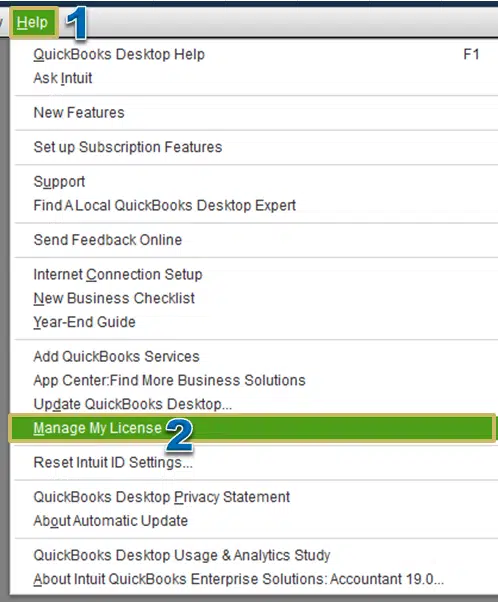
  • Go to the Help tab, select Manage My License, then choose Sync License Data Online.
Manage-my-license-Add-user-license-in-QuickBooks
  • Restart QuickBooks and check whether the error message has disappeared.

Solution 2. Install the Latest QuickBooks Desktop Updates

Running an outdated version of QuickBooks Desktop can prevent the software from communicating with Intuit’s subscription servers.
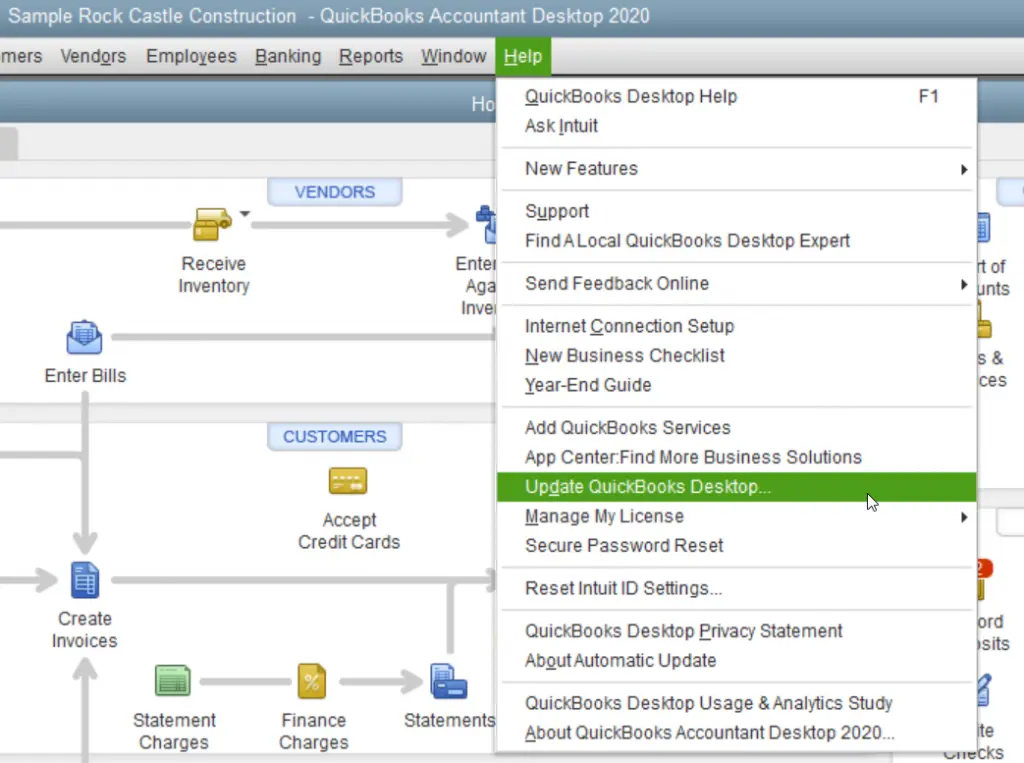
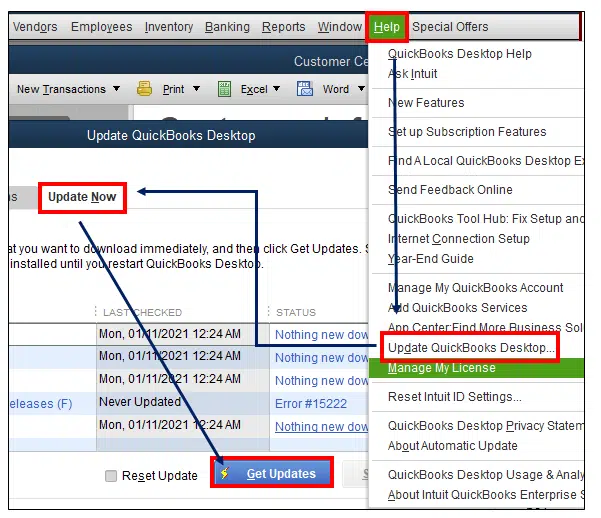
Update QuickBooks manually

  • Open QuickBooks Desktop.
  • Select Help and click Update QuickBooks Desktop.
Update-QuickBooks-Desktop
  • Open the Update Now tab.
Get Update
  • Select Get Updates.
  • Wait until the download finishes.
  • Restart QuickBooks.
  • Click Install Now if prompted.

Solution 3. Run the QuickBooks Install Diagnostic Tool

Sometimes Windows components are damaged and show the error code QuickBooks subscription has lapsed.
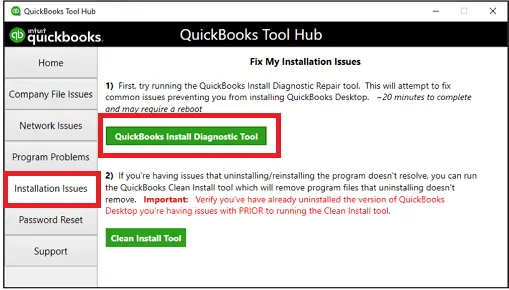
Step 1: Download QuickBooks Tool Hub

Step 2: Run the Install Diagnostic Tool

  • Inside Tool Hub, select Installation Issues.
  • Click QuickBooks Install Diagnostic Tool.
Choose-QuickBooks-Install-Diagnostic-tool
  • Allow the scan to complete.
  • Restart your computer.
  • Open QuickBooks again.
  • This tool repairs Windows components that QuickBooks relies on.

Solution 4. Restore the EntitlementDataStore.ecml File

QuickBooks stores your product and subscription details inside the EntitlementDataStore.ecml file. If this file becomes damaged, QuickBooks may incorrectly report that your subscription has lapsed. Here’s how to reset it:
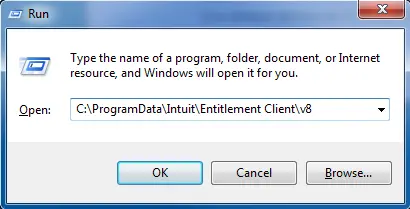
  • Close QuickBooks Desktop.
  • Press Windows + R.
  • Type: C:\ProgramData\Intuit\Entitlement Client\v8
Entitlementdatastore-QuickBooks-subscription-has-lapsed
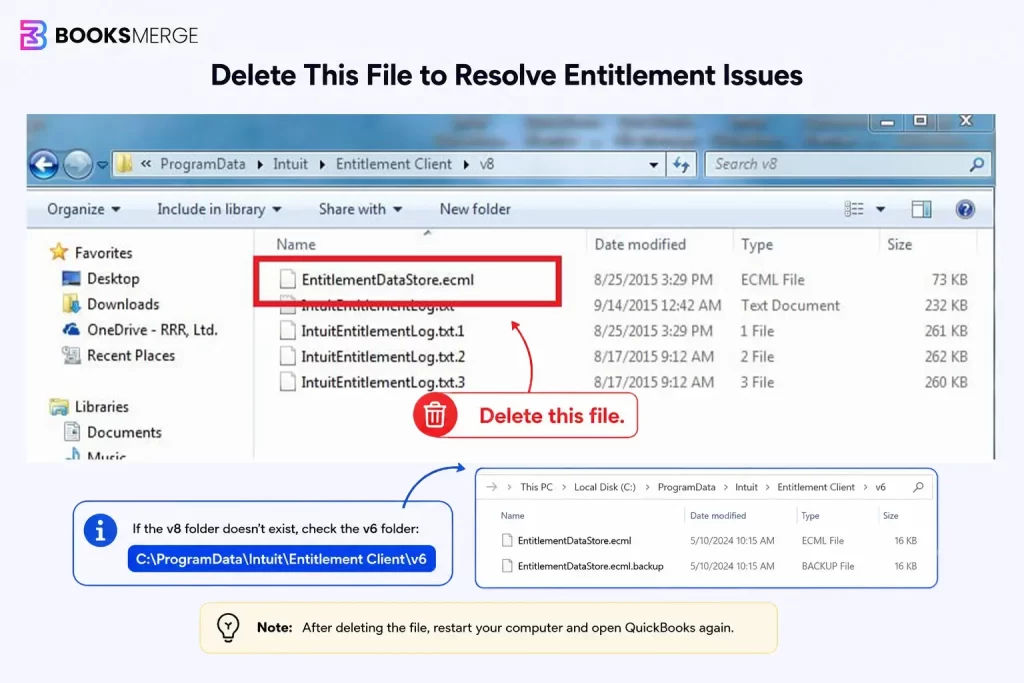
  • If that folder doesn’t exist, open: C:\ProgramData\Intuit\Entitlement Client\v6
  • Locate EntitlementDataStore.ecml.
EntitlementDataStore-1024x683
  • Right-click the file and select Delete.
  • Open QuickBooks again.
  • Register the software using your license and product information.
Product-information-window

Solution 5. Verify Your Internet Connection Settings

QuickBooks must connect with Intuit servers to validate your subscription. Network issues or incorrect internet settings may interrupt this process.

Check your connection

  • Make sure your internet connection is stable.
  • Open a website in your browser to confirm internet access.
  • Restart your modem or router if necessary.

Configure QuickBooks Internet Settings

  • Open QuickBooks.
  • Go to Help.
  • Select Internet Connection Setup.
  • Choose Use my computer’s Internet connection settings.
  • Click Next.
  • Select Advanced Connection Settings.
  • Click Restore Advanced Settings.
  • Save the changes.
  • Restart QuickBooks and try syncing your license again.

Solution 6. Check Firewall and Antivirus Settings

Security software may block QuickBooks from reaching Intuit’s licensing servers. Here’s how to verify them:

  • Ports 80 and 443 are open.
  • QuickBooks executable files are allowed through Windows Firewall.
  • Antivirus software isn’t blocking QuickBooks processes.
  • If necessary, temporarily disable your firewall to determine whether it’s causing the issue. Remember to enable it again after testing.

Solution 7. Verify Windows Date and Time Settings

Incorrect system time can interfere with secure server communication. To correct it:
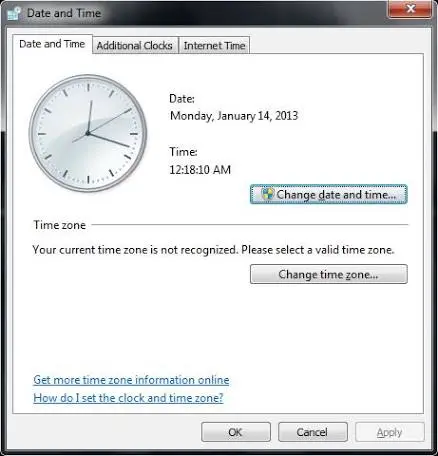
  • Open Windows Settings.
  • Select Time & Language.
click-change-date-and-time
  • Enable:
    • Set time automatically
    • Set time zone automatically
  • Click Sync Now.
  • Restart QuickBooks.

Solution 8. Sync Your QuickBooks License Again

In some cases, the subscription is active, but QuickBooks has not refreshed the latest license information. To manually sync, follow the steps below:
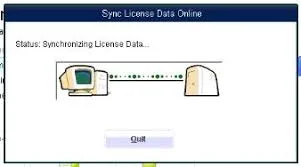
  • Open QuickBooks Desktop.
  • Go to Help and select Manage My License.
  • Click Sync License Data Online.
QuickBooks-Sync-License-Data-Online
  • Close QuickBooks.
  • Restart the application.
  • This refreshes the subscription information stored on your computer.

Solution 9. Repair the QuickBooks Installation

If none of the previous methods fix QuickBooks Desktop subscription has lapsed error. Repair your QuickBooks by following these steps:

  • Open Control Panel.
  • Select Programs and Features.
  • Choose QuickBooks Desktop.
  • Click Uninstall/Change.
  • Select Repair.
  • Allow Windows to complete the repair.
  • Restart your computer.
  • Open QuickBooks and verify your subscription again.

How to Renew Your QuickBooks Desktop Subscription?

If your QuickBooks Desktop subscription has expired or become inactive, renewing it restores access to subscription-based features like payroll, online banking, product updates, and connected services.

Here are the simple methods to renew your subscription:

Method 1: Renew Through Your Intuit Account

The quickest way to renew your subscription is through your Intuit account. Follow these steps:

  • Sign in to your Customer Account Management Portal or Intuit Account.
  • Open the Products & Services section.
  • Locate your QuickBooks Desktop subscription.
  • Check the subscription status.
  • If renewal is available, click Renew or Reactivate Subscription.
  • Review your billing information and update it if required.
  • Complete the payment process.
  • Wait for the renewal confirmation email.

Method 2: Renew from QuickBooks Desktop

If the option is available in your version of QuickBooks, you can renew the subscription directly from the software. Here’s how:

  • Open QuickBooks Desktop.
  • Go to the Help menu.
  • Select Manage My Subscription or Manage My License.
  • Sign in using your Intuit account credentials.
  • Follow the on-screen instructions to renew or reactivate your subscription.
  • Complete the payment process if prompted.
  • Restart QuickBooks Desktop after the renewal is complete.

Sync Your License After Renewing

Even after renewing, some users may still encounter the QuickBooks new subscription has lapsed issue because the updated subscription details have not yet synced with Intuit’s servers. To refresh your license information:

  • Open QuickBooks Desktop.
  • Go to Help.
  • Select Manage My License.
  • Click Sync License Data Online.
  • Close and reopen QuickBooks Desktop.
  • Verify that the subscription status has been updated.

How to Prevent the QuickBooks Subscription Has Lapsed Issue?

To avoid the QuickBooks Subscription Has Lapsed error in the future, follow these preventive steps:

  • Keep your billing information and payment details updated in your Intuit account.
  • Enable automatic renewal to prevent subscription expiration.
  • Install the latest QuickBooks Desktop updates regularly.
  • Sync your QuickBooks license data after renewal or whenever verification issues appear.
  • Maintain a stable internet connection so QuickBooks can connect with Intuit servers.
  • Allow QuickBooks through your firewall and antivirus settings.
  • Ensure your Windows date and time settings are correct.
  • Regularly check your QuickBooks subscription status to catch renewal issues early.

In Conclusion

The QuickBooks Subscription Has Lapsed issue normally occurs when QuickBooks cannot verify your active subscription due to billing problems, outdated software, license sync errors, or connectivity issues. By updating your payment details, syncing license information, repairing QuickBooks components, and following the troubleshooting methods mentioned above, you can restore access to your subscription-based features.

If you still need further assistance, you can get in touch with the Data Service Team specialists at +1(888)-718-7888. With the right steps, you can quickly resolve the QuickBooks Subscription Has Lapsed error.

Frequently Asked Questions (FAQ’s)

Yes, you can create backups of your company file even if your subscription has lapsed. Your financial data remains stored safely and is not deleted.

Yes, Windows Firewall or antivirus settings can block QuickBooks from connecting to Intuit servers. Allowing QuickBooks through firewall settings can help resolve the issue.

You can check your subscription status by signing in to your Intuit account and opening the Products & Services section. Verify that your QuickBooks subscription is active.

Update your billing details, sync your license data, and install the latest QuickBooks updates. These steps help QuickBooks verify your active subscription.

Yes, you can usually open and view your existing company files after subscription expiration. However, some features and services may become unavailable.

Ignoring the message may restrict access to features like payroll, updates, and online services. Your company data remains safe, but QuickBooks functionality may be limited.

Yes, this can happen due to differences in license files, software updates, firewall settings, or internet connectivity on each computer.

About The Author

Steven Moody

Steven Moody is a bookkeeping and payroll specialist dedicated to helping businesses maintain accurate financial records and efficient payroll operations. His expertise includes payroll management, tax compliance, bookkeeping solutions, and financial reporting. Steven regularly shares insights on accounting best practices and business finance strategies. Outside of work, he enjoys traveling, exploring new places, and keeping up with the latest developments in business technology.

Steven Moody

QuickBooks Error

How to Fix QuickBooks Error H202 and Restore Multi-User Access

Read More
QuickBooks Error

QBDBMgrN Not Running on This Computer? Here’s How to Fix It

Read More
QuickBooks Error

QuickBooks Error 80029c4a: Why It Happens and How to Fix It

Read More
QuickBooks

QuickBooks Won’t Open? Causes and How to Fix It

Read More
QuickBooks

QuickBooks Multi-User Mode Not Working? Get Expert Solutions

Read More

