
QuickBooks Desktop allows multiple users to work on the same company file using multi-user mode. However, if QuickBooks cannot connect properly with the server hosting the company file, users may encounter QuickBooks Error H303.
This error mainly comes due to network issues, incorrect hosting settings, firewall restrictions, or missing QuickBooks components. It can prevent users from accessing the company file and interrupt daily accounting tasks.
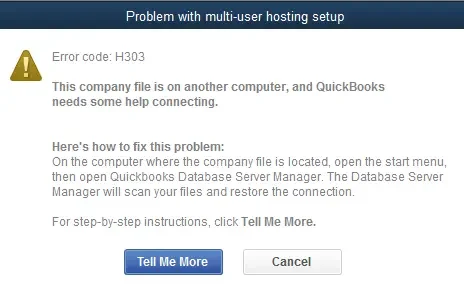
In this guide, we’ll explain the causes, symptoms, and effective solutions to fix QuickBooks Desktop Error H303 and restore multi-user access.
| Parameter | Details |
| Error Name | QuickBooks Error H303 |
| Error Category | Multi-user Mode Error |
| Common Error Message | “This company file is on another computer, and QuickBooks needs some help connecting.” |
| Possible Causes | Incorrect hosting settings, firewall restrictions, network issues, damaged .ND file, QuickBooks Database Server Manager issues. |
| Recommended Fixes | Verify hosting settings, run QuickBooks Database Server Manager, rename the .ND file, configure firewall settings, use QuickBooks File Doctor. |
The Intuit QuickBooks Error H303 in QuickBooks indicates that the software is unable to connect to the company file stored on another computer in a multi-user environment. Users may encounter this error when a workstation tries to access the shared company file, but QuickBooks can not communicate with the server hosting it.
This issue is often caused by incorrect hosting settings, network connectivity problems, firewall restrictions, or an issue with QuickBooks Database Server Manager.
Once the underlying network or hosting issue is identified, the error can often be resolved with the appropriate troubleshooting steps.
QuickBooks Error H303 occurs when the workstations can’t communicate with the server hosting the company file. Identifying the root causes can help you apply the best fixes and restore multi-user access more quickly. Here are the primary causes of this error:
Before applying the troubleshooting methods, you should check a few basic settings to make sure the problem is not caused by a simple configuration issue:
Intuit QuickBooks Error H303 in QuickBooks is mainly related to connection problems in multi-user mode. Before trying advanced troubleshooting, make sure the company file is stored on the server computer and all systems are connected to the same network. Follow the solutions below one by one to identify and fix the issue.
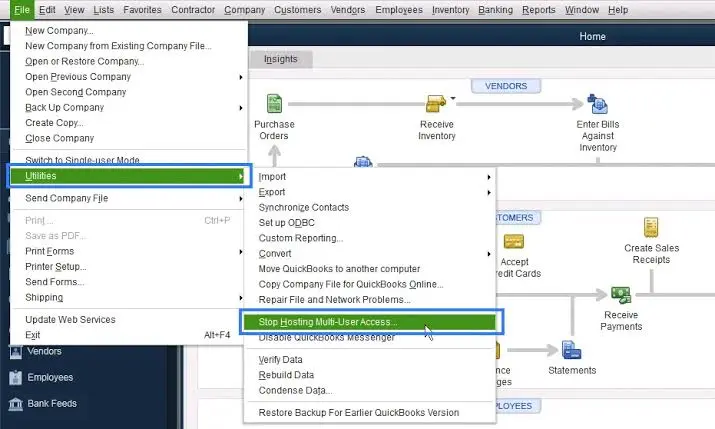
If the hosting is enabled on a workstation, QuickBooks may fail to connect with the server and show QuickBooks Error H303. This issue can affect users of QuickBooks Premier Hosting, QuickBooks Desktop Enterprise Hosting, QuickBooks Accountant Hosting, or QuickBooks Pro Hosting. follow the steps below:
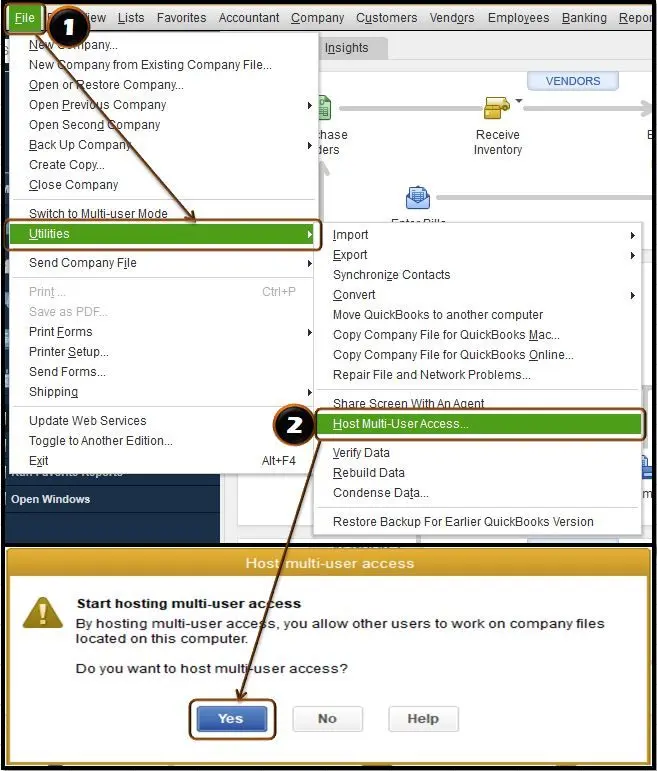
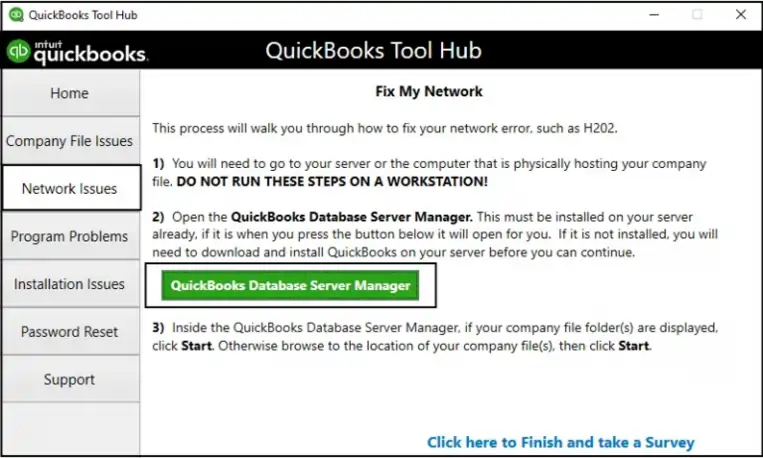
QuickBooks Database Server Manager plays an important role in sharing company files across a network. If it is not installed properly, workstations may not be able to connect with the server. Follow these steps:
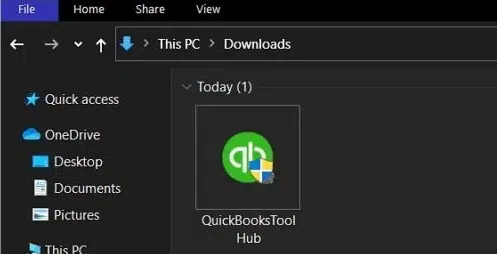
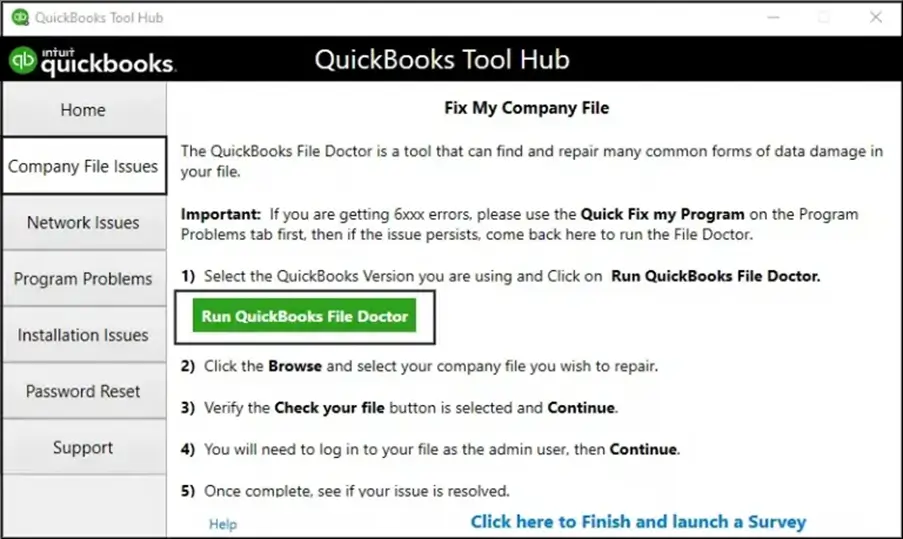
Sometimes, the QuickBooks Error H303 appears because of problems with the company file or network connection. QuickBooks File Doctor can check for these issues and repair common errors. To run File Doctor, perform these steps:
Your firewall protects the system from unwanted connections, but sometimes it can also block QuickBooks from communicating with the server. When QuickBooks-related services cannot access the network, QuickBooks Error H303 may appear. To check firewall settings:
QuickBooks uses the Network Data (.ND) file to identify the company file location on the network. If this File becomes damaged, QuickBooks may have trouble connecting with the server. Here are the steps to follow:
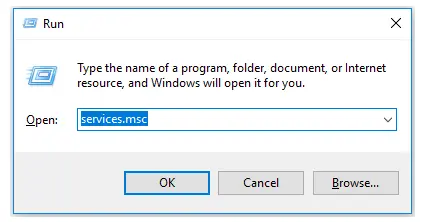
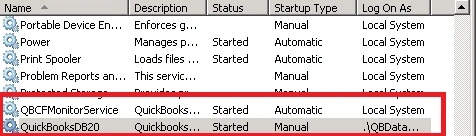
QuickBooks depends on background services to support multi-user access. If these services are stopped, workstations may not be able to connect to the company file. To check the services:
Windows permissions control who can access folders and files on the system. If the company file folder does not have the right permissions, QuickBooks may block access from other computers.
You need to check the folder where your company file is stored and make sure users have permission to read, write, and modify files in the location.
QuickBooks multi-user mode depends on a stable connection between the server and connected workstations. If the computers cannot communicate properly, QuickBooks may fail to locate the company file and display QuickBooks Multi-user Error H303. To check the network connection:
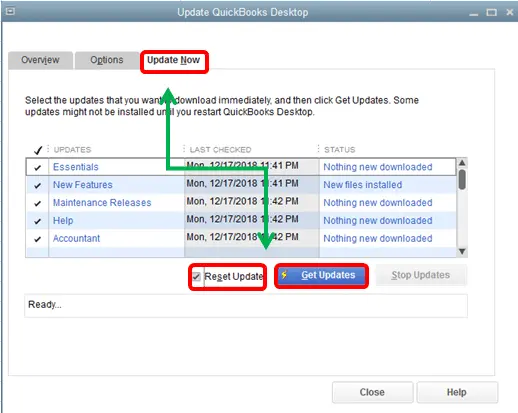
Using an outdated version of QuickBooks Desktop can sometimes create compatibility issues with multi-user features. Updating the QuickBooks make sure that you have the latest improvements, security updates, and bug fixes. To update QuickBooks:
Once QuickBooks Error H303 is resolved, maintaining the right settings can help prevent the issue from coming back. Follow these simple practices to keep QuickBooks multi-user mode running smoothly:
Hope you have understood the reasons behind the QuickBooks error H303 and the steps required to resolve it. Working in multi-user mode requires proper communication between the server and workstations, and any problem with hosting settings, network configuration, or QuickBooks services can interrupt access to the company file.
By following the troubleshooting methods discussed above, you can identify the cause and restore smooth multi-user access. If you still encounter the same error or need immediate help, reach out to the Data Service Team Experts at +1(888)-718-7888.
To keep QuickBooks multi-user mode working smoothly, make sure all computers are connected to the same network, keep QuickBooks updated, maintain correct hosting settings, and regularly check firewall permissions.
You can start by checking the hosting settings and network connection. Make sure the company file is stored on the server computer and that only the server has multi-user hosting enabled.
Yes, in some cases, Windows updates can affect firewall settings, network permissions, or QuickBooks related services. These changes may prevent QuickBooks from connecting with the server and lead to Error H303.
All these errors are related to QuickBooks multi-user mode, but they occur due to different connection problems.
H101: It generally comes when a workstation needs additional configuration to access a company file stored on another computer.
H202: You may face this error code H202 when QuickBooks can not communicate with the server hosting the company file.
H303: This appears when QuickBooks requires additional configuration to connect with a company file located on another computer.
H505: Happens when a workstation tries to host a company file or when hosting settings are incorrect.
If the error keeps coming back, check for ongoing network issues, incorrect hosting settings, firewall restrictions, or problems with QuickBooks Database Server Manager. Updating QuickBooks and reviewing folder permissions can also help prevent the issue from repeating.
Other computers may not be able to access the company file because of network connection problems, disabled hosting settings, blocked firewall ports, incorrect folder permissions, or issues with QuickBooks Database Server Manager.

Get Free Consultation for QuickBooks Upgrade
(2021, 2022, 2023)


