
Sending the invoices, forms, or other documents through QuickBooks can become frustrating when the QuickBooks QBmapi64 Out of Memory Error suddenly appears. The error may prevent QuickBooks from sending emails, and in some cases, the program may freeze or stop responding.
The error doesn’t always mean that your computer is low on memory. It can also be caused by issues with Microsoft Outlook, QuickBooks settings, Windows components, damaged program files, or the MAPI email service.
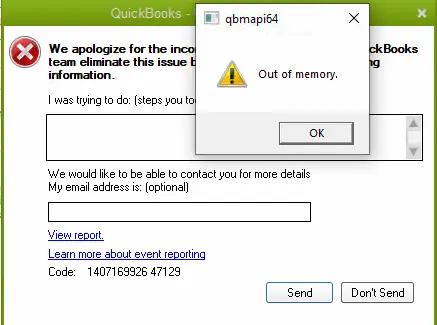
In this guide, we’ll look at the common reasons behind this error and walk you through simple solutions to get QuickBooks working normally again.
The QuickBooks QBmapi64 Out of Memory Error can happen for different reasons, especially when QuickBooks is trying to send an invoice, form, or other document by email. The problem may be related to QuickBooks itself or another program that QuickBooks uses to send emails. Look at the common causes of this error below:
The QuickBooks QBmapi64 out of memory error normally occurs when you try to email an invoice, form, or other document from QuickBooks Desktop. You may notice one or more of these signs:
If the problem occurs only when QuickBooks is using Outlook for email, checking Outlook, QuickBooks email preferences, and the MAPI connection can help you identify the source of the issue.
Now that you know what can cause the error, it’s time to work on fixing it. Start with the simpler solutions first, as they can often resolve the problem without changing any advanced Windows settings.
Before trying anything complicated, check whether QuickBooks is up to date. An older version may not work properly with Windows or Outlook, which can lead to problems when you try to send an invoice or other form by email.
To update QuickBooks:
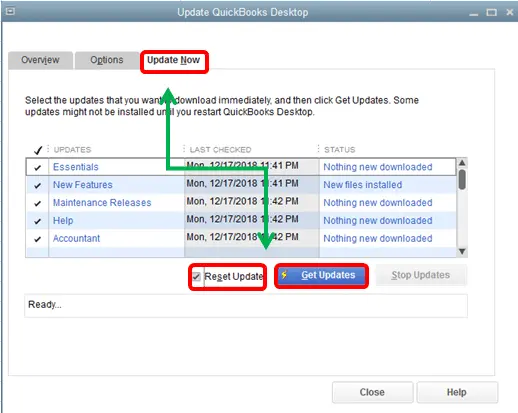
If you still get the QBmapi64 Out of Memory Error, continue with the next solution.
If you use Outlook to send invoices or other forms from QuickBooks, an outdated Outlook version can sometimes cause problems. Updating Office is a simple step and may fix the issue without changing your QuickBooks settings.
To update Outlook:
If the error still appears, move on to the next solution.
If your QuickBooks program does not have enough permission to work properly with Outlook or other Windows services, you may face the QBmapi64 Out of Memory Error. Running it as an administrator gives QuickBooks the permissions it needs. Here’s how:
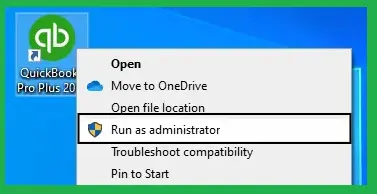
If the QuickBooks QBmapi64 Out of Memory Error still shows up, try the next solution.
QuickBooks relies on the email application configured in Windows when you use Outlook to send forms. If another mail app is set as the default, QuickBooks may not communicate with Outlook as expected.
To make Outlook your default mail app, follow these steps:
If the QuickBooks QBmapi64 Out of Memory Error still appears, continue to the next troubleshooting step.
Incorrect or outdated QuickBooks Email Setup can also interfere with sending forms from QuickBooks.
Here’s how to review the email preferences:
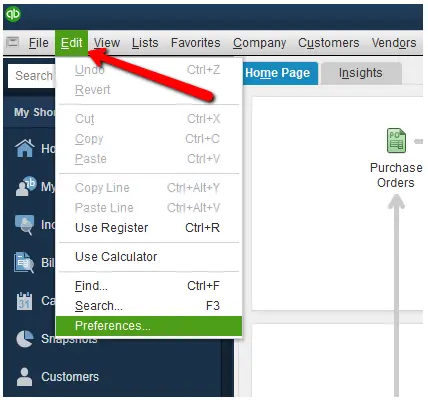
If QuickBooks still displays the QBmapi64 Out of Memory Error, continue with the next solution.
The QuickBooks QBmapi64 Out of Memory Error does not always mean your computer needs more RAM. Other programs may be using too much memory, leaving less available for QuickBooks.
Before adding more RAM, check which programs are using the most memory.
Avoid ending Windows processes or unfamiliar system services unless you know what they do.
Sometimes, the problem is caused by a damaged QuickBooks program file. QuickBooks Tool Hub can help repair common program issues.
Here’s what to do:
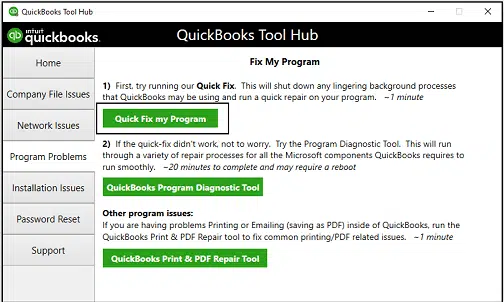
If the error is still there, try the next solution.
Sometimes, the problem may be with a particular company file rather than QuickBooks itself. You can check this by opening a sample company file.
If the email works from the sample file but not from your company file, your company file may have an issue. In that case, you can use QuickBooks’ data verification and repair tools to check the File.
If the same error appears with the sample file, move to the next solution.
If QuickBooks is still unable to send emails, the problem may be related to Outlook not responding, Outlook configuration, or the Windows MAPI email service. A simple way to check is to try sending an email or document through Outlook from another Office application, such as Word.
This check can help you understand where the problem is before trying more advanced fixes.
If the QuickBooks QBmapi64 out of memory error continues after trying the solutions above, the problem may be related to Microsoft Office, Outlook, MAPI, or the QuickBooks installation. In this situation, you can try the following:
You can reduce the chances of seeing the QuickBooks QBmapi64 out of memory error by keeping QuickBooks and the programs it works with properly updated and configured. Follow these simple tips:
The QuickBooks QBmapi64 out of memory error can disrupt your workflow when you need to send invoices, forms, or other documents from QuickBooks. By following the above-mentioned solutions, you can easily fix this problem. Before making any advanced settings, you should first identify where the problem occurs.
To fix this error, check your QuickBooks and Outlook updates, email preferences, and available system memory. If those checks don’t help, use QuickBooks Tool Hub and Outlook/MAPI testing.
If the error continues after completing these steps, you can contact Data Service Team at +1(888)-718-7888 live specialists to resolve the problem.
The QBmapi64 “Out of Memory” Error can occur when QuickBooks fails to send invoices, forms, or other documents through email. This error can occur due to outdated QuickBooks or Outlook, incorrect email settings, or limited system resources may contribute to the error.
You may see a QuickBooks QBmapi64 Out of Memory Error message when sending an invoice, form, or PDF through email. You may also find that your system is freezing unexpectedly and having trouble communicating with Outlook.
First, update your QuickBooks and Outlook, then run QuickBooks as an administrator, close unnecessary programs, and use QuickBooks Tool Hub to repair the program. You can also test a sample company file to determine whether the issue is specific to your company file.
Yes, QuickBooks relies on Outlook and Windows email components when sending forms and invoices. An outdated Outlook installation, incorrect default email app, or incorrect QuickBooks email preferences can interfere with the email process and may trigger the error.
Yes, an outdated QuickBooks version may have compatibility issues with Windows or Outlook. Updating QuickBooks to the latest available release can help resolve compatibility problems and other known issues.
QuickBooks Tool Hub can help when the error is related to a QuickBooks program or installation problem. You can use Quick Fix My Program to repair common program issues.
You should keep your QuickBooks, Outlook, and Windows updated and make sure your email settings are configured correctly. It also helps to close unnecessary programs.
If the error continues after completing the recommended troubleshooting steps. In that case, you can reach out to the Data Service Team experts for further Help.




